

Have you ever wondered if you can boost your laptop’s gaming or design power without buying a new one? The idea of upgrading your laptop’s GPU sounds perfect—more speed, better graphics, and smoother performance.
But is it really possible? You might be surprised by the answer. You’ll discover the truth about laptop GPU upgrades, what works, what doesn’t, and the best options to get the most from your machine. Keep reading to unlock the secrets that could save you money and supercharge your laptop!

Credit: www.youtube.com
Laptop Gpu Basics
Laptop GPUs handle graphics processing for your device. They affect gaming, video editing, and design work. Understanding the basics helps decide if upgrading is possible or needed. Different laptops come with different types of GPUs. Knowing these types clears up many questions.
Integrated Vs Dedicated Gpus
Integrated GPUs share memory with the laptop’s main processor. They use less power and create less heat. This makes laptops lighter and battery-friendly. But integrated GPUs are not strong for heavy graphics tasks.
Dedicated GPUs have their own memory and power source. They deliver better performance for games and creative apps. These GPUs generate more heat and use more battery. Laptops with dedicated GPUs are often thicker and heavier.
Common Laptop Gpu Models
Popular integrated GPUs come from Intel and AMD. Intel Iris Xe and AMD Radeon Graphics are common examples. They handle daily tasks and some light gaming.
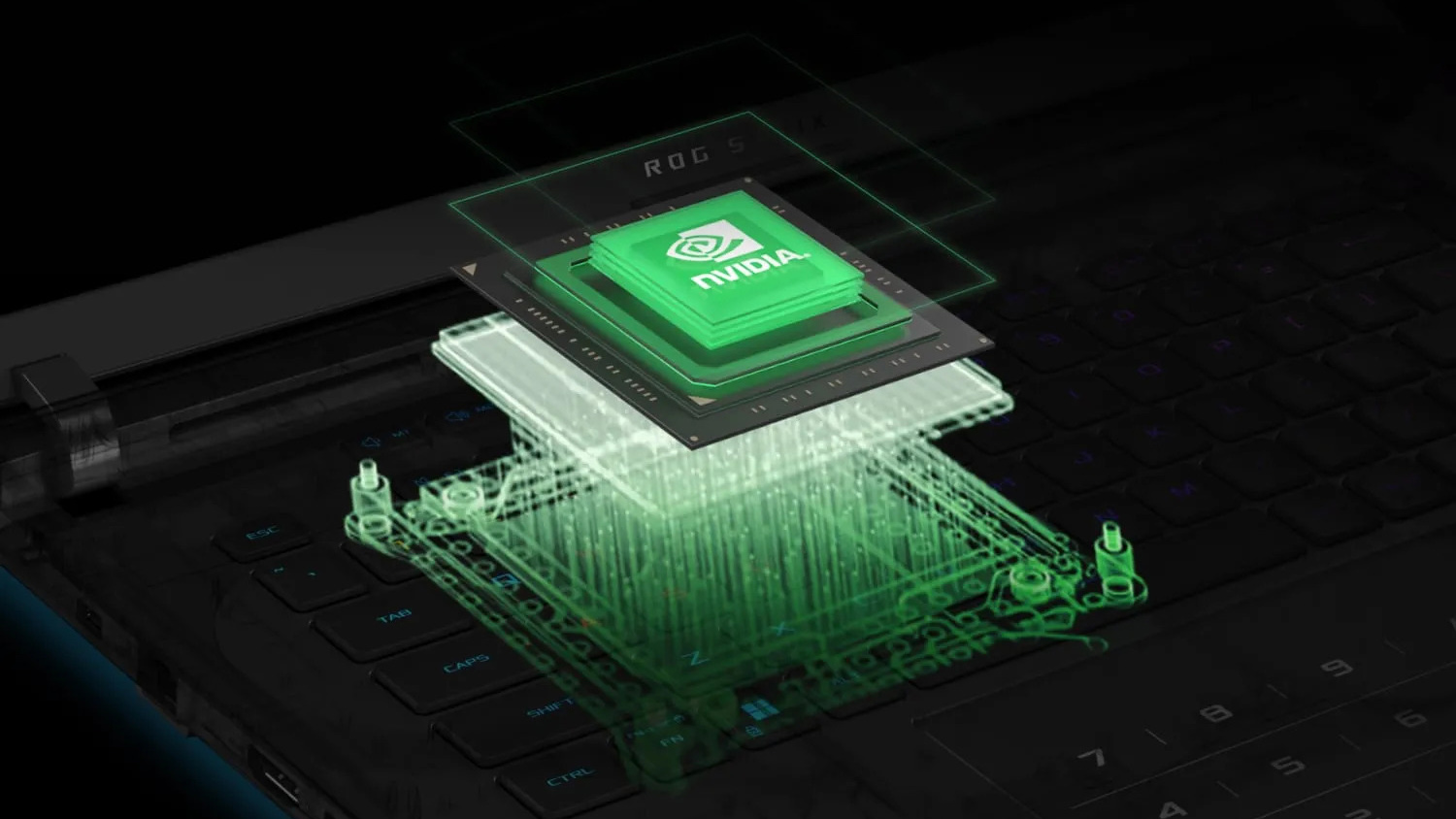
Dedicated GPUs usually come from Nvidia or AMD. Nvidia GeForce GTX and RTX series are widely used. AMD Radeon RX series also offers strong performance. Each model suits different needs and budgets.
Credit: rog.asus.com
Signs You Need A Gpu Upgrade
Knowing when your laptop needs a GPU upgrade is important. The graphics card affects many tasks. It impacts gaming, video editing, and design work. Some signs clearly show your GPU struggles.
These signs help you decide if upgrading is necessary. Pay attention to how your laptop performs. Notice delays, crashes, or poor image quality.
Performance Bottlenecks
Your laptop slows down during graphic-heavy tasks. Videos may lag or stutter. Programs that use the GPU take longer to run. Frame rates drop in games, causing choppy visuals. These problems often mean your GPU is outdated.
Other parts might be fast, but the GPU limits speed. This causes a bottleneck. Upgrading the GPU can improve overall performance and smoothness.
Gaming And Creative Work Demands
Modern games need strong graphics cards to run well. If games run poorly or at low settings, the GPU may be the cause. Creative software like video editors and 3D tools also need good GPUs.
Slow rendering or long export times show the GPU struggles. Upgrading helps handle higher resolution and complex effects. Your work or play will feel faster and look better.
Laptop Gpu Upgrade Possibilities
Laptop GPUs affect gaming, video editing, and other graphic tasks. Many users want better performance. Upgrading a laptop GPU sounds like a good idea. Yet, laptops differ from desktops in upgrade options.
Some laptops allow GPU upgrades. Others have limits that stop changes. Knowing these possibilities helps avoid mistakes. It saves time and money.
Upgradeable Gpus Explained
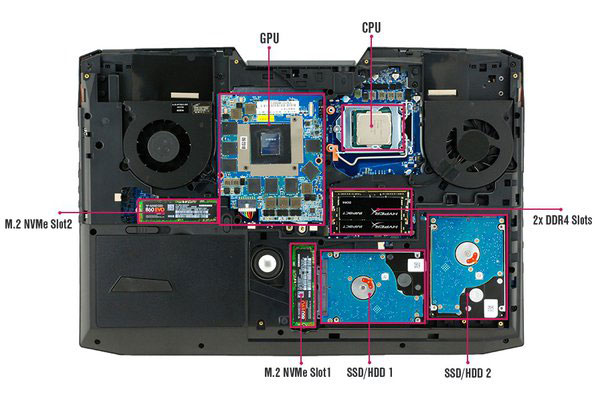
Some laptops use modular GPUs. These are separate cards that plug into the motherboard. They look like small desktop graphics cards. Users can remove the old GPU and add a new one. This process is similar to desktop upgrades.
Modular GPUs are rare in laptops. Usually found in high-end gaming or professional models. These laptops have special connectors and cooling systems. They support better GPU upgrades than most models.
Upgrading a modular GPU improves graphics power. It helps run new games and software smoothly. The upgrade is also easier to do than other laptop changes.
Soldered Gpus And Limitations
Most laptops have GPUs soldered directly on the motherboard. Soldered means the GPU is permanently fixed in place. Removing or changing it is almost impossible. This design saves space and reduces costs.
Soldered GPUs limit upgrade options severely. Users cannot swap the GPU alone. To get a better GPU, they must replace the entire motherboard. This is often expensive and not practical.
Many budget and mid-range laptops use soldered GPUs. These models focus on portability and price. Upgrading GPU usually means buying a new laptop. External GPU setups exist but need special ports and extra gear.
External Gpu (egpu) Solutions
External GPU (eGPU) solutions offer a way to boost your laptop’s graphics power. This option helps users who need better graphics for gaming, video editing, or 3D work. An eGPU connects to your laptop and works like a desktop graphics card.
What Is An Egpu?
An eGPU is a separate graphics card housed in an external box. It connects to your laptop through a fast port, usually Thunderbolt 3 or 4. This setup allows your laptop to use a powerful desktop-grade GPU. It improves graphics performance without opening your laptop.
Compatibility And Setup
Not all laptops support eGPUs. Your laptop must have a compatible port, like Thunderbolt 3. You also need drivers that support external graphics cards. Setting up an eGPU involves connecting the box, installing drivers, and sometimes changing settings. The process is mostly plug-and-play but may need some tweaking.
Performance Gains With Egpus
An eGPU can greatly improve graphics performance. You get faster frame rates and smoother visuals in games and apps. The speed depends on your laptop’s connection and the GPU inside the eGPU box. While not as fast as a desktop, it still offers a big boost over built-in laptop graphics.
Step-by-step Gpu Upgrade Process
Upgrading a laptop GPU is tricky but possible in some models. The process requires careful steps to avoid damage. Follow these steps to improve your laptop’s graphics power safely.
Checking Laptop Specifications
Start by knowing your laptop’s model and specs. Check if the GPU is soldered or removable. Use system info tools or check the user manual. Confirm the power supply and cooling system can handle a new GPU. These details prevent buying incompatible parts.
Selecting The Right Gpu
Choose a GPU that fits your laptop’s slot type and size. Match the power requirements with your laptop’s battery and cooling. Consider the driver support and compatibility with your operating system. Pick a GPU that offers better performance without causing overheating.
Installation Tips And Precautions
Turn off the laptop and unplug all cables. Ground yourself to avoid static electricity damage. Remove the back panel carefully using the right tools. Disconnect the old GPU gently, noting how it was installed. Place the new GPU firmly in the slot. Reassemble the laptop and check for loose parts. Power on and install the latest drivers. Test the GPU with simple tasks before heavy use.
Alternative Ways To Boost Graphics
Upgrading the GPU in a laptop is often difficult or impossible. Many laptops have GPUs soldered to the motherboard. Still, you can improve graphics performance in other ways. These methods help your laptop run games and apps smoother.
Focus on software and hardware tweaks. They cost less and are easier to do. Here are some effective alternative ways to boost your laptop’s graphics.
Driver Updates
Graphics drivers control how your GPU works with software. Updating drivers can fix bugs and improve performance. Check your laptop or GPU maker’s website for the latest drivers. Install updates regularly to keep your system running well. New drivers often bring better support for new games and apps.
Optimizing Software Settings
Adjusting game or app settings can improve visuals and speed. Lower resolution and turn off extra effects like shadows or reflections. Use built-in performance modes if available. Closing background apps frees up memory and CPU power. These tweaks help your laptop focus on graphics tasks.
Upgrading Other Hardware Components
Improving parts besides the GPU can boost graphics indirectly. Adding more RAM helps games run smoother. A faster storage drive like an SSD speeds up loading times. Upgrading your laptop’s cooling system can prevent overheating. Cooler hardware works better and lasts longer.
Cost Vs Benefit Analysis
Upgrading the GPU in a laptop involves weighing costs against benefits. This analysis helps decide if upgrading is worth the effort and money. Many factors affect this choice, including price, performance gain, and laptop compatibility.
Evaluating Upgrade Costs
GPU upgrades in laptops can be expensive. Many laptops do not support GPU upgrades because of fixed hardware. External GPU enclosures exist but add extra cost and bulk. Replacing or upgrading a GPU may require professional help, increasing expenses. Consider the price of the GPU itself and any extra parts needed. Also, check if the laptop’s cooling system can handle a stronger GPU. If not, additional upgrades might be necessary. These costs can add up quickly and reduce the value of upgrading.
When To Consider A New Laptop
Sometimes, buying a new laptop is better than upgrading. New laptops come with the latest GPUs and better performance. This option may save money and time in the long run. A new laptop often has improved battery life and newer features. If your laptop is old or has many limitations, upgrading might not help much. Think about how long you plan to use the laptop before deciding. A new device can offer a more balanced upgrade than swapping parts.
Credit: www.partitionwizard.com
Frequently Asked Questions
Can I Upgrade The Gpu In Any Laptop?
Most laptops have GPUs soldered onto the motherboard. Only a few models with MXM slots allow GPU upgrades. Check your laptop’s specifications to see if an upgrade is possible.
What Are The Benefits Of Upgrading A Laptop Gpu?
Upgrading a laptop GPU can improve gaming performance, video editing, and 3D rendering speed. It also extends the laptop’s usable life for graphic-intensive tasks.
How Much Does A Laptop Gpu Upgrade Cost?
Costs vary widely, typically between $200 to $800. The price depends on the GPU model, labor fees, and laptop compatibility. Always consider if the upgrade is cost-effective.
Are External Gpus A Good Alternative For Laptops?
Yes, external GPUs (eGPUs) connect via Thunderbolt ports and boost graphics power. They are a flexible, easier alternative when internal GPU upgrades aren’t possible.
Conclusion
Upgrading a laptop GPU is often difficult and limited. Most laptops have GPUs soldered to the motherboard. Some gaming laptops allow GPU swaps, but these are rare. External GPU options exist but need extra gear and cost more. For better graphics, buying a new laptop might be easier.
Consider your needs and budget before deciding. Understanding these facts helps avoid frustration later. Choose the best option that fits your situation.
