
Are you wondering if you can upgrade your laptop GPU to boost performance? You’re not alone.
Many people want to know if they can give their laptop a graphics makeover without buying a whole new machine. The idea of playing games faster, editing videos smoother, or running design software better is tempting. But is it really possible?
Keep reading to find out the truth about laptop GPU upgrades and what options you have to power up your device.
Laptop Gpu Basics
Understanding the basics of a laptop GPU helps in deciding about upgrades. A GPU affects how your laptop handles graphics and videos. It plays a key role in gaming, video editing, and 3D work.
Knowing what a GPU does and how it differs from a CPU is important. Also, laptops come with different types of GPUs. This knowledge helps you choose the right one for your needs.
What Is A Gpu?
A GPU, or Graphics Processing Unit, handles images and videos on your screen. It makes graphics look smooth and detailed. Without a GPU, your laptop would struggle with visual tasks.
GPUs work alongside the CPU but focus on graphics. They help run games, watch videos, and use design software smoothly.
Gpu Vs Cpu
The CPU, or Central Processing Unit, is the laptop’s main brain. It handles all general tasks like running programs and the operating system.
The GPU focuses only on graphics and visuals. It processes many tasks at once, making graphics faster and clearer.
Both work together but have different jobs. The CPU is for overall control, while the GPU is for graphics power.
Types Of Laptop Gpus
Laptops usually have two types of GPUs: integrated and dedicated. Integrated GPUs share memory with the CPU. They use less power but are less powerful.
Dedicated GPUs have their own memory and power. They deliver better graphics and are great for gaming and editing.
Choosing the right type depends on what you need your laptop to do. Basic tasks need integrated GPUs. Heavy graphics work requires dedicated GPUs.
Credit: www.liftingitalia.com
Laptop Gpu Upgrade Options
Upgrading a laptop GPU is not as simple as upgrading a desktop GPU. Laptops have different designs and limitations. This section explores the main options for laptop GPU upgrades. Understanding these options helps choose the right path for better graphics performance.
Integrated Vs Dedicated Gpus
Integrated GPUs share memory with the CPU. They are built into the processor and cannot be upgraded. These GPUs are good for basic tasks but struggle with heavy graphics work.
Dedicated GPUs have their own memory and power. They provide better performance for gaming and creative work. Most laptops with dedicated GPUs still do not allow easy upgrades. The GPU is often soldered to the motherboard.
External Gpu (egpu) Solutions
An external GPU connects to the laptop via Thunderbolt or USB-C ports. It allows adding powerful graphics cards without opening the laptop. eGPUs improve gaming and 3D rendering performance significantly.
This option is popular for users needing more power temporarily. It requires an external enclosure and a compatible graphics card. Not all laptops support eGPUs, so checking compatibility is essential.
Replacing Internal Gpus
Replacing the internal GPU is rare and difficult. Most laptops have GPUs soldered to the motherboard. This design makes swapping GPUs impossible for most users.
Some high-end gaming or workstation laptops use modular GPUs. These allow replacement but are expensive and not common. Opening the laptop and replacing the GPU requires technical skills.
Checking Laptop Compatibility
Before upgrading your laptop GPU, check if your device can support the new hardware. Not all laptops allow GPU upgrades. Some parts must match perfectly for the upgrade to work well. This section helps you understand what to look for in your laptop.
Identifying Your Laptop Model
Find your laptop model number first. This number helps you find exact details about your device. Check the bottom of your laptop or inside the battery compartment. Use system settings or run a command to get the model too.
Knowing the model helps you search for upgrade guides and compatible parts. It shows if your laptop uses a soldered GPU or a removable one.
Motherboard And Bios Limitations
Your laptop’s motherboard must support the new GPU. Some motherboards have fixed slots or no slots at all. BIOS firmware can also limit hardware changes.
Check if BIOS updates exist for better hardware support. A mismatch can cause the laptop not to start or work improperly.
Power And Cooling Considerations
Upgraded GPUs often need more power. Your laptop’s power supply must handle this increase. Cooling systems must also be strong enough to keep the new GPU cool.
Overheating can damage parts or reduce performance. Check fan capacity and heat pipes before upgrading.
External Gpu Setup Guide
Setting up an external GPU (eGPU) can boost your laptop’s graphics power. This guide covers the main steps to connect and use an eGPU correctly. Follow these tips to enhance your laptop’s gaming and graphic tasks.
Choosing The Right Egpu Enclosure
Pick an enclosure that fits your budget and needs. Check the size to ensure your GPU fits inside. Look for good cooling to keep the GPU from overheating. Power supply capacity is key; make sure it supports your GPU’s power needs. Some enclosures include extra ports for USB and Ethernet.
Supported Connection Types
Most eGPUs connect via Thunderbolt 3 or 4 ports. Thunderbolt offers fast data transfer and low latency. USB-C ports may support eGPUs but are slower. Some setups use older PCIe connections but are less common. Confirm your laptop supports the connection type before buying an eGPU.
Installation And Configuration
Start by turning off your laptop and connecting the eGPU enclosure. Insert the GPU into the enclosure and plug in the power. Turn on the enclosure and then the laptop. Install the latest drivers from the GPU manufacturer’s website. Restart your laptop and check device manager to confirm the eGPU works. Use your laptop’s settings or software to switch graphics to the eGPU.
Internal Gpu Replacement Challenges
Upgrading a laptop’s internal GPU is not as simple as swapping parts in a desktop. Many laptops have designs that limit or block GPU replacement. Understanding these challenges helps manage expectations and avoid costly mistakes.
Most laptops use GPUs that are fixed to the motherboard. This design saves space but makes upgrades difficult or impossible. Only a few models offer options for GPU upgrades through modular parts.
Soldered Gpus Explained
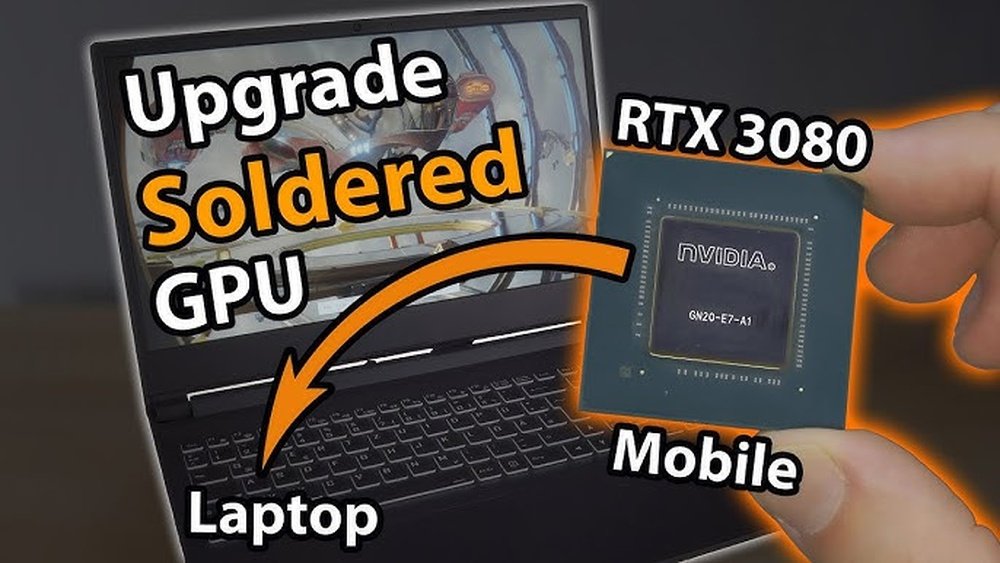
Many laptop GPUs are soldered directly onto the motherboard. This means the GPU chip is permanently attached. Removing or replacing the GPU requires specialized tools and skills.
Soldered GPUs cannot be replaced by users. Attempting to do so may damage the laptop. This setup is common in thin and light laptops to save space and reduce weight.
Modular Gpu Laptops
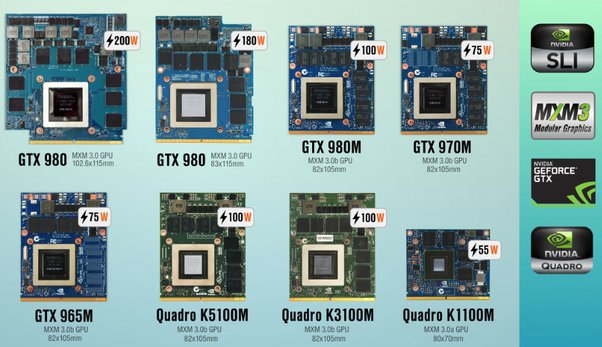
Some laptops have modular GPUs that are not soldered. These GPUs use MXM (Mobile PCI Express Module) slots. Users can remove and replace the GPU like a desktop card.
Modular GPU laptops are rare and usually expensive. They allow easier upgrades but still require technical knowledge. Compatibility with new GPUs can be limited.
Risks And Warranty Issues
Replacing a laptop GPU carries risks. Damage can occur during removal or installation. Even experts can cause problems that affect laptop function.
Opening the laptop often voids the warranty. Manufacturers do not support repairs done by users. Warranty loss means no free repairs if something goes wrong later.

Credit: www.youtube.com
Performance Gains And Expectations
Upgrading a laptop GPU can bring noticeable performance gains. These improvements depend on the hardware and the tasks you run. Knowing what to expect helps you decide if upgrading is worth it.
Some laptops allow GPU upgrades, but many do not. Performance gains vary with the new GPU’s power and your laptop’s cooling ability.
Benchmarking Before And After
Benchmark tests show clear numbers for GPU performance. Running benchmarks before and after the upgrade helps measure gains. Look for higher scores in graphics and compute tests. This data proves the upgrade’s impact.
Real-world Gaming Improvements
Games run smoother with a better GPU. Frame rates rise, and graphics look sharper. Older games may run at higher settings. Newer titles can become playable instead of laggy. Expect fewer stutters and faster load times.
Workstation And Creative Work Benefits
Creative software like video editors and 3D programs use GPUs heavily. A stronger GPU reduces render times and improves previews. It speeds up tasks like video encoding and 3D modeling. This makes creative work faster and less frustrating.
Alternative Ways To Boost Laptop Graphics
Upgrading a laptop GPU is often difficult or impossible. Many laptops have GPUs soldered to the motherboard. This limits options for direct hardware upgrades. Still, there are ways to improve your laptop’s graphics performance without changing the GPU itself.
These methods can help you get better visuals and smoother gameplay. They focus on software tweaks and hardware improvements that support the GPU. Understanding these options can enhance your laptop’s graphics without buying a new machine.
Driver Updates And Optimization
Keeping your GPU drivers updated is essential. New drivers fix bugs and improve performance. They also add support for newer games and apps. Use the official website or software to check for updates regularly.
Optimize your graphics settings for the best balance. Lowering resolution and detail can boost frame rates. Turning off unnecessary effects helps the GPU work better. Clean your laptop’s vents to avoid overheating, which slows down the GPU.
Overclocking Gpus Safely
Overclocking means increasing the GPU’s speed beyond factory settings. It can improve graphics performance but risks overheating or damage. Use trusted software designed for your GPU model.
Start with small speed increases and test stability. Monitor temperatures closely to avoid damage. Stop if the system crashes or shows errors. Overclocking may shorten hardware life, so proceed with caution.
Upgrading Other Components
Improving other parts can help your GPU work better. Adding more RAM supports smoother multitasking and gaming. Using a faster SSD reduces load times and speeds up data access.
Some laptops allow external GPUs via ports like Thunderbolt 3. This option boosts graphics power but requires extra hardware. Check your laptop’s compatibility before considering this upgrade.
Cost Vs Benefit Analysis
Understanding the cost versus benefit of upgrading a laptop GPU is key. The decision impacts your budget and the device’s performance. This section breaks down the costs and compares them to buying a new laptop. It also looks at the long-term value of each choice.
Price Of Upgrades
Upgrading a laptop GPU is often expensive. Many laptops have GPUs soldered to the motherboard. This means you cannot change them easily. External GPU setups exist but require extra hardware and money. The cost of parts and labor can add up quickly.
Even if your laptop allows GPU upgrades, compatible parts are rare. Prices for these parts are usually higher than desktop GPUs. You must also consider the risk of damage during installation. Repair costs can exceed the upgrade price.
Comparing New Laptop Purchase
Buying a new laptop can be a better option. New laptops come with updated GPUs and other components. This means better overall performance and efficiency. You get a warranty and support with a new device. The price may be similar to or less than an upgrade.
New laptops also have improved battery life and modern features. Upgrading only the GPU may not improve these areas. A new laptop offers a full system boost instead of a single part upgrade.
Long-term Value Considerations
Think about how long you will use your laptop after upgrading. A GPU upgrade may extend its life by a short time. New laptops last longer and keep up with future software. They also receive better updates and security patches.
Consider the resale value too. New laptops hold value better than old models with upgrades. The overall experience matters more than just GPU performance. A new laptop often gives better value over time.
Credit: www.shoshitamam.com
Frequently Asked Questions
Can I Upgrade My Laptop Gpu Easily?
Upgrading a laptop GPU is usually difficult. Most laptops have GPUs soldered onto the motherboard. Only some gaming laptops or mobile workstations support GPU upgrades via MXM modules.
What Laptops Allow Gpu Upgrades?
High-end gaming laptops and mobile workstations sometimes support GPU upgrades. These laptops use modular MXM GPUs. Always check the manufacturer’s specifications before attempting an upgrade.
Will Upgrading Laptop Gpu Improve Gaming?
Upgrading your laptop GPU can boost gaming performance. However, compatibility and thermal limitations may restrict upgrade options. A new laptop might be a better choice if performance is crucial.
Are External Gpu Docks A Good Alternative?
Yes, external GPU docks connect via Thunderbolt 3 or 4 ports. They can significantly improve graphics performance without opening the laptop. However, they are costly and require compatible hardware.
Conclusion
Upgrading a laptop GPU is not always simple or possible. Many laptops have GPUs soldered to the motherboard. Some gaming or workstation laptops allow GPU upgrades. Check your laptop’s model and support before buying parts. External GPU options exist but need extra equipment.
Balance costs and benefits carefully to avoid wasted money. Knowing your laptop’s limits helps you make smart choices. Choose the best option that fits your needs and budget.
