
Have you ever wondered if you can replace your laptop’s GPU to boost its performance? Maybe your games are lagging, or your video editing feels slow, and you’re hoping for a simple fix without buying a new laptop.
The idea of swapping out that tiny chip might sound tempting, but is it really possible? You’ll discover the truth about laptop GPU upgrades, what challenges you might face, and whether it’s worth your time and money. Keep reading to find out if your laptop’s graphics can get a fresh new life—or if you need to consider other options.
Credit: ameelectrical.co.uk
Laptop Gpu Basics
Understanding laptop GPUs is important before replacing one. A GPU, or graphics processing unit, handles images and videos on your laptop. It affects gaming, video editing, and general display quality. Not all laptops have the same GPU setup. Knowing the basics helps in deciding if you can replace your laptop GPU.
Types Of Laptop Gpus
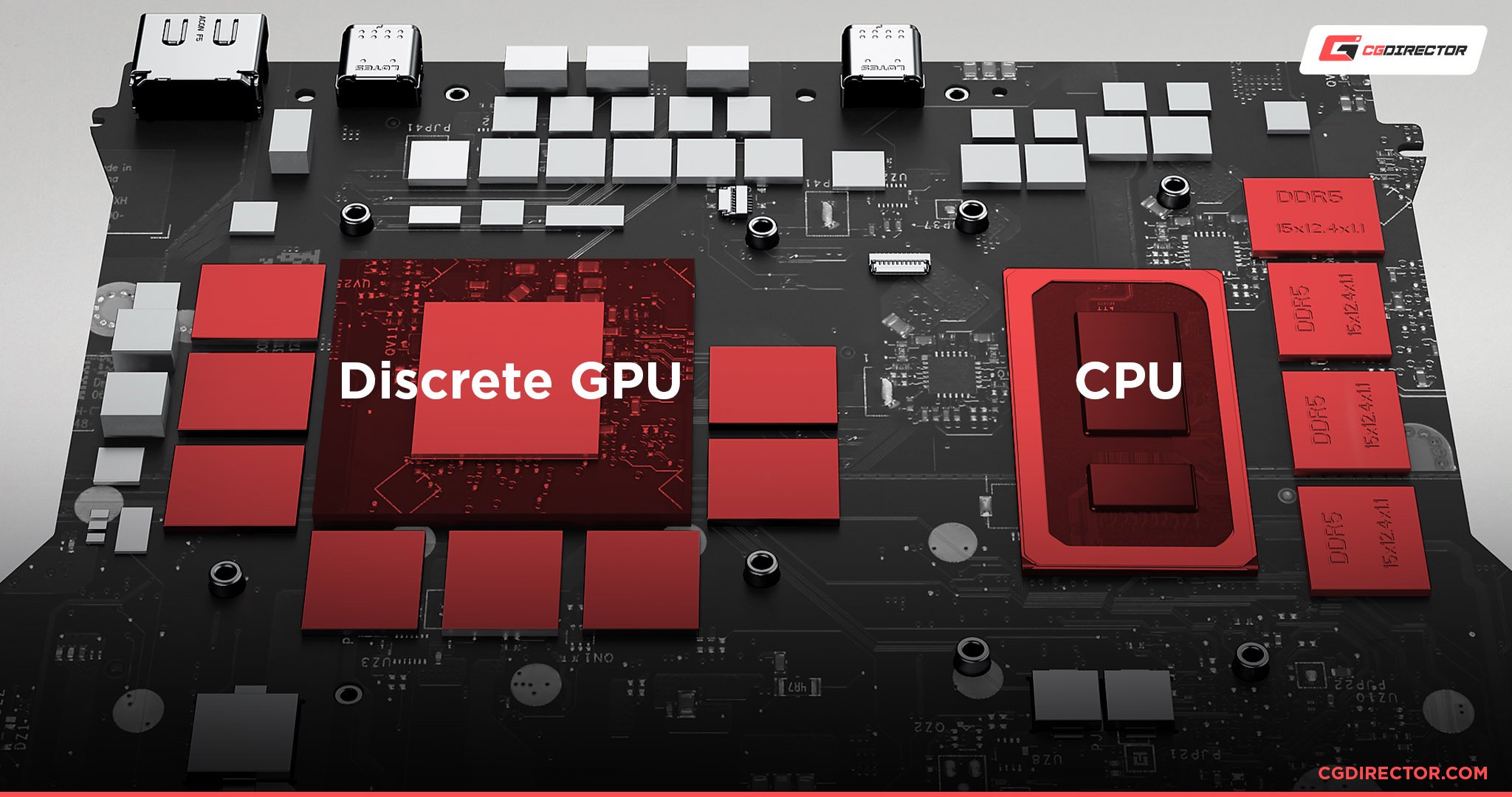
Laptop GPUs come mainly in two types. One is integrated, built into the CPU. The other is dedicated, a separate chip inside the laptop. Integrated GPUs share memory with the CPU. Dedicated GPUs have their own memory and power. Dedicated GPUs usually perform better for graphics tasks. Many budget laptops use integrated GPUs to save cost and power.
Integrated Vs Dedicated Gpus
Integrated GPUs are part of the main processor. They use less power and create less heat. They are good for basic tasks like browsing and watching videos. Dedicated GPUs are separate and handle complex graphics better. They have their own memory and run faster. Dedicated GPUs are common in gaming and professional laptops. Replacing integrated GPUs is nearly impossible. Dedicated GPUs might be replaceable but depend on the laptop model.
Signs You Need A Gpu Upgrade
Knowing when to upgrade your laptop GPU is important. It helps keep your device running smoothly and supports new software. Several signs show your GPU may need a replacement. Watch for slowdowns and missing features that affect your experience.
Performance Bottlenecks
Your laptop may lag during games or video editing. Frame rates drop, causing choppy visuals. Programs take longer to load or run poorly. These issues show your GPU struggles with current tasks. Upgrading can improve speed and smoothness.
Outdated Graphics Features
New games and apps need advanced graphics support. Older GPUs lack features like ray tracing or high-resolution textures. This limits visual quality and effects. Updating your GPU lets you enjoy modern graphics and better visuals.
Checking Laptop Compatibility
Checking laptop compatibility is the first step before replacing your GPU. Not all laptops allow GPU swaps. Some have fixed graphics chips soldered to the motherboard. Understanding your laptop’s design helps avoid wasted time and money.
Compatibility depends on the laptop’s hardware and design limits. Knowing the right GPU slot type and power needs is essential. Cooling capacity also plays a big role. These factors affect if and how you can upgrade.
Gpu Slot Types
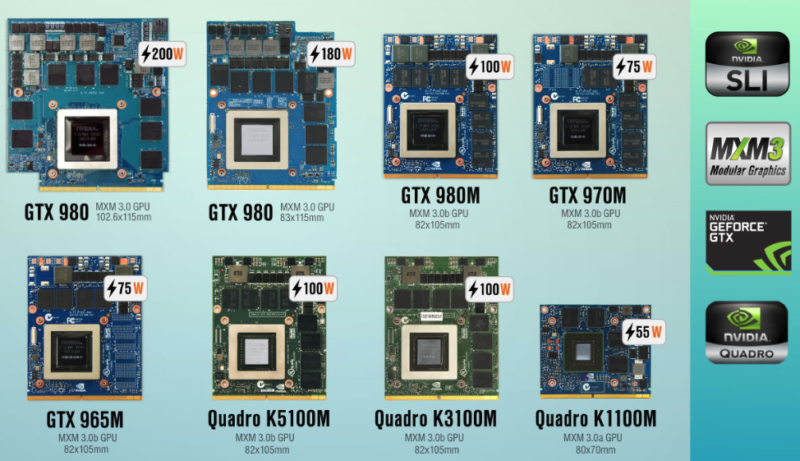
Laptops use different GPU connections. Most have integrated GPUs soldered on the motherboard. Some models use MXM slots, allowing GPU replacement. MXM slots come in different versions and sizes. Your laptop must have a matching MXM slot for a new GPU. Without this, replacement is impossible.
Identifying your laptop’s GPU slot type is key. Check the manufacturer’s specs or open the laptop case carefully. This step saves effort and prevents damage.
Power And Cooling Requirements
GPUs need enough power to run properly. Laptop power supplies have limits. A new GPU must fit within these limits. Otherwise, the laptop may not start or may shut down.
Cooling is also critical. More powerful GPUs generate extra heat. The laptop cooling system must handle this heat. Otherwise, the laptop can overheat and slow down or break.
Review your laptop’s power and cooling specs. Compare these with the new GPU requirements. This check ensures safe and stable operation after replacement.
Options For Laptop Gpu Replacement
Laptop GPU replacement options are limited but worth exploring. The GPU plays a key role in graphics and gaming. Upgrading it can boost performance. There are two main paths to consider: internal swaps and external solutions.
Each option has different challenges and benefits. Understanding these helps you decide the best choice for your laptop setup.
Internal Gpu Swap Possibility
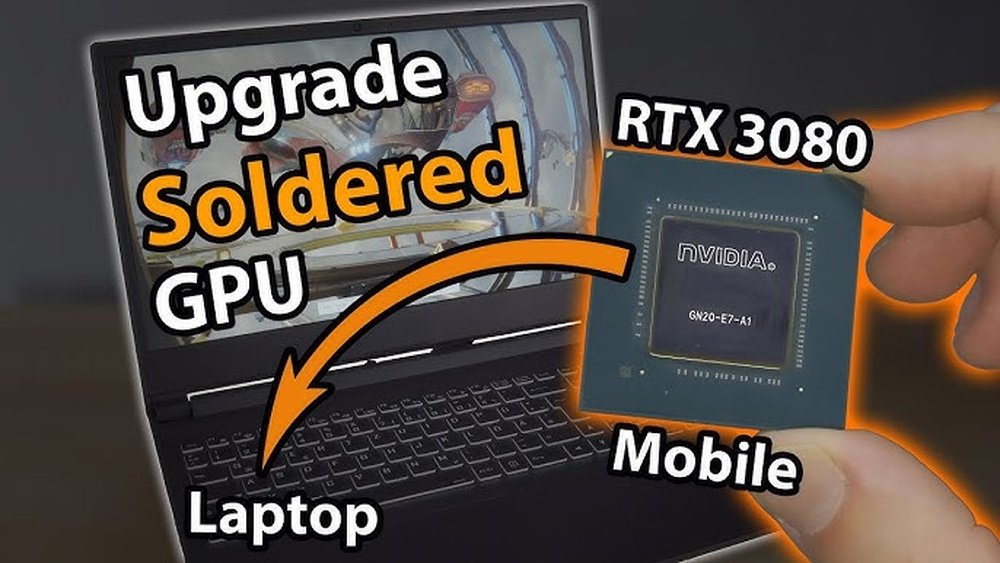
Most laptops have GPUs soldered directly to the motherboard. This design makes internal swaps very hard or impossible. Some gaming laptops use modular GPUs. These models allow GPU removal and replacement. Still, such laptops are rare and costly. Opening a laptop can void warranty. It also risks damage to delicate parts. Internal GPU swap requires technical skills and special tools. Checking your laptop’s service manual can clarify if this option exists.
External Gpu Solutions
External GPUs connect to your laptop through ports like Thunderbolt 3. They offer a powerful GPU boost without opening your laptop. External GPU enclosures house desktop-grade graphics cards. This setup greatly improves gaming and graphics tasks. It is a popular choice for users wanting better performance. You need a compatible port and some space for the enclosure. External GPUs cost extra but provide flexibility. They work with many laptops and are easy to upgrade in the future.
Step-by-step Gpu Upgrade Process
Upgrading a laptop GPU is not as simple as on desktop PCs. The process requires careful steps to avoid damage. This guide breaks down the GPU upgrade into clear parts. Follow each step to improve your laptop’s graphics power safely.
Preparing Your Laptop
Turn off the laptop and unplug it from power. Remove the battery if possible. Clean your workspace to prevent dust and static. Gather tools like a small screwdriver and anti-static wristband. Check your laptop model for GPU compatibility. Read the manual or search online for specific instructions.
Removing The Old Gpu
Open the laptop case carefully. Locate the GPU; it may be under a heatsink or shield. Unscrew and remove any parts blocking access. Disconnect cables attached to the GPU gently. Release the GPU from its slot by unlocking the latch. Pull the old GPU out slowly without bending pins.
Installing The New Gpu
Align the new GPU with the slot correctly. Insert it firmly but gently into place. Lock the latch to secure the GPU. Reattach any screws or parts removed earlier. Connect cables back to the GPU. Ensure everything fits well and no parts are loose.
Driver Installation And Setup
Power on the laptop after the upgrade. Download the latest drivers from the GPU maker’s website. Install the drivers following the on-screen instructions. Restart the laptop to complete installation. Adjust display settings for optimal performance. Test the new GPU with games or software to confirm it works.

Credit: www.youtube.com
Common Challenges And Solutions
Replacing a laptop GPU is not easy. Many common problems come up during the process. Knowing these challenges helps you plan better. Each issue has a practical solution to make the upgrade smoother.
Understanding these points can save time and money. It also helps keep your laptop safe and working well after the change.
Compatibility Issues
Not all laptop GPUs fit every model. The size and connection type must match perfectly. Some laptops have GPUs soldered to the motherboard. These cannot be replaced without special tools.
Check the laptop model and GPU specifications before buying a new one. Use the manufacturer’s guide to find compatible options. This avoids damage and wasted money on wrong parts.
Thermal Management
New GPUs may produce more heat than the old ones. Laptops have limited space for cooling systems. Too much heat can cause crashes or damage inside the laptop.
Improve cooling by cleaning fans and vents. Use a cooling pad during heavy use. Monitor the temperature with software to prevent overheating.
Warranty Considerations
Opening your laptop might void the warranty. Some brands seal their devices to prevent user repairs. Check the warranty terms before starting the upgrade.
Contact the manufacturer or authorized service centers for advice. They may offer GPU upgrades without losing the warranty. This protects you from future repair costs.
Maximizing Gpu Performance
Maximizing GPU performance is key to getting the best from your laptop. A strong GPU helps with games, videos, and creative work. Even if you cannot replace the GPU, you can still improve its output. Small steps can make a big difference in speed and quality.
Optimizing Settings
Adjusting your laptop’s graphics settings can boost performance. Lower the resolution or turn off extra effects in games. Check the control panel of your GPU for power and performance modes. Choose a mode that favors speed over battery life. Close apps that use the GPU when not needed. These changes free up resources for better results.
Regular Maintenance Tips
Cleaning your laptop’s fans and vents helps prevent overheating. Dust build-up can slow down the GPU. Update your graphics drivers often for bug fixes and improvements. Use software to monitor the GPU temperature and usage. Overheating can reduce performance and damage hardware. Keep your laptop on a hard, flat surface to improve airflow.
Credit: www.shoshitamam.com
When To Seek Professional Help
Replacing a laptop GPU is not always easy. Some tasks need expert skills and tools. Knowing when to call a professional can save time and money. It helps avoid damage to your laptop. Here are two key signs that show you should seek help.
Complex Upgrades
Upgrading a laptop GPU can be tricky. Many laptops have GPUs soldered to the motherboard. Removing and replacing these parts requires special tools. Professionals have experience with different laptop models. They know how to handle delicate components safely. Complex upgrades often need advanced skills and knowledge.
Troubleshooting Difficulties
Sometimes, the laptop shows errors after a GPU change. Problems like no display or system crashes can occur. Diagnosing these issues needs technical expertise. Professionals can test hardware and software accurately. They find the root cause faster and fix it properly. Troubleshooting problems alone can be frustrating and risky.
Frequently Asked Questions
Can You Upgrade A Laptop Gpu Easily?
Most laptops do not allow easy GPU upgrades. GPUs are often soldered onto the motherboard. Only some gaming or workstation laptops have modular GPUs for upgrades.
What Are Alternatives To Replacing A Laptop Gpu?
Using an external GPU (eGPU) via Thunderbolt 3 is a common alternative. It boosts graphics power without opening the laptop. This option is more flexible and widely supported.
Will Replacing A Laptop Gpu Improve Performance?
If upgradeable, a better GPU can improve gaming and rendering. However, thermal and power limits may restrict performance gains. Always check compatibility before upgrading.
How To Know If My Laptop Gpu Is Replaceable?
Check the laptop’s service manual or manufacturer website. Modular GPUs are rare and usually found in high-end models. If not listed, the GPU is likely non-replaceable.
Conclusion
Replacing a laptop GPU is rarely simple or cheap. Most laptops have GPUs soldered to the motherboard. Upgrading usually means buying a new laptop. Some models support external GPUs, but these are costly and bulky. Consider your needs and budget before deciding.
Sometimes, cleaning or updating drivers helps more than replacement. Choose the easiest and safest option for your laptop.
