
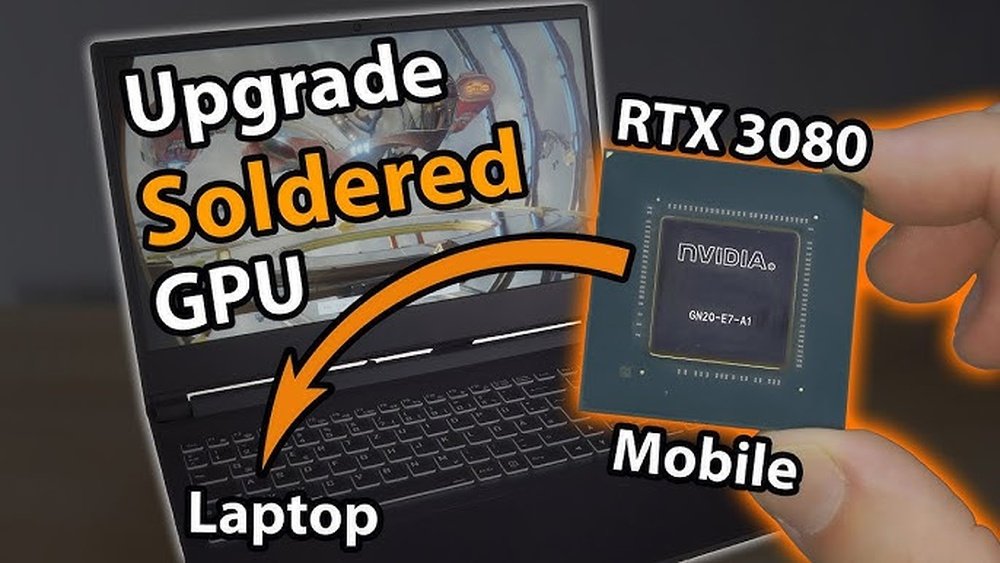
Have you ever wondered if you can replace the GPU in your laptop? Maybe your games are lagging, or your video editing feels slow, and you’re thinking a better graphics card could fix it.
But is it really possible to upgrade your laptop’s GPU like you would on a desktop? Before you spend time and money, it’s important to understand how laptops are built and what limits your options. Keep reading to discover the truth about laptop GPU upgrades and find out what choices you actually have to boost your laptop’s performance.
Credit: www.shoshitamam.com
Laptop Gpu Basics
The GPU, or graphics processing unit, is a key part of a laptop. It handles all the images, videos, and games you see on the screen. A strong GPU makes your laptop faster and better at showing graphics. Not all laptop GPUs are the same. They come in different types and designs. Understanding these differences helps you know if you can change or upgrade your laptop’s GPU.
Many people wonder if they can swap out their laptop GPU like they do on a desktop. The answer depends on the type of GPU inside. Some laptops have GPUs built into the main chip, while others have separate GPU cards. This guide explains how laptop GPUs work and the common types found in laptops.
How Laptop Gpus Differ
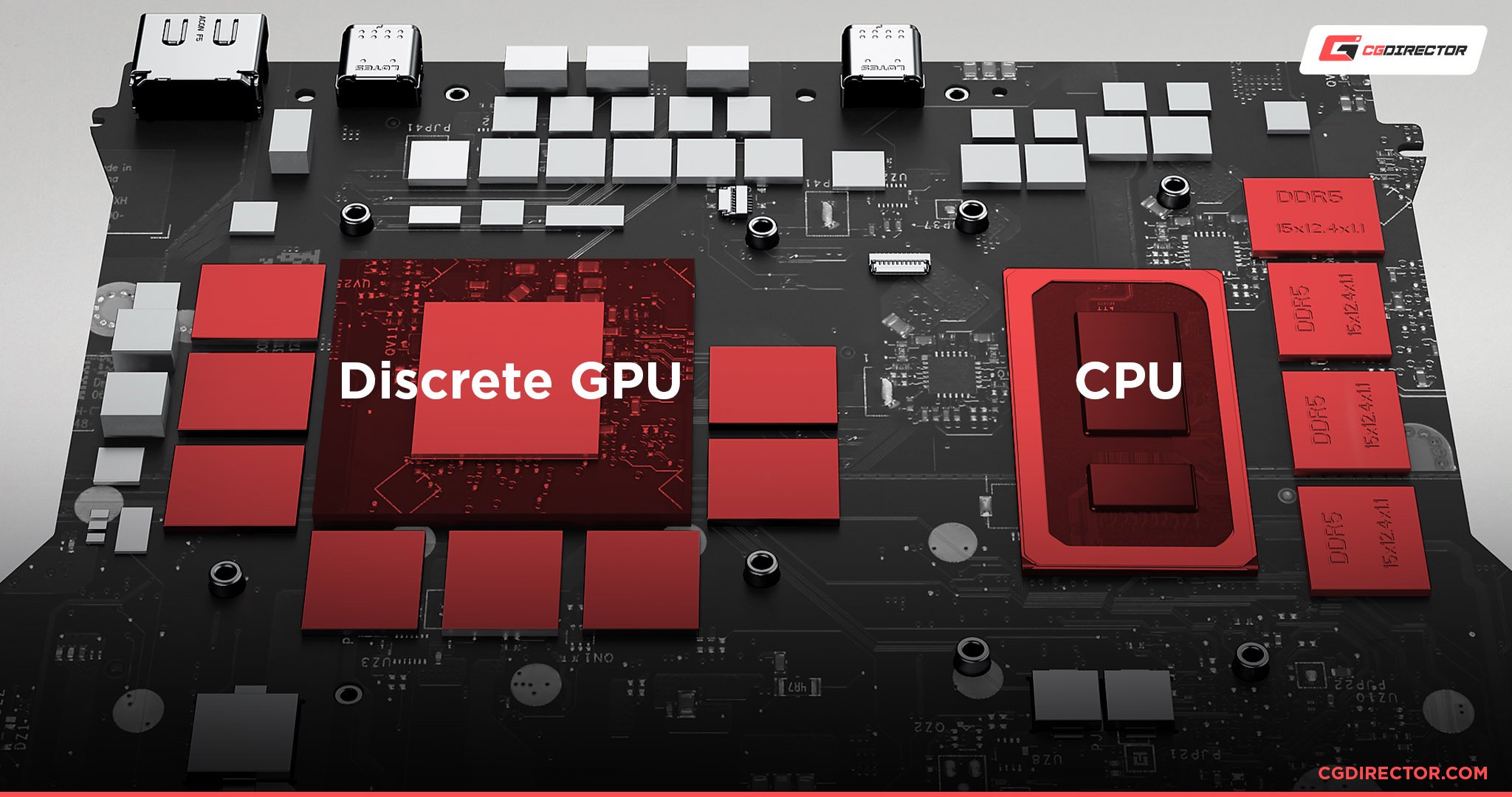
Laptop GPUs differ from desktop GPUs in size and design. Laptop GPUs are smaller and made to use less power. They must fit into a compact space and keep cool. Many laptop GPUs are soldered directly to the motherboard. This means they cannot be removed or replaced easily.
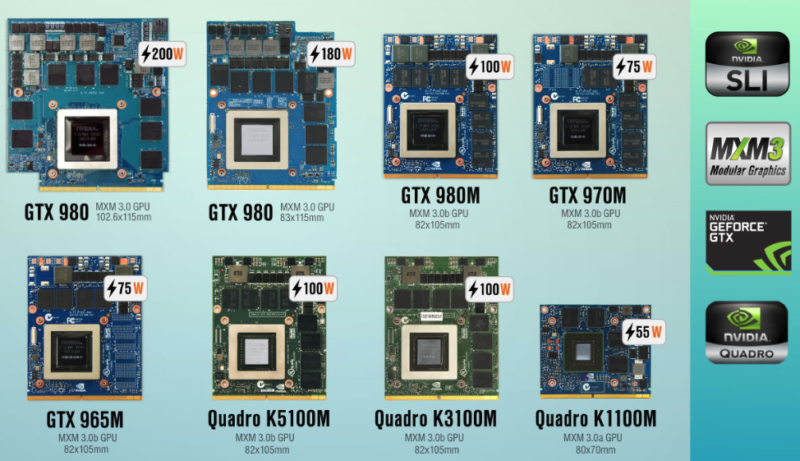
Some high-end laptops use modular GPUs. These GPUs are separate and can be swapped out. But most laptops do not have this option. The cooling system and power supply also limit GPU upgrades in laptops. You cannot just put any GPU inside a laptop.
Common Gpu Types In Laptops
Laptops usually have two types of GPUs: integrated and dedicated. Integrated GPUs are built into the main processor. They share memory with the CPU and use less power. These GPUs are enough for basic tasks like web browsing and video watching.
Dedicated GPUs are separate chips made just for graphics. They have their own memory and are stronger. Gamers and video editors often need dedicated GPUs. Brands like NVIDIA and AMD make popular dedicated laptop GPUs. Knowing which type your laptop has helps you decide on upgrades.

Credit: www.youtube.com
Signs You Need A Gpu Upgrade
Knowing when to upgrade your laptop’s GPU can save time and improve your experience. Some signs show your current GPU may not meet your needs anymore.
Watch for slowdowns or issues that affect your daily tasks and gaming. These signals mean your laptop might need a better graphics card.
Performance Bottlenecks
Your laptop runs slow during games or video editing. Frame rates drop below smooth play levels. Programs take longer to load or respond. These are clear signs of a GPU struggling to keep up. The CPU might be fine, but the graphics card slows everything down. Upgrading the GPU can help your laptop handle tasks faster and smoother.
Compatibility With New Software
New apps and games require stronger graphics support. Older GPUs may not work with the latest software. Features like ray tracing or advanced shaders might be missing. Your laptop may refuse to run new programs or crash often. An upgrade ensures your GPU supports current and upcoming software demands.
Laptop Gpu Upgrade Possibilities
Upgrading the GPU in a laptop is not as simple as in a desktop. Many laptops have fixed components. Still, some options exist to improve graphics performance. Knowing your laptop’s GPU type helps decide the best upgrade path.
This section covers different GPU types and upgrade methods. Learn about integrated and dedicated GPUs, modular solutions, and external GPUs. These options vary in cost, effort, and compatibility.
Integrated Vs Dedicated Gpus
Integrated GPUs share memory with the CPU. They are built into the processor. These GPUs are common in budget laptops. Upgrading them is almost impossible because they are soldered.
Dedicated GPUs have their own memory. They provide better graphics power. Some laptops have dedicated GPUs soldered to the motherboard. Others use a removable MXM module. The latter offers limited upgrade options.
Modular Gpu Solutions
Some gaming and workstation laptops use modular GPUs. These GPUs come in MXM form factor cards. Users can swap them with compatible cards. This upgrade is rare and only available in specific models.
Modular GPU upgrades require technical skills. Finding a compatible GPU can be difficult. Ensure power and cooling support before upgrading. This method offers a direct GPU replacement inside the laptop.
External Gpu (egpu) Options
External GPUs connect to laptops through ports like Thunderbolt 3. They house a desktop-class GPU in an external enclosure. This setup boosts graphics without opening the laptop.
eGPUs are ideal for laptops with weak or integrated GPUs. They need a compatible port and power supply. This method is flexible and works with many laptops. It is a popular choice for gaming and creative work.
Steps To Replace A Laptop Gpu
Replacing a GPU in a laptop requires careful steps. It is not as simple as in a desktop computer. The process needs attention and the right tools. Understanding each step can help avoid damage and ensure success.
Checking Laptop Compatibility
Start by confirming your laptop supports GPU changes. Most laptops have GPUs soldered on the motherboard. Only some models have removable GPUs. Check your laptop’s manual or manufacturer’s website. Find out if the GPU uses a dedicated slot or is integrated. Confirm the new GPU matches the slot type and power needs.
Disassembling The Laptop
Turn off the laptop and unplug all cables. Remove the battery if possible. Use a small screwdriver to open the back panel. Keep screws organized to avoid losing them. Be gentle with cables and connectors inside. Locate the GPU and check how it is fixed. Note its position before removal.
Installing The New Gpu
Carefully remove the old GPU from its slot. Avoid touching the metal parts or pins. Align the new GPU with the slot exactly. Insert it firmly but do not force it. Secure the GPU with screws or clips. Reconnect any cables or cooling components removed earlier.
Reassembling And Testing
Put the back panel on and screw it tightly. Reinstall the battery and plug in the laptop. Power it on and enter the BIOS if needed. Check if the system recognizes the new GPU. Install the latest drivers from the manufacturer’s website. Run a simple program to test the GPU’s performance and temperature.
Risks And Challenges
Replacing a GPU in a laptop sounds exciting but comes with many risks. It is not as simple as swapping parts in a desktop. Laptops are compact machines with parts designed to work together perfectly. Changing the GPU can cause problems that affect the whole system.
Understanding these risks helps avoid costly mistakes. It also guides whether the upgrade is worth trying or not.
Warranty Concerns
Opening a laptop often voids its warranty. Manufacturers do not cover damage from unauthorized repairs. Replacing the GPU can be seen as tampering. This means no free support if something goes wrong later.
Check the warranty terms before starting. It helps to know the risks of losing official help.
Hardware Damage Risks
Laptops have delicate parts packed closely. Removing and installing a GPU needs skill and care. A small slip can break connectors or other components. Static electricity can also damage sensitive chips.
Damage can lead to expensive repairs or a useless laptop. Without proper tools and experience, the risk is high.
Thermal And Power Issues
GPUs generate heat and need proper cooling. Laptop cooling systems are built for specific parts. A new GPU might produce more heat than the system can handle. This can cause overheating and shutdowns.
Power needs may also change. The laptop power supply might not support the new GPU. This leads to instability or failure to start.
Best Practices For Gpu Upgrades
Upgrading the GPU in a laptop can boost performance and extend its life. Careful planning and the right steps help avoid damage and ensure success. Following best practices makes the upgrade smoother and safer.
Choosing The Right Gpu
Select a GPU compatible with your laptop model. Check the size, power needs, and cooling system. Research the GPU’s performance to match your needs. Avoid choosing a GPU that your laptop cannot support.
Backup And Safety Measures
Always back up important data before starting the upgrade. Turn off the laptop and disconnect power sources. Use an anti-static wristband to prevent static damage. Handle all parts gently to avoid breaking connectors or circuits.
Driver Installation Tips
Uninstall old GPU drivers before installing new ones. Download the latest drivers from the GPU manufacturer’s website. Follow the installation steps carefully. Restart the laptop after installation for best results.
Alternative Upgrade Paths
Replacing a GPU in a laptop is often difficult or impossible. Many laptops have GPUs soldered to the motherboard. Still, there are other ways to improve your laptop’s performance for gaming or creative work. These alternative upgrade paths can make a big difference without swapping the GPU.
Upgrading Cpu Or Ram
Improving your laptop’s CPU or adding more RAM can boost overall speed. A faster CPU helps run games and apps more smoothly. More RAM allows your laptop to handle more tasks at once. Check if your laptop supports CPU or RAM upgrades. Even small improvements can reduce lag and increase responsiveness.
Optimizing Software Settings
Tweaking software settings can improve graphics performance without hardware changes. Lowering game resolution or detail settings eases the GPU load. Update your graphics drivers for better stability and speed. Close background apps to free up system resources. These small changes help games run better on your current hardware.
Using Cloud Gaming Services
Cloud gaming lets you play demanding games on weak laptops. Games run on remote servers, not your laptop’s hardware. You just need a good internet connection and a streaming app. This method avoids hardware limits while giving access to new games. It’s an easy way to enjoy high-quality gaming without upgrades.
Credit: ameelectrical.co.uk
Frequently Asked Questions
Can You Upgrade A Laptop Gpu Easily?
Most laptops have GPUs soldered onto the motherboard. This makes upgrading or replacing them very difficult and often impossible for typical users.
Which Laptops Allow Gpu Replacement?
Only a few high-end gaming or workstation laptops have modular GPUs. These models support GPU upgrades but are rare and expensive.
What Are Risks Of Replacing A Laptop Gpu?
Replacing a laptop GPU risks damaging the motherboard, voiding warranty, and causing compatibility issues. It requires technical expertise and special tools.
Is External Gpu A Good Laptop Alternative?
Yes, external GPUs (eGPU) connect via Thunderbolt 3 ports. They offer improved graphics performance without opening the laptop.
Conclusion
Replacing a GPU in a laptop is not simple. Most laptops have GPUs built into the motherboard. This means you cannot swap them like desktop parts. Some gaming laptops offer upgrade options but are rare. You should check your laptop model before trying.
Often, upgrading external devices or buying a new laptop is easier. Know your options and choose what fits your needs. Think carefully before opening your laptop. It can save you time and money in the long run.
