
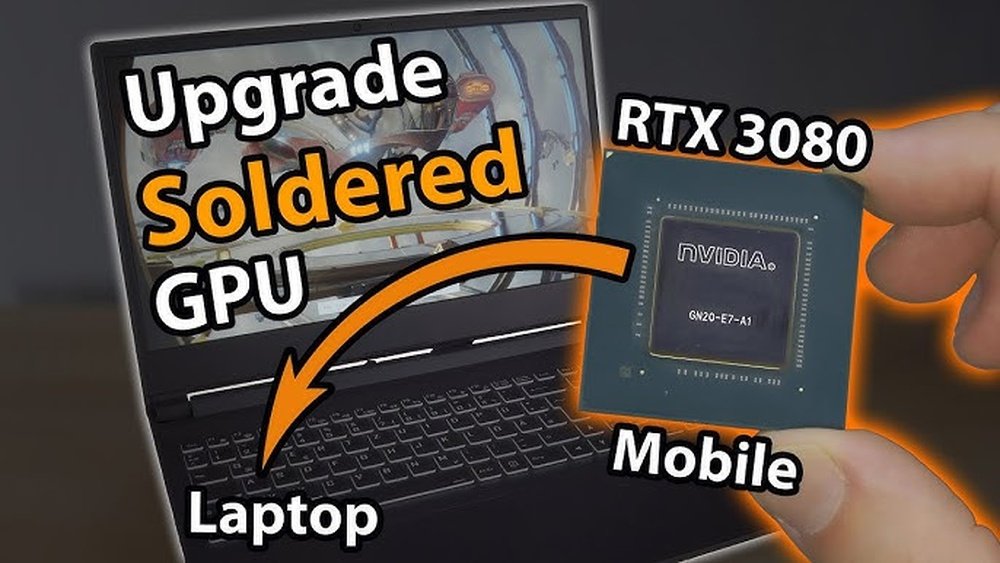
Are you frustrated with your laptop’s slow graphics or poor gaming performance? You might be wondering, “Can you replace a laptop GPU to boost speed and visuals?” The idea sounds simple, but the answer isn’t always clear.
Before you spend money or risk damaging your device, it’s important to understand what’s possible and what isn’t. Keep reading to find out if upgrading your laptop’s GPU is something you can do—and how to make the best choice for your needs.
Credit: ameelectrical.co.uk
Laptop Gpu Basics
Understanding the basics of laptop GPUs helps you know their role and limits. The GPU, or graphics processing unit, handles images and videos on your laptop. It affects games, video editing, and even everyday tasks. Knowing the types and functions of GPUs is key before thinking about replacement.
Types Of Laptop Gpus
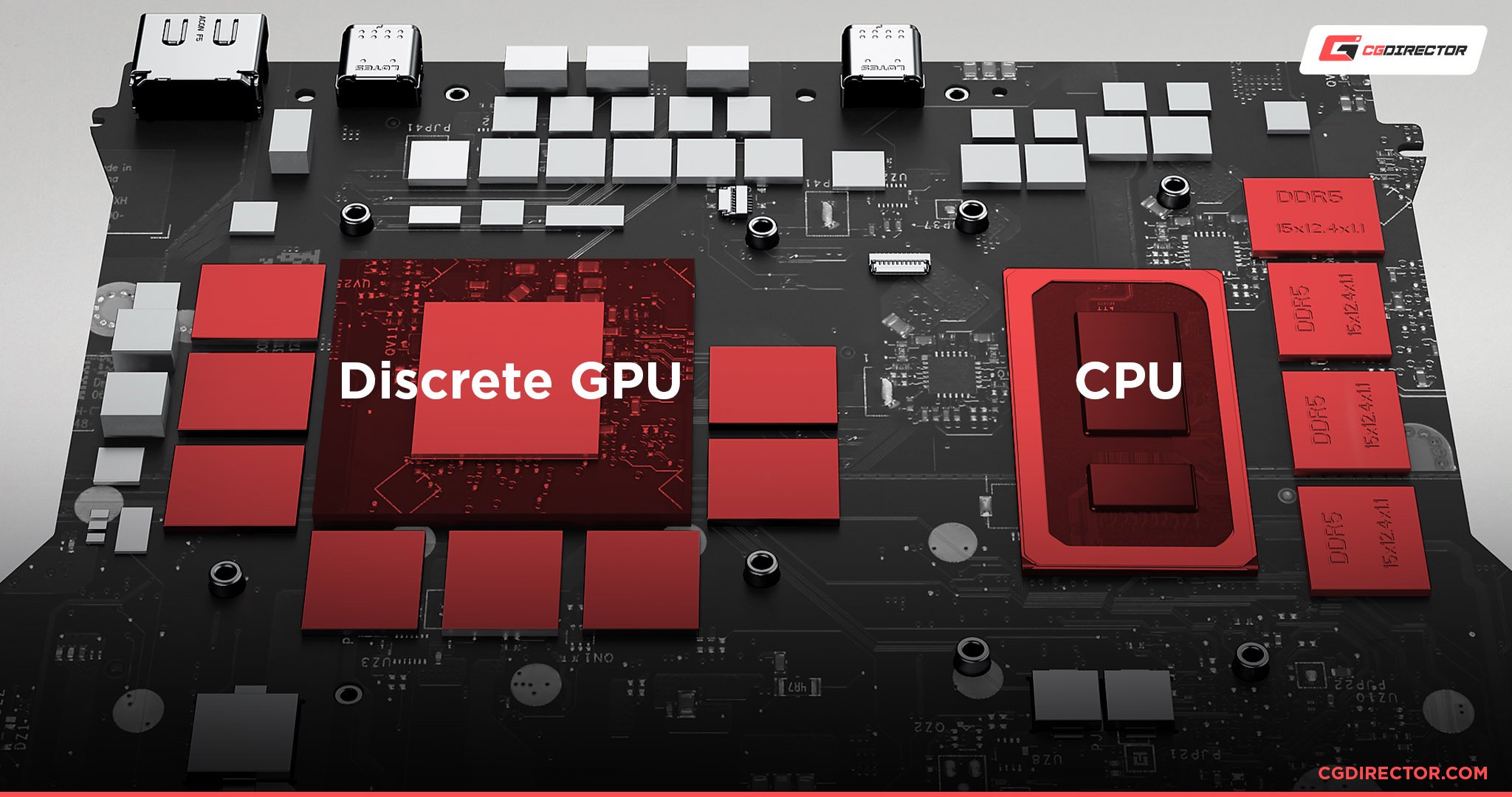
There are mainly two types of laptop GPUs. One is integrated, built into the CPU. The other is dedicated, a separate chip inside the laptop. Each type has different power and uses. Dedicated GPUs usually offer better performance but use more battery.
Integrated Vs Dedicated Gpus
Integrated GPUs share memory with the CPU and use less power. They are good for simple tasks like browsing and watching videos. Dedicated GPUs have their own memory and handle heavy graphics work. They are found in gaming and professional laptops. The choice depends on what you need your laptop to do.
Role Of The Gpu In Performance
The GPU affects how fast and smooth graphics appear on screen. A strong GPU improves gaming, video editing, and 3D modeling. It also helps with multitasking and running software that uses graphics. The right GPU makes a big difference in user experience and productivity.
Challenges In Replacing Laptop Gpus
Replacing a laptop GPU is not as simple as it sounds. Many factors make this task difficult and often risky. Understanding these challenges helps set the right expectations before attempting any upgrades.
Soldered Vs Modular Gpus
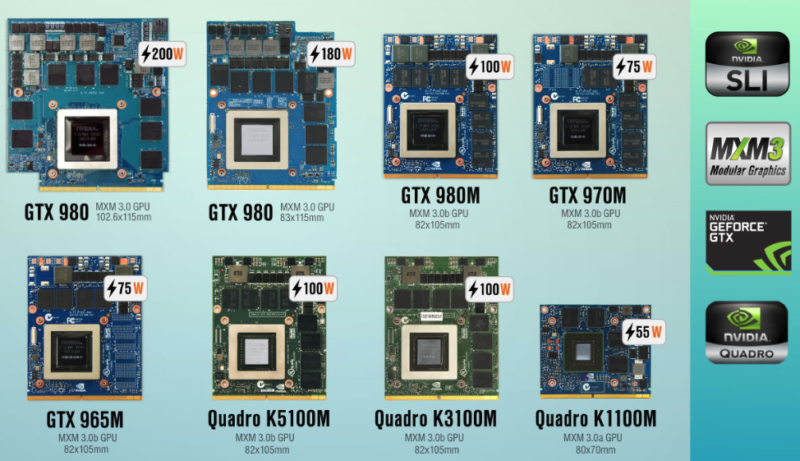
Most laptops have GPUs soldered directly to the motherboard. This means the GPU is fixed and cannot be removed without special tools. Some high-end or gaming laptops use modular GPUs. These can be swapped out like desktop cards. Still, such models are rare and expensive. Knowing your laptop’s design is key to knowing if replacement is possible.
Compatibility Issues
Even if the GPU is modular, compatibility matters. Laptops have specific slots and connectors. A new GPU must fit physically and electrically. BIOS and driver support also affect compatibility. Using the wrong GPU can cause errors or damage. Checking compatibility before buying a GPU is essential.
Thermal And Power Considerations
GPUs produce heat and need proper cooling. Laptops have custom cooling systems. A different GPU may generate more heat than the system can handle. Power supply limits are another concern. A stronger GPU may draw more power than the laptop’s battery or charger can provide. These factors can lead to overheating or shutdowns.
Signs You May Need A Gpu Replacement
Knowing the signs of a failing laptop GPU helps avoid bigger problems. A damaged GPU can affect your laptop’s speed and visuals. It may cause the device to overheat or shut down unexpectedly. Recognizing these signs early lets you decide on repair or replacement. Below are common symptoms that suggest a GPU replacement might be needed.
Performance Drops
Games and apps run slower than before. Frame rates drop during simple tasks. Programs that used to work well now lag or freeze. Video playback becomes choppy or stutters. These slowdowns often point to a struggling GPU.
Visual Artifacts And Glitches
Strange lines or shapes appear on the screen. Colors look distorted or do not display correctly. Parts of the screen flicker or go black. Images may break up into pixels or blocks. These visual errors often indicate GPU damage.
Overheating Problems
Laptop feels very hot even during light use. Fans run loudly and constantly. The system may shut down without warning. Overheating can harm the GPU and other parts. It often signals that the GPU is failing.
Credit: www.shoshitamam.com
Steps To Replace A Laptop Gpu
Replacing a laptop GPU can improve graphics performance. It requires careful work and patience. Follow clear steps to avoid damage and ensure success.
Tools And Preparation
Gather small screwdrivers, an anti-static wristband, and thermal paste. Work on a clean, flat surface. Turn off the laptop and unplug it. Remove the battery if possible. Ground yourself to stop static electricity.
Disassembling The Laptop
Flip the laptop and remove all screws on the back cover. Keep screws organized by size and place. Carefully lift the cover without forcing it. Locate the GPU area on the motherboard. Avoid touching other parts.
Removing The Old Gpu
Find the GPU chip or module. Unscrew any screws holding it. Gently disconnect cables or connectors attached. Use a small tool to lift the GPU carefully. Clean old thermal paste from the chip and heatsink.
Installing The New Gpu
Apply a small amount of new thermal paste on the chip. Place the new GPU in the socket or slot. Secure it with screws and reconnect cables. Double-check the GPU fits well without gaps.
Reassembly And Testing
Put the laptop cover back and tighten screws. Reinstall the battery if removed. Power on the laptop and enter BIOS to check GPU detection. Boot into the operating system and install drivers. Run a test program to confirm the GPU works properly.
Alternatives To Gpu Replacement
Replacing a laptop GPU is often difficult or impossible. Many laptops have GPUs soldered to the motherboard. This limits upgrade options. Fortunately, there are ways to improve graphics performance without swapping the GPU. These alternatives can extend your laptop’s life and boost its power for games and work.
External Gpu Solutions
External GPUs connect to your laptop through ports like Thunderbolt 3. They offer desktop-level graphics power. You attach a separate GPU in a box outside your laptop. This setup improves gaming and creative work. It requires extra hardware and space but gives a big performance boost. Not all laptops support external GPUs, so check compatibility first.
Upgrading Other Components
Improving other parts can help your laptop run better. Adding more RAM allows smoother multitasking. Replacing a hard drive with an SSD speeds up loading times. A faster CPU can also improve overall performance. These upgrades do not increase graphics power directly. Yet, they reduce bottlenecks and help games and programs run faster.
Optimizing Software Settings
Adjusting software can improve graphics without hardware changes. Lower game resolution and detail settings to increase frame rates. Update graphics drivers regularly for better compatibility and speed. Use power-saving modes that favor performance. Close unnecessary background programs to free up resources. These tweaks help your laptop use existing GPU power better.
Expert Tips For Gpu Maintenance
Maintaining your laptop GPU is key to keeping it healthy and performing well. Simple care steps can extend its life and avoid common problems. Regular attention helps prevent overheating and slowdowns.
Regular Cleaning
Dust and dirt block air vents and fans. This causes your GPU to get too hot. Use a soft brush or compressed air to clean vents. Do this every few months. Avoid using wet cloths or liquids. Keep your laptop on a hard, flat surface to help airflow.
Monitoring Temperatures
High temperatures damage your GPU over time. Use free software to check GPU temperature. Normal temperature is usually below 85°C. If it goes higher, stop heavy use and let it cool. Keep your laptop in a cool place and avoid direct sunlight.
Driver Updates
Drivers help your GPU work correctly with your system. Check for driver updates from your laptop or GPU maker often. Updated drivers fix bugs and improve performance. Avoid downloading drivers from unknown sites. Always restart your laptop after installing updates.
When To Seek Professional Help
Replacing a laptop GPU is not always a simple task. Some repairs need expert knowledge and special tools. Trying to fix complex problems without help can cause more damage. Knowing when to seek professional help can save time and money. Here are key points to consider before attempting a GPU replacement on your own.
Complex Repairs
Laptop GPUs are often soldered to the motherboard. Removing and replacing them requires precision and skill. Complex repairs involve tiny parts and delicate connections. Mistakes can lead to permanent damage to the laptop. Professionals have the right tools and experience. They can handle repairs that are too difficult for most users.
Warranty Considerations
Many laptops come with a warranty that covers hardware issues. Opening the laptop or replacing parts yourself may void this warranty. A voided warranty means you lose free repairs or replacements. Professionals know how to work within warranty rules. They can help keep your warranty intact while fixing your GPU.
Finding A Trusted Technician
Choose a technician with good reviews and proper certification. Trustworthy experts offer clear pricing and honest advice. They use quality parts and follow safety standards. Ask for recommendations from friends or online forums. A reliable technician ensures your laptop is repaired correctly.

Credit: www.youtube.com
Frequently Asked Questions
Can You Upgrade A Laptop Gpu Easily?
Most laptops have GPUs soldered to the motherboard. This makes upgrading or replacing them nearly impossible for most users. Only some high-end gaming laptops feature modular GPUs that can be upgraded. Always check your laptop’s specifications before attempting any GPU upgrade.
Why Is Laptop Gpu Replacement Difficult?
Laptop GPUs are often integrated or soldered directly to the motherboard. This design saves space but prevents easy removal or replacement. Unlike desktop GPUs, laptop GPUs lack standard connectors, making replacement complex and risky without professional tools and skills.
Are External Gpus A Good Laptop Alternative?
Yes, external GPUs (eGPUs) connect via Thunderbolt ports to boost laptop graphics. They offer better graphics performance without internal hardware changes. However, eGPUs require compatible laptops and can be expensive. They are a practical upgrade option for many laptop users.
How Can I Check If My Laptop Gpu Is Replaceable?
Consult your laptop’s manual or manufacturer’s website to see if the GPU is modular. Look for mentions of MXM (Mobile PCI Express Module) slots, which indicate replaceable GPUs. If no such info exists, your GPU is likely soldered and not replaceable.
Conclusion
Replacing a laptop GPU is not easy for most users. Many laptops have GPUs soldered to the motherboard. This makes swapping them nearly impossible. Some models allow GPU upgrades but are rare. Always check your laptop’s design before trying. Consider external GPU options for better graphics.
Repair shops can help with complex upgrades. Choose wisely to avoid damage and extra costs. Upgrading a laptop GPU needs careful thought and research.
