
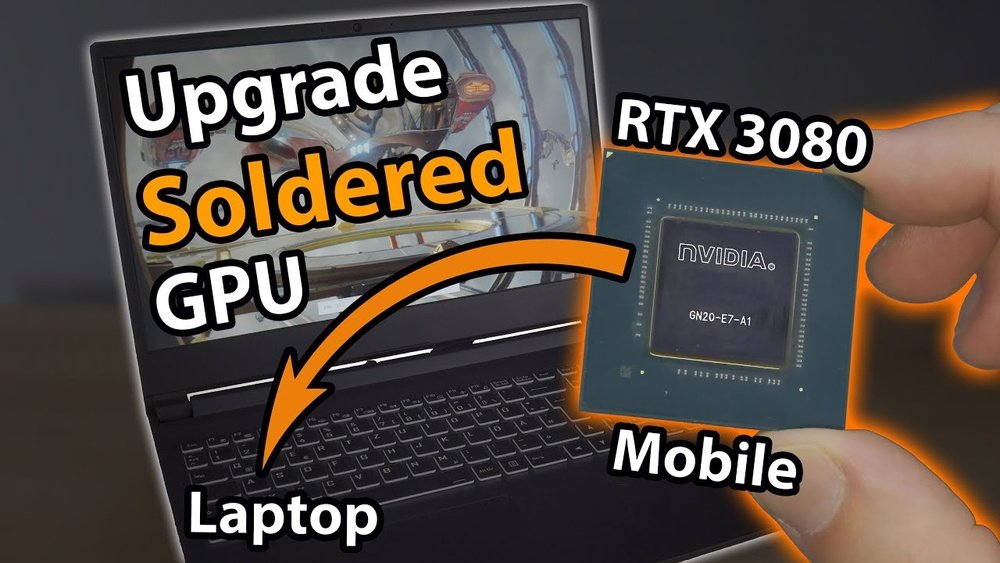
Have you ever wondered if you can upgrade your laptop’s graphics card to boost gaming or design performance? The idea of swapping out your GPU might sound simple, but when it comes to laptops, things get tricky.
You’re probably asking yourself: Is it even possible? Will it improve your laptop’s speed? And what risks should you watch out for? Keep reading to find out exactly what you need to know before making any changes to your laptop’s GPU—and discover whether upgrading is worth your time and money.
Laptop Gpu Basics
Laptop GPUs handle graphics and video processing. They affect gaming, video editing, and more. Knowing the basics helps you understand if you can change your laptop’s GPU.
Laptop GPUs come in different types. Some are built into the processor. Others are separate parts designed for better performance.
Integrated Vs Dedicated Gpus
Integrated GPUs share memory with the laptop’s main processor. They use less power and are common in basic laptops. These GPUs work well for simple tasks like web browsing and watching videos.
Dedicated GPUs have their own memory and power. They provide stronger performance for gaming and heavy software. Most gaming and professional laptops use dedicated GPUs.
Integrated GPUs cannot be removed or replaced. Dedicated GPUs might be removable on some models, but usually, they are soldered to the motherboard.
Common Laptop Gpu Types
Intel, AMD, and NVIDIA lead the laptop GPU market. Intel and AMD often provide integrated GPUs. NVIDIA and AMD also make dedicated GPUs for laptops.
Popular NVIDIA GPUs include the GeForce GTX and RTX series. AMD’s Radeon series is common in both integrated and dedicated forms.
The type of GPU your laptop has affects upgrade options. Soldered GPUs limit upgrades. Modular GPUs offer more flexibility.

Credit: www.youtube.com
Challenges Of Gpu Replacement
Replacing a GPU in a laptop is not a simple task. Several challenges make this process difficult or impossible. Many users do not realize these hurdles until they try to upgrade their laptop’s graphics card. Understanding these challenges helps set the right expectations about GPU replacement.
Soldered Gpus And Their Limitations
Most modern laptops have GPUs soldered directly to the motherboard. This means the GPU is permanently attached and cannot be removed. Unlike desktop PCs, laptops rarely offer a slot for easy GPU swaps. Trying to remove a soldered GPU can damage the motherboard. This makes upgrading or replacing the GPU nearly impossible for most users.
Compatibility Issues
Even if a laptop GPU is not soldered, compatibility poses a big problem. Different laptops have varying motherboard designs and connections. A new GPU must fit physically and match the laptop’s chipset. The BIOS must also support the new GPU. Finding a compatible replacement GPU is very challenging and often not cost-effective.
Thermal And Power Constraints
Laptop cooling systems are designed for specific GPU heat output. A more powerful GPU may produce more heat than the cooling system can handle. This can cause overheating and hardware damage. Power supply limits also restrict GPU upgrades. Laptops have fixed power delivery, which may not support a higher-demand GPU. These thermal and power limits reduce upgrade options significantly.
When Replacement Is Possible
Replacing a GPU in a laptop is not always simple. Many laptops have GPUs soldered directly onto the motherboard. This design makes replacement impossible. Still, some laptops allow GPU upgrades or swaps. This section explains when replacing a GPU can work.
Modular Gpu Designs
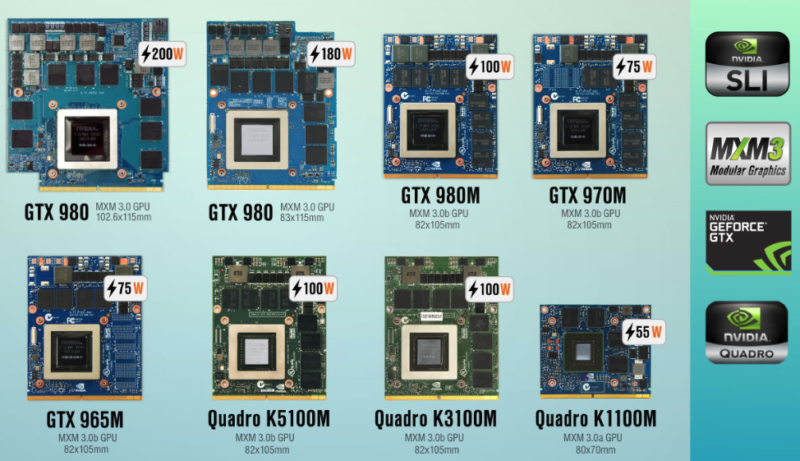
Some laptops use modular GPU designs. These models have a separate GPU chip. The chip fits into a slot on the motherboard. This setup lets users remove and replace the GPU. Modular designs are rare and often found in high-end or gaming laptops. Check your laptop’s manual to see if it supports modular GPUs. Replacing the GPU in these laptops can improve graphics performance.
External Gpu Solutions
External GPU solutions work with many laptops. These are devices that connect to the laptop via ports like Thunderbolt 3. The external GPU handles graphics processing outside the laptop. This method lets users upgrade graphics power without opening the laptop. External GPUs require extra hardware and a compatible laptop port. They are a flexible option for better graphics performance.
Steps To Replace A Laptop Gpu
Replacing a GPU in a laptop is a delicate task. It requires careful handling and the right tools. This guide breaks down the steps clearly. Follow each step to avoid damage and ensure success.
Preparing Your Workspace
Choose a clean, flat surface to work on. Gather small tools like screwdrivers and tweezers. Use an anti-static mat or wrist strap to avoid static damage. Keep a container to hold screws. Good lighting helps you see small parts clearly.
Disassembling The Laptop
Turn off the laptop and unplug all cables. Remove the battery if possible. Unscrew the bottom panel carefully. Keep track of each screw’s location. Gently lift the panel to expose internal components. Avoid using force to prevent damage.
Removing The Old Gpu
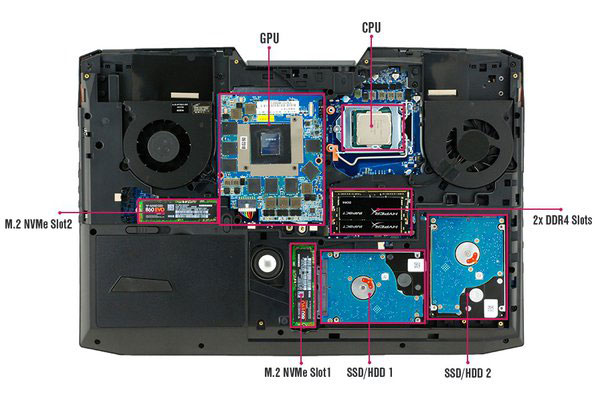
Locate the GPU on the motherboard. It may be under a heat sink or fan. Unscrew and remove the heat sink carefully. Disconnect any cables attached to the GPU. Unlock the GPU from its slot by releasing the latch. Lift the GPU out slowly without bending pins.
Installing The New Gpu
Align the new GPU with the slot correctly. Insert it firmly but gently into place. Lock the latch to secure the GPU. Reattach any cables disconnected earlier. Place the heat sink back on the GPU. Screw the heat sink tightly to prevent overheating.
Reassembling And Testing
Replace the laptop’s bottom panel and screw it in. Reinsert the battery if removed. Connect the power cable and turn on the laptop. Check if the laptop recognizes the new GPU. Run a simple graphics test to ensure proper function.
Expert Tips For Gpu Replacement
Replacing a GPU in a laptop is tricky but doable with the right approach. Follow expert tips to avoid damage and ensure success. Preparation matters most before you start. Handle parts carefully and understand your laptop’s limits. These tips will help you replace your GPU safely and correctly.
Selecting The Right Gpu
Choose a GPU compatible with your laptop model. Check the size and power requirements. Not all GPUs fit or work with every laptop. Use the manufacturer’s list or forums for guidance. Pick a GPU that matches your needs and budget.
Handling Static Electricity
Static can harm laptop parts easily. Ground yourself before touching the GPU or internal parts. Use an anti-static wrist strap if possible. Work on a clean, static-free surface. Avoid touching metal contacts on the GPU or motherboard.
Ensuring Proper Cooling
Cooling is crucial for GPU health and performance. Clean dust from fans and vents before installing. Make sure the new GPU fits well with the cooling system. Use quality thermal paste for better heat transfer. Monitor temperature after replacement to avoid overheating.
Driver Installation And Updates
Install the correct drivers for your new GPU. Visit the GPU maker’s official website for downloads. Remove old drivers to prevent conflicts. Keep drivers updated for best performance and security. Restart your laptop after installation for changes to take effect.
Credit: www.shoshitamam.com
Alternatives To Gpu Replacement
Replacing a GPU in a laptop is difficult and often not possible. Many laptops have GPUs soldered onto the motherboard. This means the GPU cannot be removed or upgraded like in desktop PCs. There are other ways to improve your laptop’s graphics performance or overall speed without swapping the GPU. These alternatives can help extend the life of your laptop and improve your experience.
Upgrading Other Components
Improving other parts of your laptop can boost performance. Adding more RAM helps your laptop run programs faster. Upgrading to a solid-state drive (SSD) makes loading times much quicker. These upgrades do not change the GPU but make the system work better overall. They are often easier and cheaper than replacing a GPU.
Using External Gpus
External GPUs (eGPUs) connect to your laptop via a special port. They provide extra graphics power without opening the laptop. eGPUs are useful for gaming or video editing on laptops with weak GPUs. These devices can be costly and need the right ports and drivers. Still, they offer a practical way to boost graphics performance.
Purchasing A New Laptop
Sometimes, buying a new laptop is the best option. New laptops come with better GPUs and updated hardware. This choice gives you improved speed and graphics right away. It can save time and effort compared to trying to fix an old laptop. Choose a model that fits your needs and budget for long-term use.
Credit: www.shoshitamam.com
Frequently Asked Questions
Can You Upgrade A Laptop’s Gpu Easily?
Most laptops have integrated or soldered GPUs, making upgrades difficult. Only some gaming or workstation laptops have removable GPUs. Check your laptop model to confirm if GPU replacement is possible. Upgrading a laptop GPU is usually not as simple as desktop upgrades.
Why Is Replacing A Laptop Gpu Challenging?
Laptop GPUs are often soldered directly onto the motherboard. This makes physical replacement complex and risky. It requires advanced technical skills and specialized tools. Additionally, compatibility and cooling issues arise when changing GPU hardware in laptops.
Are External Gpus A Good Alternative For Laptops?
Yes, external GPUs (eGPUs) connect via Thunderbolt ports to boost graphics performance. They are a safer, plug-and-play solution for GPU upgrades without opening your laptop. EGPUs work well for gaming, video editing, and other GPU-intensive tasks.
How Can I Check If My Laptop Gpu Is Replaceable?
Refer to your laptop’s service manual or manufacturer’s website. Look for mentions of MXM modules or removable GPU components. You can also search online forums for your specific model’s upgrade options. Most consumer laptops do not support GPU replacement.
Conclusion
Replacing a GPU in a laptop is usually very hard. Most laptops have GPUs built into the motherboard. Some gaming laptops have removable GPUs, but they are rare. Upgrading a laptop’s graphics card might cost more than buying a new one.
It also requires technical skills and special tools. For better graphics, consider an external GPU or a new laptop. Think carefully before trying to change your laptop’s GPU. It might not be the best choice for most users.
