
Have you ever wondered if you can make your GPU run faster and get more power out of it? Overclocking a GPU might sound complicated, but it’s something you can try to boost your gaming or creative work.
The question is, should you do it? And how safe is it for your hardware? You’ll discover what overclocking really means, how it affects your GPU, and whether it’s worth the risk. Keep reading to find out if overclocking your GPU is the game-changer you’ve been looking for.
What Is Gpu Overclocking
GPU overclocking means making your graphics card run faster than its original speed. This process pushes the GPU to perform better in games and other graphics tasks. Overclocking can help improve frame rates and reduce lag.
It involves adjusting the clock speeds and sometimes the voltage of the GPU. These changes make the card work harder and process data faster. But it also increases heat and power use, so careful steps are needed.
What Does Gpu Clock Speed Mean?
Clock speed is how fast the GPU’s processor runs. It is measured in megahertz (MHz). Higher speeds mean more calculations per second. This can lead to smoother graphics and faster rendering.
How Does Overclocking Work?
Overclocking raises the GPU’s clock speed beyond factory settings. Users adjust settings in software or BIOS. This pushes the GPU to handle more tasks at once. The goal is better performance without breaking the hardware.
Risks Of Overclocking A Gpu
Overclocking can cause the GPU to overheat. This may shorten the card’s life or cause crashes. It can also void the warranty. Proper cooling and careful tuning reduce these risks.
Benefits Of Overclocking Your Gpu
Overclocking your GPU can boost its performance beyond factory settings. It helps your graphics card run faster and handle demanding tasks better. This process can bring noticeable improvements in gaming, video editing, and 3D rendering.
Many users find overclocking a way to get more value from their hardware. It allows the GPU to deliver higher frame rates and smoother visuals. This can make your computer feel quicker and more responsive.
Improved Gaming Performance
Overclocking increases the GPU clock speed. This results in higher frame rates in games. Games run smoother with less lag and stutter. You can enjoy better graphics settings without upgrading your GPU.
Better Video Editing And Rendering
A faster GPU can process video effects more quickly. Rendering times are reduced, saving you time. Overclocking helps with complex tasks that need strong graphics power.
Cost-effective Upgrade
Overclocking is a low-cost way to boost performance. It avoids the expense of buying a new GPU. You get more from your current hardware with no extra cost.
Enhanced Multitasking
A powerful GPU handles multiple tasks better. Overclocking improves performance in apps running at the same time. This helps if you stream games or use heavy software.
Risks And Limitations
Overclocking a GPU can boost its speed and performance. It sounds exciting, but it carries risks and limits. Knowing these helps prevent damage and keeps your system stable.
Not all GPUs handle overclocking the same way. Some chips may fail or lose efficiency. Overclocking pushes your hardware beyond its normal state. This can lead to overheating and hardware issues.
Increased Heat and Cooling ChallengesOverclocking makes the GPU work harder. It produces more heat than usual. Your cooling system might not be enough. Heat can cause the GPU to slow down or shut off. Long-term heat can damage the chip permanently.
Reduced Lifespan of the GPURunning a GPU at higher speeds wears it out faster. Constant stress shortens its life. Overclocked GPUs may fail sooner than normal ones. This means you might need a replacement earlier.
System Instability and CrashesOverclocking can cause your computer to freeze or crash. Programs may close unexpectedly. Games might stutter or lag. Stability depends on the GPU and how much you overclock. Testing is necessary to find a safe speed.
Warranty Void and Support IssuesMany manufacturers do not cover damage from overclocking. Overclocking may void your warranty. If problems arise, repairs could cost you. Always check the warranty terms before overclocking.
Tools For Gpu Overclocking
Overclocking a GPU requires the right tools to adjust settings safely. These tools help change clock speeds and monitor GPU health. Using proper software and hardware monitoring tools makes the process easier and safer. They also help avoid damage by tracking temperature and performance in real-time.
Popular Software Options
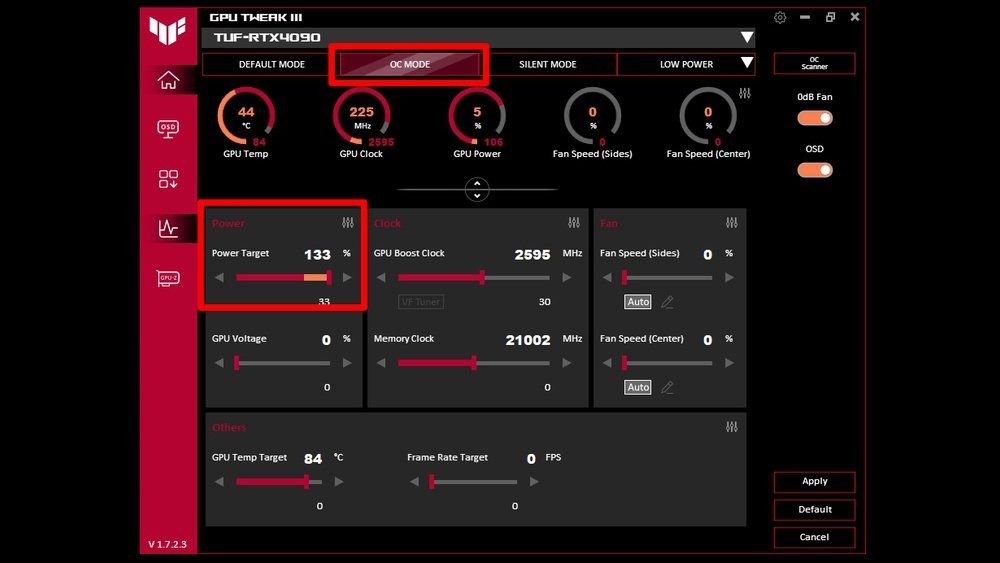
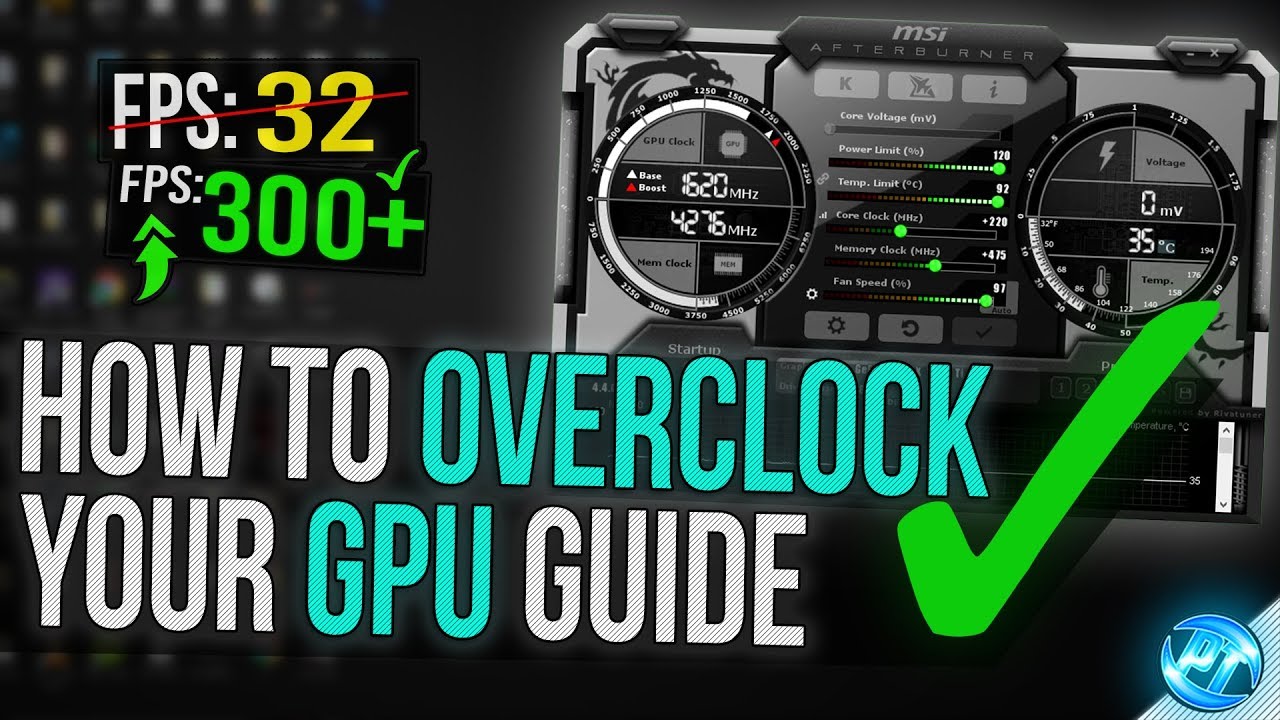
Several software programs let users overclock their GPU. MSI Afterburner is one of the most popular choices. It offers control over core clock, memory clock, and fan speed. EVGA Precision X1 is another option, mainly for EVGA brand cards. ASUS GPU Tweak II works well with ASUS graphics cards. These tools provide simple sliders and real-time stats. They make it easy to test different settings and find the best balance.
Hardware Monitoring Tools
Hardware monitoring tools track the GPU’s temperature, voltage, and usage. HWMonitor is a widely used program for this purpose. GPU-Z offers detailed information about the graphics card. Some overclocking software also includes built-in monitoring features. Monitoring tools alert users to overheating or instability. This helps prevent hardware damage during overclocking.
Step-by-step Overclocking Process
Overclocking a GPU can boost its speed beyond factory settings. This process needs care and patience. Follow these steps to overclock safely and effectively. This guide helps you adjust settings and check stability.
Preparing Your System
Start by updating your GPU drivers to the latest version. Close all programs running in the background. Ensure your PC has good cooling and ventilation. Download reliable overclocking software like MSI Afterburner. Set a restore point in case you need to undo changes.
Adjusting Core Clock
Open your overclocking tool and find the core clock slider. Increase the core clock speed in small steps, about 10-20 MHz. After each increase, test your GPU for stability. Watch the temperature; keep it below 85°C. Stop raising the clock if crashes or artifacts appear.
Tweaking Memory Clock
Next, move to the memory clock slider. Increase memory clock speed slowly, about 20-30 MHz steps. Test each change to ensure your GPU runs smoothly. Memory overclocking can improve texture loading and frame rates. Avoid large jumps to prevent system crashes.
Testing Stability And Performance
Run stress tests using tools like FurMark or 3DMark. Play a demanding game to check real-world performance. Monitor temperature, frame rate, and any graphical glitches. If your system crashes or freezes, reduce clock speeds. Achieve a balance between speed and stability for best results.

Credit: www.avg.com
Temperature Management
Temperature management plays a key role in GPU overclocking. Overclocking makes your GPU work harder. This produces more heat than usual. Without proper cooling, the GPU can get too hot. High temperatures can reduce performance and damage the hardware. Keeping the GPU cool helps it run smoothly and last longer.
Cooling Solutions
Good cooling solutions keep the GPU temperature low. Air coolers with fans are common and affordable. They blow air over the GPU to remove heat. Liquid coolers use water to carry heat away. These are quieter and often more effective. Some users add extra case fans to improve airflow. Thermal paste between the GPU and cooler helps heat transfer. Choosing the right cooling method depends on your budget and setup.
Monitoring Gpu Temperatures
Monitoring GPU temperature is essential during overclocking. Software tools show real-time temperature readings. Many GPU manufacturers offer their own monitoring apps. These tools alert you if the temperature gets too high. Setting safe temperature limits protects your GPU. Watching the temperature helps you adjust the overclock settings. It also prevents crashes and hardware damage. Regular checks keep your GPU safe and efficient.
Optimizing Overclock Settings
Optimizing overclock settings is key to getting the best from your GPU. It means adjusting the right values to boost speed without causing errors. This process takes patience and care. Small changes can make a big difference in performance and safety.
Focus on finding the balance where your GPU runs faster but stays stable. Watch temperatures and test your settings often. This helps avoid crashes and hardware damage.
Balancing Performance And Stability
Performance means how fast your GPU works. Stability means it runs without errors or crashes. These two must work together.
Start by increasing the clock speed in small steps. Test the system after each change. Use stress tests to check for crashes or glitches.
If your GPU crashes, reduce the clock speed a bit. Repeat until you find the highest stable speed. Keep an eye on temperature. Overheating can cause instability.
Fine-tuning Voltage
Voltage controls the power your GPU uses. Raising voltage can help reach higher speeds but adds heat.
Increase voltage slowly and test stability after each step. Too much voltage can damage your GPU.
Watch GPU temperature closely. Use good cooling to keep temperatures safe. Lower voltage when possible to reduce heat and power use.
Troubleshooting Common Issues
Overclocking a GPU can boost performance but may cause some problems. Troubleshooting is key to keeping your system stable and smooth. Common issues include crashes, freezes, and visual glitches. Fixing these helps maintain a good gaming or work experience. This section covers simple steps to solve these problems.
Crash And Freeze Fixes
Crashes and freezes often happen when the GPU runs too fast. Lower the clock speed slightly to reduce stress. Check the temperature; overheating can cause shutdowns. Ensure your cooling system works well. Update your GPU drivers to the latest version. Old drivers can cause instability. Test the overclock settings with stress tests. Stop overclocking if the system remains unstable.
Handling Artifacts And Glitches
Artifacts and glitches appear as strange lines or colors on the screen. These indicate the GPU is pushed too hard. Reduce the core and memory clock speeds carefully. Increase the GPU voltage only if you know how to do it safely. Use software tools to monitor the GPU’s behavior. Fixing artifacts improves visual quality and prevents damage. Avoid running the GPU beyond safe limits to protect your hardware.
When Not To Overclock
Overclocking a GPU may cause overheating and damage if done without proper cooling. Avoid it on older or low-quality graphics cards to prevent hardware issues. Stability problems can also arise from pushing a GPU too far.
When Your Gpu Is Already Overheating
Overclocking raises your GPU’s temperature. If it runs hot now, do not push it further. High heat can damage your graphics card permanently. Cooling systems might not handle extra heat well. Keep your GPU safe by avoiding overclocking in this case.
If You Need Stable Performance
Overclocking can cause crashes or freezes. Systems that require stability, like work computers, should avoid it. Unstable performance can cause lost work or errors. For steady, reliable use, run your GPU at normal speeds.
When Your Warranty Is Still Active
Overclocking can void your GPU warranty. Manufacturers may refuse repairs if damage occurs from overclocking. If your card is new, it is safer to wait. Use the GPU as intended until the warranty expires.
On Older Or Low-end Gpus
Older GPUs may not handle overclocking well. Low-end cards might not benefit much from it. They could become unstable or fail quickly. Better to avoid overclocking these GPUs to save trouble.

Credit: www.avg.com
Credit: www.youtube.com
Frequently Asked Questions
Can You Safely Overclock Any Gpu Model?
Yes, most GPUs can be safely overclocked with proper cooling and gradual adjustments. However, older or budget models may have limited overclocking potential.
What Are The Risks Of Overclocking A Gpu?
Overclocking can cause overheating, system instability, and potential hardware damage if done improperly. Proper cooling and monitoring minimize these risks.
How Much Performance Gain Does Gpu Overclocking Provide?
GPU overclocking typically boosts performance by 10-20%. Actual gains depend on the GPU model and cooling efficiency.
Do I Need Special Software To Overclock A Gpu?
Yes, software like MSI Afterburner or EVGA Precision X1 is needed to adjust clock speeds and voltages safely.
Conclusion
Overclocking a GPU can boost its performance for some tasks. It also raises heat and power use, which needs careful control. Not all GPUs handle overclocking well. Testing and monitoring are important to avoid damage. Consider your needs and risks before trying it.
Safe steps help keep your GPU running longer. Overclocking is a choice, not a must. Decide based on your setup and goals.
