
Have you ever wondered if you can boost your laptop’s power by installing a new GPU? Maybe you want smoother gaming, faster video editing, or just better overall performance.
The idea sounds simple: swap out your old graphics card for a better one. But can you really install a GPU in a laptop like you would in a desktop? Before you open up your laptop or spend money on the wrong parts, it’s important to know what’s possible—and what’s not.
Keep reading to discover the truth about upgrading your laptop’s graphics and whether you can make your machine run faster with a new GPU.

Credit: dautressaveurs.be
Laptop Gpu Basics
A laptop’s GPU is its graphics processing unit. It handles images, videos, and games. This part is very important for smooth visuals and fast display.
Not all laptops have the same type of GPU. Some use simple graphics, while others use powerful ones. Understanding these differences helps to know if you can upgrade your GPU.
Integrated Vs Dedicated Gpus
Integrated GPUs share memory with the laptop’s main processor. They are built into the CPU. These GPUs use less power but offer lower performance.
Dedicated GPUs have their own memory. They are separate from the CPU. These GPUs deliver better graphics and faster speeds. They are common in gaming and design laptops.
Integrated GPUs are good for basic tasks. Dedicated GPUs suit heavy graphics work and games. Knowing this helps decide what kind of laptop fits your needs.
How Laptop Gpus Work
The GPU processes graphics data and sends it to the screen. It works alongside the CPU but focuses only on images. This division makes laptops run graphics smoothly.
Dedicated GPUs have their own cooling systems. This keeps them from overheating during heavy use. Integrated GPUs rely on the CPU’s cooling, so they stay cooler but run slower.
Most laptop GPUs are soldered to the motherboard. This means they cannot be removed or replaced easily. This fact limits GPU upgrades in many laptops.
Credit: vixencomposites.com
Checking Laptop Compatibility
Checking laptop compatibility is the first step before installing a GPU. Not all laptops support GPU upgrades. Some have fixed graphics chips soldered to the motherboard. Others allow external or modular GPU solutions. Knowing your laptop’s specs helps avoid damage and wasted effort.
Identifying Your Laptop Model
Find the exact model number on the laptop’s label or system settings. This number reveals hardware details and upgrade options. Use the model number to search online for your laptop’s specifications. Check the manufacturer’s website for information on GPU support. Knowing the model helps determine if a GPU upgrade is possible.
Supported Gpu Types
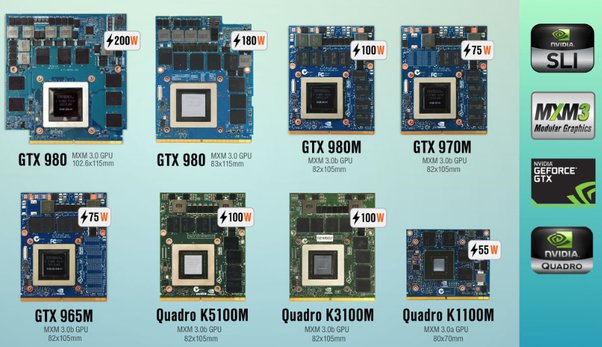
Laptops typically support integrated or dedicated GPUs. Integrated GPUs are built into the CPU and cannot be changed. Dedicated GPUs are separate chips, sometimes removable. Some high-end laptops use MXM modules for GPU upgrades. External GPU (eGPU) setups connect via Thunderbolt ports. Verify which GPU types your laptop supports before buying hardware.
Options For Laptop Gpu Upgrade
Upgrading a laptop’s GPU is not as simple as with desktop PCs. Laptops have limited space and specific designs. Still, there are a few ways to improve your laptop’s graphics performance. Understanding these options helps you choose the best method for your needs and budget.
Internal Gpu Replacement Challenges
Most laptops have GPUs soldered onto the motherboard. This design stops users from swapping out the GPU easily. Even in models with removable GPUs, replacement is tricky. It needs technical skills and special tools. Laptop parts also vary widely, making compatibility a major issue. Attempting internal upgrades can void warranties or damage your device. These risks make internal GPU replacement rare and costly.
Using External Gpu Enclosures
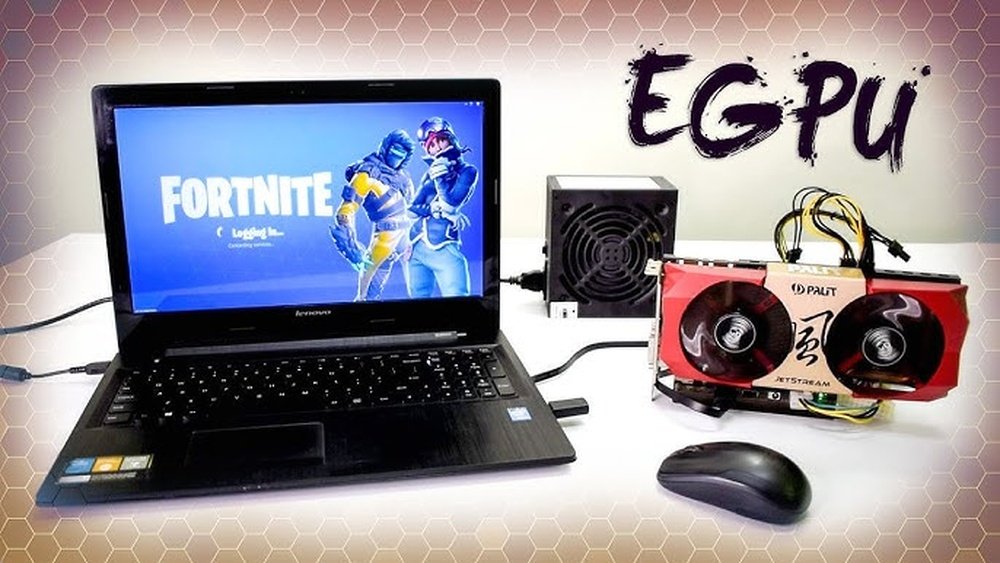
External GPU enclosures connect to laptops via Thunderbolt 3 or 4 ports. They house a desktop GPU outside the laptop. This setup boosts graphics power without opening the laptop. It works well for gaming and video editing. External enclosures require extra space and power supply. They also add cost beyond just buying a GPU. Still, they offer a practical upgrade path for many users.
External Gpu Setup Guide
Using an external GPU (eGPU) is a smart way to boost your laptop’s graphics power. It allows you to connect a desktop-grade graphics card without opening your laptop. This guide explains how to set up an eGPU step-by-step. Follow these simple steps to enhance your laptop’s performance.
Choosing The Right Egpu Enclosure
Pick an enclosure that fits your GPU size and power needs. It must have enough space and a strong power supply. Check the connection type; Thunderbolt 3 is common and fast. A good enclosure keeps the GPU cool during use. Consider the enclosure’s build quality and price too.
Connecting Egpu To Your Laptop
First, shut down your laptop. Connect the eGPU enclosure to your laptop using a Thunderbolt 3 cable. Power on the enclosure and then your laptop. The laptop should detect the new hardware automatically. Some laptops need you to enable eGPU in BIOS or settings.
Installing Drivers And Software
Download the latest drivers from the GPU manufacturer’s website. Install the drivers carefully, following the on-screen instructions. Restart your laptop after installation. Use the software to manage GPU settings and check performance. Keep drivers updated for best results and stability.
Performance Expectations
Performance is a key concern when adding a GPU to a laptop. Many wonder if the upgrade will meet their needs. Expect differences based on how the GPU is installed. Internal GPUs and external GPUs do not perform the same. Understanding these differences helps set realistic goals.
Laptop designs limit how much power a GPU can use. Cooling and power delivery affect speed and stability. External GPUs use a different connection, which can slow data transfer. This impacts overall performance in games and apps.
Comparing Internal And External Gpu Speeds
Internal GPUs connect directly to the motherboard. This allows faster communication with the CPU and memory. They usually deliver higher frame rates and better graphics quality. External GPUs connect through ports like Thunderbolt. These ports have limited bandwidth compared to internal slots. As a result, external GPUs often run slower than internal ones. The speed loss depends on the laptop’s connection and GPU model. Users can expect a drop of 10% to 30% in performance.
Gaming And Productivity Benefits
Installing a GPU improves gaming visuals and frame rates. Games run smoother and look better with a dedicated GPU. Productivity apps like video editing and 3D modeling also get a boost. Tasks complete faster with a stronger GPU. External GPUs offer flexibility, allowing upgrades without changing the laptop. Internal GPUs provide consistent, higher performance but limit upgrade options. Choosing the right setup depends on the user’s needs and budget.
Cost And Value Considerations
Considering the cost and value of installing a GPU in a laptop is crucial. Laptop GPUs differ from desktop versions and are often built-in or soldered.
Upgrading a laptop GPU can be expensive and sometimes impractical. Understanding the price and value helps you make a smart decision.
Price Range For Gpu Upgrades
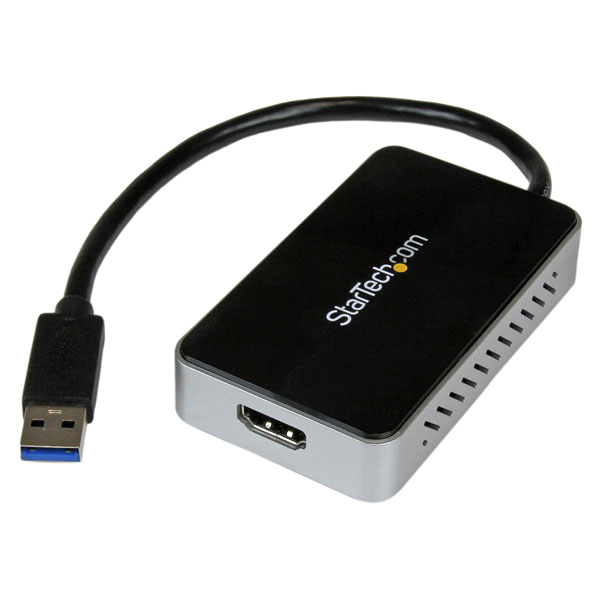
Most laptops do not support direct GPU upgrades. External GPU (eGPU) setups are an option but can cost between $300 and $700.
These eGPU enclosures require a compatible laptop and a desktop GPU card, adding to the total cost.
Internal GPU upgrades are rare and may require professional help, increasing the price further.
When To Upgrade Vs Buy A New Laptop
Consider upgrading if your laptop supports eGPU and you need better graphics performance.
Buy a new laptop if your current device is old or has limited upgrade options.
New laptops with powerful GPUs might cost less than a full upgrade setup.
Think about how long you plan to use the laptop before spending money.
Common Issues And Troubleshooting
Installing a GPU in a laptop can bring better graphics and speed. But this process may cause some common issues. Knowing these problems helps fix them fast. This section explains main troubles and how to solve them.
Compatibility Problems
Laptops have limited space for hardware changes. Not all GPUs fit inside every laptop model. Some laptops only support specific GPUs. Check your laptop’s manual before buying a new GPU. Otherwise, the GPU might not work or cause damage.
Driver Conflicts
GPU drivers control how the hardware works with your system. Old or wrong drivers can cause crashes or poor performance. Always download drivers from the GPU maker’s official site. Remove old drivers before installing new ones to avoid conflicts.
Connection And Power Issues
Laptops have limited power supply for extra parts. A new GPU may need more power than your laptop can give. Loose or incorrect connections can stop the GPU from working. Ensure all cables and ports are secure. Use adapters made for your laptop model only.
Credit: vixencomposites.com
Maintenance Tips For Upgraded Gpus
Upgrading a GPU in a laptop can boost performance but requires care. Proper maintenance keeps the new GPU running smoothly. Small steps help prevent issues and extend your laptop’s life.
Keeping Drivers Updated
GPU drivers control how your system uses the graphics card. New driver updates improve performance and fix bugs. Check for updates regularly on the GPU maker’s website. Use automatic update tools if available. Staying current helps avoid crashes and lag.
Cooling And Ventilation
Upgraded GPUs produce more heat than older models. Heat can cause slowdowns or damage the laptop. Keep vents clean and clear of dust. Use a cooling pad to improve airflow. Avoid blocking air vents during use. Proper cooling helps the GPU run at its best.
Regular Hardware Checks
Check the GPU and laptop interior every few months. Look for dust buildup or loose connections. Gently clean dust with compressed air or a soft brush. Ensure fans spin freely and work properly. Early checks catch problems before they worsen.
Frequently Asked Questions
Can You Upgrade A Laptop Gpu Easily?
Most laptops have integrated GPUs that are not upgradeable. Some gaming laptops feature modular GPUs, but these are rare. External GPU (eGPU) setups via Thunderbolt ports offer a flexible upgrade option. Check your laptop’s specifications before attempting any upgrade.
What Is An External Gpu (egpu) For Laptops?
An eGPU is an external device housing a desktop-grade GPU. It connects to laptops via Thunderbolt 3 or 4 ports. EGPUs boost graphics performance without opening the laptop. This is ideal for gaming or professional graphic work on laptops.
Does Installing A New Gpu Void Laptop Warranty?
Yes, opening or modifying your laptop hardware often voids the warranty. Manufacturers typically prohibit GPU upgrades inside laptops. Using an eGPU does not affect the laptop warranty. Always check warranty terms before any hardware changes.
Which Laptops Support Gpu Upgrades Internally?
Only a few high-end gaming or workstation laptops support internal GPU upgrades. These models use MXM (Mobile PCI Express Module) cards. Most consumer laptops have soldered GPUs, making upgrades impossible. Verify your laptop model for upgrade compatibility before buying a GPU.
Conclusion
Installing a GPU in a laptop is usually not possible. Most laptops have built-in graphics chips. Some models support external GPUs through special ports. But these setups can be costly and complex. For better graphics, consider buying a laptop with a strong GPU already inside.
This saves time and effort. Always check your laptop’s specifications before trying any upgrades. A good GPU helps with gaming and video tasks. Choose wisely based on your needs and budget. Simple and clear decisions work best.
