
Are you wondering if you can check your GPU right from the BIOS? Knowing how to find your graphics card details early in your system’s startup can save you time and help you troubleshoot issues faster.
Imagine quickly confirming your GPU without needing to boot into your operating system or open complicated software. You’ll discover exactly how to check your GPU in the BIOS, what information you can expect to see, and why this little trick can make a big difference in managing your computer.
Keep reading, and you’ll gain a simple skill that every PC user should have.
Accessing Bios To Check Gpu
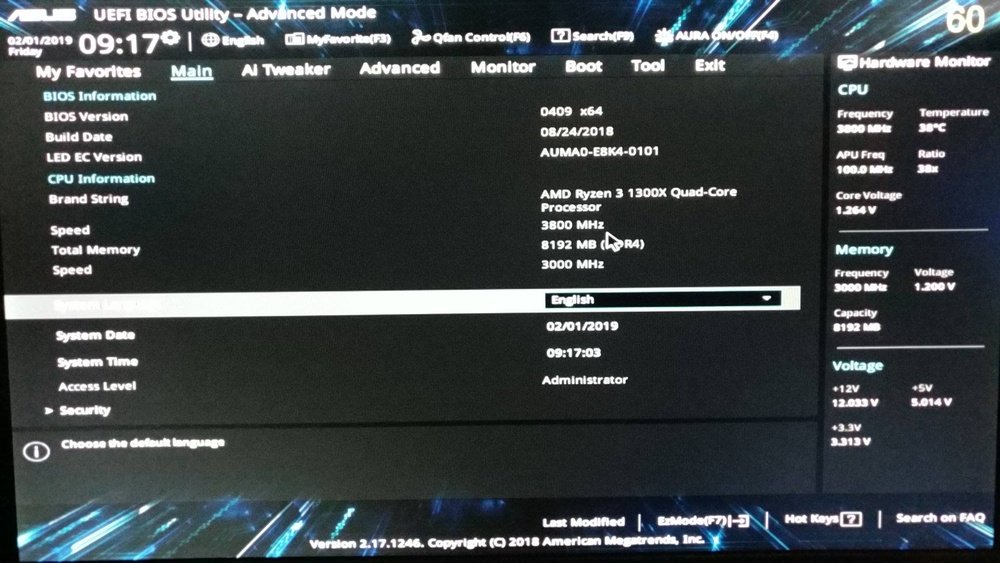
Accessing the BIOS to check your GPU helps you find details about your graphics hardware. The BIOS shows basic info about the GPU installed in your system. It is useful when you want to confirm which GPU your computer uses. This method works for both integrated and dedicated graphics cards. Follow simple steps to enter BIOS and find your GPU information quickly.
Entering Bios Setup
Start by restarting your computer. During the startup, press the BIOS key. Common keys include F2, Delete, or Esc. The exact key depends on your motherboard brand. Press it right after powering on the PC. If you miss it, restart and try again.
Navigating Bios Menus
Use keyboard arrows to move through BIOS menus. Avoid using a mouse, as many BIOS versions do not support it. Look for tabs like “Advanced,” “Main,” or “System Information.” BIOS layouts vary across manufacturers, so explore carefully. Do not change settings unless you know their function.
Locating Graphics Information
Find sections labeled “Graphics,” “Video,” or “Display.” These sections show the GPU model and memory size. You may see details for integrated or dedicated GPUs. If your PC has both, BIOS might list both types. Note down the GPU name for future reference or troubleshooting.

Credit: softwareg.com.au
Interpreting Gpu Details In Bios
The BIOS holds basic information about your computer hardware. This includes the graphics processing unit (GPU). Understanding these details helps you know what kind of GPU your system uses. It also shows how your computer manages graphics tasks. Checking GPU details in BIOS can guide you in troubleshooting or upgrading.
BIOS does not display full GPU specs like software tools do. It gives a simple overview. Knowing how to read this overview is useful. It tells if you have an integrated GPU or a dedicated one. It also shows the GPU’s status and priority settings.
Identifying Integrated Vs Dedicated Gpu
BIOS often shows the type of GPU installed. Integrated GPUs are built into the CPU or motherboard. Dedicated GPUs are separate cards plugged into the motherboard. In BIOS, integrated GPUs may appear as “Onboard” or “Internal.” Dedicated GPUs may show as PCI Express devices.
Look for keywords like “IGPU” or “VGA” in BIOS. These indicate integrated graphics. Dedicated GPUs usually show the manufacturer name or model. Knowing the difference helps you check if the right GPU is active.
Understanding Bios Gpu Entries
BIOS lists GPU information in a few key areas. One common place is the “Boot” or “Advanced” section. Here, you can find settings like “Primary Display” or “Initial Display Output.” These options choose which GPU starts first.
Other entries show the GPU’s memory size or clock speed. These details are basic and may not be exact. BIOS may also display the PCI slot number where the GPU is installed. This confirms that the dedicated GPU is recognized by the system.
Reading these entries helps you confirm your GPU setup. It also ensures your system uses the correct graphics device for tasks.
Alternative Methods To Verify Gpu
Checking your GPU in BIOS is not always possible or clear. You need other ways to confirm which graphics card you have. These alternative methods help you find GPU details quickly. They work well for beginners and advanced users.
Using Device Manager In Windows
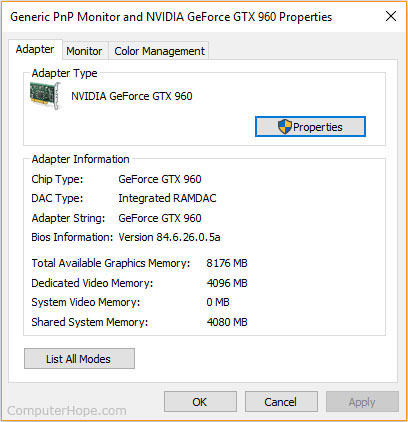
Device Manager shows all hardware devices on your PC. To check your GPU, open Device Manager. Expand the “Display adapters” section. You will see the name of your graphics card there. This method is simple and fast.
Checking Gpu Via System Information
System Information gives detailed data about your computer. Press Windows + R keys and type “msinfo32” then hit Enter. Look under “Components” and select “Display.” You will find your GPU name and driver information here. This way gives more details than Device Manager.
Third-party Gpu Detection Tools
Some programs show GPU details easily. Tools like GPU-Z or Speccy scan your system for hardware info. They provide clear and accurate GPU data. These tools are free and user-friendly. They help if Windows built-in options don’t work well.
Credit: www.servivuelo.com
Troubleshooting Gpu Detection Issues
Sometimes your computer might not detect the GPU in the BIOS. This can cause problems with display or performance. Troubleshooting these issues helps you find the root cause. You can try simple steps to fix GPU detection problems.
Bios Updates And Compatibility
Outdated BIOS versions can miss new GPU models. Updating BIOS can add support for newer graphics cards. Check your motherboard maker’s website for the latest BIOS. Follow their instructions carefully to avoid damage. BIOS updates often fix bugs and improve hardware detection.
Resetting Bios Settings
Incorrect BIOS settings can block GPU detection. Resetting BIOS to default clears any wrong configurations. You can reset BIOS by using the jumper on the motherboard or removing the CMOS battery for a few minutes. After reset, save and exit BIOS. This often solves detection issues caused by bad settings.
Hardware Connection Checks
Loose or faulty connections stop the BIOS from seeing the GPU. Open your PC case and check if the GPU is firmly seated in the PCIe slot. Make sure power cables are connected properly. Dust or debris can block contacts, so clean them gently. Confirm all cables and parts are secure for proper detection.
Benefits Of Checking Gpu In Bios
Checking your GPU in the BIOS offers clear advantages. It helps you find hardware problems early before your system loads the operating system. This saves time and effort in troubleshooting later.
You can also see if the BIOS recognizes your GPU correctly. This is important to ensure your computer uses the right graphics card. It avoids errors and display issues during startup.
Early Hardware Diagnosis
BIOS lets you detect GPU issues before the OS starts. You can spot faulty or loose connections early. This helps fix problems before they affect your system’s performance.
Early diagnosis means fewer crashes and better stability. It also reduces the risk of damaging other parts of your computer.
Confirming Gpu Recognition Before Os Boot
BIOS shows if your GPU is recognized by the motherboard. This ensures the hardware is properly installed and working. If the GPU is missing, you can act quickly.
Correct GPU recognition avoids display errors during boot. It helps your system load the right drivers later. This step is key for smooth computer operation.

Credit: www.reddit.com
Frequently Asked Questions
Can I See My Gpu Details In Bios?
Most BIOS versions show basic GPU info, like type and memory. However, detailed specs usually require OS-level tools for accurate info.
How To Identify Gpu Model Using Bios?
BIOS typically lists the GPU model under hardware or system information. For precise model details, use software like Device Manager or GPU-Z.
Why Can’t I Find Detailed Gpu Info In Bios?
BIOS is designed for hardware settings, not detailed GPU specs. It shows minimal info; detailed monitoring needs specialized software within the operating system.
Is Bios Useful For Troubleshooting Gpu Issues?
BIOS can confirm if the GPU is detected at the hardware level. For deeper diagnostics, use OS-level tools or hardware testing software.
Conclusion
Checking your GPU in the BIOS is simple and useful. You can see basic information about your graphics card there. This helps you confirm if your system recognizes the GPU. BIOS does not show detailed specs but provides a quick check.
For full details, use software inside your operating system. Knowing how to check your GPU in BIOS saves time. It helps with troubleshooting and system setup. Try it next time you want to verify your graphics card. A quick BIOS check can give you peace of mind.
