
Have you ever wondered if you can upgrade your laptop’s GPU to boost gaming or creative work? You’re not alone.
Many laptop users dream of improving graphics performance without buying a new device. But is it really possible to change your laptop’s GPU? Before you get your hopes up, there are important facts you need to know. This article will guide you through what’s possible, what’s not, and the best options for giving your laptop a graphics boost.
Keep reading to find out how to make your laptop work harder for you.
Credit: fundacioninbursa.org
Laptop Gpu Basics
Laptop GPUs are key parts that handle graphics and video processing. They affect how well your laptop runs games, videos, and design programs. Knowing the basics helps you understand if you can change or upgrade your laptop’s GPU.
Many people ask about laptop GPUs because they want better performance. Not all laptops let you change the GPU easily. This depends on the type of GPU and laptop design.
Types Of Laptop Gpus
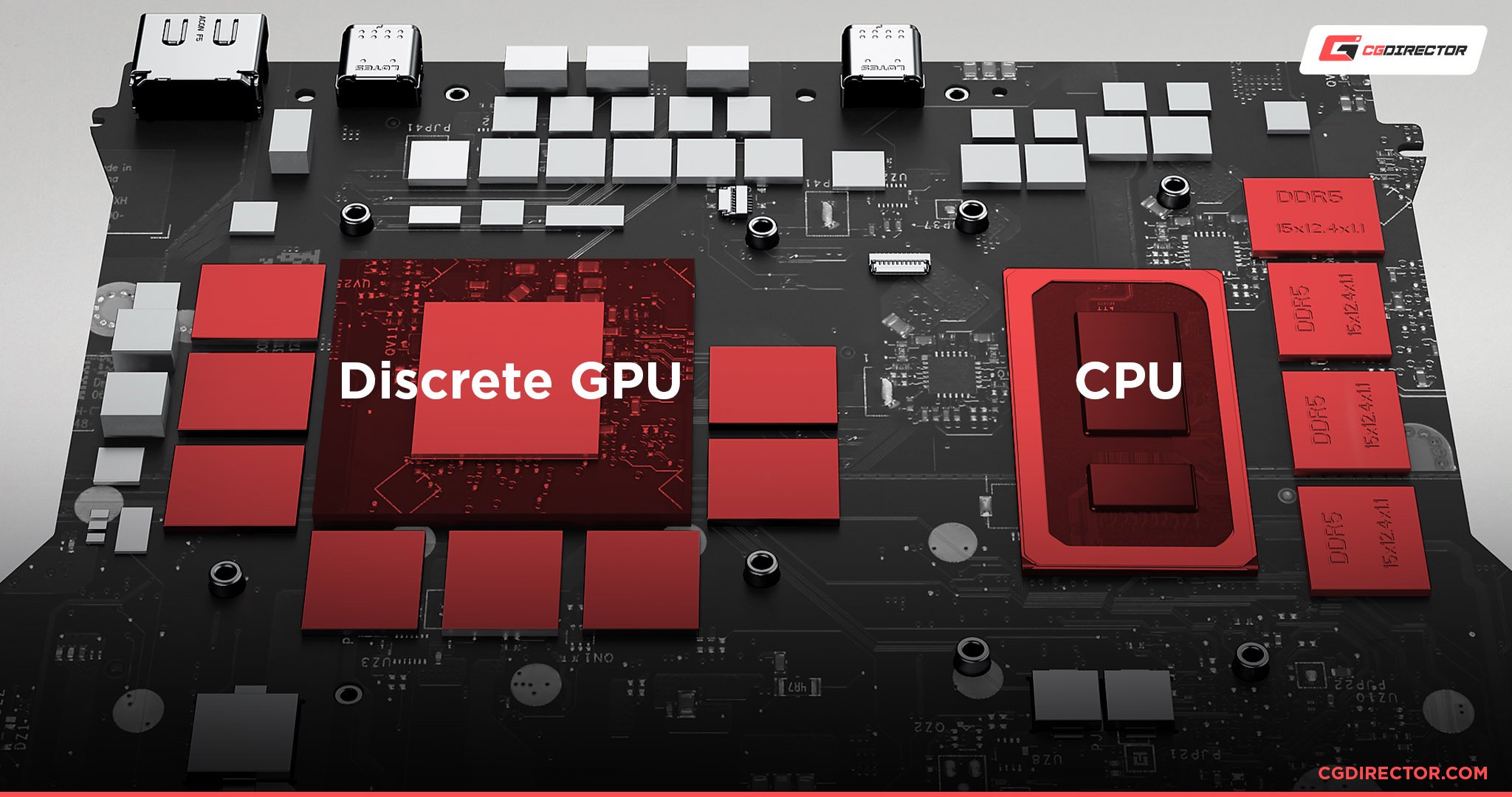
Laptop GPUs come in two main types. One type is built into the processor or motherboard. The other is a separate chip added to the laptop. Each type works differently and has its own uses.
The built-in GPU shares memory with the laptop’s main system. It uses less power but is less powerful. The separate GPU has its own memory and is stronger. It suits gaming and heavy graphics tasks.
Integrated Vs Dedicated Gpus
Integrated GPUs are part of the CPU. They handle simple tasks like web browsing and video watching. Integrated GPUs save battery and keep the laptop light.
Dedicated GPUs are separate chips. They have their own memory and power source. Dedicated GPUs are better for games, video editing, and 3D work. They use more power and create more heat.
Many laptops use both types. The system switches between GPUs based on the task. This saves battery during light work and boosts performance when needed.
Credit: www.shoshitamam.com
Factors Affecting Gpu Upgrade
Upgrading a laptop GPU is not always simple. Several key factors affect whether a new GPU can work with your laptop. These factors include the laptop’s design, compatibility, and software limits. Understanding these helps you decide if upgrading is possible and practical.
Each laptop model has different hardware and software setups. These setups can either allow or block GPU changes. It is important to check these details before planning an upgrade.
Laptop Design And Compatibility
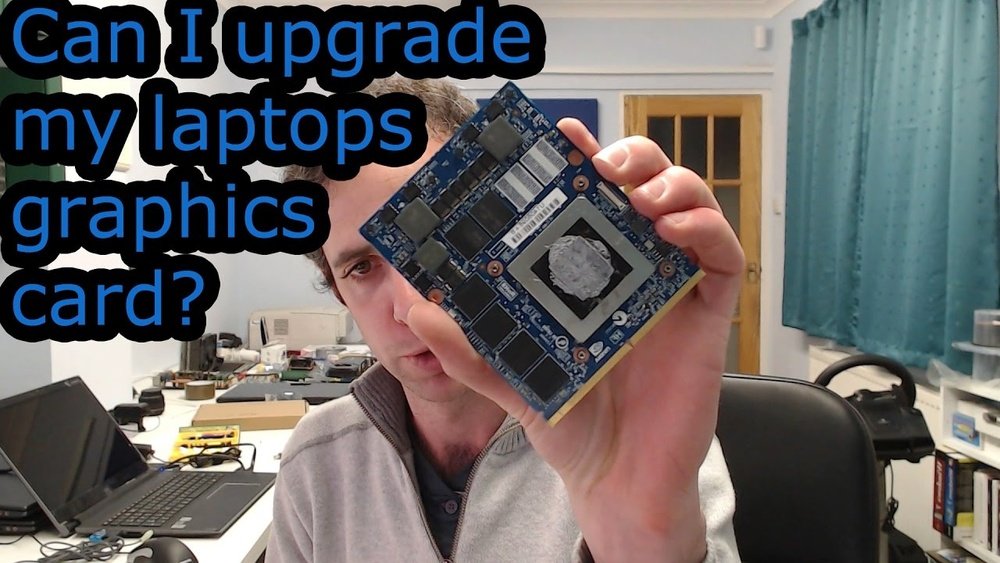
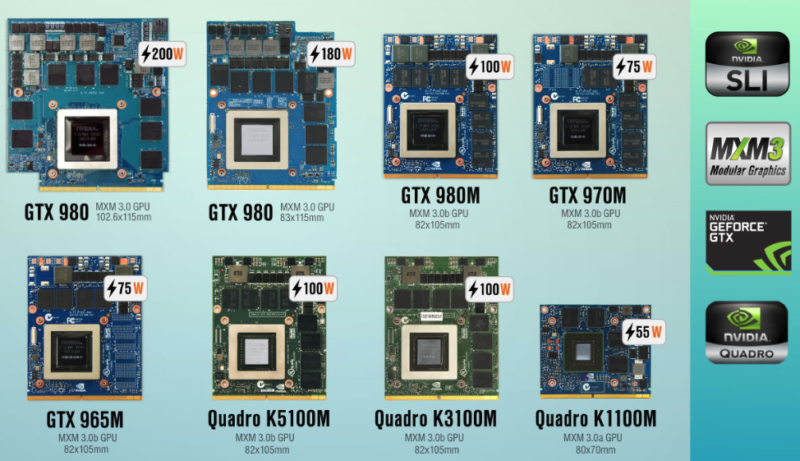
Most laptops have GPUs soldered directly to the motherboard. This means the GPU is fixed and cannot be removed or replaced. Only a few high-end gaming or professional laptops have modular GPUs. These models use MXM (Mobile PCI Express Module) slots for easier swapping.
Size also matters. The new GPU must fit inside the laptop’s case. Power supply limits can restrict GPU options too. A more powerful GPU may need more energy than the laptop can provide. Cooling systems must handle the heat of the new GPU as well.
Bios And Firmware Limitations
The BIOS and firmware control hardware compatibility. Some laptops block new GPUs through their BIOS settings. Updating BIOS can sometimes help but is risky. A wrong BIOS update can damage the laptop.
Firmware may also restrict using certain GPUs. Laptop manufacturers often design firmware for specific hardware. Using an unsupported GPU can cause boot failures or crashes. Checking BIOS and firmware support is crucial before upgrading.
Identifying Upgrade Options
Changing a laptop GPU is not simple. You must find the right upgrade option first. Not all laptops allow GPU changes. Some use fixed graphics chips. Others offer some flexibility. Understanding your laptop’s design helps. It tells if and how you can upgrade the GPU.
Modular Gpus And Mxm Standards
Some laptops use modular GPUs. These GPUs connect using MXM (Mobile PCI Express Module) slots. MXM is a standard for laptop graphics cards. It allows easy removal and replacement of GPUs. But only certain laptops have MXM slots. You must check if your laptop supports MXM. Also, the new GPU must match the MXM version. Different versions may not fit or work. Laptop cooling and power limits affect GPU compatibility too.
External Gpu Solutions
External GPUs (eGPUs) are another option. They connect via Thunderbolt or USB-C ports. eGPUs let you use desktop-grade graphics outside the laptop. No need to open the laptop case. Just plug in the external GPU box. It improves graphics performance for games and apps. Not all laptops support eGPUs. Check your laptop’s port and driver support first. eGPUs need extra space and power, so consider that.
Preparing For Gpu Upgrade
Preparing for a GPU upgrade in a laptop requires careful steps. It is not the same as upgrading a desktop PC. Laptops have limited space and special parts. Careful preparation helps avoid damage and data loss.
Before starting, understanding the process and gathering the right tools is very important. This ensures the upgrade goes smoothly and safely.
Backup And Safety Precautions
Always back up your important files before opening your laptop. Data can be lost if something goes wrong. Use an external hard drive or cloud storage to save your data.
Turn off the laptop and unplug it from power. Remove the battery if possible. This avoids electric shock or short circuits. Work on a clean, flat surface. Use an anti-static wrist strap to stop static damage.
Required Tools And Materials
You will need small screwdrivers, usually Phillips-head ones. A plastic pry tool can help open the case without scratching. Thermal paste is necessary if you remove the GPU cooler. It helps keep the GPU cool after the upgrade.
Keep a clean cloth or compressed air to remove dust inside the laptop. Have a container ready to hold screws. This keeps parts organized and prevents loss.
Step-by-step Gpu Replacement
Replacing a laptop GPU can improve graphics and speed. This process needs care and the right steps. Follow this guide to change your laptop GPU safely.
Disassembling The Laptop
Turn off the laptop and unplug it. Remove the battery if possible. Unscrew the back panel carefully. Keep screws in a safe place. Use a plastic tool to open the case. Avoid using metal tools that may cause damage.
Removing The Old Gpu
Locate the GPU inside the laptop. It is usually near the cooling fan. Unscrew the GPU mounting screws. Gently lift the GPU from the slot. Disconnect any cables attached to it. Be gentle to avoid breaking parts.
Installing The New Gpu
Align the new GPU with the slot. Press it down firmly but gently. Screw the GPU back into place. Reconnect any cables removed earlier. Ensure the GPU sits properly without gaps.
Reassembling And Testing
Put the laptop’s back panel back on. Screw it tightly but do not over-tighten. Insert the battery and plug in the charger. Turn on the laptop and check the display. Install necessary drivers for the new GPU. Test with a game or video for performance.
Troubleshooting Common Issues
Changing a laptop GPU can lead to some issues. These problems can stop your new graphics card from working right. Knowing how to fix them saves time and stress. This section covers common troubles and easy solutions.
Driver Installation Problems
New GPUs need drivers to work with your laptop. Drivers are small programs that help your system talk to the GPU. Sometimes, drivers do not install properly. This causes the GPU to not show up or work slow.
Check if you downloaded the correct driver version. Use the official website of your GPU maker. Run the driver installer as an administrator. Restart your laptop after installation. If errors appear, try uninstalling old drivers first.
Hardware Compatibility Errors
Laptops have limited space and power for GPUs. Not all GPUs fit or get enough power. This causes compatibility errors. Your laptop might not start or might freeze often.
Confirm your laptop supports the new GPU. Check the size, power needs, and connection type. Read your laptop’s manual or support pages. Use GPUs made for laptops, not desktop versions. These steps help avoid hardware errors.
Tips For Choosing The Right Gpu
Choosing the right GPU for your laptop is important. The right GPU improves your computer’s speed and graphics quality. It also affects battery life and heat. To pick the best GPU, think about your needs and the laptop’s limits. Here are two key tips to help you decide.
Performance Vs Power Consumption
High-performance GPUs give better graphics and faster processing. They are great for gaming and video work. But they use more power. This can reduce your laptop’s battery life. They also make the laptop hotter. Lower power GPUs save battery and run cooler. They work well for simple tasks. Balance your need for speed with battery life and heat.
Budget Considerations
GPUs come in many price ranges. High-end models cost a lot. Mid-range GPUs offer good value for most users. Budget GPUs are cheaper but less powerful. Decide how much you want to spend. Match the GPU price to your laptop use. Avoid overspending on features you do not need.

Credit: www.youtube.com
When To Consider External Gpu Enclosures
Changing a laptop GPU is not always possible. Many laptops have GPUs soldered to the motherboard. This limits upgrading options. External GPU enclosures offer a practical alternative. They connect an external graphics card to the laptop. This section explains when to consider using external GPU enclosures.
Benefits Of Egpu Setups
External GPU enclosures boost laptop graphics without opening it. They improve gaming and design performance. Users can run demanding software smoothly. eGPUs extend the laptop’s life by upgrading graphics power. They provide flexibility to switch or upgrade the GPU anytime. No need to buy a new laptop for better graphics.
Compatibility And Performance
Not all laptops support external GPUs. Most eGPUs connect via Thunderbolt 3 or 4 ports. Check if the laptop has these ports. Performance depends on the connection speed and GPU inside the enclosure. Some loss in speed occurs compared to desktop GPUs. Still, eGPUs often outperform built-in laptop graphics significantly.
Alternatives To Gpu Upgrade
Changing a laptop GPU is often difficult or impossible. Many laptops have GPUs soldered onto the motherboard. This limits options for hardware upgrades. Still, there are ways to improve graphics performance without swapping the GPU. These alternatives help boost your laptop’s capabilities and extend its life.
Optimizing Software Settings
Adjusting software settings can improve graphics performance. Lower game or app resolution to reduce GPU load. Turn off unnecessary visual effects in your operating system. Update graphics drivers regularly for better stability and speed. Use software tools to monitor and manage GPU usage. These steps help your current GPU work more efficiently.
Upgrading Other Components
Upgrading parts other than the GPU can boost overall performance. Increasing RAM allows smoother multitasking and better game performance. Switching to a faster SSD reduces loading times and improves responsiveness. Upgrading your CPU can also help if it limits your GPU’s potential. These changes enhance your laptop’s speed without changing the GPU.
Frequently Asked Questions
Can You Upgrade A Laptop Gpu Easily?
Most laptops have integrated GPUs soldered onto the motherboard. Upgrading the GPU is usually not possible unless the laptop supports a modular GPU slot, which is rare.
What Types Of Laptops Allow Gpu Replacement?
Only certain gaming or workstation laptops with MXM slots allow GPU swaps. Most consumer laptops do not support GPU replacement.
Is External Gpu Better Than Internal Gpu Upgrade?
External GPUs connect via Thunderbolt and offer improved graphics performance. They are a practical alternative when internal GPU upgrades are not possible.
What Are The Risks Of Changing A Laptop Gpu?
Changing a laptop GPU can void warranty, cause hardware damage, or lead to compatibility issues. It requires technical expertise and proper tools.
Conclusion
Changing a laptop GPU is not always easy or possible. Many laptops have GPUs fixed to the motherboard. Some models allow GPU upgrades, but they are rare. You must check your laptop’s design first. Consider the cost and effort before deciding.
Sometimes, buying a new laptop is better. Knowing your laptop’s limits helps avoid problems later. Choose the best option for your needs and budget.
