
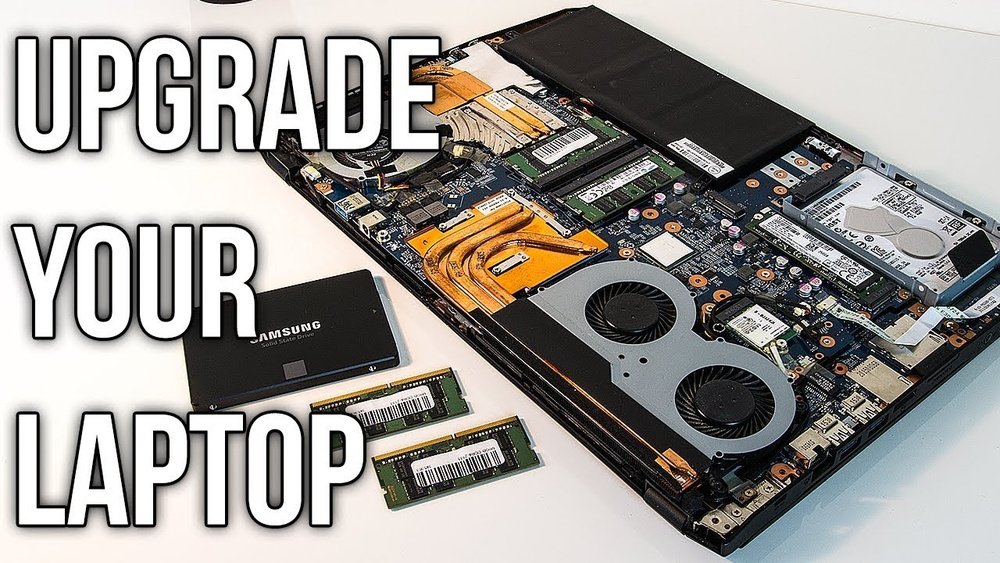
Are you wondering if you can upgrade your laptop’s GPU to boost gaming or design performance? You’re not alone.
Many people ask if it’s possible to swap out their laptop’s graphics card like they do on a desktop. The answer isn’t always simple, but understanding the options can save you time, money, and frustration. Keep reading to discover what you really need to know before trying to change your laptop’s GPU—and find out if there’s a smarter way to get the power you want.
Credit: fundacioninbursa.org
Laptop Gpu Basics
The GPU, or graphics processing unit, plays a key role in your laptop’s display and performance. It handles everything from simple images to complex 3D graphics. Understanding the basics of laptop GPUs helps you know what you can and cannot change in your device.
Laptops use two main types of GPUs. Each type has different strengths and limits. Knowing these differences helps when thinking about upgrades or repairs.
Integrated Vs Dedicated Gpus
Integrated GPUs share memory with the laptop’s main processor. They use less power and produce less heat. This makes them good for everyday tasks like browsing or watching videos.
Dedicated GPUs have their own memory and power. They handle demanding tasks like gaming and video editing better. These GPUs are usually found in gaming or professional laptops.
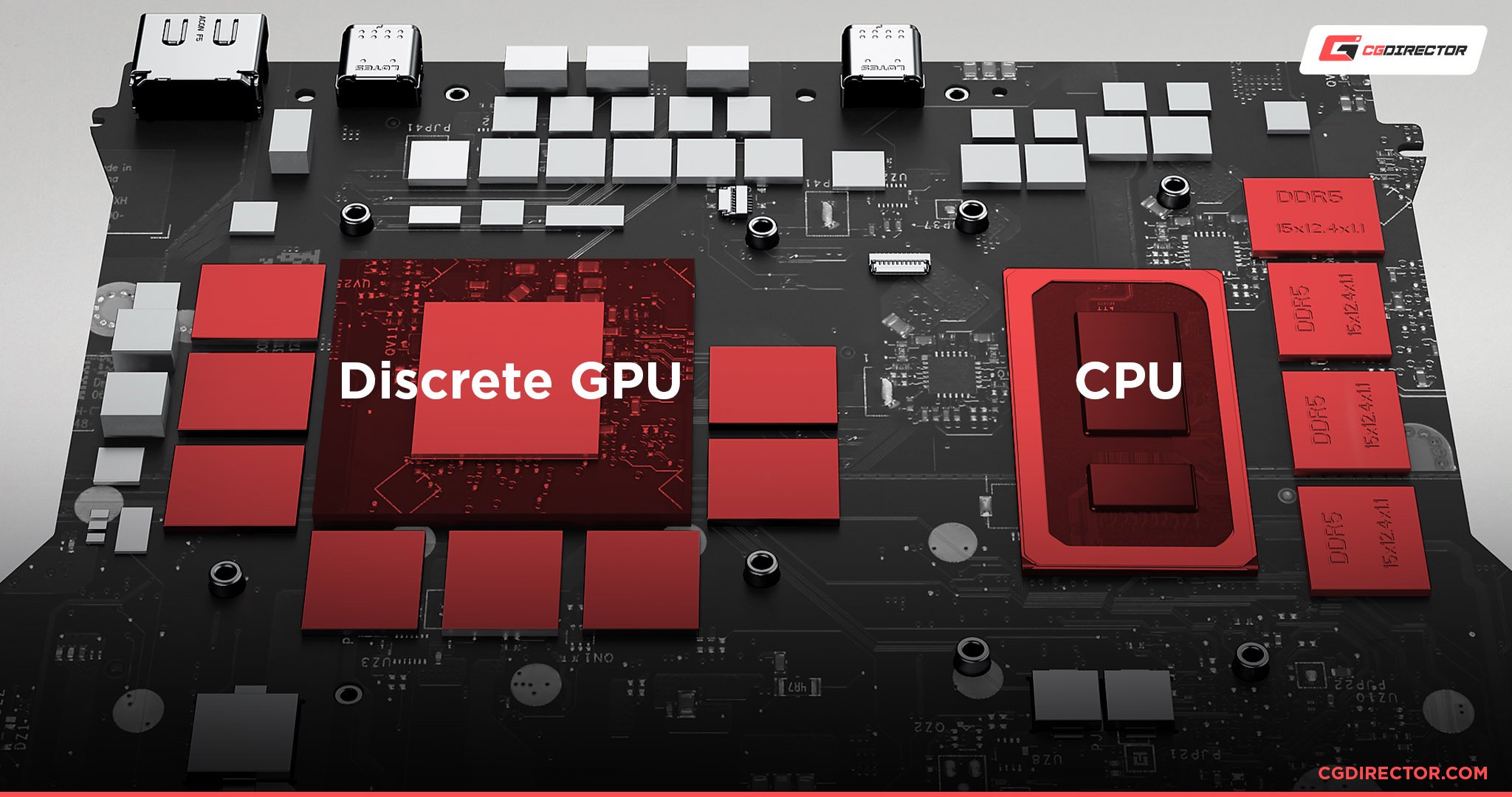
Integrated GPUs are built into the CPU. Dedicated GPUs are separate components. This difference affects whether you can change or upgrade your laptop GPU.
How Laptop Gpus Differ From Desktop Gpus
Laptop GPUs are smaller and use less power than desktop GPUs. This helps keep laptops light and cool. Desktop GPUs are bigger and more powerful but need more space and cooling.
Most laptop GPUs are soldered onto the motherboard. Desktop GPUs come as separate cards you can swap easily. This makes changing a laptop GPU difficult or impossible in many cases.
Some high-end laptops have modular GPUs, but these are rare. Usually, laptop GPUs are fixed and not designed for upgrades like desktops.

Credit: www.youtube.com
Signs You Need A Gpu Upgrade
Knowing when to upgrade your laptop’s GPU is important. A better GPU can improve your overall experience. It helps with gaming, video editing, and running new software. Watch for clear signs that your current GPU is not enough.
Performance Drops In Games And Applications
Games start to lag or run slowly. Frame rates drop below smooth levels. Graphics look blurry or pixelated. Programs that need graphics power take longer to load. Your laptop heats up quickly during use. These signs show your GPU struggles with tasks.
Compatibility With New Software
New software may not install or run properly. Some features might be missing or disabled. Updates require newer graphics standards that your GPU lacks. Your laptop may crash or freeze during use. This means your GPU is outdated for current software needs.
Assessing Laptop Compatibility
Assessing laptop compatibility is the first step before changing your GPU. Not all laptops allow GPU upgrades. Many parts are fixed and cannot be swapped easily. Understanding your laptop’s design helps avoid wasted time and money.
This section explains how to check if your laptop supports a GPU upgrade. It also covers design limits that affect your options.
Checking Gpu Upgrade Options
Start by identifying your laptop model and its specifications. Search online for upgrade guides or forums for your specific laptop. Some laptops have soldered GPUs, which cannot be removed or replaced. Others use modular GPUs, allowing easier swaps.
Check if your laptop has an MXM slot. MXM slots let you change the GPU like a desktop card. Many gaming and workstation laptops offer this feature. If your laptop lacks an MXM slot, the GPU is likely soldered.
Look for BIOS support and driver availability. The new GPU must be compatible with your laptop’s system software.
Understanding Laptop Design Constraints
Laptops have tight spaces and cooling systems tailored for specific parts. A new GPU might produce more heat than your laptop can handle. This can cause overheating or damage.
Power supply limits are important. Laptop chargers and batteries may not support higher power GPUs. Installing a GPU that needs more power can lead to system instability.
Physical size matters. The new GPU must fit within the laptop’s chassis. Larger GPUs may not fit or block other components.
Manufacturers often design laptops with fixed GPU setups. This reduces upgrade options but improves reliability and size.
Types Of Gpu Upgrades For Laptops
Upgrading a laptop’s GPU can boost its performance for gaming, design, and video tasks. Laptop GPUs are not as easy to change as desktop ones. Different methods exist depending on the laptop model and design. Each type of upgrade has its own advantages and limits. Understanding these types helps to choose the best option for your laptop.
Mxm Gpu Modules
MXM stands for Mobile PCI Express Module. It is a small, removable GPU card made for some laptops. These modules fit into a special slot inside the laptop. You can swap the old GPU with a newer MXM card if your laptop supports it. MXM upgrades give better graphics without changing the whole laptop. Not all laptops have MXM slots, so check before buying.
External Gpu (egpu) Solutions
An external GPU is a device outside the laptop that connects through a port. Usually, it uses Thunderbolt 3 or USB-C for fast data transfer. The external box holds a desktop-grade graphics card. This method improves gaming and graphics work without opening the laptop. eGPUs are easy to add and remove. They need extra space and cost more than internal upgrades.
Step-by-step Gpu Upgrade Process
Upgrading the GPU on a laptop can improve graphics and speed. This process is more complex than desktops. Many laptops have GPUs soldered to the motherboard. But some allow upgrades. Follow these steps carefully to upgrade your GPU.
Preparing Your Laptop
Turn off your laptop and unplug all cables. Remove the battery if possible. Find a clean, static-free workspace. Use an anti-static wristband to avoid damage. Gather tools like screwdrivers and thermal paste. Read your laptop manual to locate the GPU. Take pictures of the inside for reference.
Removing The Old Gpu
Open the laptop case by removing screws carefully. Locate the GPU and unplug its connectors. Unscrew the GPU from the motherboard. Gently lift the GPU from the slot. Avoid using too much force to prevent damage. Clean the area where the GPU was seated.
Installing The New Gpu
Place the new GPU into the slot firmly. Screw it down securely without overtightening. Reconnect any power cables or connectors. Apply fresh thermal paste if the GPU has a heatsink. Replace the laptop cover and screws. Reinsert the battery and plug in the power cable.
Driver Installation And Testing
Turn on your laptop and boot into the operating system. Download the latest GPU drivers from the manufacturer’s website. Install the drivers following on-screen instructions. Restart your laptop to complete installation. Test the GPU using games or benchmark tools. Check for smooth performance and no errors.
Challenges And Limitations
Changing the GPU in a laptop is not easy. Many challenges and limits stop most users from doing it. Laptops are built tightly with many parts fixed in place. This makes swapping the graphics card risky and tough.
Most laptop designs do not support changing the GPU. The parts are often soldered or glued. This means the GPU is not a separate, removable piece like in desktop computers. Trying to change it can damage the laptop or stop it from working.
Warranty And Support Issues
Opening your laptop to change the GPU can void the warranty. Manufacturers usually do not cover damage caused by user changes. This means you lose free repairs and support. Repair centers may also refuse help if they find the laptop opened.
Some brands have strict rules against user upgrades. They want you to send the laptop to them for any changes. This keeps the warranty valid but limits your options. It is safer to check warranty terms before opening your laptop.
Thermal And Power Constraints
Laptops have limited space for cooling. GPUs generate a lot of heat. Changing to a stronger GPU can cause overheating issues. The built-in fans and cooling system may not handle the extra heat well.
Power supply is another limit. Laptop power adapters are designed for certain GPU power needs. A new GPU might need more power than the adapter can give. This can cause system crashes or damage the power unit.
These thermal and power limits make many GPU upgrades impossible. Even if the GPU fits, the laptop may not work properly or last long after the change.
Alternatives To Gpu Upgrades
Upgrading the GPU in a laptop is often difficult or impossible. Many laptops have GPUs soldered to the motherboard. This limits the ability to swap out or upgrade the graphics card. Instead, there are practical alternatives to improve your laptop’s graphics performance.
These options help you get better results without opening up your laptop. They range from adjusting settings to considering a new device. Each alternative offers a way to enhance your experience without a full GPU upgrade.
Optimizing Current Gpu Performance
Start by updating your graphics drivers. New drivers often fix bugs and improve speed. Lower in-game graphics settings to reduce GPU load. Close background apps that use GPU resources. Use power-saving modes to balance performance and heat. Clean your laptop’s cooling system to avoid overheating. Overheating can slow down the GPU significantly. These steps help your current GPU work better and longer.
Considering A New Laptop
Buying a new laptop with a better GPU is an option. Choose one with a dedicated graphics card that fits your needs. Look for laptops designed for gaming or graphic work. Check reviews and performance benchmarks before buying. A new laptop gives you a fresh start with modern hardware. It often provides the best long-term solution for heavy GPU use.
Credit: vixencomposites.com
Frequently Asked Questions
Can I Upgrade The Gpu On Any Laptop?
Most laptops have integrated or soldered GPUs, making upgrades difficult or impossible. Only some gaming or workstation laptops with MXM modules allow GPU upgrades.
What Laptops Support Gpu Replacement?
Laptops with MXM (Mobile PCI Express Module) slots support GPU replacement. These are usually high-end gaming or professional models designed for modular upgrades.
How Much Does A Laptop Gpu Upgrade Cost?
Laptop GPU upgrades can cost between $200 to $1000, depending on the GPU model and labor. Some upgrades may void warranty or require professional installation.
Will Changing My Laptop Gpu Improve Gaming Performance?
Yes, upgrading to a more powerful GPU can boost gaming performance significantly. However, the CPU and cooling system must also support the new GPU to avoid bottlenecks.
Conclusion
Changing a laptop’s GPU is usually not easy. Most laptops have built-in graphics that cannot be swapped out. Some high-end models allow GPU upgrades, but these are rare and costly. Before trying, check your laptop’s design and warranty rules. Sometimes, buying a new laptop with a better GPU is smarter.
Think about your needs and budget first. A good plan saves money and time. Choose what works best for you and enjoy smooth performance.
