
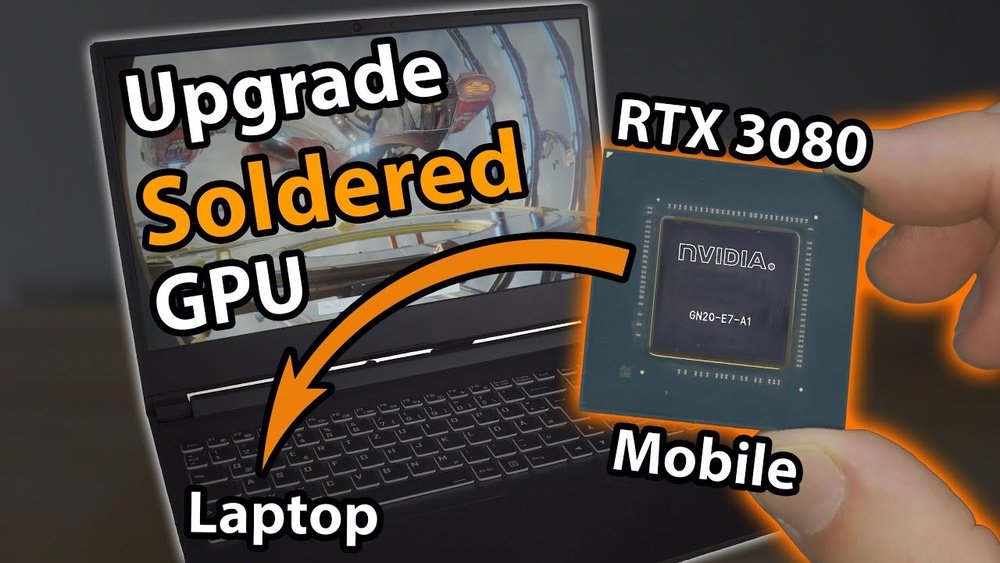
Have you ever wondered if you can upgrade your laptop’s graphics card to boost gaming or design performance? If your laptop feels slow or struggles with graphic-heavy tasks, changing the GPU might seem like the perfect fix.
But is it really possible to swap out your laptop’s GPU like you do with a desktop? You’ll discover the truth about laptop GPU upgrades, what to consider before making a move, and the best options available for improving your laptop’s graphics power.
Keep reading to find out if you can take your laptop’s performance to the next level.
Laptop Gpu Basics
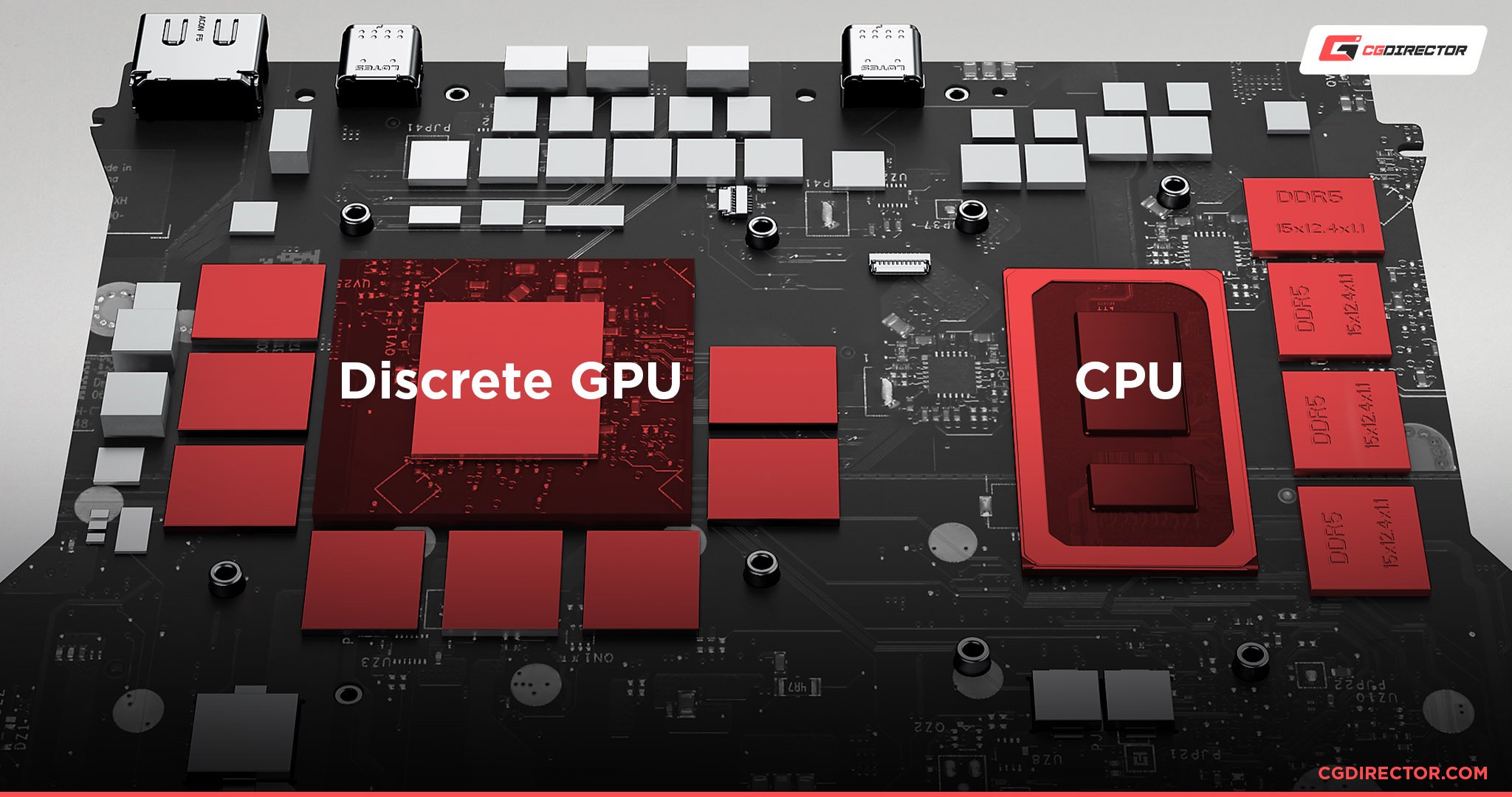
Understanding laptop GPUs helps you grasp how your laptop handles graphics. Graphics Processing Units, or GPUs, manage images, videos, and games. They work alongside the CPU to deliver smooth visuals and fast performance. Knowing the basics of laptop GPUs guides you in making smart decisions about upgrades and usage.
Types Of Laptop Gpus
Laptop GPUs come mainly in two types: integrated and dedicated. Integrated GPUs share memory with the CPU. They use less power and create less heat. Dedicated GPUs have their own memory and power. They handle complex graphics tasks better. Each type suits different needs and budgets.
Integrated Vs Dedicated Gpus
Integrated GPUs are built into the CPU chip. They are common in everyday laptops. These GPUs handle light tasks like web browsing and video playback. Dedicated GPUs are separate chips inside the laptop. They offer higher performance for gaming and 3D work. Dedicated GPUs run faster but use more battery.
Gpu Role In Performance
The GPU impacts how smoothly games and videos run. It also affects video editing and 3D rendering speed. A strong GPU means better graphics quality and faster processing. Weak GPUs can cause lag and poor visuals. Choosing the right GPU depends on what you want to do with your laptop.
Credit: www.pwmachineservices.com
Laptop Gpu Upgrade Feasibility
Changing the GPU in a laptop is not always simple. Many factors decide if you can upgrade your laptop’s graphics card. Some laptops allow easy swaps, while others do not. Knowing these details helps set the right expectations.
This section explains the key points about laptop GPU upgrades. It covers how GPUs are built into laptops, which models might be upgradeable, and rules set by manufacturers.
Soldered Vs Modular Gpus
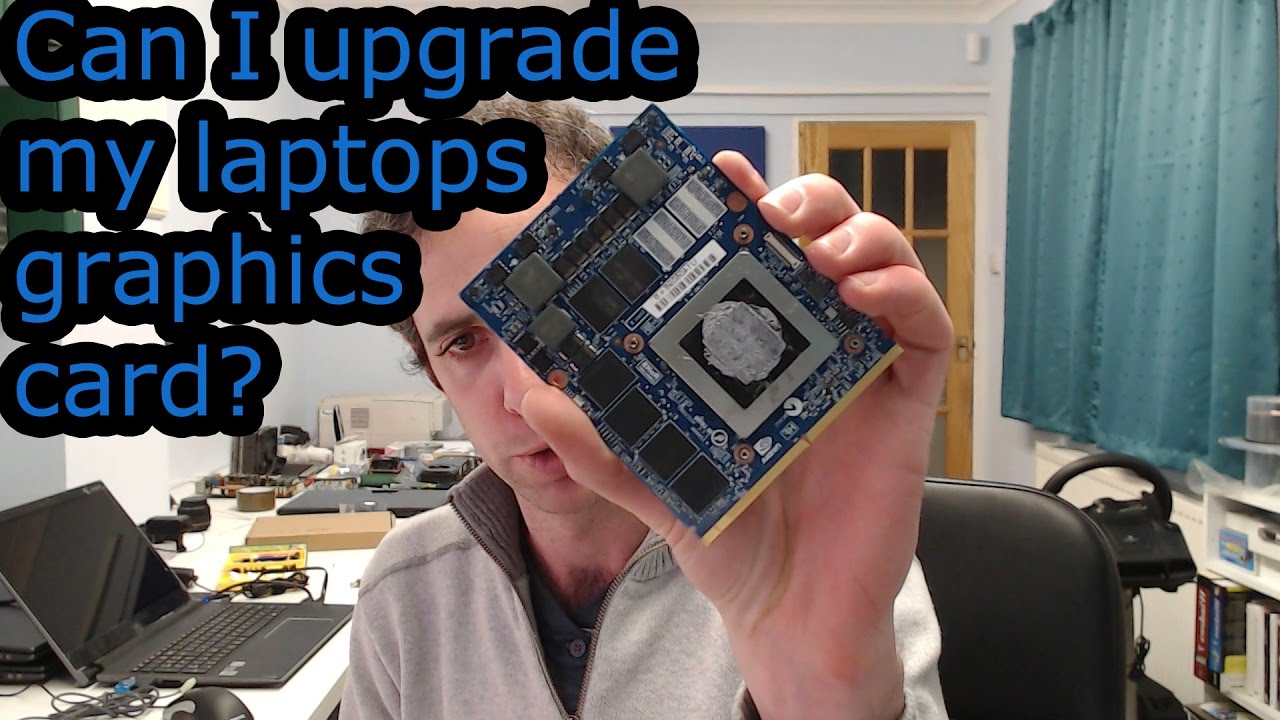
Most laptops have GPUs soldered directly onto the motherboard. This design saves space and improves cooling. It also means the GPU cannot be removed or replaced. Modular GPUs, found in few laptops, use a slot or connector. They allow the GPU to be swapped out like a desktop card. Soldered GPUs limit upgrade options. Modular GPUs offer a better chance for upgrades.
Identifying Upgradeable Models
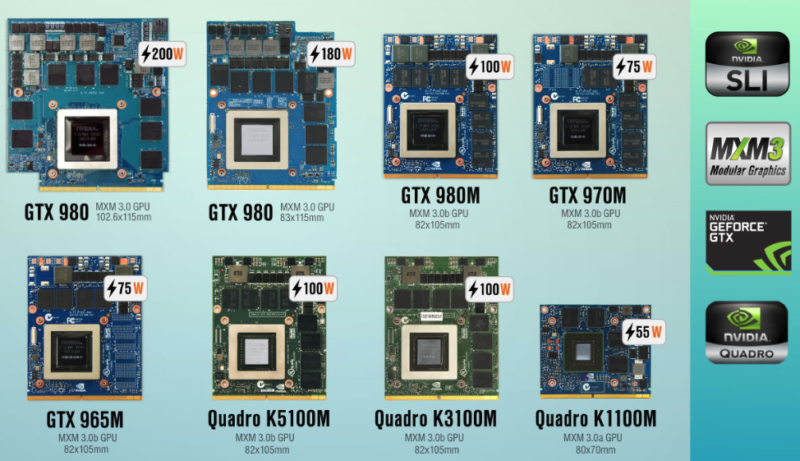
Some gaming or workstation laptops use modular GPUs. These models often have labels like MXM or similar standards. Check your laptop’s manual or specifications for GPU upgrade info. Search online forums for your model’s upgrade experiences. If your laptop has a removable GPU, it is likely upgradeable. Otherwise, the GPU is probably fixed and not replaceable.
Manufacturer Restrictions
Laptop makers set rules about hardware changes. Warranty may void if you open the laptop or replace parts. Some manufacturers use custom GPU designs that limit swaps. BIOS and driver support can also restrict upgrades. Even if the GPU is removable, the laptop may not support new models. Always check manufacturer policies before attempting upgrades.
Preparing For A Gpu Upgrade
Preparing for a GPU upgrade in a laptop requires careful steps. The process is different from desktops. Laptops have limited space and specific parts. Getting ready helps avoid damage and ensures a smooth upgrade.
Checking Compatibility
Not all laptops allow GPU upgrades. Some have integrated graphics that cannot be swapped. Check your laptop model online to see if it supports a new GPU. Look for the type of GPU slot and size limits. Make sure the new GPU fits and works with your laptop’s motherboard and power supply.
Required Tools And Equipment
Gather the right tools before starting. You will need a small screwdriver set, anti-static wrist strap, and thermal paste. The wrist strap prevents static damage to parts. Thermal paste helps keep the GPU cool after installation. Having these tools ready saves time and avoids mistakes.
Backing Up Data
Save all important files before upgrading. The process may cause data loss or system errors. Use an external drive or cloud storage for backup. This step protects your documents, photos, and software settings. Always backup to avoid losing valuable information.
Credit: fundacioninbursa.org
Step-by-step Gpu Replacement
Replacing a GPU in a laptop is a detailed process. It needs care and patience. This step-by-step guide helps you understand each part. Follow the steps carefully to avoid damage. A good replacement can improve your laptop’s graphics performance.
Disassembling The Laptop
First, turn off the laptop and unplug it. Remove the battery if possible. Use a screwdriver to open the back panel. Keep screws in a safe place. Gently lift the panel to access the inside parts. Avoid touching other components to prevent damage.
Removing The Old Gpu
Locate the GPU, usually near the cooling fan. Unscrew any screws holding the GPU in place. Carefully disconnect the GPU from the motherboard. Use gentle movements to avoid breaking connectors. Remove the old GPU from the laptop.
Installing The New Gpu
Align the new GPU with the slot on the motherboard. Press it down firmly but gently. Secure the GPU with screws removed earlier. Reconnect any cables or connectors attached to the GPU. Double-check the connection for a secure fit.
Reassembling And Testing
Put the back panel back on the laptop. Screw it tightly but do not over-tighten. Reinsert the battery and plug in the laptop. Turn on the laptop and check if it boots. Install necessary drivers for the new GPU to work.
Alternative Gpu Upgrade Options
Changing a GPU inside a laptop is often not possible due to design limits. But there are other ways to improve your laptop’s graphics. These alternative options can boost performance without swapping the internal GPU. They offer new ways to enjoy better visuals and smoother gameplay.
External Gpu (egpu) Solutions
External GPUs connect to your laptop via ports like Thunderbolt 3. They use a desktop-grade graphics card outside the laptop. This setup gives more power for gaming or design work. eGPUs are easy to install and remove. They turn your laptop into a more capable machine without internal changes. Not all laptops support eGPUs, so check compatibility first.
Upgrading Other Components For Better Graphics
Improving RAM and storage can help graphics indirectly. More RAM lets your laptop handle games and apps better. Faster storage like SSDs speeds up loading times. These upgrades reduce lag and improve overall system speed. A well-balanced system runs graphics smoothly even with the same GPU.
Software Optimization Tips
Updating drivers keeps your GPU working at its best. Use graphics settings to reduce strain on your GPU. Lower resolution or turn off extra effects in games. Close unnecessary programs to free up memory and CPU power. These small tweaks can improve graphics without hardware changes.
Potential Risks And Challenges
Changing the GPU in a laptop is not a simple task. It comes with several risks and challenges that can affect your device’s performance and safety. Understanding these issues helps you decide if the upgrade is worth it.
Warranty Concerns
Opening your laptop can void its warranty. Most manufacturers do not allow hardware changes. If something breaks, repairs might not be covered. This could lead to costly fixes. Always check the warranty terms before making changes.
Hardware Compatibility Issues
Not all GPUs fit every laptop. Different laptops use different connectors and sizes. The new GPU might not work with your motherboard. Drivers may also cause problems. Compatibility is a major hurdle in GPU upgrades.
Thermal And Power Limitations
Laptops have limited cooling systems. A new GPU may produce more heat. This can cause overheating and damage. Power supply limits can also block GPU upgrades. Your laptop might not handle the extra power needs.
Maximizing Your New Gpu Performance
Upgrading your laptop’s GPU can boost your system’s power and speed. To get the best results from your new GPU, you need to make sure it runs smoothly and efficiently. Small steps can help you improve performance and keep your laptop safe from overheating or crashes.
Focus on installing the right drivers, adjusting settings, and watching the temperature. These tasks help your GPU work at its full potential. Let’s explore how to do this properly.
Driver Installation And Updates
Install the latest drivers from the GPU maker’s website. These drivers help your laptop use the new GPU correctly. Old drivers can cause errors and slow down your system. Check for updates often. Updates fix bugs and improve performance. Use official sources only to avoid malware risks.
Optimizing Settings
Adjust your graphics settings in the control panel of your GPU. Lower settings like shadows or resolution can increase speed. Higher settings improve image quality but may slow your laptop. Find a balance that suits your needs. Use presets if unsure. Custom settings give better control over performance.
Monitoring Temperature And Performance
Keep an eye on your GPU temperature using monitoring tools. High temperatures can damage the GPU and reduce its lifespan. Ensure your laptop has good ventilation. Clean fans and vents regularly. Stop heavy tasks if the GPU gets too hot. Monitoring performance helps you spot problems early.
Credit: www.liftingitalia.com
Frequently Asked Questions
Can You Upgrade Gpu In Any Laptop?
Most laptops have integrated GPUs that cannot be upgraded. Only select models with modular GPUs allow upgrades, but these are rare.
How To Check If Laptop Gpu Is Replaceable?
Check your laptop’s manual or manufacturer website. Look for MXM slot or modular GPU design, indicating replaceable graphics cards.
What Are Risks Of Changing Laptop Gpu?
Risks include voiding warranty, overheating, compatibility issues, and potential hardware damage. Professional installation is recommended to avoid problems.
Does Changing Gpu Improve Laptop Gaming Performance?
Upgrading to a better GPU can boost gaming performance significantly if the laptop supports it and cooling is adequate.
Conclusion
Changing a laptop’s GPU is not easy for most users. Many laptops have GPUs fixed to the motherboard. Some gaming or high-end models allow upgrades, but these are rare. Before buying a new GPU, check your laptop’s manual or support site.
Consider the cost and effort versus buying a new laptop. For better graphics, external GPU options might work. Know your laptop’s limits to avoid damage or wasted money. Simple steps and clear info help make the right choice.
