
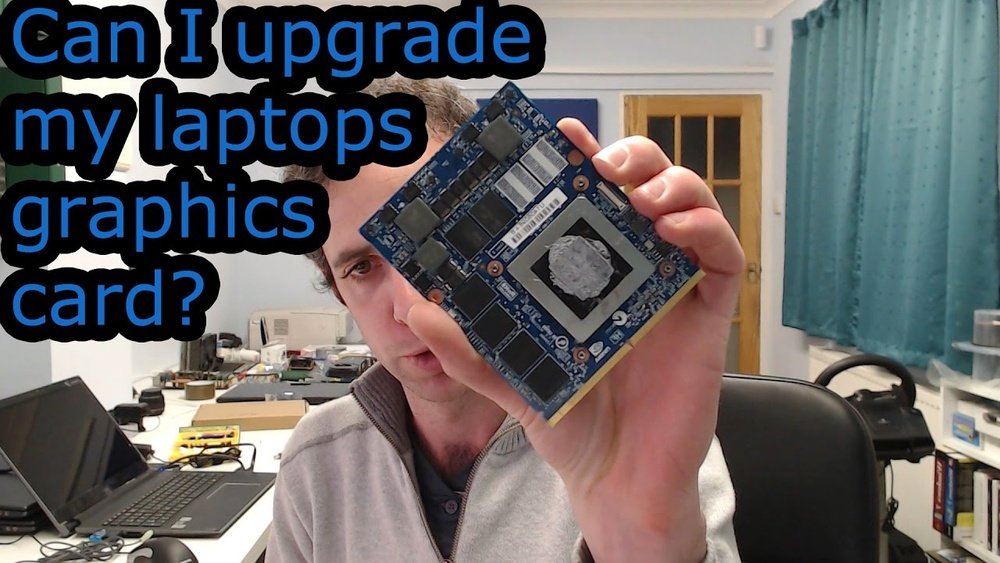
Have you ever wondered if you can upgrade your laptop’s graphics card to boost its performance? Maybe your games lag, or your design work feels slow, and you’re hoping there’s a simple fix.
The idea of swapping out your laptop’s GPU sounds great, but is it really possible? You’ll discover the truth about changing a laptop GPU, what challenges you might face, and whether it’s the right move for your device. Keep reading to find out if your laptop can get the upgrade you’ve been dreaming of.
Laptop Gpu Basics
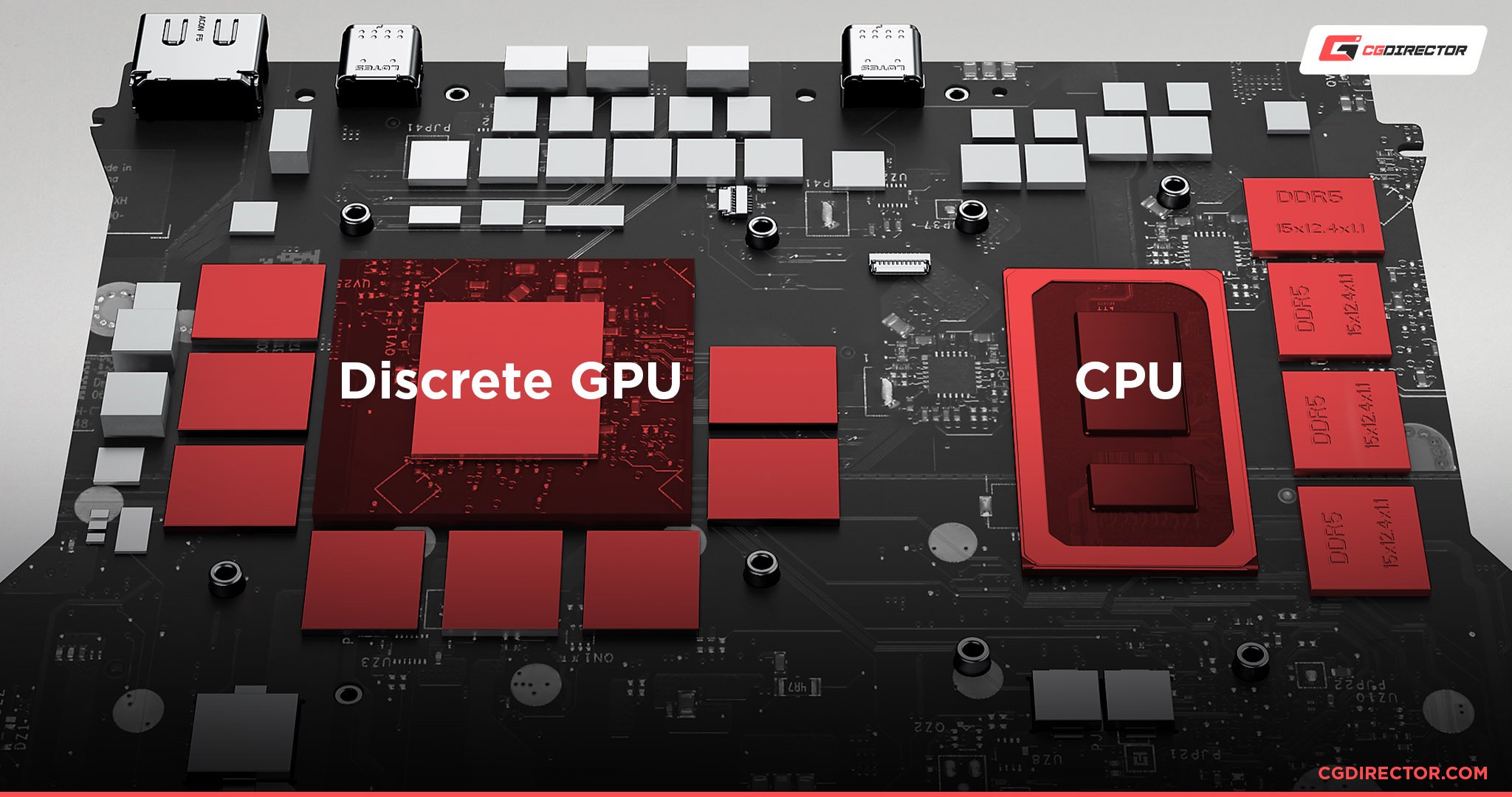
Laptop GPUs are important parts of your computer. They help with graphics and video tasks. Understanding the basics helps you know what they do and if you can change them.
This section explains what a laptop GPU is, the types of GPUs, and how they affect performance.
What Is A Laptop Gpu
A GPU, or Graphics Processing Unit, handles images and videos on your laptop. It works with the CPU but focuses on graphics tasks. It makes games, videos, and apps look good and run smoothly.
Integrated Vs Dedicated Gpus
Integrated GPUs share memory with the CPU and use less power. They are common in basic laptops. Dedicated GPUs have their own memory and power. They perform better for games and heavy graphics work.
Most laptops use integrated GPUs for everyday tasks. Gaming or design laptops usually have dedicated GPUs.
Gpu Role In Performance
The GPU affects how fast and clear graphics appear. Better GPUs can run higher-quality games and videos. They also help with video editing and 3D design.
A slow GPU can cause lag and poor image quality. A strong GPU improves overall laptop experience.
Credit: www.shoshitamam.com
Factors Affecting Gpu Upgrade
Upgrading a laptop GPU is not as simple as upgrading a desktop one. Many factors influence whether you can change the GPU in your laptop. Understanding these factors helps you know the limits and possibilities of an upgrade.
Laptop Design Constraints
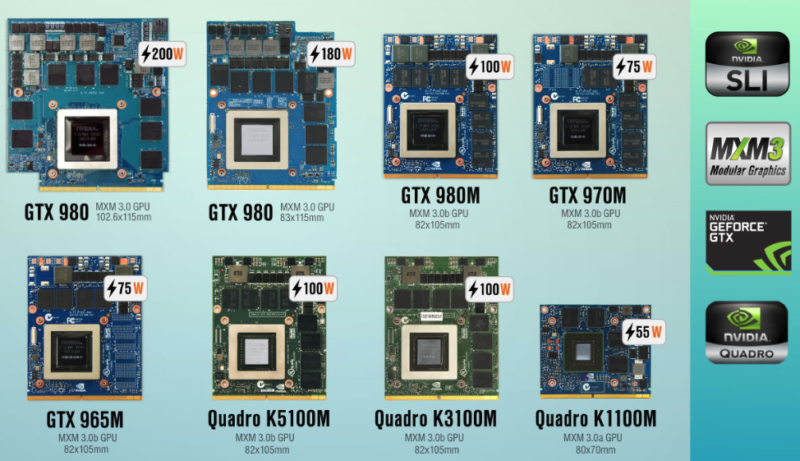
Laptops have compact designs with parts tightly packed inside. Most laptops use GPUs soldered directly to the motherboard. This design prevents easy removal or replacement of the GPU. Only a few gaming or high-end laptops have modular GPUs. These models allow GPU swaps but are rare and costly. The slim design of many laptops also leaves little room for larger or different GPUs.
Gpu Compatibility Issues
Not all GPUs fit or work with all laptops. Your laptop’s motherboard must support the new GPU. The GPU must also match the laptop’s connector type and size. BIOS and driver support are crucial for the new GPU to function properly. Using an incompatible GPU can cause system errors or failure to boot. Checking compatibility before buying a GPU is essential to avoid problems.
Power And Cooling Considerations
GPUs need power and generate heat. Laptops have limited power supply units (PSUs). A new GPU may require more power than the laptop can provide. Cooling systems in laptops are designed for specific components. A stronger GPU may cause overheating if the cooling is insufficient. Upgrading the GPU without improving cooling risks damaging the laptop. Proper power and cooling are vital for a successful GPU upgrade.
Types Of Upgrade Options
Upgrading a laptop’s GPU can be tricky. Not all laptops allow direct changes to the graphics card. Still, there are several ways to improve your laptop’s graphics performance. Knowing the types of upgrade options helps you pick the best one for your needs.
Replacing Built-in Gpus
Some laptops have built-in GPUs soldered to the motherboard. These cannot be removed or replaced easily. A few high-end gaming laptops use modular GPUs. These can be swapped out like desktop cards. This option is rare and often expensive. It may also void your laptop warranty.
External Gpu Solutions
External GPUs connect to your laptop through ports like Thunderbolt 3. They offer a powerful graphics boost without opening the laptop. This option works well for users needing extra graphics power occasionally. It needs an external GPU device and compatible software. External GPUs are bulky but flexible for upgrades.
Using Egpu Enclosures
eGPU enclosures house desktop graphics cards outside your laptop. They connect via high-speed ports to deliver good performance. These enclosures provide upgrade paths for future graphics cards. They also offer better cooling than built-in GPUs. The setup requires some technical knowledge but is user-friendly once connected.
Credit: fundacioninbursa.org
Steps To Upgrade A Laptop Gpu
Upgrading a laptop GPU can improve graphics and overall performance. The process requires careful steps to avoid damage. Each stage matters for a smooth upgrade. Follow the guide below to understand the process clearly.
Checking Upgrade Feasibility
Not all laptops allow GPU upgrades. Most laptops have GPUs soldered to the motherboard. Look for laptops with MXM slots for possible upgrades. Check your laptop model specifications online. Confirm if the GPU is removable or fixed. Also, consider power and cooling limitations before upgrading.
Selecting A Compatible Gpu
Choose a GPU that fits your laptop’s slot type. Match power requirements with your laptop’s power supply. Pick a GPU supported by your laptop’s BIOS. Make sure the new GPU fits inside your laptop physically. Compatibility ensures your laptop runs smoothly after upgrade.
Disassembly And Installation Tips
Turn off and unplug your laptop before starting. Use an anti-static wristband to prevent damage. Carefully remove the back cover with the right tools. Locate the existing GPU and disconnect cables gently. Remove screws holding the GPU in place. Install the new GPU by reversing removal steps. Handle all parts with care to avoid damage.
Driver Installation And Setup
After installing the new GPU, power on your laptop. Download the latest drivers from the GPU manufacturer’s website. Install the drivers following on-screen instructions. Restart your laptop to apply changes. Verify the new GPU works via device manager or software. Proper driver setup ensures best GPU performance.
Benefits Of Gpu Upgrades
Upgrading your laptop’s GPU can bring several benefits. It can improve how your laptop handles graphics and speed up many tasks. A better GPU helps your laptop keep up with new software and games. It also makes your laptop more useful for creative work. These benefits help get more value from your laptop.
Improved Gaming Performance
A stronger GPU lets you play games with better graphics and smoother gameplay. Your laptop will run newer games without lag or stutter. You can enjoy higher frame rates and better details. This means a more fun and immersive gaming experience.
Enhanced Creative Workflows
Creative software like video editors and 3D design tools use the GPU a lot. A better GPU speeds up rendering and previews. It reduces wait times and helps you work faster. This makes creative tasks easier and less frustrating.
Future-proofing Your Laptop
Upgrading the GPU helps your laptop handle future software and games. New programs often need more graphics power. A better GPU keeps your laptop useful for longer. It saves money by delaying the need for a new laptop.
Risks And Limitations
Changing a laptop GPU has many risks and limits. Laptops are made with parts fixed tightly. Changing one part can cause many problems. Understanding these risks helps you decide if it is worth trying.
Warranty Voids
Opening your laptop can break the warranty rules. Most brands say you cannot change parts like the GPU. If you do, the company will not fix your laptop for free. This means you will pay for any damage yourself.
Potential Hardware Damage
Laptop parts are small and sensitive. Changing the GPU can damage other parts. The cooling system may not work well with a new GPU. This can cause your laptop to overheat and stop working.
Cost Vs Performance Gains
Buying a new GPU for a laptop can be very expensive. The upgrade may not give a big speed boost. Sometimes, the cost of the new GPU is close to buying a new laptop. Think carefully before spending money on this change.
Alternatives To Gpu Upgrades
Changing a laptop GPU is often difficult or impossible. Many laptops have GPUs soldered directly to the motherboard. This limits upgrade options. But there are other ways to improve your laptop’s performance without swapping the GPU. These alternatives can extend your laptop’s life and boost speed for games or work.
Upgrading Other Components
Improving parts like RAM or storage can help your laptop run better. Adding more RAM allows smoother multitasking. Replacing a hard drive with an SSD speeds up loading times. These upgrades are easier and cheaper than changing a GPU. They improve overall system speed and responsiveness.
Buying A New Laptop
A new laptop with a better GPU might be the best choice. New models come with the latest graphics hardware. They also offer improved cooling and power management. This ensures better performance and longer battery life. Investing in a new laptop may save time and frustration.
Optimizing Software Settings
Adjusting software settings can improve graphics performance. Lowering game resolution reduces the load on your GPU. Closing unnecessary background programs frees up resources. Updating drivers keeps your GPU running smoothly. These tweaks help you get more from your current hardware.

Credit: www.youtube.com
Tips For Choosing The Right Gpu
Choosing the right GPU for your laptop is key to better performance. The right GPU improves graphics, speeds up tasks, and lasts longer. Before buying, consider what you really need. This guide helps you pick the best GPU for your laptop.
Assessing Your Needs
Think about what you use your laptop for. Basic tasks like web browsing need less power. Gaming or video editing needs a stronger GPU. Check the software or games you want to run. Make sure the GPU supports them well. This saves money and improves your experience.
Budget Considerations
Set a clear budget for your GPU upgrade. Higher-priced GPUs usually offer better performance. But some mid-range options work well for many users. Balance cost and features to get the best value. Avoid overspending on power you don’t need.
Brand And Model Recommendations
Choose GPUs from trusted brands like NVIDIA or AMD. They offer good support and regular updates. Popular models include NVIDIA’s GeForce GTX and AMD’s Radeon series. Check reviews and user feedback for reliability. This helps avoid problems after purchase.
Frequently Asked Questions
Can You Upgrade A Laptop Gpu Easily?
Most laptops have GPUs soldered to the motherboard. Upgrading them is usually not possible. Some gaming laptops offer modular GPUs, but they are rare.
Why Is Changing A Laptop Gpu Difficult?
Laptop GPUs are often integrated or soldered. This design saves space but prevents easy replacement or upgrades. It requires advanced technical skills.
Are External Gpu Enclosures A Good Alternative?
Yes, external GPU enclosures connect via Thunderbolt 3 or USB-C. They boost graphics performance without opening the laptop. Ideal for gaming or design tasks.
Does Changing A Laptop Gpu Void Warranty?
Yes, opening a laptop to change the GPU typically voids the warranty. Manufacturers do not cover damage from unauthorized repairs or modifications.
Conclusion
Changing a laptop GPU is not always easy or possible. Most laptops have GPUs built into the motherboard. Some high-end models allow GPU upgrades, but they are rare. You must check your laptop’s design before trying to replace the GPU.
Also, replacing parts can be costly and tricky. For better performance, consider external GPU options or a new laptop. Always balance cost, effort, and benefits carefully. This way, you make the best choice for your needs.
