
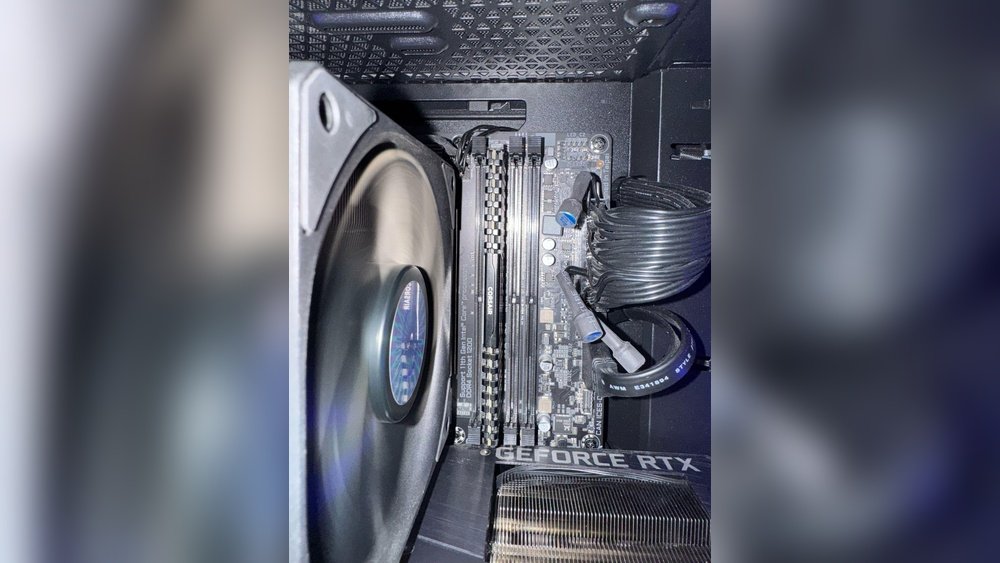
Are you wondering if your PC can run smoothly with just one RAM stick? Maybe you’re upgrading your computer or troubleshooting a problem, and this question is on your mind.
The answer might surprise you—and it could save you time and money. You’ll discover how a single RAM stick affects your PC’s performance, what to watch out for, and whether it’s a smart choice for your setup. Keep reading to find out everything you need to know before making a decision about your RAM.

Credit: www.blackview.hk
How Single Ram Stick Affects Performance
Using a single RAM stick in a PC affects its performance in a few clear ways. It changes how fast the computer can access memory and how well it handles multiple tasks at once. Understanding these effects helps users make better decisions about their computer setup.
Impact On Speed And Multitasking
A single RAM stick usually runs slower than two sticks working together. This happens because the computer can only use one channel to access memory. Multitasking suffers because fewer memory paths limit data flow. Programs may feel less responsive and slower, especially with many apps open.
Single Vs Dual Channel Memory
Single channel means the PC uses one memory path. Dual channel allows two paths at the same time. Dual channel can almost double memory speed. This boost helps games, video editing, and heavy software run smoother. Single channel setups miss out on this speed advantage.
Real-world Usage Scenarios
For simple tasks like web browsing or word processing, a single RAM stick works fine. It can handle basic apps without issues. For gaming, video editing, or running many programs, dual channel memory performs better. Users who want faster load times and smoother performance benefit from two sticks.
Compatibility Factors
Compatibility plays a big role in deciding if a PC can work with a single RAM stick. Not all motherboards and systems support just one stick. Several factors affect this compatibility. Understanding these helps in choosing the right RAM setup.
These key points cover what you need to check before using a single RAM stick in your PC.
Motherboard Support For Single Ram
Some motherboards are designed for dual or multiple RAM sticks. Others allow running on just one stick without problems. Check your motherboard manual or specs. It should state how many RAM slots it supports. Also, see if it can run in single-channel mode. This mode uses one RAM stick and still works properly.
Using a single RAM stick on a motherboard that expects two may limit performance. Still, the PC will often start and run normally.
Matching Ram Specifications
The RAM stick must match the motherboard’s specifications. This includes type, speed, and size. For example, DDR4 RAM will not fit in DDR3 slots. The speed of the RAM should align with what the motherboard supports. Using faster RAM can cause issues or lower speeds.
Choose a RAM stick with the right voltage and timing. This ensures stable operation and avoids errors.
Bios And Firmware Considerations
The motherboard’s BIOS or firmware must support single RAM configurations. Some older BIOS versions may not recognize a single stick correctly. Updating the BIOS can fix this problem. Always follow safe steps when updating firmware.
BIOS settings may also need adjustment. Some systems require enabling single-channel mode or manual RAM detection. Check your BIOS options if the RAM is not detected or causes errors.
Installation Tips For Single Ram Stick
Installing a single RAM stick in your PC can be simple with the right steps. Proper installation ensures your computer runs smoothly and avoids errors. Follow these tips to install your RAM stick correctly and safely.
Choosing The Right Slot
Find the correct RAM slot on your motherboard. Most motherboards label slots as DIMM1, DIMM2, and so on. Use the slot recommended in the motherboard manual. Usually, it is the slot closest to the CPU. Installing the RAM in the right slot helps the system recognize it fast.
Handling And Safety Measures
Turn off your PC and unplug it before installation. Touch a metal part to discharge static electricity. Hold the RAM stick by the edges only. Avoid touching the gold contacts or chips. Static can damage the RAM or motherboard. Work on a clean, flat surface to keep parts safe.
Testing After Installation
Power on your PC after installing the RAM. Enter BIOS or system settings to check if the RAM is detected. Run a memory test tool to ensure it works well. Watch for any system crashes or errors. Proper testing helps catch problems early.

Credit: www.reddit.com
Common Issues And Troubleshooting
Using a single RAM stick in your PC can work well, but it may cause some common issues. These problems can affect your computer’s performance and stability. Knowing how to spot and fix these issues helps keep your PC running smoothly.
System Not Booting
A PC might not start if the RAM stick is faulty or not seated correctly. Loose connections or incompatible RAM cause boot failures. Check the RAM by removing and reinstalling it firmly. Try another RAM slot if your motherboard has multiple slots. Sometimes, resetting the BIOS can help the system recognize the RAM.
Performance Bottlenecks
Using only one RAM stick limits memory bandwidth. This can slow down your PC, especially with heavy tasks. Dual-channel memory offers better speed but needs two matching sticks. Running single-channel RAM may cause lag during gaming or multitasking. Upgrading to more or faster RAM improves overall performance.
Detecting Ram Errors
RAM errors cause crashes, freezes, and data loss. Use built-in tools like Windows Memory Diagnostic to test the RAM. Third-party apps like MemTest86 provide deeper scans. If errors appear, replace the faulty RAM stick immediately. Regular testing helps avoid unexpected system problems.
When To Opt For Single Ram Stick
Choosing a single RAM stick can be a smart choice in some cases. It is not always necessary to install two or more sticks. Knowing when to pick one stick helps save money and plan for future upgrades. Some situations favor using only one RAM module for better results.
Budget Constraints
Single RAM sticks cost less than pairs or sets. For people with tight budgets, one stick is easier to afford. It allows starting with enough memory without overspending. Later, more sticks can be added when funds allow. This approach keeps the PC functional and ready to grow.
Upgrade Paths
Using a single RAM stick leaves empty slots free. This makes upgrading easier and cheaper. Adding more RAM later improves performance without replacing old modules. It also avoids waste, as existing memory remains useful. A single stick setup supports gradual improvements over time.
Use Cases Favoring Single Stick
Some PCs don’t need dual-channel speed benefits. Basic web browsing, office work, and light tasks run well on one stick. Low power builds and small form factor PCs also suit single RAM sticks. This setup reduces heat and power use, fitting simple or compact systems best.
Credit: support.cyberpowersystem.co.uk
Frequently Asked Questions
Can A Pc Run With Just One Ram Stick?
Yes, a PC can run with a single RAM stick. It will function normally but may have reduced performance compared to dual-channel setups.
Will Single Ram Stick Affect Gaming Performance?
Using one RAM stick might lower gaming performance slightly. Dual-channel memory offers better speed and smoother gameplay.
Is Dual-channel Ram Necessary For Everyday Tasks?
Dual-channel RAM is not necessary for basic tasks. A single RAM stick is sufficient for browsing, office work, and streaming.
How Do I Install A Single Ram Stick Correctly?
Install the RAM stick firmly into the correct motherboard slot. Refer to your motherboard manual for the recommended slot for single RAM use.
Conclusion
A PC can work with a single RAM stick without issues. It may run slower than with two sticks. Single RAM limits multitasking and speed. Adding more RAM improves performance and stability. Choose RAM based on your needs and budget.
Testing your PC helps find the best setup. Simple and clear—your PC will run fine with one stick.
