
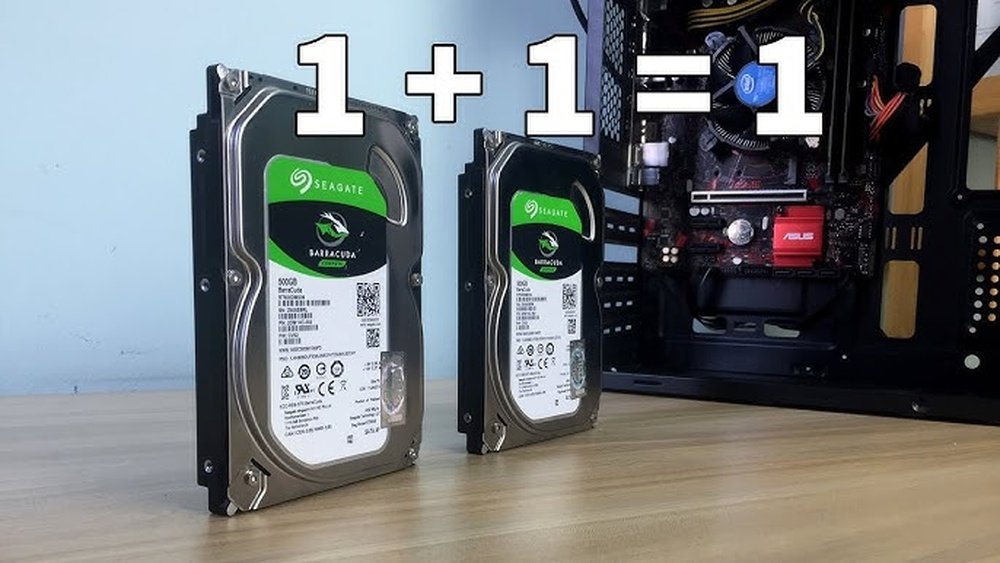
Have you ever wondered if your PC can handle more than one storage drive? Whether you want to boost your computer’s speed, increase space for games and files, or organize your data better, adding multiple drives might be the solution.
Imagine having lightning-fast access to your favorite apps while keeping all your photos and documents safely stored without slowing down your system. You’ll discover how multiple storage drives work, the benefits they bring, and what you need to know before upgrading your PC.
Keep reading to find out how to make your computer smarter and faster with just a few extra drives.
Benefits Of Multiple Storage Drives
Using more than one storage drive in a PC offers many advantages. It can improve how much data you save, how you organize files, and even how fast your system runs. This setup is helpful for both everyday users and professionals.
Multiple drives give flexibility and better control over your computer’s storage needs. Let’s explore the key benefits.
Enhanced Storage Capacity
Adding several drives increases total space for files and programs. You do not depend on a single drive’s limit. This means you can store more photos, videos, and documents without worry. It also helps if you work with large files or backups.
Improved Data Organization
Multiple drives allow better file management. You can separate your data by type or use. For example, one drive for work files, another for personal data, and another for games. This makes finding and managing files easier and faster.
Faster Performance Options
Using different drives can boost speed. You can install your operating system on a fast solid-state drive (SSD). Store large files on a slower hard drive (HDD). This setup helps your PC start quickly and run applications smoothly.
Types Of Storage Drives
Storage drives are the heart of any PC. They hold your files, programs, and operating system. Choosing the right type can affect speed and capacity. PCs can have more than one drive to balance storage and performance.
Here are common types of storage drives you might find in a computer.
Hdd Vs Ssd
HDD stands for Hard Disk Drive. It uses spinning disks to store data. HDDs offer large storage at a low cost. They are slower and less durable than SSDs.
SSD means Solid State Drive. It stores data on flash memory chips. SSDs are faster and more reliable than HDDs. They cost more but improve PC speed greatly.
Nvme Drives
NVMe drives are a type of SSD. They connect through the PCIe slot inside the PC. NVMe offers much faster data transfer than regular SSDs. These drives boost loading times and file transfers.
They are ideal for users who need high speed for tasks like gaming or video editing.
External And Portable Drives
External drives connect to a PC via USB or Thunderbolt. They are easy to carry and use with multiple devices. These drives add extra storage without opening the PC.
Portable drives come in HDD or SSD forms. They help back up data or transfer large files quickly. Great for users who need flexible storage options.
Compatibility With Motherboards
Motherboards control how many storage drives your PC can handle. Compatibility depends on the motherboard’s design and features. Some motherboards support multiple drives, while others have limited slots. Knowing your motherboard’s capabilities helps you add extra storage without problems.
Checking Drive Slots
Start by checking the number of drive slots on your motherboard. These slots hold your hard drives or SSDs. Most motherboards have several SATA ports for traditional drives. Some also include M.2 slots for faster SSDs. The total slots limit how many drives you can connect.
Sata And M.2 Interfaces
Motherboards use SATA and M.2 interfaces to connect storage drives. SATA is common and fits hard drives and SATA SSDs. M.2 supports newer, faster NVMe SSDs and some SATA SSDs. Each interface has different speed and size limits. Make sure your drive matches the available interface on the motherboard.
Bios And Firmware Support
The BIOS manages hardware and starts your PC. It must support multiple drives to recognize them all. Some older BIOS versions limit the number of drives. Firmware updates can improve support for new drives. Check your motherboard’s BIOS settings and update if needed to use multiple storage drives.

Credit: www.hlplanet.com
Installation Process
Installing multiple storage drives in a PC is a straightforward process. It allows more space for files, programs, and backups. This guide breaks down the key steps to add extra drives safely and correctly.
Preparing Your Pc
Turn off the PC and unplug it from the power source. Open the computer case carefully. Find empty drive bays where new storage drives will fit. Have the right tools ready, usually a screwdriver. Make sure you ground yourself to avoid static damage.
Connecting Multiple Drives
Attach the storage drives to the empty bays securely. Connect power cables from the power supply to each drive. Link data cables from the drives to the motherboard ports. Check that all cables are firmly connected to avoid errors. Manage cables neatly to improve airflow inside the case.
Configuring In Bios
Turn on the PC and enter the BIOS setup. Locate the storage or boot section. Ensure that all connected drives appear in the list. Set the boot order if you want a specific drive to load first. Save changes and exit the BIOS to start using the new drives.
Storage Configuration Options
Multiple storage drives offer many ways to organize data. Choosing the right setup depends on your needs. You can increase speed, improve backup, or simply add more space. Understanding storage options helps you pick the best method. Here are some common ways to configure your drives.
Raid Levels Explained
RAID stands for Redundant Array of Independent Disks. It combines multiple drives to work as one. RAID 0 splits data across drives for faster speed. RAID 1 copies the same data on two drives for safety. RAID 5 uses parity data to protect against drive failure. Each RAID type balances speed, space, and protection differently. It suits different user needs and budgets.
Jbod And Spanning
JBOD means “Just a Bunch of Disks.” It treats multiple drives as separate units. Spanning combines multiple drives into one larger volume. It lets you use all space without formatting drives. JBOD and spanning offer simple ways to add storage. They do not improve speed or protect data like RAID.
Partitioning Drives
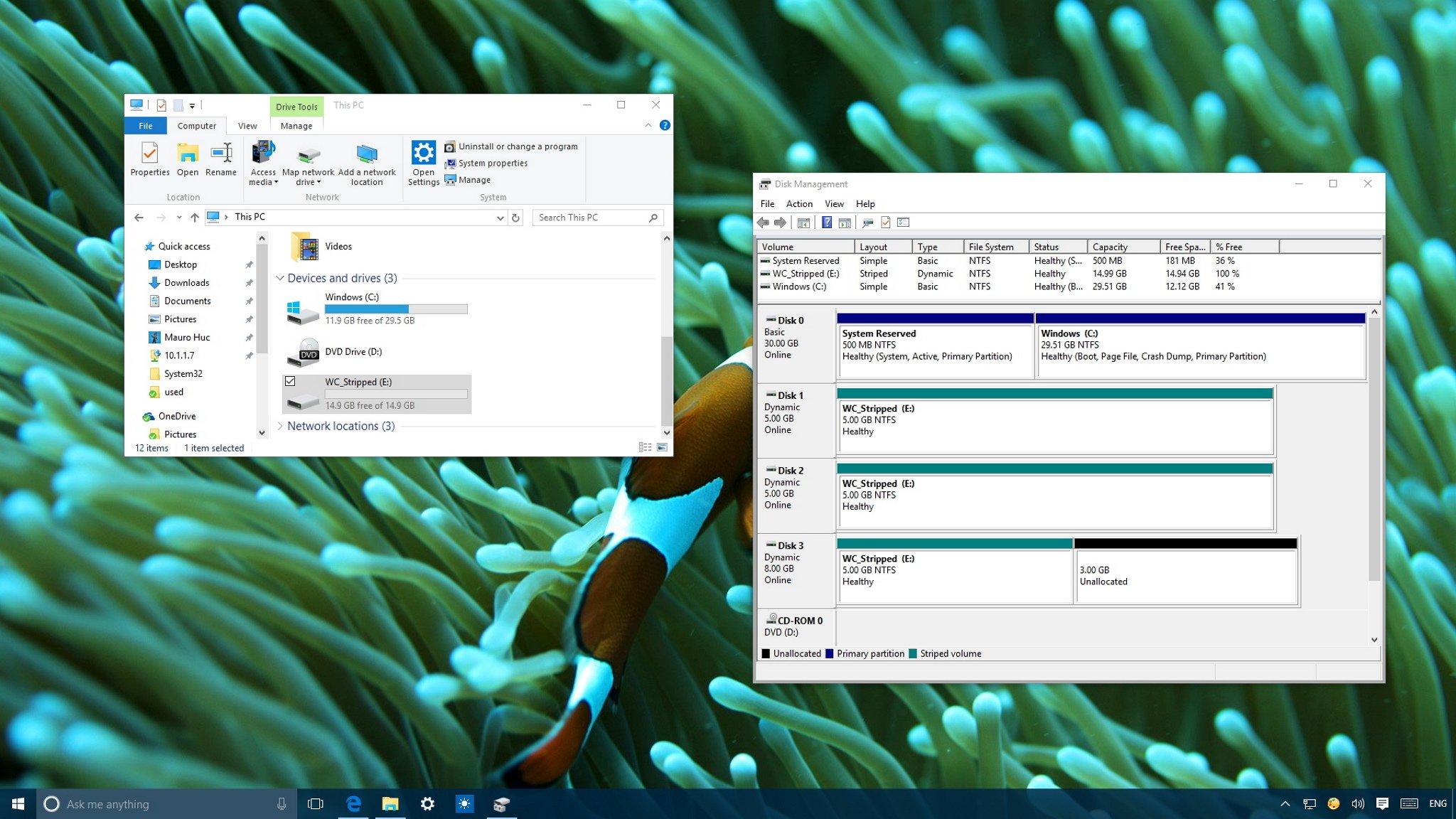
Partitioning divides one drive into multiple sections. Each partition acts like a separate drive. It helps organize files and install different operating systems. Partitioning is easy to do with built-in tools. It does not add speed or data protection. It is useful for managing space on a single drive.
Credit: www.windowscentral.com
Managing Multiple Drives In Windows
Managing multiple storage drives on a Windows PC can improve your data organization and increase storage space. It requires some basic knowledge of Windows tools and settings. This section explains how to use Windows to handle several drives efficiently. You will learn about disk management tools, setting drive letters, and optimizing performance.
Disk Management Tools
Windows offers built-in tools to manage multiple drives. The Disk Management utility lets you view all connected drives. You can create, delete, and format partitions easily. It also helps you check the health of each drive. Access the tool by right-clicking on the Start menu and selecting “Disk Management.”
Use this tool to initialize new drives or change existing partitions. It shows detailed information about each disk, including size and free space. This helps keep your storage organized and accessible.
Setting Drive Letters
Each drive needs a unique letter to be recognized by Windows. Assigning drive letters helps identify and access your drives quickly. You can change or assign letters in Disk Management. Right-click a partition and choose “Change Drive Letter and Paths.”
Pick a letter that does not conflict with existing drives. Avoid using letters assigned to system devices. Properly set drive letters prevent confusion and make navigation easier.
Optimizing Performance
Multiple drives can affect your PC’s speed if not managed well. Keep your drives defragmented for faster access. Use Windows’ built-in defragmentation tool for HDDs. SSDs do not need defragmentation but benefit from TRIM commands.
Regularly check your drives for errors using the “Check Disk” tool. Avoid filling drives to full capacity, as this slows performance. Balancing storage use across drives helps keep your system running smoothly.
Common Issues And Troubleshooting
Using multiple storage drives in a PC offers great benefits but may cause some common problems. Understanding these issues helps keep your system running smoothly. This section covers key troubles and how to fix them.
Drive Detection Problems
Sometimes, your PC may not recognize a new drive. Check if the cables are securely connected. Also, confirm the drive is powered on and properly installed in BIOS settings. Updating your motherboard drivers can help. If a drive still doesn’t show, try connecting it to another port or PC to test.
Performance Bottlenecks
Multiple drives can slow down your system if not set up correctly. Avoid mixing very slow and very fast drives for important tasks. Use SSDs for your main programs to boost speed. Defragmenting hard drives regularly keeps data access smooth. Watch out for full drives, as they reduce performance.
Data Backup Strategies
Having several drives means more data to protect. Back up important files regularly on a separate drive or cloud service. Use automatic backup software for ease and reliability. Consider RAID setups for added data safety. Always test your backups to ensure they work when needed.
Future Trends In Pc Storage
PC storage keeps evolving fast. New trends shape how we store data on computers. These changes make storage faster, larger, and smarter. Understanding future trends helps you plan your PC setup better.
Emerging Drive Technologies
New types of storage drives appear regularly. Technologies like NVMe SSDs offer quicker access to data. They use faster connections than traditional drives. Researchers also work on 3D XPoint memory. It promises speed between SSDs and RAM. These drives improve loading times and file transfers.
Cloud Storage Integration
Cloud storage becomes part of daily PC use. It allows saving files on internet servers. This frees up local drive space. Cloud access works from any device with internet. Many PCs now sync automatically with cloud accounts. This trend supports backup and file sharing.
Storage Virtualization
Storage virtualization combines multiple drives into one pool. It helps manage space more efficiently. Virtual drives can spread data across different physical disks. This protects against data loss. Users see one large drive instead of many small ones. Businesses use this for better data control.

Credit: www.amazon.com
Frequently Asked Questions
Can A Pc Support Multiple Storage Drives?
Yes, most modern PCs support multiple storage drives. You can install several HDDs or SSDs to expand storage capacity and improve performance.
What Are Benefits Of Having Multiple Storage Drives?
Multiple drives increase storage space, improve data organization, and boost system speed by separating OS and files.
How To Install An Additional Storage Drive In Pc?
Power off your PC, open the case, connect the drive to the motherboard and power supply, then secure it.
Can Multiple Drives Improve Gaming Performance?
Using an SSD for games can reduce load times. Additional drives help manage files but don’t directly boost FPS.
Conclusion
A PC can have multiple storage drives to increase space. This setup helps organize files and boost performance. You can use different drives for games, work, and backups. Adding extra drives is often easy and cost-effective. Just check your PC’s slots and compatibility first.
Multiple drives give flexibility and protect your data. It’s a practical choice for many users. Consider your needs and budget before upgrading. Storage options grow with technology, so you can expand anytime. Multiple drives make managing data simpler and safer.
