
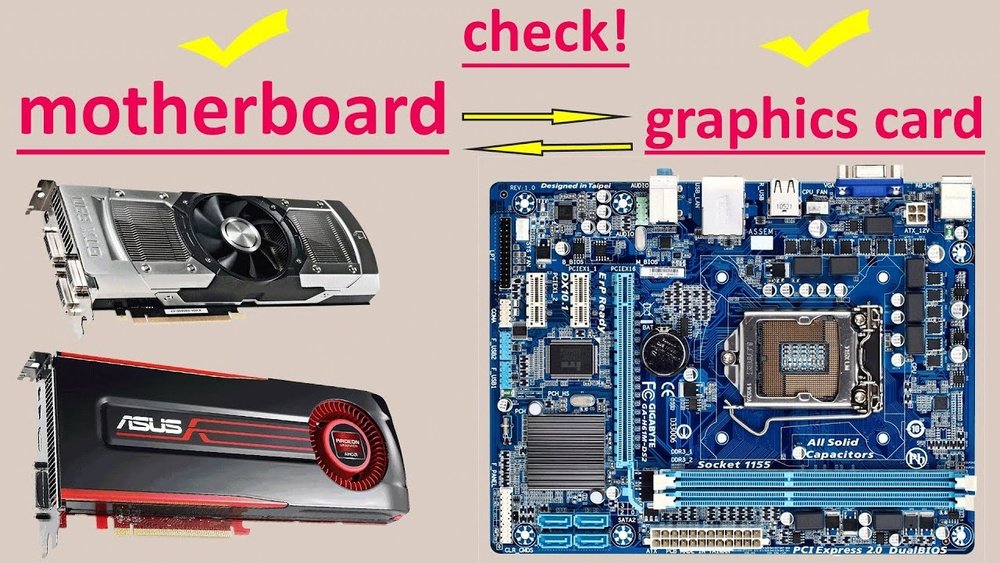
Are you wondering if any GPU can fit in any motherboard? It’s a question many face when building or upgrading a PC.
Choosing the right graphics card is exciting, but what if it doesn’t fit or work with your motherboard? Imagine buying a powerful GPU only to find out it’s not compatible—that’s frustrating. But don’t worry, understanding the basics can save you time, money, and headaches.
Keep reading, and you’ll discover exactly what you need to know to make sure your GPU and motherboard are a perfect match.
Gpu And Motherboard Basics
Understanding the basics of GPUs and motherboards is essential before installing a graphics card. Not every GPU fits every motherboard. Compatibility depends on types and slots.
This section explains common GPU types and motherboard slots. Knowing these helps choose the right parts for your computer build.
Common Gpu Types
GPUs come in different forms. Most desktop GPUs are PCIe cards. They slide into motherboard slots for connection. Some GPUs are integrated into the CPU or motherboard. These are not separate cards and cannot be changed.
Discrete GPUs, the separate cards, vary in size and power. Some are full-length cards needing large slots. Others are smaller and fit compact builds.
Motherboard Slots Explained
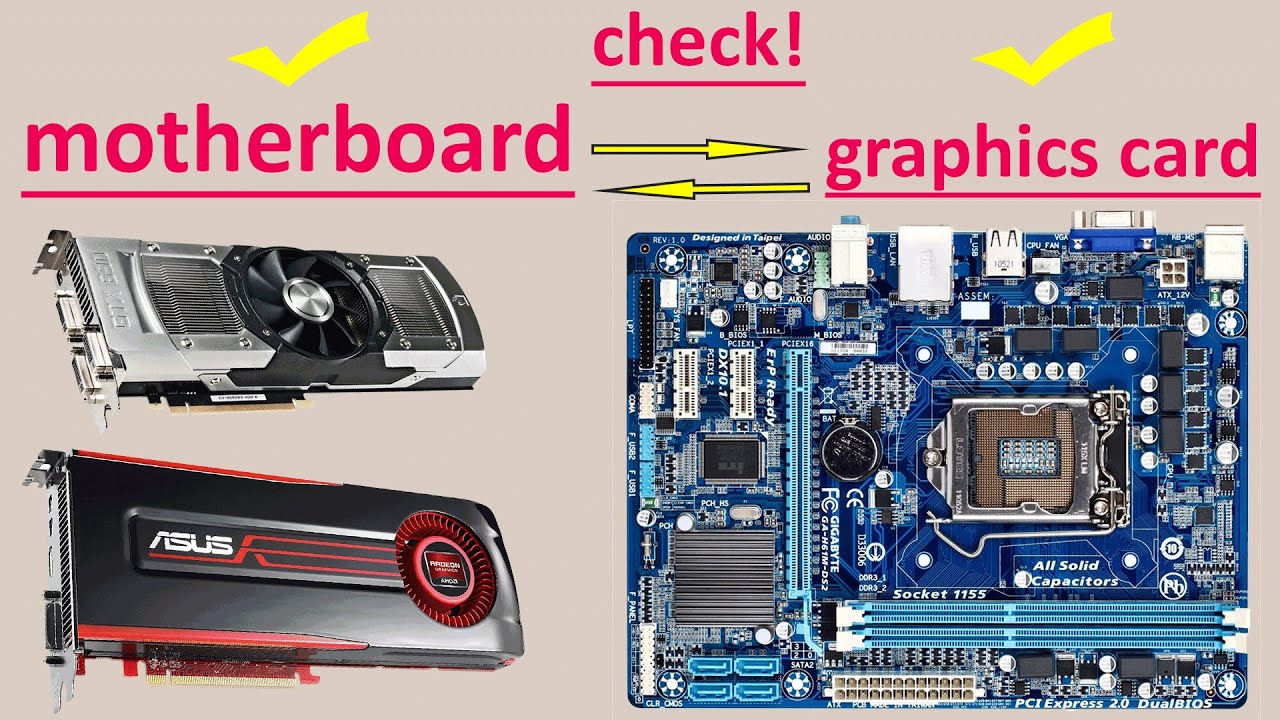
Motherboards have slots to connect GPUs. The most common slot is PCIe x16. It provides enough speed and power for most GPUs. Other slots like PCIe x1 or older AGP slots do not support modern GPUs well.
Slot size and version matter. A PCIe 3.0 slot works with PCIe 4.0 GPUs but at lower speed. Check the slot on your motherboard before buying a GPU.

Credit: softwareg.com.au
Physical Compatibility Factors
Physical compatibility is key when pairing a GPU with a motherboard. Not every graphics card fits every motherboard. Several factors control whether the hardware will fit and work properly. These factors involve the size and shape of the slot, the card’s physical dimensions, and the case layout. Understanding these details prevents buying incompatible parts.
Slot Size And Type
The motherboard must have the right slot for the GPU. Most modern GPUs need a PCI Express x16 slot. Older or smaller slots will not fit these cards. The slot size and type ensure the card connects correctly. Without the right slot, the GPU cannot work with the motherboard.
Card Dimensions And Clearance
Graphics cards vary in length, height, and thickness. Some cards are longer or have larger coolers. Check the card’s size against the motherboard and case space. The card must fit without blocking other components. Clearance around the slot is critical for proper installation and airflow.
Case Size And Layout
The computer case affects which GPUs can fit inside. Smaller cases may not hold large or long GPUs. The layout inside the case matters too. Power cables and drive bays can limit space. Always compare case specs with the GPU size before buying.
Electrical Compatibility
Electrical compatibility is a key factor when pairing a GPU with a motherboard. It ensures the GPU receives the correct power and data signals. Without proper electrical match, the GPU may not work or could damage components.
Understanding power needs, PCIe standards, and BIOS support helps avoid problems. These details influence whether a GPU fits and functions well with a motherboard.
Power Requirements
GPUs need specific power levels to run properly. Most get power from the PCIe slot and extra connectors from the power supply. The motherboard and power supply must provide enough wattage.
Using a GPU that demands more power than the motherboard or PSU can supply leads to crashes or no display. Check the GPU’s power rating and ensure the system meets it.
Pcie Versions And Speeds
PCIe slots transfer data between the GPU and motherboard. Different PCIe versions exist, such as PCIe 3.0, 4.0, and 5.0. Each version offers different speeds.
A GPU designed for PCIe 4.0 can work in a PCIe 3.0 slot but at lower speeds. The slot must physically fit the GPU, and the version affects performance.
Bios And Firmware Considerations
The motherboard’s BIOS controls hardware recognition. Some older BIOS versions may not support newer GPUs. This can cause the system to fail to boot or show errors.
Updating BIOS or firmware can fix compatibility issues. Always check the motherboard manufacturer’s site for updates before installing a new GPU.
Credit: www.youtube.com
Performance Implications
Choosing the right GPU and motherboard affects your computer’s performance a lot. The GPU must fit the motherboard, but fitting is not enough. The combination must work well together. Performance depends on several factors beyond physical compatibility.
Bottlenecks And Limitations
Bottlenecks happen when one part slows down the whole system. A weak motherboard or slow PCIe slot can limit the GPU speed. Older motherboards may not support the latest GPUs fully. This reduces your computer’s ability to run games or software smoothly.
Using a high-end GPU on a basic motherboard may cause wasted potential. The GPU cannot perform at its best if the motherboard cannot support its speed. Check motherboard specifications before buying a powerful GPU.
Multi-gpu Configurations
Some motherboards allow more than one GPU. This can boost graphics power for heavy tasks. But not all motherboards support multi-GPU setups. Slots must be spaced and powered correctly.
Multi-GPU setups also depend on software support. Many modern games and apps do not use multiple GPUs well. This can lead to poor performance or no gain at all. Consider if multi-GPU is truly needed for your use.
Impact Of Cpu And Ram
The CPU and RAM work closely with the GPU. A slow CPU can limit GPU performance by delaying data processing. Insufficient RAM also slows down the system. It causes the GPU to wait for data.
Balancing CPU, RAM, and GPU is key. A strong GPU with weak CPU or low RAM will not perform optimally. Upgrade all components thoughtfully to avoid bottlenecks and get better results.
Compatibility Troubleshooting
Compatibility issues between GPUs and motherboards can cause frustration. Troubleshooting helps identify and fix these problems. Understanding common issues improves your chances of a smooth upgrade or build. This section guides you through simple steps to check and resolve compatibility troubles.
Identifying Incompatibilities
Start by checking the physical size of the GPU. Some graphics cards are too large for small cases or certain motherboards. Next, look at the PCIe slot. Most GPUs use PCIe x16, but older motherboards might have different slots. Power supply matters too. GPUs need enough wattage and proper power connectors. If the GPU does not fit or power up, these are common reasons.
Firmware Updates And Solutions
Motherboards often need BIOS updates to support new GPUs. Check the motherboard manufacturer’s website for updates. Installing the latest firmware can fix recognition and performance issues. Always follow the update instructions carefully. Sometimes, updating the GPU drivers also helps. Keep both your motherboard BIOS and GPU drivers current for best results.
Alternative Options
If your GPU does not fit or work well, consider alternatives. Smaller GPUs may fit better in compact cases. Older GPUs might match older motherboards more easily. External GPU enclosures can connect via Thunderbolt ports for laptops. Another option is upgrading the motherboard to support your new GPU. Choose based on budget and your computer use.
Future-proofing Your Build
Building a computer that lasts means planning for future upgrades. Choosing parts that work well together today and tomorrow saves money. It also keeps your system running smoothly as new tech arrives. Future-proofing your build helps avoid quick replacements and frustration.
Choosing Motherboards For Upgrades
Select a motherboard with extra slots and ports. This allows adding more memory, storage, or graphics cards later. Check for the latest chipset and CPU socket type. A newer socket supports more future processors. Look for motherboards with PCIe 4.0 or higher. These offer faster data transfer for new GPUs.
Selecting Gpus With Longevity
Pick a GPU that matches your current and future needs. Avoid buying the cheapest option with limited power. Choose a card with enough VRAM for upcoming games or tasks. Higher VRAM means better handling of high-resolution images. Consider GPUs with good cooling and power efficiency. This helps keep your system stable over time.
Emerging Standards And Trends
Watch for new standards like PCIe 5.0 and DDR5 RAM. These improve speed and performance in future builds. USB4 and Thunderbolt 4 offer faster connections for peripherals. Ray tracing and AI features are becoming common in GPUs. These techs may need newer hardware to work well. Plan your build to support these trends soon.

Credit: softwareg.com.au
Frequently Asked Questions
Can Any Gpu Fit Into Any Motherboard Slot?
No, GPUs require compatible PCIe slots on motherboards. Most modern GPUs use PCIe x16 slots, but older motherboards may lack them. Always check your motherboard’s slot type before buying a GPU.
Does Motherboard Size Affect Gpu Compatibility?
Yes, motherboard size impacts GPU fit. Smaller motherboards like Mini-ITX may have limited space and fewer slots. Ensure your GPU length and width fit within your motherboard and case dimensions.
Are Power Requirements Important For Gpu Compatibility?
Absolutely. GPUs need specific power connectors and wattage. Motherboards don’t supply enough power alone; your PSU must support the GPU’s demands. Check power supply capacity and connector types before installation.
Can Bios Affect Gpu Installation On Motherboards?
Yes, BIOS compatibility matters. Some older motherboards may require BIOS updates to support newer GPUs. Always check for BIOS updates and compatibility notes from your motherboard manufacturer.
Conclusion
Not every GPU fits every motherboard. Check the slot type first. Size and power also matter a lot. Make sure your case can hold the GPU. Verify the power supply meets the GPU needs. Compatibility keeps your PC running smoothly and safely.
Take time to research before buying parts. This saves money and prevents headaches later. A good match means better performance and fewer problems. Stay informed and choose wisely for your build.
