

Are you wondering if your GPU fans are supposed to spin all the time? It’s a question many people ask when they notice their graphics card behaving differently than expected.
Your GPU fans play a key role in keeping your system cool, but knowing when they should turn on or stay still can save you from unnecessary worry or even potential damage. You’ll discover exactly how your GPU fans work, when they should spin, and what to do if they don’t.
Keep reading to make sure your graphics card stays healthy and your games run smoothly.
How Gpu Fans Work
GPU fans play a key role in keeping your graphics card cool. They help stop the card from getting too hot. Knowing how GPU fans work helps you understand if they should spin or not. The fans turn on and off based on the card’s temperature and your system’s needs.
Fan Operation Basics
GPU fans spin to push air over the heatsink. This cools down the graphics card. The fans usually stay off at low temperatures. This saves energy and reduces noise. When the GPU heats up, the fans start spinning faster.
Temperature Thresholds
GPU fans have a set temperature to start spinning. This is called the temperature threshold. Below this point, the fans may stay still. Above it, they begin to spin. This protects the GPU from overheating. The exact temperature varies by GPU model.
Fan Curves Explained
A fan curve is a map of fan speed versus temperature. It tells the fans how fast to spin at certain temperatures. The curve helps keep the GPU cool and quiet. You can sometimes adjust fan curves in software. This gives more control over cooling and noise levels.

Credit: www.reddit.com
Reasons Fans Might Not Spin
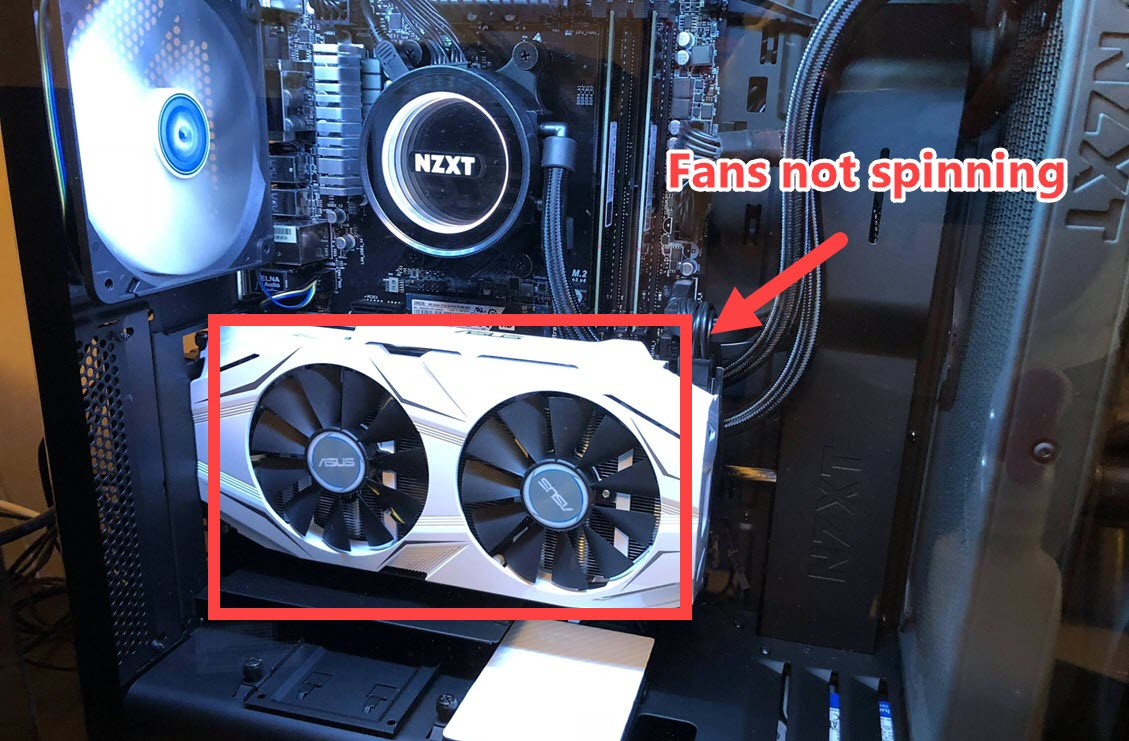
Sometimes, GPU fans may not spin at all. This can confuse many users. Several reasons explain why your GPU fans might stay still. Knowing these reasons helps you check if your GPU works fine or needs attention.
Low Temperature Scenarios
Many modern GPUs stop their fans when temperatures are low. This saves energy and reduces noise. If your GPU is cool, fans may not spin. This is normal and shows your card is running efficiently.
Fan Stop Technology
Some GPUs have built-in fan stop technology. This feature pauses fans during light tasks. It helps lower wear on the fan parts. The fans start spinning only when the GPU gets hotter.
Power And Connection Issues
Fans need power and proper connection to work. Loose cables or damaged wires can stop fans. Check the fan’s power cable inside your PC. A faulty connection often causes fans to not spin at all.
When Gpu Fans Should Spin
GPU fans play a vital role in keeping your graphics card cool. They do not spin all the time. Understanding when they should spin helps you know if your GPU works properly. This section explains the key moments when GPU fans start spinning.
Under Load Conditions
GPU fans usually spin when the graphics card faces a heavy load. This happens during tasks that need more processing power. The fans help stop the GPU from overheating. If your GPU is idle or running simple tasks, the fans might stay off.
High Temperature Indicators
When the GPU temperature rises, the fans turn on to cool it down. Most GPUs have a temperature threshold, often around 60°C. Once the card hits this level, fans spin faster. This helps keep the hardware safe and prevents damage.
Gaming And Intensive Tasks
Playing games or running heavy programs makes the GPU work hard. This causes heat buildup. The fans start spinning to remove this heat quickly. Without fan activity, the GPU could slow down or shut off to avoid damage.
Credit: www.reddit.com
Potential Risks Of Fans Not Spinning
GPU fans play a key role in keeping your graphics card cool. When these fans do not spin, the GPU faces serious risks. Ignoring this problem can cause damage to your computer. Understanding these risks helps you act quickly to protect your device.
Overheating Consequences
GPU fans stop spinning, heat builds up fast inside the card. High temperatures can cause the GPU to overheat. Overheating may cause your computer to shut down suddenly. This protects the system but can interrupt your work or games.
Performance Throttling
To avoid damage, GPUs slow down when too hot. This is called performance throttling. Your games and apps will run slower than usual. You may notice lag or stuttering during use. This reduces your overall experience and efficiency.
Hardware Damage Risks
Continuous heat without fan cooling can harm GPU parts. The graphics processor and memory chips may get damaged. This can lead to permanent hardware failure. Repair or replacement might be costly and time-consuming. Acting on fan issues early saves your GPU.
Troubleshooting Fan Problems
GPU fans play a key role in keeping your graphics card cool. Problems with these fans can cause overheating and damage. Troubleshooting fan problems helps maintain your GPU’s health and performance.
Identifying the cause of fan issues is the first step. Common problems include fans not spinning or spinning too fast. This section covers simple checks to fix fan troubles.
Checking Fan Settings
Many GPUs have settings that control fan speed. Check your GPU software for fan controls. Ensure the fan is not set to “off” or very low speed. Some cards keep fans off until reaching a certain temperature. This is normal for silent operation. Verify your fan profile matches your needs. Adjust settings to make fans spin properly.
Cleaning And Maintenance
Dust and dirt can block fan blades and vents. This stops fans from spinning freely. Turn off your computer and open the case. Use compressed air to clean the fans and heatsinks. Remove any dust buildup carefully. Clean fans regularly to avoid overheating. Proper maintenance extends the life of your GPU and fans.
Software And Driver Updates
Outdated drivers can cause fan control errors. Check for the latest GPU drivers from the manufacturer. Install updates to fix bugs and improve performance. Some fan issues resolve after updating software. Use official tools to update and monitor your GPU’s status. Keeping software current supports smooth fan operation.
Best Practices For Gpu Cooling
Keeping your GPU cool is key to its performance and life span. Proper cooling stops your graphics card from overheating. Overheating can slow down or damage your GPU. Follow these best practices to keep your GPU fans spinning right and your system running smooth.
Optimal Airflow Setup
Good airflow inside your PC case helps cool your GPU. Arrange cables neatly to avoid blocking air paths. Use intake fans at the front to pull cool air in. Place exhaust fans at the back or top to push hot air out. Keep your PC in a well-ventilated space. Avoid tight corners or closed cabinets. This setup lets fresh air reach your GPU easily.
Regular Monitoring Tools
Check your GPU temperature often using monitoring software. Tools like MSI Afterburner or HWMonitor show fan speed and temps. Set alerts for high temperatures to act fast. Watching your GPU stats helps catch issues early. It ensures fans spin when needed and perform well.
Upgrading Cooling Solutions
Stock GPU coolers may not fit all needs. Consider upgrading to better air coolers or liquid cooling. Bigger fans move more air quietly. Liquid coolers keep temperatures lower during heavy use. Upgrades can reduce noise and extend GPU life. Always choose compatible coolers for your GPU model.
Credit: www.drivereasy.com
Frequently Asked Questions
Why Are My Gpu Fans Not Spinning?
GPU fans may not spin at low temperatures to reduce noise. They usually start spinning when the GPU reaches a certain heat level. This is normal behavior for many modern graphics cards with zero RPM fan modes.
When Should Gpu Fans Start Spinning?
GPU fans typically start spinning when the temperature exceeds 50-60°C. This helps cool the GPU during heavy gaming or demanding tasks. Fan speed increases as temperature rises to maintain optimal performance and prevent overheating.
Can Gpu Run Safely If Fans Don’t Spin?
Yes, if your GPU is cool and fans remain off, it is safe. Modern GPUs have temperature sensors and control fan operation automatically. However, ensure your GPU isn’t overheating by monitoring its temperature regularly.
How To Fix Gpu Fans Not Spinning?
First, check your GPU temperature and fan settings in software. Ensure fans are clean and free from dust. Update your GPU drivers and BIOS. If fans still don’t spin, the fan or fan controller might be faulty and require repair.
Conclusion
GPU fans usually spin to cool down the card during heavy use. At low temperatures, they might stay still to reduce noise. This is normal and helps save energy. If fans never spin, check your settings or hardware. Keeping your GPU cool is important for good performance.
Watch your fans and listen for unusual sounds. Proper fan function means a healthy graphics card. Stay aware, and your GPU will work well for a long time.
