How to Check Which Gpu I Have: Quick & Easy Guide 2025
Are you curious about the GPU inside your computer but don’t know where to start? Knowing which GPU you have is key to understanding your system’s performance, whether you’re gaming, designing, or just browsing.
In this guide, you’ll discover simple and quick ways to check your GPU without any technical headache. By the end, you’ll have the exact information you need to make smarter choices about upgrades, troubleshooting, or optimizing your setup. Keep reading, and let’s unlock the secrets of your computer’s graphics power together!
Identify Gpu On Windows
Finding out which GPU your Windows PC uses is quick and simple. This is useful for gaming, work, or checking system specs. Windows offers several easy ways to see your graphics card details. You can use built-in tools or third-party software. Below are the most common methods to identify your GPU on Windows.
Use Device Manager
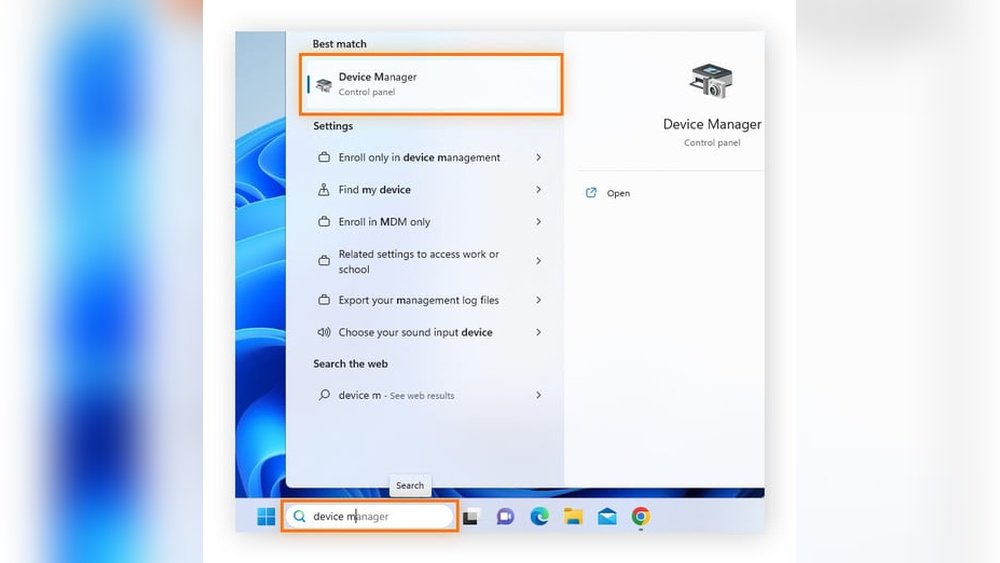
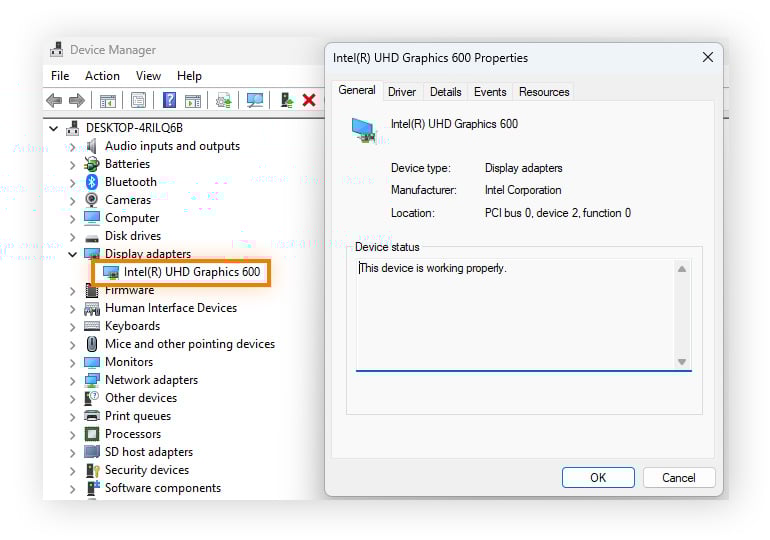
Open the Start menu and type “Device Manager.” Click the result to open it. In Device Manager, expand the “Display adapters” section. You will see the name of your GPU listed here. This method works on all Windows versions. It gives you basic information about your graphics card.
Check Display Settings
Right-click on the desktop and select “Display settings.” Scroll down and click “Advanced display settings.” Under “Display information,” check the “Display adapter properties” link. A new window shows your GPU’s name and details. This way is simple and does not need extra software.
Run Directx Diagnostic Tool
Press Windows + R keys to open the Run dialog. Type “dxdiag” and press Enter. The DirectX Diagnostic Tool window appears. Click the “Display” tab to find your GPU name and manufacturer. This tool also shows driver details and system information.
Use Third-party Software
Some programs provide detailed info about your GPU and system. Examples include GPU-Z, Speccy, and HWMonitor. Download and install one from its official website. Open the software to see your graphics card specs clearly. These tools offer more data than built-in Windows options.

Credit: www.pcmag.com
Identify Gpu On Mac
Finding out which GPU your Mac has is simple. Knowing your Mac’s graphics card helps with software compatibility and performance checks.
This guide shows easy ways to identify your Mac’s GPU using built-in tools. No extra apps needed.
Access About This Mac
Click the Apple logo at the top left of your screen. Select “About This Mac” from the menu.
A window appears showing your Mac’s overview. Look for the “Graphics” section. It lists your GPU model and memory.
Use System Report
In the “About This Mac” window, click “System Report.” This opens detailed hardware info.
On the left, find “Graphics/Displays.” Click it to see full details about your GPU. You can check vendor, VRAM, and resolution here.
Check Activity Monitor
Open Spotlight by pressing Command + Space. Type “Activity Monitor” and press Enter.
Go to the “Window” menu and select “GPU History.” This shows your GPU usage over time. It confirms which GPU your Mac uses actively.
Identify Gpu On Linux
Finding out which GPU your Linux system uses is simple. This helps with driver updates, software compatibility, and performance checks. Linux offers several ways to identify your graphics card, both through commands and graphical interfaces.
Use Terminal Commands
Open the terminal to start. Type lspci | grep VGA and press Enter. This command shows the graphics card details in your system. Another command is lshw -C display. It provides detailed information about your GPU. For quick info, glxinfo | grep "OpenGL renderer" works well. These commands give clear and direct GPU details.
Check System Settings
Many Linux distributions have system settings that show GPU info. Go to the “About” or “Details” section in your settings menu. This often lists the graphics card alongside CPU and memory info. It is an easy way to check your GPU without using the terminal. This method suits users who prefer graphical interfaces.
Use Gui Tools
Several GUI tools can identify your GPU on Linux. Applications like “Hardinfo” or “Sysinfo” provide detailed hardware reports. Install them using your package manager. They show GPU type, vendor, and driver info. GUI tools are user-friendly and good for beginners. They present data in a clear, visual way.
Identify Gpu On Mobile Devices
Identifying the GPU on your mobile device helps understand its graphics power. This knowledge can aid in choosing apps or games that run smoothly. Both Android and iOS devices have ways to check GPU details without complex steps. Below are simple methods for each platform.
Android Methods
Open the Settings app and scroll to “About phone.” Tap “Hardware information” or “Device information.” Look for the “GPU” or “Graphics processor” entry. It usually lists the GPU model name.
If this option is missing, use a free app like CPU-Z or AIDA64. These apps show detailed hardware info, including GPU type. Download from the Google Play Store, open the app, and find the GPU section.
Ios Methods
Apple devices do not show GPU info directly in settings. Use third-party apps like Lirum Device Info or Geekbench. These apps provide detailed hardware specs, including GPU details.
Download the app from the App Store. Open it and navigate to the “System” or “Hardware” section. The GPU model should be listed there.
Interpreting Gpu Information
Understanding your GPU information helps you know your computer’s power. It guides you on software choices and hardware upgrades. Reading GPU details can seem tricky at first. Breaking down each part makes it simple and clear.
Understand Gpu Model Numbers
GPU model numbers show the brand, series, and performance level. For example, “NVIDIA GeForce GTX 1650” tells you the brand is NVIDIA. GTX is the series, and 1650 shows the model’s position. Higher numbers usually mean better performance. Learning these basics helps you identify your GPU quickly.
Check Gpu Specifications Online
Use the exact model number to find specs on official websites. Specs include memory size, clock speed, and power use. These details explain how fast and strong your GPU is. Websites like the manufacturer’s page offer accurate and clear info. Comparing specs helps you understand your GPU’s limits and strengths.
Compare Integrated Vs Dedicated Gpus
Integrated GPUs share resources with the CPU. They use less power but offer lower performance. Dedicated GPUs have their own memory and power source. They handle games and heavy tasks better. Knowing your GPU type helps you choose the right apps. It also shows if an upgrade is needed for better speed.
Credit: www.avast.com
Troubleshooting Gpu Detection Issues
Sometimes your computer may not recognize your GPU. This can cause issues with your display or slow performance. Troubleshooting GPU detection problems helps find the root cause quickly. Follow these simple steps to fix common detection issues.
Update Graphics Drivers
Outdated drivers often cause GPU detection problems. Visit the GPU manufacturer’s website to download the latest drivers. Installing the newest version can improve hardware recognition and performance. Use device manager or driver update tools for easy installation.
Check Hardware Connections
Loose or faulty connections prevent the GPU from being detected. Open your computer case carefully and check if the GPU is properly seated in its slot. Ensure power cables are securely connected. Clean dust or debris that might block connections.
Use Safe Mode Diagnostics
Booting in Safe Mode helps identify software conflicts. It loads only essential drivers, making it easier to spot issues. Use diagnostic tools in Safe Mode to test GPU detection. This step can isolate the problem from other software or driver interference.
Credit: www.esseg.eu
Frequently Asked Questions
How Do I Find My Gpu On Windows 10?
Open “Device Manager,” expand “Display adapters,” and check your GPU name listed there. This method works quickly for most users.
Can I Check Gpu Info Using Command Prompt?
Yes, type “dxdiag” in Command Prompt and press Enter. Look under the “Display” tab for your GPU details.
How To Identify Gpu On A Mac Computer?
Click the Apple logo, select “About This Mac,” then “System Report. ” Find “Graphics/Displays” for GPU information.
Is There A Way To Check Gpu On Linux?
Use the command lspci | grep VGA in the terminal. It lists your GPU model and vendor clearly.
Conclusion
Knowing your GPU helps you make better computer choices. It shows what your system can handle. Checking it is quick and simple with the right steps. Use built-in tools or software to find details fast. This knowledge helps with gaming, work, or upgrades.
Stay informed to keep your computer running smoothly. Now you can check your GPU anytime with ease.