How to Undervolt Cpu: Boost Performance & Slash Heat Fast
Are you tired of your CPU running too hot or draining your laptop’s battery faster than you’d like? What if you could make your computer cooler, quieter, and more efficient without spending a dime on new hardware?
Undervolting your CPU might be the simple trick you need. You’ll learn exactly how to undervolt your CPU safely and effectively, step by step. By the time you finish reading, you’ll have the power to boost your device’s performance and extend its lifespan—all while keeping things cool.
Ready to unlock your CPU’s hidden potential? Let’s dive in.

Credit: www.youtube.com
Why Undervolt Your Cpu
Undervolting your CPU means lowering its voltage to reduce power use. This process helps make your computer cooler and quieter. It can also extend your laptop’s battery life. Many users want to know why undervolting is useful and what effects it has.
Understanding the reasons behind undervolting helps you decide if it fits your needs. It offers clear benefits but also comes with some risks. Let’s explore what happens when you reduce your CPU’s voltage.
Benefits Of Lowering Voltage
Lower voltage means less power consumption. This reduces electricity bills and saves battery power. Your computer runs cooler, which can help its parts last longer. Fans run slower and quieter, creating a better work environment. It also reduces heat, helping prevent thermal throttling.
Impact On Performance And Heat
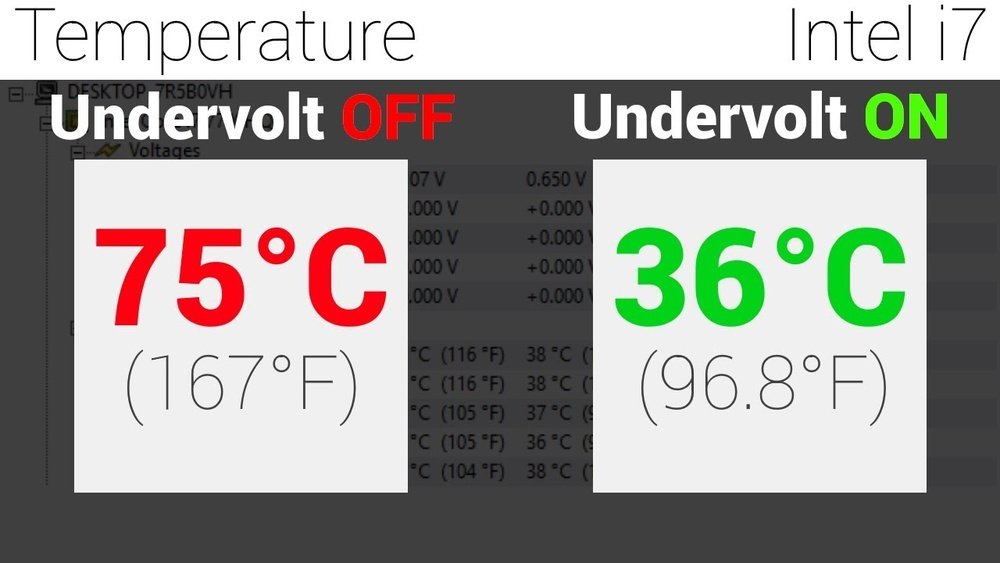
Undervolting can lower CPU temperature by several degrees. Cooler CPUs maintain stable performance for longer. It stops the CPU from slowing down due to overheating. Most users see little to no drop in speed. The computer stays fast but runs more efficiently.
Risks And Considerations
Too low voltage can cause system crashes or freezes. Stability testing is important after undervolting. Every CPU behaves differently; results may vary. Undervolting might void your warranty in some cases. Careful adjustments and backups protect your data and system.
Preparing For Undervolting
Preparing for undervolting your CPU is an important first step. It helps ensure safety and success. Taking the right precautions reduces risks and protects your system.
This stage involves checking if your CPU supports undervolting. Backing up your data is also crucial. Plus, gathering the right tools makes the process smoother.
Check Cpu Compatibility
Not all CPUs support undervolting. Find out if your CPU allows voltage adjustments. Visit the manufacturer’s website or check forums for your CPU model. Using incompatible hardware can cause problems or no changes at all.
Backup Important Data
Undervolting may cause system crashes or instability. Save your important files before starting. Use an external drive or cloud storage. This step prevents data loss if something goes wrong.
Gather Necessary Tools
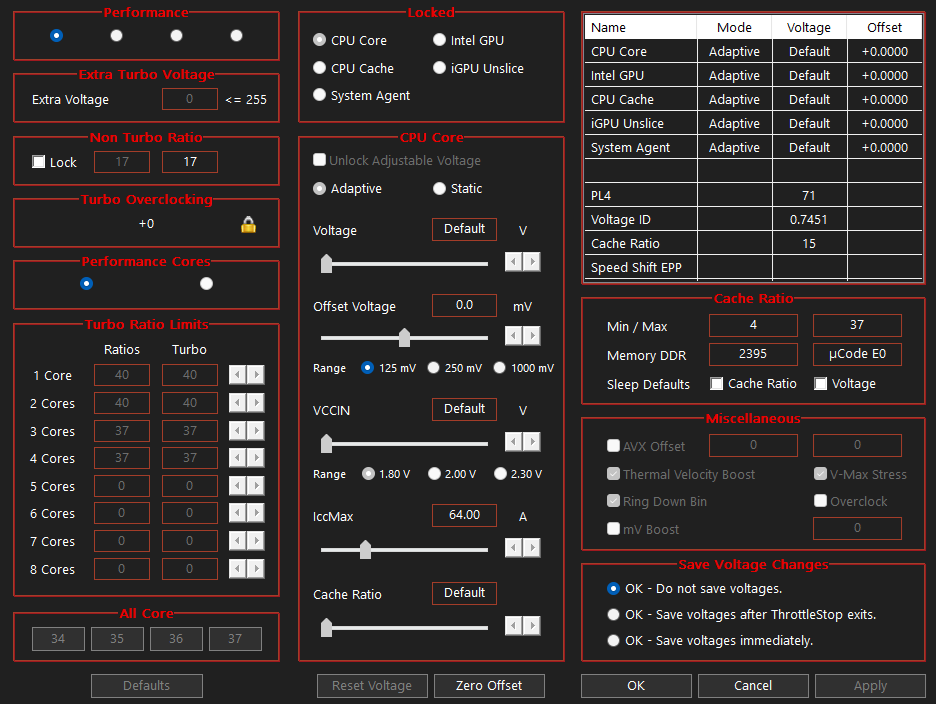
Prepare software to adjust CPU voltage. Popular options include Intel XTU or ThrottleStop for Intel CPUs. AMD users can try Ryzen Master. Also, have monitoring tools ready to track temperature and stability during the process.
Tools To Undervolt Your Cpu
Undervolting a CPU can lower heat and power use while keeping performance steady. Tools help you change voltage settings safely. Some tools work inside the operating system. Others work directly in the BIOS. Picking the right tool depends on your skill level and needs.
Popular Software Options
Many users choose software to undervolt. It is easier and safer for beginners. Programs like ThrottleStop and Intel XTU offer clear controls. They show voltage, temperature, and clock speed in real-time. These tools work well for Intel CPUs. AMD users can try Ryzen Master software. It allows voltage and frequency tweaks in Windows.
Bios Vs Software Undervolting
The BIOS method changes settings before Windows starts. It can be more stable and permanent. BIOS undervolting works for all CPU types. But it needs caution. Wrong settings can stop the computer from booting. Software undervolting is safer. It lets you test changes without risk. Changes can be undone easily. BIOS undervolting is better for advanced users.
Monitoring Utilities
Monitoring tools track CPU temperature and voltage during undervolting. HWMonitor and HWiNFO are popular choices. They show detailed sensor data. Watching these numbers helps avoid overheating. It also confirms undervolting improves power efficiency. Use these tools before and after changes. They ensure your CPU runs well and stays cool.
Credit: camomileapp.com
Step-by-step Undervolting Guide
Undervolting your CPU can reduce heat and power use. This guide breaks down the process into clear steps. Follow each part carefully for safe and effective results.
Accessing Voltage Settings
Start by entering your computer’s BIOS or UEFI. Restart your PC and press the setup key shown on screen. Look for CPU voltage settings under advanced or overclocking menus. Note the default values before changing anything.
Adjusting Voltage Safely
Lower the CPU core voltage in small steps. Try reducing by 0.01 or 0.02 volts at a time. Avoid large drops to prevent system crashes. Save changes and reboot after each adjustment.
Testing Stability
Run stress tests or benchmarking tools to check stability. Observe for crashes, freezes, or errors. If the system is unstable, increase voltage slightly. Repeat testing until stable performance is achieved.
Fine-tuning For Optimal Results
Continue adjusting voltage in small steps to find the lowest stable point. Monitor CPU temperatures and system behavior closely. Stop once the CPU runs cool and stable without errors. This balance maximizes efficiency and safety.
Monitoring Performance And Temperatures
Monitoring your CPU’s performance and temperature is key after undervolting. It helps ensure your system runs smoothly and stays safe. Watch how your CPU behaves under different loads. This gives clear insight into the effects of undervolting.
Regular checks prevent damage and keep your computer stable. Track temperatures closely and compare before and after changes. This way, you know if the undervolt is effective and safe.
Tracking Cpu Temperatures
Use software tools to check CPU temperatures often. Programs like HWMonitor or Core Temp show real-time readings. Watch for spikes or unusual heat levels during tasks. Keep temperatures below the maximum safe limit. This protects your CPU from overheating and damage.
Benchmarking Performance
Run simple tests to measure CPU speed and power use. Tools like Cinebench or Geekbench work well. Compare scores before and after undervolting. This shows if performance stays steady or drops. Aim for stable results to keep your system efficient.
Identifying Instability Signs
Look for crashes, freezes, or blue screens after undervolting. These are signs the CPU is unstable. Also, check for slowdowns or odd behavior. If problems appear, raise the voltage slightly. Stability is more important than the lowest voltage.

Credit: softwareg.com.au
Common Issues And Fixes
Undervolting a CPU can improve efficiency and reduce heat. Yet, some common problems may appear. Knowing these issues helps fix them quickly. This section explains typical troubles and easy solutions.
System Crashes And Freezes
Crashes or freezes often happen after undervolting. The CPU may not get enough power. This causes instability in your system. To fix this, increase the voltage slightly. Test the system after each change. Stop when the crashes stop. Use stress tests to check stability.
Performance Drops
Lower voltage can cause slower CPU speeds. This leads to weaker performance. Check if the CPU throttles or slows down. Raise the voltage a bit to improve speed. Avoid lowering voltage too much. Balance power saving with performance needs.
Reverting Undervolt Settings
Sometimes you must return to original settings. This happens if problems persist. Use your CPU tuning tool to reset values. Save the original profile before undervolting. Restore it if issues continue. This keeps your system stable and safe.
Advanced Undervolting Tips
Advanced undervolting can make your CPU run cooler and use less power. It takes more care and skill than basic undervolting. This part covers some smart tips to help you get the best results. These methods help you save energy without losing speed.
Using Curve Optimizers
Curve optimizers let you adjust voltage for each CPU core. This tool finds the lowest voltage needed for stable work. It helps reduce heat and power use without dropping performance. You can tweak settings for each core individually. This makes undervolting more precise and effective.
Combining With Overclocking
Undervolting and overclocking can work together well. Overclocking raises CPU speed, and undervolting lowers voltage. This mix keeps your CPU fast but cooler and more efficient. Careful balance is key to avoid crashes or errors. Test your system after each change to find the best setup.
Custom Profiles For Different Tasks
Create custom profiles for tasks like gaming or browsing. Each profile sets voltage and speed to fit the job. For example, use a high-performance profile for games. Use a low-power profile for simple tasks. Switching profiles saves energy and keeps your PC running smooth.
When To Avoid Undervolting
Undervolting a CPU can improve performance and reduce heat. Yet, it is not always a good idea. Some situations require avoiding undervolting to keep your system safe and stable. Knowing when not to undervolt helps prevent damage or issues.
Older Cpus And Compatibility
Older CPUs may not support undervolting well. They might lack proper voltage control features. Undervolting can cause crashes or system instability. Compatibility with undervolting tools is often limited. Avoid undervolting if your CPU is outdated or unsupported.
Warranty And Support Concerns
Undervolting can void your CPU warranty. Manufacturers may refuse repairs if undervolting caused damage. Some brands clearly state undervolting is not allowed. Check your warranty terms before changing CPU voltage. Avoid undervolting to keep warranty valid and support available.
Use Cases Requiring Maximum Stability
Systems running critical tasks need full stability. Servers, workstations, and professional setups often fall here. Undervolting can introduce errors or crashes. Stability is more important than power savings in these cases. Avoid undervolting to maintain reliable and consistent operation.
Frequently Asked Questions
What Is Cpu Undervolting And Why Is It Important?
CPU undervolting reduces the voltage supplied to your processor. It lowers heat output and power consumption while maintaining performance. This helps in improving system stability and extending hardware lifespan, especially in laptops and compact PCs.
How Do I Safely Undervolt My Cpu?
Use software like Intel XTU or ThrottleStop to adjust voltage settings gradually. Test stability after each change using stress tests. Avoid dropping voltage too low to prevent crashes or data loss. Always monitor temperatures and system behavior during the process.
Will Undervolting Affect My Cpu Performance?
Undervolting aims to maintain performance while reducing voltage. Proper undervolting usually does not lower CPU speed. It can improve thermal efficiency and reduce throttling, sometimes leading to better sustained performance under load.
Can Undervolting Reduce My Laptop’s Fan Noise?
Yes, undervolting decreases heat generation, reducing fan activity. Lower temperatures mean fans run slower or less frequently, resulting in quieter operation and improved comfort during use.
Conclusion
Undervolting your CPU helps reduce heat and save energy. It can make your computer quieter and last longer. Start with small changes and test your system each time. Watch for crashes or slowdowns to stay safe. This simple process improves your PC without extra cost.
Give it a try and see the difference yourself.