How to Check If My Cpu is Overheating: Easy Steps to Save It
Is your computer suddenly slowing down or shutting off without warning? These could be signs that your CPU is overheating.
But how do you know for sure if your processor is getting too hot? Checking your CPU temperature is easier than you think, and it’s one of the best ways to keep your computer running smoothly and avoid costly damage.
You’ll learn simple steps to quickly check if your CPU is overheating—and what you can do about it. Keep reading to protect your device and boost its performance!
Credit: www.reddit.com
Signs Of Cpu Overheating
Knowing the signs of CPU overheating can save your computer from damage. It helps to spot issues early and keep your system running smoothly. Overheating can cause several problems. Some are easy to notice, while others might seem normal at first. Understanding these signs is key to protecting your PC.
Common Symptoms
One common sign is a hot case or fan noise. The computer feels warmer than usual. Fans might run louder or faster. You may also notice slow response or lag in apps. Sometimes, the screen flickers or glitches. These are early warnings of a hot CPU.
Performance Issues
Your CPU may slow down to avoid damage. This is called throttling. Programs take longer to open or run. Games may drop frames or freeze. Multitasking becomes harder and less smooth. These performance drops show the CPU struggles with heat.
Unexpected Shutdowns
The system might shut down without warning. This protects the CPU from serious harm. Random restarts or blue screens can occur too. These shutdowns are a clear sign of overheating. Immediate action is needed to cool the CPU down.
Tools To Monitor Cpu Temperature
Monitoring your CPU temperature helps protect your computer from damage. It also keeps your system running smoothly. Many tools help check the CPU temperature easily. Some are built into your system, while others need installation. You can also use command line tools for quick checks.
Built-in Bios Tools
Your computer’s BIOS often shows CPU temperature. Restart your PC and enter BIOS by pressing a key during startup. Common keys are F2, Delete, or Esc. Look for hardware monitoring or PC health sections. These display current CPU temperature and fan speed. BIOS tools offer basic but reliable temperature info.
Third-party Software Options
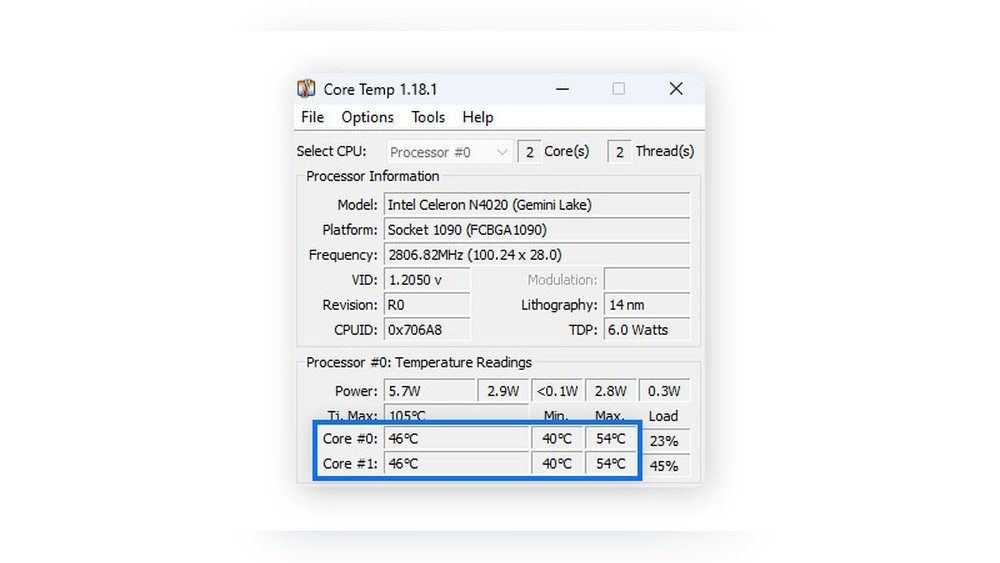
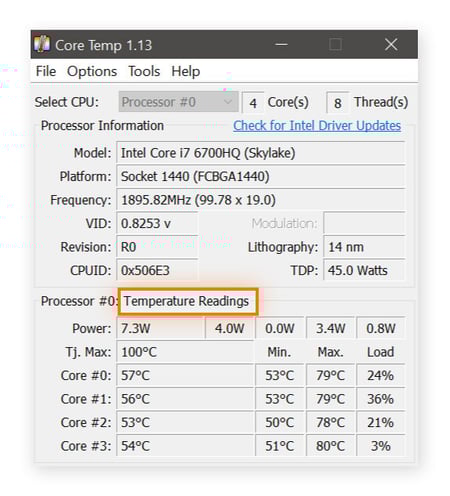
Third-party apps provide detailed CPU temperature data. Popular tools include HWMonitor, Core Temp, and SpeedFan. These programs offer real-time monitoring and alerts for high temperatures. Many are free and easy to use. They also show other system info like voltage and fan speed. This helps keep your computer safe and efficient.
Using Command Line Utilities
Command line tools allow quick temperature checks without extra software. On Windows, use “wmic” or PowerShell commands. Linux users can run “sensors” from the terminal. These commands show CPU temperature and other hardware stats. Command line tools suit users who prefer simple, fast checks.
Steps To Check Cpu Temperature
Checking your CPU temperature is important to avoid overheating issues. Overheating can cause slowdowns and damage. Follow simple steps to find out your CPU’s current temperature. This helps keep your computer safe and running well.
Accessing Bios Temperature Readings
Restart your computer and enter the BIOS setup. Usually, press keys like F2, Delete, or Esc during startup. Inside BIOS, find the hardware or system monitor section. You will see CPU temperature readings there. Note that BIOS shows temperature before the operating system loads. This gives a basic idea of your CPU’s heat level.
Installing Monitoring Software
Download a trusted CPU temperature monitoring program. Popular choices include HWMonitor, Core Temp, or SpeedFan. Install the software and open it. These programs show real-time temperature data inside Windows. They often display temperatures for each CPU core. Monitoring software helps track temperature during normal use.
Interpreting Temperature Data
Look at the temperature numbers shown by BIOS or software. Normal idle temperatures range from 30°C to 50°C. Temperatures above 70°C can be a warning sign. Around 90°C or higher means your CPU is overheating. High temperature needs immediate action to cool your CPU. Use this data to protect your computer from damage.
Credit: www.avast.com
Causes Of Cpu Overheating
CPU overheating can cause many problems for your computer. It slows down performance and may damage parts. Understanding the causes helps you prevent overheating and keep your CPU safe.
Several factors can lead to a hot CPU. Knowing these can help you spot issues early and fix them quickly.
Dust And Dirt Accumulation
Dust blocks airflow inside the computer case. It settles on fans and heat sinks. This stops heat from escaping the CPU. Over time, dust build-up makes the CPU hotter. Regular cleaning can reduce dust and keep the CPU cool.
Poor Ventilation
Computers need good airflow to cool parts. Poor ventilation traps hot air inside the case. This raises the CPU temperature quickly. Make sure vents are not blocked. Use the computer in a cool, open space for better airflow.
Faulty Cooling System
The cooling system includes fans and heat sinks. If these parts fail, the CPU will overheat. Fans may stop spinning or slow down. Heat sinks might lose contact with the CPU. Check cooling parts regularly and replace broken ones fast.
Ways To Prevent Overheating
Keeping your CPU cool is key to a fast and long-lasting computer. Overheating can cause slowdowns, crashes, or even permanent damage. Preventing this starts with simple steps anyone can do. Below are effective ways to keep your CPU temperature in check.
Cleaning And Maintenance
Dust and dirt block airflow and trap heat inside your PC. Regular cleaning removes these particles and helps your CPU stay cool. Use a soft brush or compressed air to clean fans, vents, and heatsinks. Do this every few months for best results. Also, check thermal paste between the CPU and cooler. Replace it if dried or cracked to improve heat transfer.
Improving Airflow
Good airflow moves hot air away from your CPU quickly. Arrange cables neatly to avoid blocking fans or vents. Keep your PC case in an open space, not inside a closed cabinet. Add extra case fans if needed. Intake fans should bring cool air in, while exhaust fans push hot air out. This balance keeps fresh air flowing and lowers temperature.
Upgrading Cooling Solutions
Stock coolers may not cool well under heavy use. Consider upgrading to better air coolers with larger heatsinks and quieter fans. Liquid cooling systems offer even stronger cooling by circulating coolant to remove heat. Choose a cooler that fits your CPU and case size. Better cooling solutions keep your CPU safe during gaming or demanding tasks.
What To Do If Cpu Is Overheating
Dealing with an overheating CPU requires quick and smart actions. Overheating can cause your computer to slow down, crash, or even damage the hardware. Taking the right steps helps protect your system and keeps it running smoothly.
Immediate Actions
Turn off your computer at once. Let it cool down for at least 15 minutes. Check if the fans are working properly. Remove any dust from vents and fans using a soft brush or compressed air. Make sure your computer is in a cool, well-ventilated area. Avoid using the device on soft surfaces like beds or couches that block airflow.
Long-term Fixes
Apply new thermal paste between the CPU and its cooler. This improves heat transfer. Upgrade your CPU cooler if the current one is not efficient. Add extra case fans to boost airflow inside the computer. Clean your computer regularly to avoid dust build-up. Adjust power settings to reduce CPU load when full power is not needed.
When To Seek Professional Help
Seek expert help if overheating continues after basic fixes. Persistent overheating may signal hardware problems. A technician can check for damaged fans, faulty sensors, or motherboard issues. Avoid opening the computer too often if you are not sure. Professionals have the right tools and knowledge to fix complex problems safely.
Credit: support.punchtechnology.co.uk
Frequently Asked Questions
How Can I Tell If My Cpu Is Overheating?
You can check CPU temperature using software like HWMonitor or Core Temp. High temps above 80°C often indicate overheating.
What Are Common Symptoms Of Cpu Overheating?
Symptoms include random shutdowns, slow performance, system crashes, and loud fan noise. These signs suggest your CPU is too hot.
Can Overheating Damage My Cpu Permanently?
Yes, prolonged overheating can cause permanent damage. It reduces CPU lifespan and may lead to hardware failure.
How Often Should I Monitor My Cpu Temperature?
Monitor your CPU temperature regularly, especially during gaming or heavy tasks. Checking weekly helps prevent overheating issues.
Conclusion
Checking your CPU temperature helps keep your computer safe. High heat can cause slowdowns or damage. Use simple tools to monitor the temperature often. Clean your fans and vents to improve airflow. Replace old thermal paste to help cool better.
Catching overheating early can save costly repairs. Stay aware and act quickly to protect your device. Remember, a cool CPU means better performance and longer life. Keep these tips in mind to avoid overheating issues.