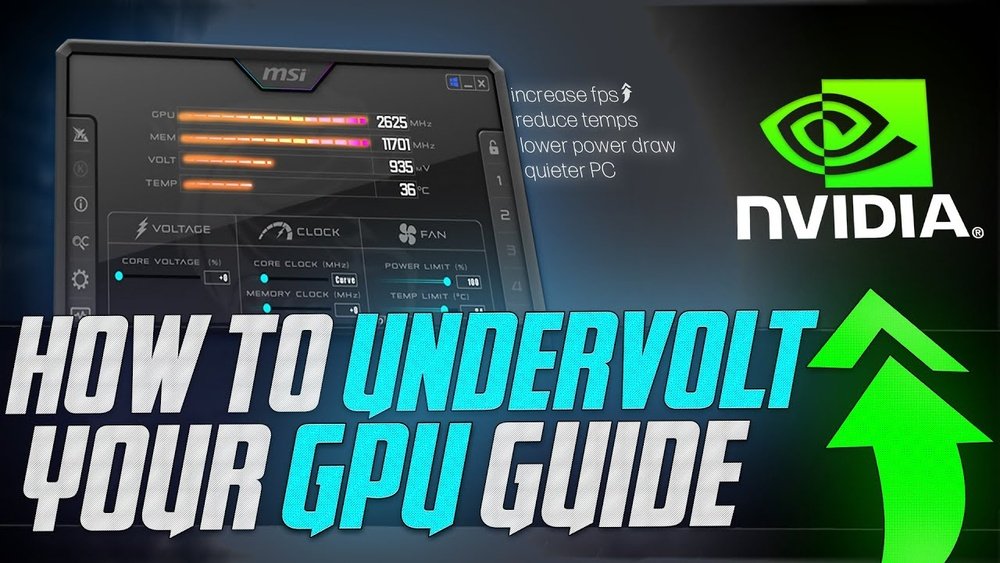
How to Underclock Gpu Nvidia: Boost Efficiency & Reduce Heat
If you’ve ever felt your Nvidia GPU running too hot or using too much power, underclocking might be the simple fix you need. By reducing your GPU’s clock speeds, you can lower temperatures, save energy, and even extend the life of your hardware.
But how exactly do you underclock your Nvidia GPU safely and effectively? You’ll discover easy-to-follow steps that put you in control of your graphics card’s performance. Keep reading to learn how to make your GPU work smarter, not harder.
Credit: www.youtube.com
Benefits Of Underclocking Nvidia Gpus
Underclocking Nvidia GPUs offers several key benefits. It helps users balance performance and efficiency. This process reduces power use and heat. It also improves system stability and hardware life. Below are the main advantages of underclocking your Nvidia GPU.
Improved Energy Efficiency
Underclocking lowers the GPU’s clock speed and voltage. This reduces power consumption significantly. Less energy use means lower electricity bills. It also helps laptops run longer on battery power. Efficient energy use is good for both users and the environment.
Lower Heat Output
Reducing clock speed decreases the heat generated by the GPU. Lower heat helps keep the computer cooler. Cooler systems prevent overheating and thermal throttling. This means the GPU can maintain stable performance. It also reduces the need for noisy fans.
Enhanced System Stability
Underclocking can improve system stability during heavy tasks. Running the GPU at lower speeds reduces errors and crashes. This is helpful for systems with older or weaker cooling. Stable operation means smoother gaming and work experiences. It also minimizes sudden shutdowns and freezes.
Extended Hardware Lifespan
Less heat and stress on the GPU extend its lifespan. Components wear out slower at lower temperatures. This helps avoid early hardware failures. Longer lifespan saves money on repairs and replacements. It keeps the system reliable for more years.

Credit: www.wepc.com
Preparing To Underclock Your Gpu
Preparing to underclock your Nvidia GPU helps ensure a smooth and safe process. Taking the right steps first avoids problems later. This preparation lets you know your GPU’s current state and how to manage changes.
Start by gathering important details about your GPU. Next, get the right software tools. Finally, save your current settings. This way, you can restore them if needed.
Checking Current Gpu Specs
Knowing your GPU’s specs is the first step. Check the clock speeds, temperature, and power limits. Use tools like Nvidia Control Panel or GPU-Z. Write down the base and boost clock speeds. Check the current temperature under load. This info helps you understand what to change safely.
Choosing The Right Tools
Pick reliable software to underclock your GPU. Nvidia Inspector and MSI Afterburner are popular choices. These tools let you adjust clock speeds easily. They also show real-time monitoring of your GPU. Choose a tool that is easy to use and safe for your GPU model.
Backing Up Settings
Save your current GPU settings before making changes. Use your chosen tool to export or note down the current clock speeds and voltages. Backing up prevents permanent damage if something goes wrong. You can restore your original settings anytime with this backup.
Step-by-step Underclocking Process
Underclocking your Nvidia GPU helps reduce heat and power use. It can also make your system quieter. The process is simple and safe if done carefully. Follow each step to adjust your GPU settings properly.
Accessing Nvidia Control Panel
Right-click on your desktop and select “Nvidia Control Panel.” This opens the main settings window. Find the “Manage 3D Settings” tab. Here you can view GPU settings but cannot change clock speeds directly. This step is for basic checks and driver updates.
Using Third-party Software
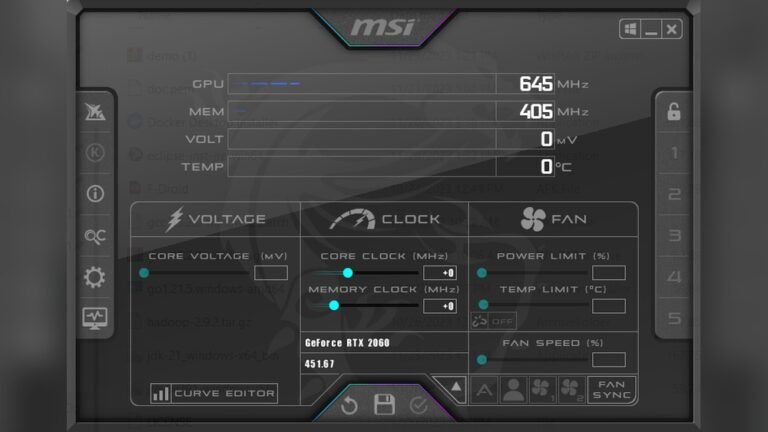
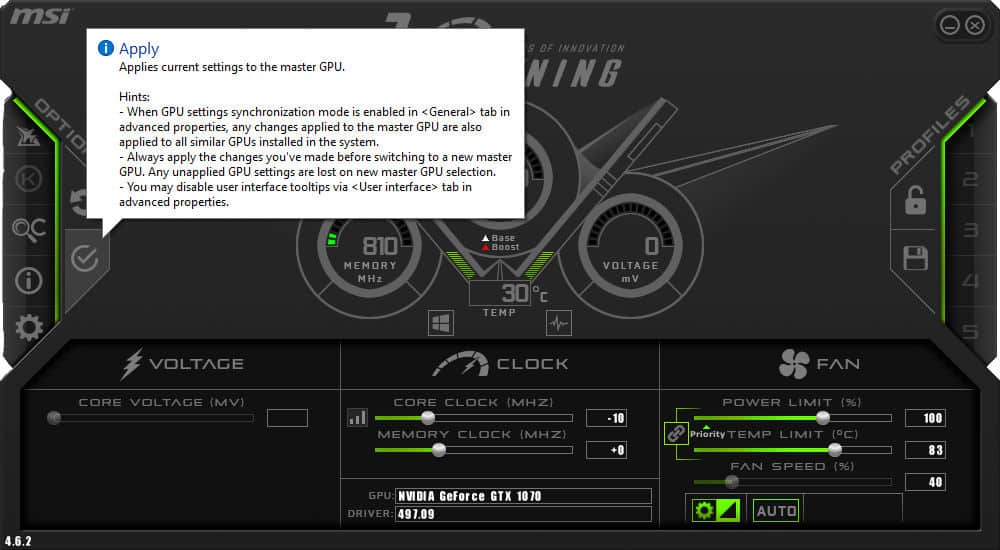
Download and install trusted software like MSI Afterburner or EVGA Precision X1. These tools allow you to change core and memory clocks. Open the program and locate the clock speed sliders. These apps give full control over GPU frequencies.
Adjusting Core And Memory Clocks
Reduce the core clock speed by small steps, such as 10-20 MHz. Lower the memory clock similarly. Make small changes and avoid large drops at once. This keeps your GPU stable and avoids crashes. Save your settings after each change.
Testing Stability After Changes
Run a stress test or play a game to check stability. Watch for crashes, glitches, or freezes. Monitor temperatures to confirm they have dropped. If problems occur, raise clock speeds slightly. Repeat testing until your system runs smoothly.
Credit: www.wepc.com
Monitoring Performance And Temperature
Monitoring the performance and temperature of your Nvidia GPU is essential when underclocking. It helps you ensure the GPU stays stable and does not overheat. Watching these details lets you adjust settings safely and keep your system running smoothly.
Best Monitoring Tools
Several tools show GPU performance and temperature clearly. MSI Afterburner is popular for real-time data and easy control. GPU-Z provides detailed info about your graphics card. HWMonitor tracks temperature and voltage accurately. These tools help you watch your GPU’s health closely.
Interpreting Temperature Readings
Temperatures below 80°C are usually safe for Nvidia GPUs. If the temperature rises above this, it may cause instability or damage. Keep an eye on spikes during heavy use. Stable temperatures mean your underclock settings are working well and protecting your GPU.
Tracking Fps And System Responsiveness
Frames per second (FPS) show how well your GPU handles tasks. Low FPS means slower graphics performance. Check FPS during games or apps to see if underclocking affects speed. Also, watch for system lag or delays. Smooth responses mean your GPU runs efficiently after underclocking.
Troubleshooting Common Issues
Troubleshooting common issues during Nvidia GPU underclocking helps keep your system stable and efficient. Problems like crashes and performance drops can occur. Knowing how to handle these issues makes the process smoother. This section guides you through fixing typical problems quickly.
Handling System Crashes
System crashes often happen if the GPU is underclocked too much. The graphics card may not get enough power to run properly. Start by raising the clock speeds slightly. Test the system after each change. Avoid big jumps in clock reduction. Also, update your GPU drivers. Outdated drivers can cause instability. Use software like MSI Afterburner to monitor temperatures. Overheating can lead to crashes even if the clock is lower.
Dealing With Performance Drops
Performance drops are common after underclocking. Check if the GPU clock is too low for your tasks. Increase the clock speed in small steps. Watch how your games or apps respond. Some programs need higher GPU speeds to run well. Lowering clocks too much reduces frame rates and smoothness. Balance power saving with acceptable performance. Use benchmarking tools to compare before and after results.
Reverting To Default Settings
Reverting to default GPU settings solves many problems. Most GPU tuning software has a reset button. Click it to restore factory clocks and voltages. This step helps if crashes or slowdowns continue. Restart your computer after resetting. This ensures all settings apply properly. Keep a record of your original settings. It makes returning to defaults easier and safer. Start fresh if underclocking causes issues you cannot fix.
Advanced Tips For Optimizing Gpu Efficiency
Optimizing your Nvidia GPU for better efficiency involves more than just basic underclocking. Advanced methods can help you reduce power use and heat while keeping good performance. These tips focus on fine-tuning settings for the best balance between speed and energy use. Small changes can make a big difference in your GPU’s lifespan and stability.
Combining Underclocking With Undervolting
Underclocking lowers your GPU’s clock speed to reduce power use and heat. Undervolting cuts the voltage your GPU receives. Using both together can greatly improve efficiency. Lower voltage means less heat and less energy waste. This combo helps keep your GPU cool and quiet. Test settings slowly to avoid crashes. Use tools like MSI Afterburner for safe adjustments.
Optimizing Fan Curves
Fan curves control how fast your GPU fans spin at different temperatures. Setting a custom fan curve helps cool your GPU without too much noise. Start with low fan speeds at low temps. Increase fan speed as temperature rises to keep your GPU cool. This reduces heat build-up and extends GPU life. Adjust fan curves in Nvidia software or MSI Afterburner.
Customizing Power Limits
Power limits restrict how much power your GPU can use. Lowering power limits saves energy and cuts heat output. It also helps keep the GPU stable at lower clock speeds. Adjust power limits carefully to avoid performance drops. Use Nvidia’s Control Panel or third-party tools to change these settings. Monitor your GPU’s behavior after each change.
Frequently Asked Questions
What Is Gpu Underclocking For Nvidia Cards?
GPU underclocking reduces the clock speed of your Nvidia GPU. It lowers power consumption and heat output. This helps improve stability and extend hardware life. Underclocking is useful for quieter, cooler gaming or workload environments.
How Do I Underclock My Nvidia Gpu Safely?
Use software like MSI Afterburner or Nvidia Inspector. Lower the core clock speed gradually in small increments. Monitor temperatures and performance after each change. Avoid setting clocks too low to prevent system instability or crashes.
Can Underclocking Improve Nvidia Gpu Lifespan?
Yes, underclocking reduces heat and power usage. Less heat stress prolongs the GPU’s components and solder joints. This can extend the lifespan of your Nvidia graphics card. It is especially beneficial for older or heavily used GPUs.
Does Underclocking Nvidia Gpus Affect Gaming Performance?
Underclocking will reduce your GPU’s performance slightly. Games may run at lower frame rates or quality settings. However, in some cases, stability and temperature improvements outweigh minor performance loss. It’s a trade-off between cooler operation and maximum speed.
Conclusion
Underclocking your Nvidia GPU helps reduce heat and save power. It can also make your system quieter and more stable. Start slow, test settings, and watch your GPU’s performance. Keep monitoring to avoid problems and keep it running smooth. Simple steps can protect your hardware and extend its life.
Try it carefully and enjoy a cooler, quieter computer.