How Hot Should My Gpu Get: Ultimate Guide to Safe Temperatures
Wondering how hot your GPU should get? You’re not alone.
Your graphics card works hard to deliver smooth gaming and fast graphics, but too much heat can cause problems. If your GPU gets too hot, it can slow down, crash, or even get damaged. You want to keep your system running strong without overheating.
You’ll discover the safe temperature range for your GPU, signs that it’s running too hot, and easy ways to keep it cool. Keep reading to protect your hardware and get the best performance from your PC.

Credit: www.reddit.com
Ideal Gpu Temperature Range
Knowing the ideal GPU temperature range helps keep your graphics card safe. It also improves its performance and lifespan. Different states like idle and load have different temperature expectations. Watching these numbers ensures your GPU works well without damage.
Understanding safe temperature limits stops overheating and hardware failure. This guide breaks down what temperatures are normal and which ones need attention.
Idle Temperature Expectations
When your GPU is not doing much, it should stay cool. Typical idle temperatures range between 30°C and 45°C. Lower numbers mean your cooling system works well. Higher idle temps may mean dust or poor airflow.
Optimal Load Temperatures
During gaming or heavy tasks, the GPU heats up. Ideal load temperatures fall between 65°C and 85°C. Staying in this range keeps your card stable. Temperatures above 85°C might reduce performance or cause damage.
Maximum Safe Temperature Limits
Most GPUs have a maximum safe temperature around 90°C to 100°C. Going beyond this can shorten your GPU’s life. If your card hits these highs often, check cooling and ventilation. Avoid pushing your GPU past these limits to stay safe.
Factors Affecting Gpu Temperature
GPU temperature depends on several key factors. These elements affect how hot your graphics card gets during use. Understanding them helps keep your GPU safe and running well.
Ambient Room Temperature
The temperature of the room greatly influences GPU heat. A hotter room means your GPU starts warmer. Cooler rooms help the GPU stay at lower temperatures. Keep your computer in a well-ventilated, cool space.
Case Airflow And Ventilation
Good airflow inside the computer case reduces heat buildup. Fans and vents move hot air out and bring cool air in. Poor ventilation traps heat and raises GPU temperature. Clean dust from fans and ensure no cables block airflow.
Overclocking Impact
Overclocking pushes the GPU to run faster than its default speed. This causes the GPU to generate more heat. Higher clock speeds need better cooling solutions. Without proper cooling, overclocking can lead to overheating.
Gpu Model Variations
Different GPU models have different temperature ranges. Some run hotter due to design and power use. High-performance GPUs often produce more heat. Check the recommended temperature range for your specific GPU model.
Monitoring Gpu Temperature
Keeping an eye on your GPU temperature helps protect your computer. Overheating can cause crashes and damage parts. Monitoring tools show real-time temperature and help spot problems early.
Regular checks improve your PC’s performance and lifespan. Knowing how hot your GPU gets lets you act fast. Let’s explore popular tools, how to read temperatures, and setting alerts.
Popular Monitoring Tools
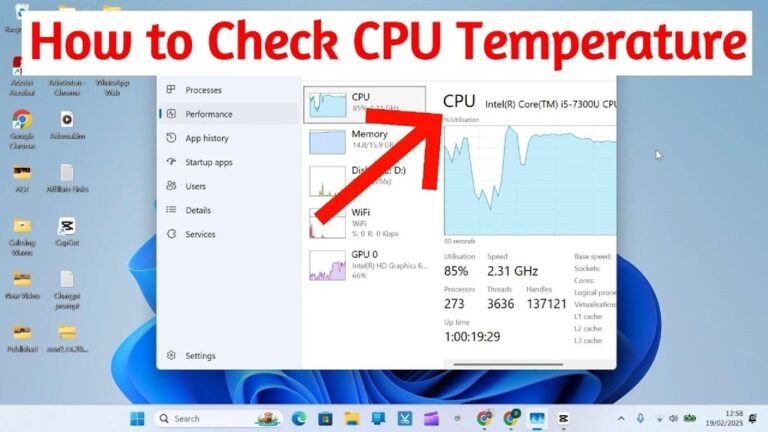
Many free tools track GPU temperature. MSI Afterburner is popular for real-time monitoring. It shows temperature, fan speed, and usage on-screen.
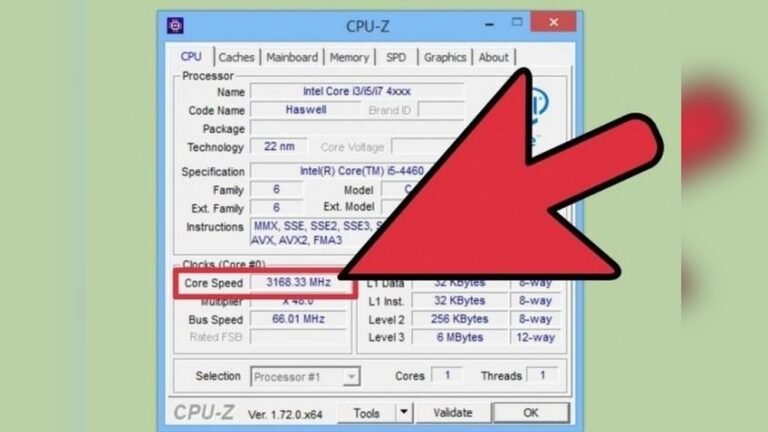
HWMonitor is simple and lists all hardware temperatures. GPU-Z focuses on graphics card details and heat levels. These tools work on most Windows PCs.
Interpreting Temperature Readings
Normal GPU temperature ranges from 30°C to 60°C at idle. Under heavy use, it can safely rise to 80°C or slightly higher. Consistently above 85°C signals overheating.
Watch for sudden spikes or rapid temperature rises. That could mean poor cooling or dust buildup. Compare your readings with your GPU’s official specs.
Setting Temperature Alerts
Many monitoring apps let you set alerts. Choose a temperature limit to warn you before damage happens. Alerts can show as pop-ups or sound notifications.
Set alerts around 80°C to 85°C for safety. This helps you pause tasks or improve cooling quickly. Alerts reduce risk and keep your GPU healthy.
Common Causes Of High Gpu Temperatures
High GPU temperatures cause slowdowns and crashes. Knowing common causes helps keep your GPU cool. Many factors raise the heat inside your PC. Some are easy to fix. Others need more care and attention.
Dust And Dirt Accumulation
Dust builds up inside your computer over time. It blocks air vents and fans. This stops cool air from reaching your GPU. Dirt on the fan blades slows them down. Dust acts like a blanket, trapping heat. Cleaning dust regularly lowers your GPU temperature.
Poor Case Airflow
Good airflow moves hot air out and brings cool air in. Poor airflow traps heat inside the case. Cables and parts placed badly block air paths. Small or missing case fans reduce airflow. A crowded case stops air from moving well. Improving airflow keeps your GPU cooler.
Thermal Paste Degradation
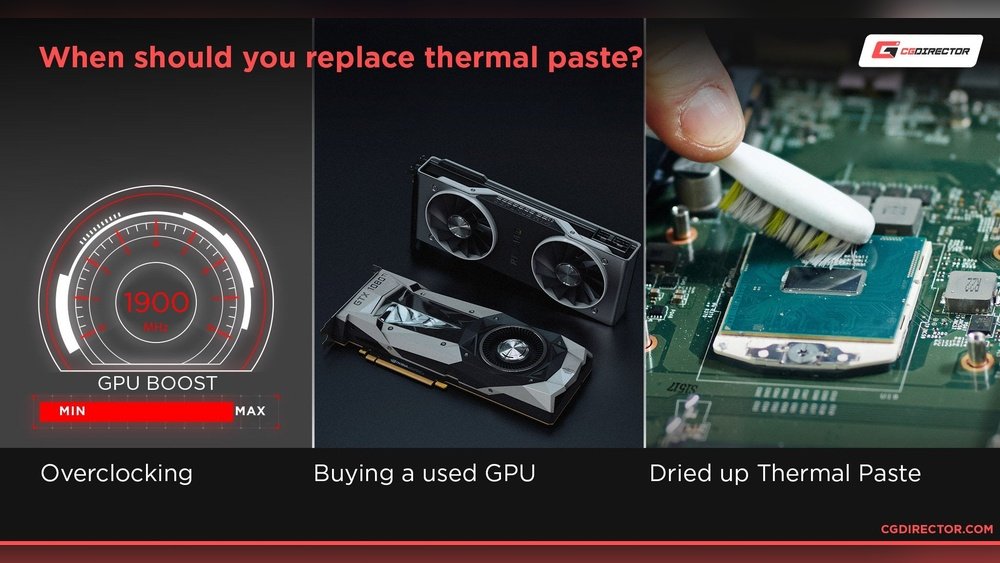
Thermal paste helps transfer heat from GPU to cooler. Over time, this paste dries out or cracks. Old thermal paste cannot cool the GPU well. This causes the GPU to run hotter than usual. Replacing thermal paste can lower temperatures quickly.
Faulty Cooling Components
Fans or liquid cooling parts can break or wear out. A broken fan stops spinning or spins slowly. Liquid cooling pumps can fail or leak. Faulty parts reduce cooling efficiency. This leads to higher GPU temperatures and risks. Checking and replacing bad parts helps maintain cool temps.
Methods To Lower Gpu Temperature
Keeping your GPU cool is key to good performance and long life. High temperatures can cause crashes and slowdowns. Several simple methods help lower GPU heat. These steps keep your system stable and quiet.
Improving Case Airflow
Good airflow moves hot air out and cool air in. Use extra case fans if needed. Arrange fans so air flows smoothly across components. Avoid blocking vents with cables or objects. Clean dust filters regularly to keep air moving well.
Cleaning And Maintenance
Dust buildup traps heat inside your GPU. Use compressed air to blow dust off fans and heatsinks. Clean your PC every few months. Keep vents and fan blades clear. A clean GPU runs cooler and quieter.
Replacing Thermal Paste
Old thermal paste dries out and loses effectiveness. Replace it every couple of years. Carefully remove the old paste with alcohol. Apply a thin, even layer of new thermal paste. This improves heat transfer from GPU to cooler.
Adjusting Fan Curves
Fan curves control fan speed based on temperature. Increase fan speed at lower temps to cool faster. Use software like MSI Afterburner to adjust curves. Balanced fan curves reduce heat without making noise loud.
Undervolting And Underclocking
Lowering voltage and clock speeds reduces heat output. This may slightly reduce performance but keeps temperatures down. Use tuning tools to find stable settings. Safe undervolting can extend your GPU’s lifespan.

Credit: www.reddit.com
Risks Of Overheating
Overheating can cause serious issues for your GPU. It affects how well your computer works. It can damage parts inside your system. Understanding these risks helps you keep your GPU safe and your computer running smoothly.
Performance Throttling
High temperatures make your GPU slow down. It lowers its speed to cool off. This means games and programs run worse. You may see lag or stutter. This protects the GPU but hurts your experience.
Hardware Damage
Too much heat can break your GPU parts. Circuits and chips wear out faster. This can cause permanent damage. Fixing or replacing parts is expensive. Avoiding heat keeps your hardware healthy for longer.
System Instability
Overheating causes crashes and freezes. Your computer may shut down without warning. Programs can stop working suddenly. This makes your work or play frustrating. Stable temperatures help keep your system reliable.
When To Seek Professional Help
Knowing when to seek professional help for your GPU is important. Overheating can harm your graphics card and your computer. Some problems need expert care to fix them safely. Understanding the signs that call for professional support can save your hardware and prevent data loss.
Persistent Overheating Issues
If your GPU keeps getting too hot despite cleaning and checking fans, it may need expert help. Constant overheating can mean deeper problems inside the card. Professionals can find hidden issues like damaged components or poor thermal paste application. Don’t ignore frequent crashes or shutdowns caused by heat.
Hardware Repair Options
Experts can repair or replace parts inside the GPU. They have tools to fix cooling systems, fans, or heat sinks. Sometimes, a simple repair can stop the overheating. In other cases, a full replacement might be needed. Professional repair ensures your GPU works safely and lasts longer.
Warranty And Support
Check your GPU’s warranty before opening or fixing it yourself. Many manufacturers offer free repairs for overheating problems under warranty. Contact the support team for advice and authorized service centers. Following warranty rules keeps your GPU protected and avoids extra costs.

Credit: www.reddit.com
Frequently Asked Questions
What Is The Ideal Gpu Temperature Range?
The ideal GPU temperature range is between 65°C and 85°C during heavy use. Staying within this range ensures optimal performance and prevents overheating. Temperatures above 90°C can cause damage or throttling, so good cooling is essential for safety and longevity.
How Hot Can A Gpu Safely Get?
Most GPUs can safely reach temperatures up to 95°C. However, operating consistently near this limit can reduce lifespan. It’s best to keep temperatures below 85°C to maintain stability and avoid thermal throttling, which lowers performance to prevent damage.
Why Is My Gpu Temperature So High?
High GPU temperatures can result from poor airflow, dust buildup, or overclocking. Inadequate cooling solutions or blocked vents also raise heat levels. Cleaning fans and ensuring proper case ventilation can significantly reduce GPU temperatures and improve performance.
Does Gpu Temperature Affect Gaming Performance?
Yes, high GPU temperatures can cause thermal throttling, lowering gaming performance. When the GPU overheats, it slows down to cool off, causing frame drops and lag. Maintaining optimal temperatures ensures smooth gameplay and consistent frame rates.
Conclusion
Keeping your GPU temperature in a safe range matters. High heat can reduce its life and cause slowdowns. Most GPUs work well under 85°C during heavy use. Watch your temps often, especially while gaming or rendering. Clean fans and good airflow help cool your GPU.
Use software tools to monitor heat easily. Staying aware helps you avoid damage and keep performance steady. Simple care keeps your GPU running longer and smoother.