How to Remove a Cpu: Easy Steps for Safe and Quick Removal
Removing a CPU might sound tricky, but with the right steps, you can do it safely and easily. Whether you’re upgrading your computer or fixing a problem, knowing how to remove a CPU is an essential skill.
In this guide, you’ll discover simple, clear instructions that anyone can follow. By the end, you’ll feel confident handling your computer’s heart without fear of damage. Ready to take control of your tech? Let’s dive in and make the process smooth and stress-free.

Credit: www.youtube.com
Tools Needed
Removing a CPU requires the right tools for a safe and smooth process. Using proper tools helps avoid damage to the processor or motherboard. Prepare all tools before starting the removal.
Phillips Head Screwdriver
A Phillips head screwdriver is essential for opening the computer case. It also helps remove screws holding the CPU cooler or bracket. Choose a screwdriver size that fits screws well.
Anti-static Wrist Strap
An anti-static wrist strap prevents static electricity from harming computer parts. Attach the strap to your wrist and clip it to a grounded metal surface. This step protects sensitive components during the removal.
Thermal Paste Remover
Thermal paste remover cleans old paste from the CPU and cooler. Use a soft cloth or cotton swab with the remover. Clean surfaces carefully to prepare for new thermal paste later.
Plastic Pry Tool
A plastic pry tool helps gently lift the CPU cooler or socket lever. It reduces the risk of scratching or damaging delicate parts. Avoid using metal tools that can cause harm.
Small Container For Screws
Keep all screws in a small container during removal. This prevents losing important parts. Organizing screws saves time when reassembling the computer.
Credit: docs.oracle.com
Prepare Your Workspace
Preparing your workspace is the first step to safely remove a CPU. A clean and organized area helps prevent damage to computer parts. It also makes the process easier and faster.
Keep your workspace free from dust and clutter. Dust can harm sensitive components. Clear space allows you to place tools and parts neatly.
Choose A Flat, Static-free Surface
Select a flat surface like a desk or table. Avoid carpet or rugs that create static electricity. Static can damage your CPU and motherboard. Use a static mat or wear an anti-static wristband if possible.
Gather Necessary Tools
Have all tools ready before starting. Common tools include a screwdriver and thermal paste cleaner. Having tools nearby saves time and avoids rushing.
Ensure Proper Lighting
Good lighting helps you see small parts clearly. Use a bright desk lamp or natural light. Avoid working in dim or shadowy areas.
Disconnect Power And Peripherals
Unplug the computer and all connected devices. This prevents electrical shocks and component damage. Confirm the power is completely off before opening the case.
Power Down And Unplug
Powering down and unplugging your computer is the first step in safely removing a CPU. This step helps prevent electric shock and protects your computer parts from damage. It is very important to take your time and do this carefully.
Make sure the computer is fully turned off before you start. Just pressing the power button is not enough. The device must be completely shut down to avoid any risk. Unplugging stops electricity from flowing, which keeps you and your computer safe.
Turn Off Your Computer Properly
Use the operating system’s shutdown option to turn off your computer. Wait until all lights and sounds stop. This confirms the computer is off and safe to work on.
Disconnect The Power Cable
Unplug the power cable from the wall outlet and the computer. This step removes all power from the system. Double-check the cable is fully unplugged before moving on.
Remove External Devices
Take out all connected devices like keyboards, mice, and monitors. This prevents any accidental pulls on cables. It also gives you more room to open your computer case easily.

Credit: www.youtube.com
Open The Case
Opening the case is the first step to remove a CPU. It gives you access to the computer’s internal parts. This step needs care to avoid damage.
Always turn off your computer and unplug it from the power source before opening the case. This keeps you safe and protects the hardware.
Gather Necessary Tools
Use a screwdriver that fits your case screws. Most cases need a Phillips-head screwdriver. Keep tools nearby before starting.
Find A Clean Workspace
Place your computer on a flat, clean surface. Avoid static electricity by working on a wooden or non-carpeted area. This prevents damage to sensitive parts.
Remove Side Panel
Locate screws or clips holding the side panel. Unscrew or unclip them carefully. Slide the panel off gently to reveal the inside.
Touch A Metal Surface
Ground yourself by touching a metal part of the case. This removes static electricity. Static can harm the CPU and other components.
Keep Screws Safe
Put screws in a small container or magnetic tray. This avoids losing them during the process. Stay organized for easy reassembly.
Locate The Cpu
Finding the CPU is the first step to removing it safely. The CPU sits inside the computer case on the motherboard. Knowing its exact location helps avoid damage to other parts.
Inside most desktop computers, the CPU is under a cooling fan or heat sink. This cooling system keeps the CPU from getting too hot during use. You will need to remove the fan or heat sink before you can take out the CPU.
Open The Computer Case
Turn off the computer and unplug all cables. Place the case on a clean, flat surface. Use a screwdriver to remove the screws holding the side panel. Slide the panel off carefully to expose the inside.
Identify The Motherboard
The motherboard is a large circuit board inside the case. It holds many components, including the CPU. Look for a square or rectangular area with many small pins or a socket.
Find The Cpu Socket
The CPU socket is usually near the center of the motherboard. It has a lever or latch that locks the CPU in place. The CPU sits directly under the cooling fan or heat sink.
Check For The Cooling System
The CPU fan or heat sink covers the CPU. It looks like a metal block with fins or a fan attached. This part helps keep the CPU cool and must be removed first.
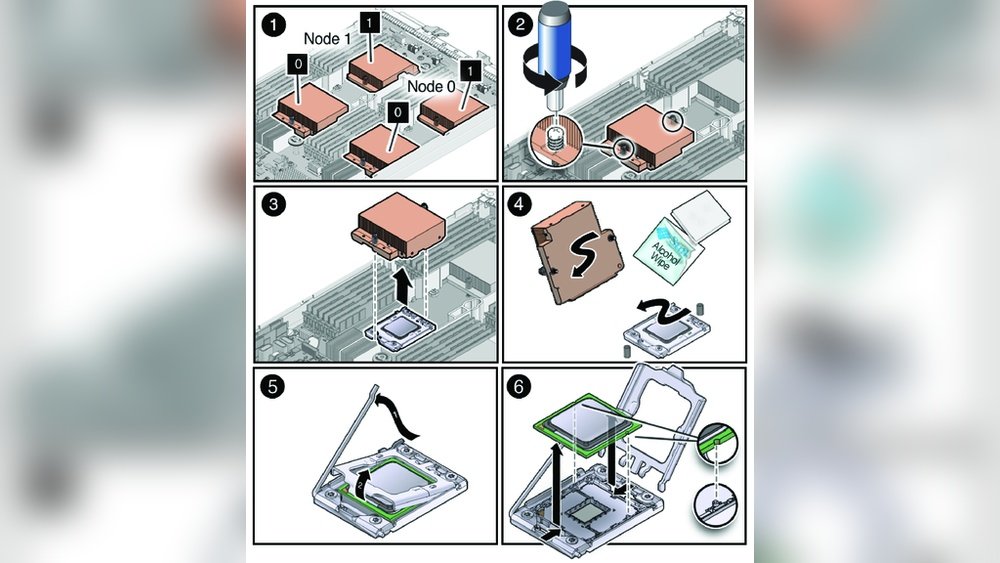
Remove The Cooling System
Removing the cooling system is the next step to safely take out your CPU. The cooling system keeps your processor cool and prevents damage from heat. You must carefully remove it to avoid any harm to the CPU or motherboard.
Cooling systems usually include fans and a heatsink. These parts work together to pull heat away from the CPU. Let’s break down the process into simple steps.
Disconnect Fans
First, find the fan power connector on the motherboard. It is a small plug with wires leading to the fan. Gently unplug the fan cable from the motherboard. Do not pull on the wires, only the connector. This stops power from reaching the fan and keeps it safe to remove.
Detach Heatsink
The heatsink sits directly on top of the CPU. It is usually held in place by screws or clips. Loosen or unclip these carefully. Slowly lift the heatsink straight up. Avoid twisting or pulling sideways. The thermal paste between the CPU and heatsink can make it stick. If it resists, wiggle it gently until it comes free.
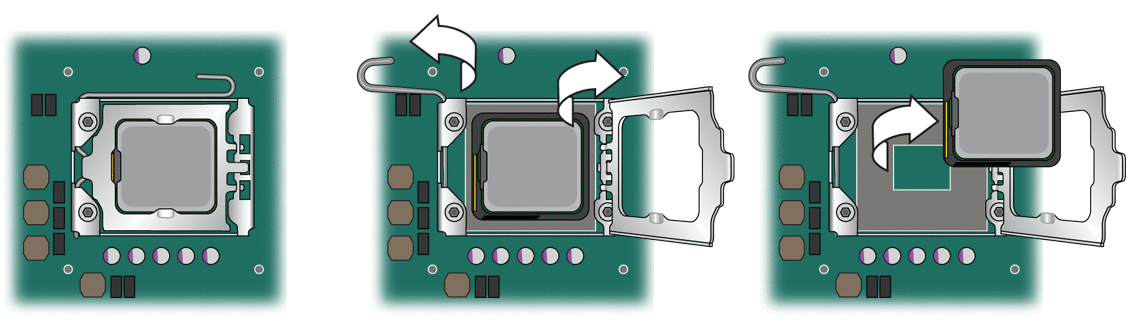
Unlock The Cpu Socket
Unlocking the CPU socket is the first step to safely remove your CPU. This step frees the CPU from the motherboard without damage. It requires careful attention and the right method. Every motherboard has a small lever or latch that holds the CPU in place.
Handling this mechanism gently prevents bending pins or breaking parts. Taking your time here ensures a smooth removal process.
Locate The Socket Lever Or Latch
Look closely at the CPU socket on the motherboard. You will see a small metal lever or plastic latch on one side. This lever keeps the CPU locked firmly. Find this lever before trying to move anything.
Lift The Lever Slowly
Use your finger or a small tool to lift the lever. Lift it gently upwards or sideways depending on your socket type. Avoid using force to prevent damage. The lever should move smoothly and click into an open position.
Check The Socket For Release
Once the lever is lifted, the CPU should be loose. Do not try to pull the CPU yet. Look carefully to see if the socket edges are free. The CPU is now ready to be removed safely.
Lift Out The Cpu
Lifting out the CPU is a delicate step. It needs care and steady hands. After unlocking the CPU socket, the processor is ready to be removed. Avoid touching the pins or the bottom side. These parts are very sensitive and can easily get damaged.
Hold the CPU by its edges. Gently lift it straight up. Do not wiggle or twist the chip. This can bend the pins or harm the socket. Place the CPU on a clean, static-free surface. Use an anti-static mat or bag if possible. Keep it safe until you need to install it again.
Check The Cpu Orientation
Look for the small triangle on one corner of the CPU. This marks the correct alignment. Match this triangle with the socket’s corner. Proper alignment prevents damage during removal or installation.
Use Proper Grip
Grab the CPU by its edges only. Avoid touching the top or bottom. Finger oils can damage the CPU’s contact points. A firm but gentle grip is best.
Lift Straight Up
Pull the CPU directly upwards. Do not tilt or twist. Tilting can bend pins or break the chip. A steady, straight lift ensures safe removal.
Handle The Cpu Safely
Handling the CPU safely is a key step when removing it. The CPU is delicate and can get damaged easily. Taking care during removal protects it and your computer parts. This guide shows how to handle the CPU with care.
Use An Anti-static Wrist Strap
Static electricity can harm the CPU. Wearing an anti-static wrist strap stops static damage. Connect the strap to a metal part of the case. This keeps electricity from building up on your body.
Hold The Cpu By Its Edges
Touch only the edges of the CPU. Avoid touching the pins or the flat surface. Oils from your fingers can cause damage or poor contact later. Holding by the edges keeps the CPU clean and safe.
Place The Cpu On A Non-conductive Surface
After removal, put the CPU on a safe surface. Use a clean, non-conductive material like an anti-static mat. Avoid placing it on metal or hard surfaces. This prevents scratches and electrical damage.
Store Or Replace The Cpu
After removing a CPU, you must decide to store it safely or replace it. Proper care keeps the CPU in good condition for future use. Storing or replacing the CPU requires careful steps to avoid damage.
Storing The Cpu Safely
Clean the CPU gently using a soft cloth. Avoid touching the pins or contacts directly. Place the CPU in an anti-static bag to prevent electrical damage. Store it in a cool, dry place away from dust and moisture. Keep the CPU flat and avoid stacking heavy objects on it. Proper storage ensures the CPU stays functional over time.
Preparing The Cpu For Replacement
Before installing a new CPU, check compatibility with your motherboard. Compare socket types and power requirements carefully. Remove old thermal paste from the cooler and CPU surface. Apply new thermal paste evenly to improve heat transfer. Handle the new CPU by the edges to avoid fingerprints or damage. Install the CPU gently into the socket without forcing it.
Frequently Asked Questions
How Do I Safely Remove A Cpu From Motherboard?
Turn off and unplug your PC first. Ground yourself to avoid static. Unlock the CPU socket lever carefully. Gently lift the CPU straight up. Avoid bending any pins or damaging the socket.
What Tools Are Needed To Remove A Cpu?
You mainly need a screwdriver to open the PC case. No special tools are required to remove the CPU itself. Just handle the CPU and socket with care to prevent damage.
Can I Reuse A Cpu After Removal?
Yes, you can reuse a CPU if handled carefully. Avoid touching the pins or contacts. Store it in an anti-static bag to protect it from damage.
How To Prevent Damage When Removing A Cpu?
Always ground yourself to avoid static discharge. Unlock the socket lever gently. Lift the CPU straight up without twisting. Handle it by the edges only, never touch the pins.
Conclusion
Removing a CPU is easier than it seems. Take your time and follow each step carefully. Always ground yourself to avoid static damage. Handle the CPU gently and avoid touching pins. Keep your workspace clean and organized. With patience, you can safely remove the CPU without problems.
Practice makes the task more comfortable and less stressful. Stay calm and double-check your work. Now, you are ready to replace or upgrade your CPU confidently.