How to Check My Cpu Usage: Quick Tips for Instant Monitoring
Are you wondering why your computer feels slow or unresponsive? Knowing how to check your CPU usage can give you the answers you need.
When your CPU is working too hard, it can cause lag, crashes, or even overheating. But don’t worry—understanding your CPU usage is simpler than you think. You’ll discover easy ways to monitor your CPU and learn what those numbers really mean for your computer’s health.
Keep reading to take control of your device and keep it running smoothly.
:max_bytes(150000):strip_icc()/005_check-cpu-usage-on-a-mac-5210010-6049386c65e743488b6ac4f65ad13a65.jpg)
Credit: www.lifewire.com
Why Monitor Cpu Usage
Monitoring your CPU usage helps you keep your computer healthy. It shows how hard your processor is working. This information helps you make smart decisions about your device’s performance and care. Understanding CPU usage keeps your system running smoothly and avoids unexpected problems.
Impact On Performance
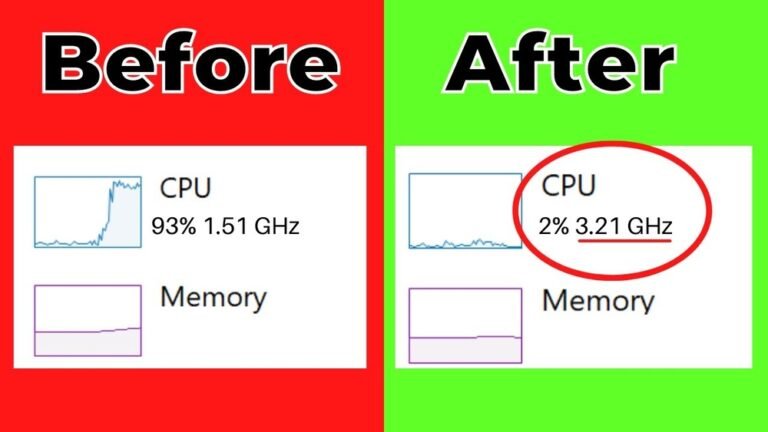
High CPU usage slows down your computer. Tasks take longer to finish. Programs may freeze or crash. Watching CPU use helps you spot these issues early. It ensures your device runs fast and responds well.
Detecting Overloads
CPU overload happens when too many programs run at once. This causes your system to work harder than it should. Monitoring usage helps find these overloads. You can close unnecessary programs to reduce the load and protect your CPU.
Preventing System Failures
Constant high CPU usage can damage your computer. It may cause overheating and hardware failure. Keeping an eye on CPU use prevents these risks. Regular checks help maintain your system’s health and extend its life.
Built-in Tools For Cpu Monitoring
Checking CPU usage helps understand your computer’s performance. Most operating systems include built-in tools for this task. These tools show real-time CPU activity and help identify programs that use too much power. You do not need extra software to start monitoring your CPU. Below are the main built-in tools on popular operating systems.
Task Manager On Windows
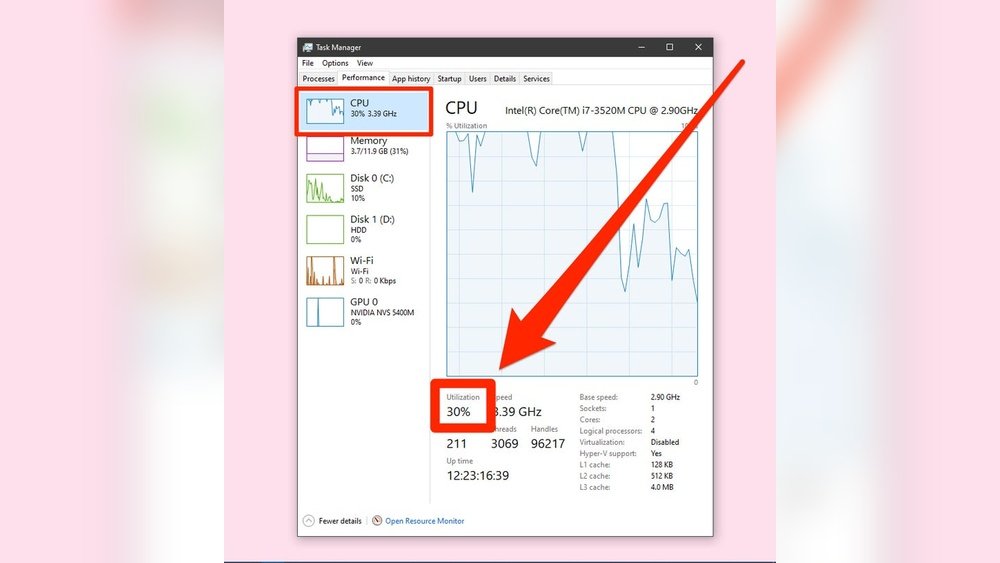
Task Manager is the easiest way to check CPU usage on Windows. Press Ctrl + Shift + Esc to open it quickly. The “Processes” tab lists all running apps and their CPU use. The “Performance” tab gives a detailed view of CPU activity over time. You can see how much CPU each core uses. Task Manager also shows memory, disk, and network usage.
Activity Monitor On Mac
Mac users can use Activity Monitor to check CPU usage. Find it in the Applications folder under Utilities. The “CPU” tab shows the current CPU load and which apps use the most power. You can see system and user CPU usage separately. Activity Monitor updates every few seconds, so data is current. It also tracks memory, disk, and network activity.
System Monitor On Linux
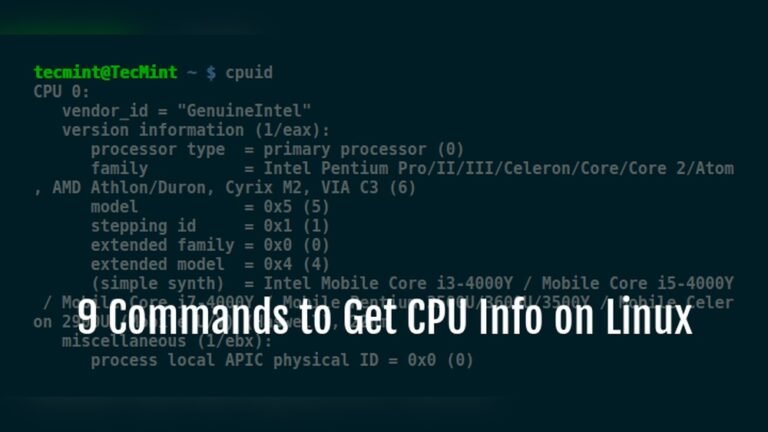
Linux offers System Monitor for CPU tracking, but it varies by distribution. On Ubuntu, open System Monitor from the main menu. The “Resources” tab displays CPU usage graphs and details. The “Processes” tab lists running applications and their CPU consumption. Many Linux distros also support command-line tools like top and htop for more detailed CPU info.
Using Command Line For Quick Checks
Checking CPU usage through the command line offers a fast and direct way to see your computer’s performance. You do not need to open heavy applications or wait long. Just a few commands can show you real-time CPU data. This method works on all major operating systems, including Windows, Mac, and Linux.
Using command line tools helps you find CPU problems early. It also saves time when you want a quick check. Below are simple commands for each system to see your CPU usage.
Windows Command Prompt Commands
Open Command Prompt by typing cmd in the search bar. To check CPU usage, enter:
wmic cpu get loadpercentageThis command shows the current CPU load as a percentage. For a more detailed view, use:
typeperf "Processor(_Total)% Processor Time"This command displays live CPU usage in the Command Prompt window.
Mac Terminal Commands
Open Terminal from the Applications folder. To see CPU usage, use:
top -l 1 | grep "CPU usage"This command shows a quick summary of CPU activity. Another option is:
sar -u 1 1This reports CPU usage over one second, giving you a snapshot of performance.
Linux Shell Commands
Open your terminal. To check CPU usage, type:
top -bn1 | grep "Cpu(s)"This command gives a detailed CPU usage report. Another simple command is:
mpstat 1 1It shows CPU usage statistics for one second, helping you track CPU load quickly.
Third-party Apps For Detailed Insights
Third-party apps offer detailed insights into your CPU usage beyond basic system tools. These programs provide real-time data and clear visuals. They help track CPU performance, temperature, and running processes. Such apps are useful for troubleshooting and optimizing your computer’s speed.
Many third-party tools are free and easy to install. They work on various operating systems. Some apps also allow remote monitoring from mobile devices. This flexibility helps users stay informed about their CPU status anytime.
Top Free Cpu Monitoring Tools
Several reliable free apps show detailed CPU information. “HWMonitor” displays temperature, voltage, and power usage. “Core Temp” focuses on CPU temperature and load. “CPU-Z” provides in-depth details about processor specs and usage. These tools have simple interfaces and low resource use. They suit beginners and tech-savvy users alike.
Features To Look For
Choose apps that update data in real time. Clear graphs and charts help understand CPU trends. Alerts for high temperature or usage can prevent damage. Look for apps that support multiple CPU cores. Easy installation and low impact on system speed are important. Customizable options improve user experience.
Mobile Apps For Remote Monitoring
Mobile CPU monitoring apps connect to your PC remotely. “CPU Monitor” and “Remote System Monitor” are popular choices. They show CPU load, temperature, and memory use on your phone. These apps allow quick checks without sitting at the computer. They use minimal data and offer notifications for alerts.
Tips To Reduce High Cpu Usage
High CPU usage can slow down your computer and cause frustration. Reducing it helps your system run smoothly and faster. This section shares easy tips to lower CPU use and improve your device’s performance.
Try these simple steps to keep your CPU running well and avoid overheating or crashes.
Closing Unnecessary Programs
Many programs run in the background and use CPU power. Close apps you are not using to free up resources. Check your task manager to see which programs use the most CPU. End tasks that seem unnecessary to reduce the load.
Managing Startup Items
Some programs start automatically when your computer boots. These startup items can slow your system and increase CPU use. Disable programs you don’t need to open at startup. This speeds up your boot time and lowers CPU demand early on.
Updating Software And Drivers
Old software and drivers can cause high CPU usage. Update your operating system regularly to fix bugs. Also, update hardware drivers to keep devices running efficiently. Updated software often uses CPU better and prevents problems.

Credit: www.youtube.com
Setting Up Alerts For Cpu Spikes
Setting up alerts for CPU spikes helps you catch problems early. Sudden high CPU usage can slow down your computer or cause crashes. Alerts notify you right away so you can take action fast.
Alerts work by monitoring your CPU and sending warnings if usage goes over a set limit. This keeps your system running smoothly. You can use built-in tools or third-party apps to set these alerts.
Using Built-in Notifications
Most operating systems have built-in tools to monitor CPU usage. On Windows, Task Manager shows CPU usage, but it does not send alerts by default. You can use Performance Monitor to set up alerts.
In Performance Monitor, create a new Data Collector Set. Add a CPU usage counter and set a threshold. When CPU usage passes this limit, the system sends a notification or runs a script.
On macOS, the Activity Monitor displays CPU use but lacks alert features. You can use the Terminal with scripts to create alerts. These scripts check CPU load and notify you when it is high.
Configuring Alerts In Monitoring Tools
Third-party monitoring tools offer easy ways to set CPU alerts. Apps like HWMonitor, Open Hardware Monitor, and others track CPU usage continuously. They allow you to set custom alerts for spikes.
In these tools, find the alert settings and choose the CPU usage threshold. You can set actions like sending an email, showing a popup, or logging data. This helps you respond quickly to CPU issues.
Many tools also show graphs and history of CPU usage. This helps you understand patterns and avoid future spikes. Setting alerts in these apps is simple and effective for ongoing monitoring.
Credit: www.businessinsider.com
Frequently Asked Questions
How Do I Check Cpu Usage On Windows?
Open Task Manager by pressing Ctrl + Shift + Esc. Click the Performance tab. Select CPU to see real-time usage.
Can I Monitor Cpu Usage On Mac?
Yes, open Activity Monitor from Applications > Utilities. Click the CPU tab to view usage details.
Why Is My Cpu Usage So High Sometimes?
High CPU usage can be caused by many apps or background processes. Check Task Manager or Activity Monitor to identify them.
What Tools Help Track Cpu Usage Effectively?
Built-in tools like Task Manager (Windows) and Activity Monitor (Mac) provide accurate CPU usage data. Third-party apps offer advanced features.
Conclusion
Checking your CPU usage helps you understand your computer’s work. It shows when your PC runs slow or gets hot. You can open simple tools to see CPU activity. Watching this regularly can prevent problems before they start. Keep your system clean and close unused programs.
This keeps your CPU running smoothly and fast. Now, you know how to check CPU usage easily. Keep an eye on it to keep your computer healthy.