How to Find the Cpu in Linux: Quick and Easy Methods Revealed
Are you curious about the CPU inside your Linux system but don’t know where to look? Finding detailed information about your CPU can help you understand your computer’s power and make better decisions about software and upgrades.
In this guide, you’ll discover simple, step-by-step methods to quickly check your CPU details using Linux commands. By the end, you’ll have the confidence to explore your system like a pro and unlock the full potential of your machine. Keep reading to learn exactly how to find the CPU in Linux!

Credit: www.geeksforgeeks.org
Check Cpu Info Via Proc File
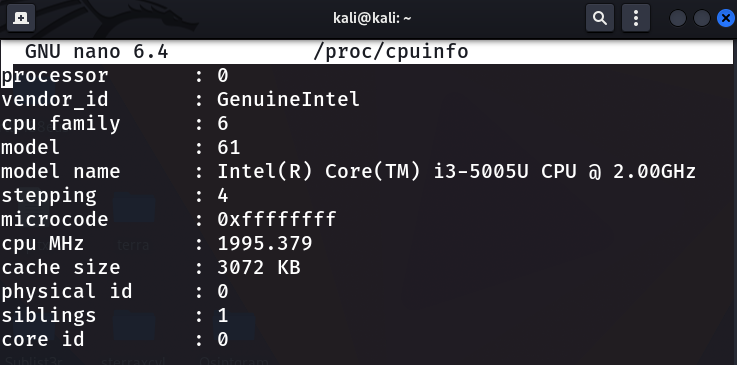
The proc file system in Linux stores many details about the system hardware. The /proc/cpuinfo file holds important CPU information. This file is a simple text file. It shows data about the processor installed on your Linux machine. Reading this file helps you understand your CPU better.
Accessing /proc/cpuinfo is an easy way to find CPU specs. This method works on almost all Linux systems. It does not need any extra tools or software. Just a few commands in the terminal. Perfect for quick checks or scripting.
Accessing /proc/cpuinfo
Open your terminal window. Type the command cat /proc/cpuinfo and press Enter. The terminal will display details about your CPU. Each processor core will have its own section. Use the command less /proc/cpuinfo to scroll through the data easily.
You can also use grep to filter specific info. For example, grep "model name" /proc/cpuinfo shows only the CPU model names. This saves time and gives focused results.
Key Details To Note
The /proc/cpuinfo file shows many details. Look for the “model name” to know the CPU make and model. The “cpu MHz” line shows the current clock speed. “Cache size” tells you about the CPU cache memory. “Processor” shows the core number.
Other useful lines include “vendor_id” and “flags.” Flags indicate CPU features like virtualization support. These details help you understand your CPU’s capabilities and limits.
Credit: phoenixnap.com
Use Lscpu Command
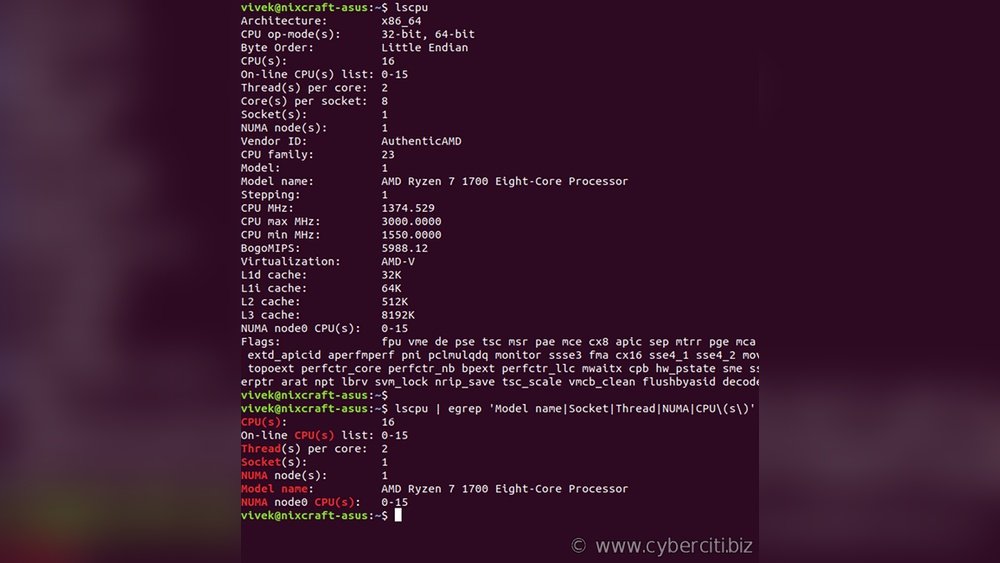
The lscpu command is a quick way to find detailed CPU information on Linux. It gathers data from the system and shows it clearly. This command works on most Linux distributions without extra setup. You can see details like CPU architecture, cores, threads, and speed.
Using lscpu saves time. It avoids digging through complex files. The output is easy to read and understand. This helps users get the CPU facts they need fast.
Running Lscpu
Open your terminal to run the lscpu command. Simply type lscpu and press Enter. The system will display CPU details right away. No special permissions are needed to use this command. It works on most Linux systems by default.
If you want more detail, you can add options like -e or -p. But for basic CPU info, just typing lscpu is enough.
Interpreting Output
The output shows many lines, each with a CPU property and its value. Key fields include “Architecture,” “CPU(s),” “Thread(s) per core,” and “CPU MHz.”
“Architecture” tells you the CPU type, such as x86_64. “CPU(s)” is the total number of CPUs or cores. “Thread(s) per core” shows how many threads each core handles. “CPU MHz” gives the current speed of the processor.
Other useful info includes cache size and vendor ID. This helps identify the CPU model and performance level. Understanding these details helps you know your system better.
View Cpu Info With Dmidecode
Viewing CPU information on a Linux system helps understand your hardware better. The dmidecode tool reads the system’s BIOS data. It shows detailed information about your CPU. This method is reliable and works on many Linux distributions. It gives data like CPU manufacturer, model, and speed.
Installing Dmidecode
Most Linux systems do not have dmidecode pre-installed. Use your package manager to install it quickly. On Debian or Ubuntu, run sudo apt-get install dmidecode. For Fedora or CentOS, use sudo yum install dmidecode. After installation, verify it by typing dmidecode --version. You should see the version number if it is installed correctly.
Extracting Cpu Details
Run sudo dmidecode -t processor to get CPU details. This command lists all processors in your system. It shows information like version, voltage, and external clock speed. Look for the “Version” field for your CPU model name. The “Current Speed” field tells the CPU frequency. Use this data for system checks or troubleshooting.
Credit: www.geeksforgeeks.org
Explore Cpu Info Using Hwinfo
Exploring CPU information on Linux can be simple with the right tools. hwinfo is a powerful command-line utility that shows detailed hardware info. It helps users learn about their processor without complex commands. This tool provides clear and organized data about the CPU and other hardware components.
Using hwinfo is great for users who want detailed CPU specs. It offers information like CPU type, speed, cache size, and more. This section explains how to install hwinfo and retrieve CPU details easily.
Installing Hwinfo
First, check if hwinfo is installed on your Linux system. Open the terminal and type hwinfo --version. If the command is not found, install it using your package manager.
For Debian-based systems, run:
sudo apt update sudo apt install hwinfo On Red Hat or Fedora systems, use:
sudo dnf install hwinfo Once installed, you are ready to retrieve CPU information.
Retrieving Cpu Data
To get CPU details, open the terminal and run:
hwinfo --cpu This command displays all CPU-related information. It shows processor model, speed, cache, number of cores, and more.
For a concise output, use:
hwinfo --short --cpu This gives a brief summary of your CPU hardware.
Use this tool anytime you want to check your CPU specs quickly and clearly.
Check Cpu Info With Inxi Tool
The inxi tool offers an easy way to check CPU details in Linux. It shows clear and complete information about your processor. Using inxi helps you understand your CPU’s model, speed, cores, and more. This tool is simple and fast, suitable for all Linux users. It works in most Linux distributions without complicated commands.
Installing Inxi
Open your terminal. Type the command to install inxi. On Ubuntu or Debian, use:
sudo apt install inxiFor Fedora, run:
sudo dnf install inxiOther Linux versions may need different commands. Check your distro’s package manager for inxi. The installation process only takes a few seconds.
Using Inxi For Cpu Info
After installation, type this command to see CPU details:
inxi -CThis command displays CPU model, speed, cores, and threads. The output is easy to read and understand. You can also add -xxx for more detailed info:
inxi -C -xxxThis shows even deeper data about your CPU. The inxi tool saves time and avoids complex commands. It gives quick access to all CPU information you need.
Compare Methods For Cpu Detection
Finding the CPU details in Linux can be done in several ways. Each method offers different benefits. Some are quick and easy, while others provide more detailed information. Understanding these options helps to pick the right tool for the task.
Speed And Simplicity
Some commands give CPU info very fast. For example, lscpu shows key details instantly. It requires no setup and works on most Linux systems. This method suits users who want quick answers without extra details.
Another simple way is to check /proc/cpuinfo. It shows raw data but needs scrolling through text. It is easy to run with cat /proc/cpuinfo. This method is good for quick checks and basic info.
Depth Of Information
Commands like dmidecode provide deeper CPU details. They offer information about processor features and hardware specs. This method needs root access, which can limit use for some users.
Tools such as hwinfo deliver a full hardware report. They show CPU model, speed, cache size, and more. This method suits users needing thorough CPU data for analysis or troubleshooting.
Frequently Asked Questions
How Can I Check My Cpu Model In Linux?
Use the command cat /proc/cpuinfo in the terminal. It displays detailed CPU information, including model name, cores, and speed, quickly and accurately.
What Linux Command Shows Cpu Architecture?
The lscpu command provides clear CPU architecture details. It shows CPU family, model, threads, cores, and architecture type in a readable format.
How To Find Cpu Usage In Linux?
Use the top or htop command to monitor real-time CPU usage. These tools display CPU load, process info, and system performance efficiently.
Can I Get Cpu Info Using Gui In Linux?
Yes, most Linux desktops have system monitor apps. These GUI tools display CPU details, usage, and performance stats visually, without using the terminal.
Conclusion
Finding the CPU in Linux is simple with the right commands. You can check details using tools like lscpu or /proc/cpuinfo. These methods give clear information about your processor. Knowing your CPU helps you understand your system better. Keep practicing these commands to get comfortable.
This skill makes managing Linux systems easier. Try these tips next time you explore Linux. It’s a small step toward better system knowledge.