How to Tell Your Cpu Temp: Easy Steps to Prevent Overheating
Have you ever wondered if your computer is running too hot? Knowing how to tell your CPU temp is one of the simplest ways to protect your device from damage and keep it running smoothly.
If your CPU gets too warm, it can slow down or even stop working altogether. But don’t worry—checking your CPU temperature isn’t as complicated as it sounds. You’ll discover easy methods to monitor your CPU temp and learn what the numbers really mean for your computer’s health.
Keep reading to make sure your PC stays cool and powerful every time you use it.

Credit: www.pcmag.com
Check Bios For Cpu Temperature
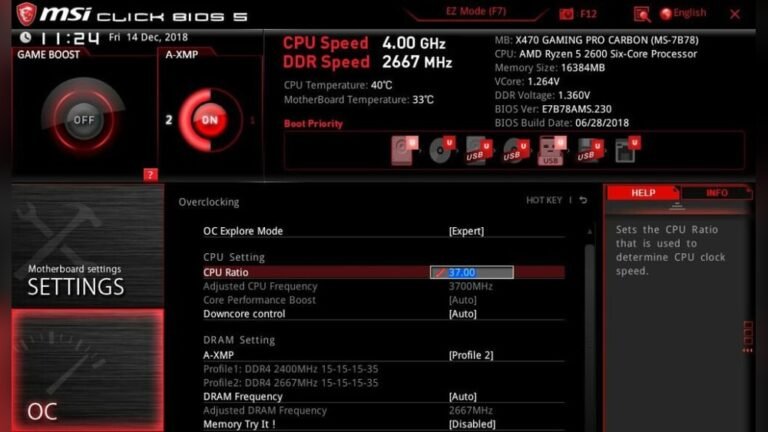
Checking your CPU temperature in BIOS is a simple and reliable method. BIOS shows the real-time temperature directly from your motherboard sensors. This method does not need any extra software or tools.
Accessing BIOS lets you see CPU temperature safely before your operating system loads. It helps prevent overheating problems early. Knowing this info is useful for maintaining your PC’s health.
How To Enter Bios To Check Cpu Temperature
Restart your computer. During startup, press the key to enter BIOS. Common keys are F2, DEL, or ESC. The key may vary by manufacturer. Watch the screen carefully for instructions.
Once in BIOS, navigate using arrow keys. Look for sections like “Hardware Monitor,” “PC Health,” or “System Status.” CPU temperature is usually listed there. Note the temperature displayed.
Understanding Cpu Temperature In Bios
CPU temperature in BIOS shows the current heat level of the processor. Normal idle temperature ranges from 30°C to 40°C. High temperatures above 70°C may cause issues. Keep an eye on these numbers to avoid damage.
Remember, BIOS temperature is a snapshot. It reflects the CPU load at that moment. Use this info to check if your cooling system works properly.
Benefits Of Checking Cpu Temperature In Bios
BIOS reading is accurate and direct from hardware sensors. It works even when your operating system is not running. This helps diagnose overheating during startup.
It also avoids errors that software tools may show. Use BIOS readings as a trusted source for CPU temperature monitoring.
Credit: www.youtube.com
Use Software Tools
Using software tools is the easiest way to check your CPU temperature. These tools run on your computer and show the temperature in real time. They help prevent overheating and keep your PC safe. Most software is free and simple to use.
Popular Cpu Monitoring Apps
Many apps can show your CPU temperature. Some well-known ones are HWMonitor, Core Temp, and SpeedFan. These programs display temperature, fan speed, and voltage. They work on most Windows PCs and some work on Mac too. Choose an app that fits your needs and download it from a trusted site.
Interpreting Temperature Readings
CPU temperature usually ranges between 30°C and 90°C. Idle temperature is often around 30°C to 50°C. Under load, it may rise to 70°C or higher. If the temperature goes above 90°C, it is too hot. High temperatures can cause slowdowns or damage. Watch the numbers carefully to keep your CPU healthy.
Monitor Temperature In Real-time
Monitoring your CPU temperature in real-time helps protect your computer from overheating. You can watch the temperature as you work, play games, or run programs. This way, you know when the CPU is getting too hot and can act fast. Real-time monitoring keeps your system safe and running smoothly.
Setting Up Alerts
Alerts warn you when the CPU temperature reaches a risky level. Many software tools let you set temperature limits. When the CPU gets too hot, the program sends a pop-up or sound alert. This helps you stop heavy tasks or turn off the computer to avoid damage. Alerts are easy to set up and very useful for all users.
Using Widgets And Gadgets
Widgets and gadgets show your CPU temperature right on your desktop. They update the temperature every second or few seconds. This means you can always see the current CPU heat without opening any program. Some widgets also show other system info like fan speed or usage. They are small, simple, and keep you informed at all times.
Identify Normal Vs High Temperatures
Knowing how to tell your CPU temperature helps keep your computer safe. CPUs have normal temperature ranges they should stay within. Temperatures above these ranges can cause damage or slow down your system. Recognizing the difference between normal and high temperatures is key for good PC health.
Safe Temperature Ranges
Most CPUs run safely between 30°C and 50°C while idle. During heavy tasks like gaming or video editing, temperatures can rise to 70°C or 80°C. Staying below 85°C is generally safe for most processors. Temperatures above 90°C are often too hot and may harm your CPU. Check your CPU model’s specs for exact safe limits.
Signs Of Overheating
Your computer may slow down if the CPU is too hot. Sudden shutdowns or restarts can also mean overheating. Fans running loudly and constantly is another warning sign. Programs might crash or freeze during high temperatures. If you see these signs, check your CPU temperature right away.
Prevent Overheating
Preventing your CPU from overheating is key to keeping your computer safe and fast. High temperatures can slow down your system or cause damage. Simple steps help keep your CPU cool and working well.
Cleaning And Maintaining Hardware
Dust blocks airflow and traps heat inside your PC. Clean your computer case often using a soft brush or compressed air. Remove dust from fans, vents, and heat sinks carefully. Check that all fans spin freely and replace any that do not work. Clean hardware lowers temperature and improves performance.
Improving Airflow And Cooling
Good airflow moves hot air away from your CPU. Arrange cables neatly to avoid blocking air paths. Use extra case fans if needed to increase airflow. Consider upgrading to a better CPU cooler or adding liquid cooling for strong heat control. Keep your PC in a cool, open space for the best air circulation.
Updating Bios And Drivers
BIOS and driver updates can improve temperature management. Visit your motherboard’s website to find updates. Install the latest BIOS version carefully following instructions. Update chipset and CPU drivers regularly. These updates help your system control heat more efficiently and avoid overheating.
When To Seek Professional Help
Knowing when to seek professional help for your CPU temperature issues can save your computer. Some problems need expert care to avoid damage. Recognizing these signs early helps keep your PC safe and working well.
Signs Of Overheating You Can’t Fix
Constant shutdowns or restarts suggest serious overheating. Strange noises from fans or the computer case also warn of trouble. If your PC gets too hot despite cleaning and cooling efforts, call a technician.
Hardware Damage Or Faulty Components
Burn marks or a burning smell near your CPU means damage. Faulty fans or broken heat sinks reduce cooling. Professionals can replace these parts safely and correctly.
Software Tools Show Critical Temperatures
Monitoring software that repeatedly shows very high temps is a red flag. If temps stay above safe limits after trying fixes, expert help is needed. They can test hardware and fix the root cause.
Complex Cooling System Issues
Liquid cooling leaks or pump failures require special skills to repair. Problems with complex cooling setups should be handled by pros. They have the right tools and knowledge to fix these systems safely.

Credit: www.alcpu.com
Frequently Asked Questions
How Can I Check My Cpu Temperature Easily?
You can check CPU temperature using software like HWMonitor, Core Temp, or SpeedFan. These tools display real-time temperature readings accurately and help monitor your CPU’s health.
What Is A Safe Cpu Temperature Range?
A safe CPU temperature usually ranges between 30°C and 60°C during normal use. Temperatures above 80°C can cause overheating and potential damage to your CPU.
Why Is My Cpu Temperature Suddenly High?
High CPU temperatures often occur due to dust buildup, poor ventilation, or intense processing tasks. Check cooling systems and clean fans to reduce overheating.
Can Bios Show Cpu Temperature?
Yes, most BIOS/UEFI menus display CPU temperature under hardware monitoring. Access BIOS during startup to view real-time CPU temperature without software.
Conclusion
Knowing your CPU temperature helps keep your computer safe. High temperatures can cause slowdowns or damage. Use easy tools to check your CPU heat often. Watching your CPU temp helps you fix problems early. Keep your system cool with good airflow and cleaning.
Checking CPU temperature is a simple step for better performance. Stay aware, and your computer will work smoothly longer. Small efforts make a big difference in computer health.