How to Monitor Gpu And Cpu Temp: Easy Steps for Peak Performance
Are you worried that your computer might be overheating? Knowing how to monitor your GPU and CPU temperature is key to keeping your system running smoothly and avoiding costly damage.
If you don’t keep an eye on these critical components, you could face slow performance, unexpected shutdowns, or even permanent hardware failure. You’ll discover simple and effective ways to track your computer’s temperature. By the end, you’ll have the tools and knowledge to protect your device and boost its lifespan.
Ready to take control of your PC’s health? Let’s dive in.
Credit: rog.asus.com
Importance Of Monitoring Temps
Monitoring the temperatures of your GPU and CPU is very important. These parts generate heat when they work. Too much heat can cause problems. Keeping an eye on temps helps your computer run smoothly and last longer.
Impact On Performance
High temperatures can slow down your GPU and CPU. This is called thermal throttling. It reduces speed to cool down parts. Your games and programs may lag or freeze. Watching temps helps maintain fast and steady performance.
Preventing Hardware Damage
Heat can harm your computer’s components. It can shorten the life of your GPU and CPU. Extreme heat may cause permanent damage. Monitoring temps allows you to act before harm occurs. It keeps your hardware safe and working well.
Tools For Temperature Monitoring
Monitoring the temperature of your GPU and CPU helps keep your computer safe. High temperatures can cause slowdowns or damage parts. Using the right tools makes this task easy and accurate. Several options exist for checking these temperatures, from built-in tools to third-party programs. Choose the one that fits your needs best.
Built-in System Utilities
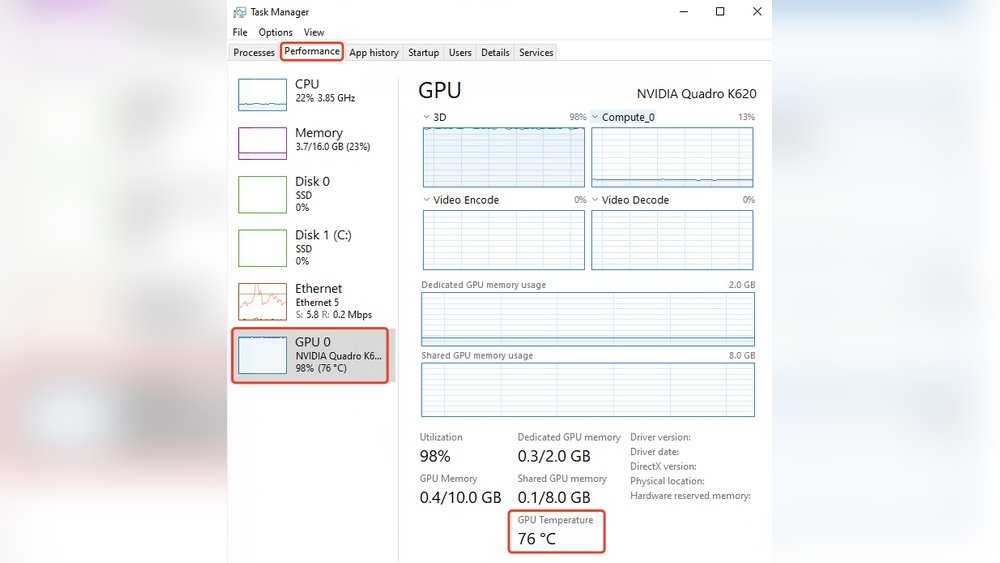
Most computers have basic tools to check temperature. Windows users can try Task Manager or BIOS settings. These show simple temperature data but may lack details. Mac users can use Activity Monitor or System Information. These tools give a quick look at system health. Linux offers command-line tools like lm-sensors. They provide good data but need some setup.
Third-party Software Options
More detailed temperature monitoring comes from third-party software. Programs like HWMonitor and SpeedFan give real-time data. They show temperatures, fan speeds, and voltages. These apps often offer alerts for high temperatures. Some focus only on GPU or CPU, while others cover both. Choose software that matches your computer type and skill level.
How To Check Cpu Temperature
Checking your CPU temperature helps keep your computer safe. High temperatures can cause slowdowns or damage. It is important to know how hot your CPU gets.
There are two main ways to check CPU temperature. You can use BIOS/UEFI or software applications. Both methods give you real-time temperature data.
Using Bios/uefi
Restart your computer to enter BIOS or UEFI. Usually, press a key like Delete, F2, or F10 during startup. The exact key depends on your motherboard.
Inside BIOS/UEFI, find the hardware monitoring or PC health section. This area shows CPU temperature and fan speeds. It shows the temperature before the operating system loads.
This method is simple and does not need extra software. It gives a basic temperature reading. You can check it anytime without opening apps.
Using Software Applications
Software tools offer detailed and continuous CPU temperature monitoring. Programs like HWMonitor, Core Temp, or SpeedFan are popular choices. These apps display temperature in real time inside Windows.
Download and install one of these programs from their official sites. Open the app to see CPU temperature and other hardware info. Some apps also show alerts if temperatures get too high.
Software monitoring is useful for everyday use. It helps track temperature while you work or play games. You can close the app when not needed to save resources.
How To Check Gpu Temperature
Checking your GPU temperature helps keep your computer safe and fast. It shows if your graphics card is too hot. Too much heat can cause problems or slow down your system. You can check the temperature in simple ways. Use software from the GPU maker or third-party tools. Both are easy to use and give clear results.
Manufacturer Software
Most GPU makers offer their own software to check temperature. For example, NVIDIA has GeForce Experience. AMD users can try Radeon Software. These programs show GPU temperature in real-time. They also display other useful info like fan speed and usage. The software is safe and made for your specific GPU. Installation is simple and the interface is user-friendly.
Third-party Tools
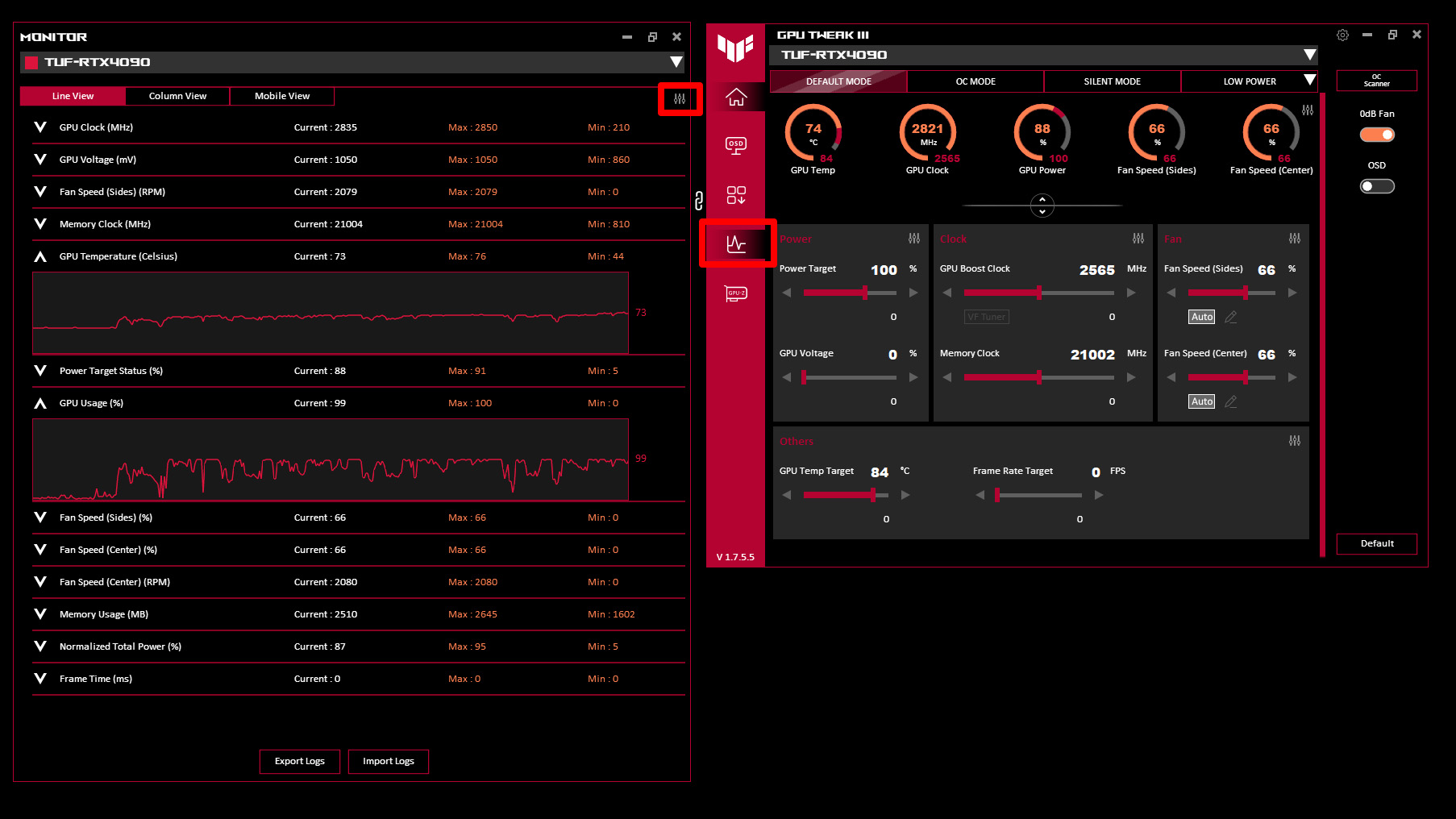
Third-party tools work with many GPU brands. Popular ones include HWMonitor, MSI Afterburner, and GPU-Z. These tools give detailed temperature readings. Some also show CPU temperatures and other system info. They are free and easy to download. Many come with extra features like alerts for high temperature. Use them to track your GPU health over time.
Ideal Temperature Ranges
Knowing the ideal temperature ranges for your CPU and GPU helps keep your computer healthy. Overheating can cause slowdowns and damage parts. Monitoring temperature lets you act before problems start. Each component has a safe range where it works best. Staying within these limits improves performance and extends lifespan.
Safe Cpu Temps
Most CPUs work well between 30°C and 50°C when idle. Under heavy use, temperatures up to 70°C are usually safe. Some CPUs can handle spikes to 80°C, but this should be brief. Regularly running above 80°C risks damage and may cause crashes. Keep your CPU cool with good airflow and proper cooling systems.
Safe Gpu Temps
GPUs generally stay around 30°C to 40°C when idle. Under load, safe temperatures range from 65°C to 85°C. Some models tolerate up to 90°C but avoid constant heat this high. High GPU temperatures can reduce performance and shorten its life. Use fans and clean dust often to maintain safe GPU temps.
Tips To Lower Temps
Keeping your GPU and CPU cool is very important. High temperatures can slow down your computer. They can also damage parts over time. Use these tips to keep your system running smoothly and safely.
Improving Airflow
Good airflow helps your computer stay cool. Make sure your case has enough fans. Fans should push hot air out and bring cool air in. Avoid blocking vents with cables or other objects. Position your computer where air can flow freely around it.
Cleaning Dust
Dust can block air and trap heat inside your computer. Clean your fans and vents regularly. Use a soft brush or compressed air to remove dust. Turn off and unplug your computer before cleaning. Keeping dust away helps your system breathe better.
Upgrading Cooling Systems
Stock coolers may not be enough for heavy use. Consider buying better cooling fans or liquid coolers. These can remove heat faster. Make sure new parts fit your computer model. Better cooling systems keep temperatures low and your computer safe.
Automating Temperature Alerts
Automating temperature alerts helps protect your computer’s CPU and GPU. It saves time and prevents damage. Instead of checking temps all day, get alerts when something is wrong. This way, you can fix issues early. Automation brings peace of mind and better system health.
Setting Up Notifications
Start by choosing software that supports alerts. Many free tools can track CPU and GPU temps. Set a temperature limit that is safe for your hardware. When temps go above this limit, the software sends a notification. You can get alerts by email, popup, or sound. Customize alerts to suit your needs and avoid false alarms.
Using Monitoring Dashboards
Monitoring dashboards show your CPU and GPU temps in real time. They gather data from sensors and display it clearly. Dashboards let you see trends and spot problems fast. Some dashboards also include alert settings. Use them to automate warnings without extra tools. Dashboards keep all vital info in one place for easy access.

Credit: openhardwaremonitor.org

Credit: www.shoshitamam.com
Frequently Asked Questions
How Do I Check My Cpu Temperature On Windows?
You can monitor CPU temperature using software like HWMonitor or Core Temp. These tools display real-time temperature data. They help prevent overheating and maintain system health. Install, run, and view your CPU temperature easily on Windows.
What Is A Safe Gpu Temperature Range?
A safe GPU temperature typically ranges between 30°C to 85°C. Temperatures above 85°C may cause performance issues or damage. Monitoring helps ensure your GPU runs efficiently without overheating during heavy tasks.
Can High Cpu Temperature Damage My Computer?
Yes, high CPU temperatures can cause hardware damage. It may reduce system stability and lifespan. Proper cooling and monitoring help avoid overheating and keep your computer running smoothly.
Which Software Is Best For Gpu And Cpu Temperature Monitoring?
Popular software includes HWMonitor, MSI Afterburner, and SpeedFan. These apps provide accurate, real-time temperature monitoring for both CPU and GPU. They are user-friendly and suitable for all skill levels.
Conclusion
Monitoring your GPU and CPU temperatures helps keep your computer safe. It prevents overheating and improves performance. Use simple tools to check temperatures often. Watch for high numbers and cool down your system if needed. Staying aware avoids damage and saves money on repairs.
Keep your PC running smoothly with regular temperature checks. Small efforts make a big difference in the long run. Stay proactive, and your computer will thank you.