How to Test Your Ram Memory: Easy Steps for Accurate Results
Is your computer running slow or crashing unexpectedly? It might be time to check your RAM memory.
You rely on your RAM every time you open apps, browse the web, or play games. But how do you know if it’s working properly? Testing your RAM is easier than you think, and it can save you from frustrating tech problems down the road.
In this guide, you’ll learn simple steps to test your RAM quickly and accurately. Keep reading—you’ll discover how to spot issues before they cause bigger headaches for your computer.
Signs Of Faulty Ram
RAM plays a key role in your computer’s operation. Faulty RAM causes many problems. It is important to know the signs of bad RAM early. This helps avoid data loss and system crashes. Spotting issues can guide you to test and fix your memory.
Common Symptoms
Frequent crashes or blue screens often point to RAM issues. Your computer might freeze without reason. Programs may close suddenly or fail to open. Strange error messages can appear during use. Sometimes, files get corrupted or won’t save. These are clear signs that RAM might be faulty.
Impact On System Performance
Slow response and lagging show memory problems. Your system may take longer to start up. Opening multiple programs can become difficult. Tasks that used to be easy now struggle. Games and applications might stutter or freeze. Poor RAM affects overall computer speed and reliability.
Preparing For Ram Testing
Preparing for RAM testing is an important step to avoid losing data and to make the process smooth. Testing RAM can take some time and may require restarting your computer. Proper preparation helps keep your files safe and ensures accurate test results.
Before starting the test, it is important to organize your work and close running programs. This reduces the chance of interruptions and errors during the test. Follow the steps below to prepare your computer for RAM testing.
Backup Important Data
Save all your important files to an external drive or cloud storage. This protects your data if something goes wrong during testing. Backups prevent loss of photos, documents, and other critical information. Always create a backup before running hardware tests.
Choose The Right Tools
Select reliable software designed for RAM testing. Popular options include MemTest86 and Windows Memory Diagnostic. These tools check your memory for errors and help find problems. Make sure to download the latest version from official websites. Using trusted tools improves the accuracy of your test results.
Using Built-in Memory Diagnostic Tools
Testing your RAM memory helps find problems that slow your computer. Built-in memory diagnostic tools check RAM without extra software. These tools run tests to spot errors in your memory. Using these tools is simple and safe for all users.
Windows Memory Diagnostic
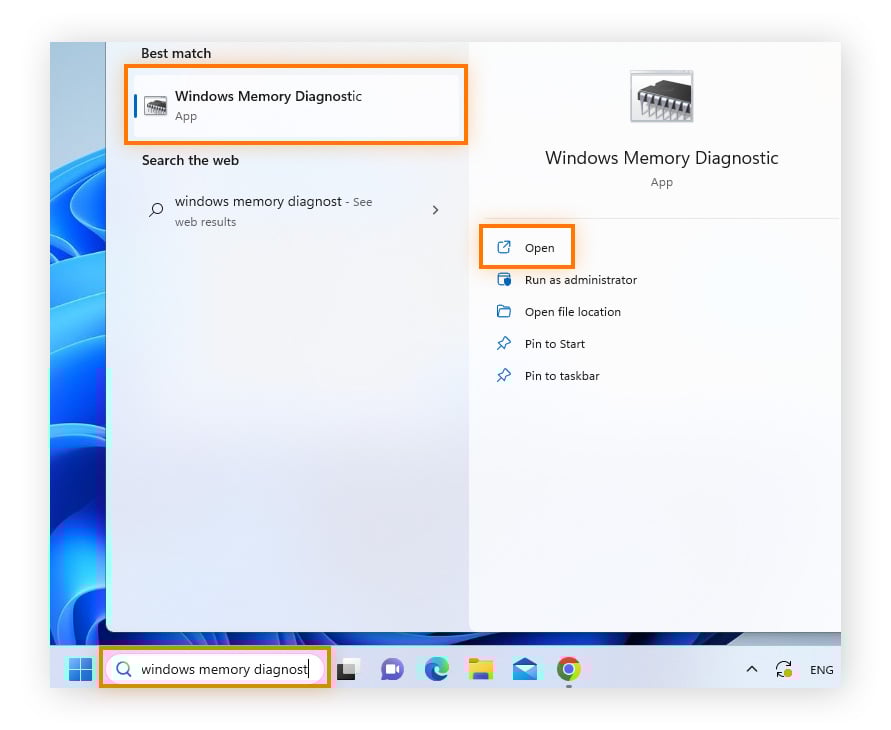
Windows has a built-in tool for testing RAM. Search for “Windows Memory Diagnostic” in the Start menu. Select “Restart now and check for problems” to begin the test. Your PC will restart and run the memory check automatically.
The tool tests your RAM for errors during the reboot. Wait for the process to finish before Windows loads again. After logging in, you will see the test results in a notification.
This tool helps find RAM issues that cause crashes or slowdowns. Running it can save time and money on repairs.
Apple Diagnostics For Mac
Mac computers include Apple Diagnostics to test hardware. Shut down your Mac first. Press the power button, then immediately hold the D key. Keep holding until the diagnostics screen appears.
Apple Diagnostics will check your RAM and other hardware parts. It takes a few minutes to finish the tests. Afterward, you will see a list of any problems detected.
This tool guides you on what to do next if errors appear. It is a quick way to test your Mac’s memory without external software.
Credit: www.rgvelectricalsupply.com
Third-party Ram Testing Software
Third-party RAM testing software helps find memory problems that Windows tools might miss. These programs run detailed checks and catch errors that can cause crashes or slowdowns. They work outside your operating system, giving a deeper scan of your RAM chips.
Using third-party tools is simple and reliable. Most are free and easy to use. They create a bootable USB or CD that runs tests before Windows starts. This method avoids interference from other programs and gives accurate results.
Memtest86 Overview
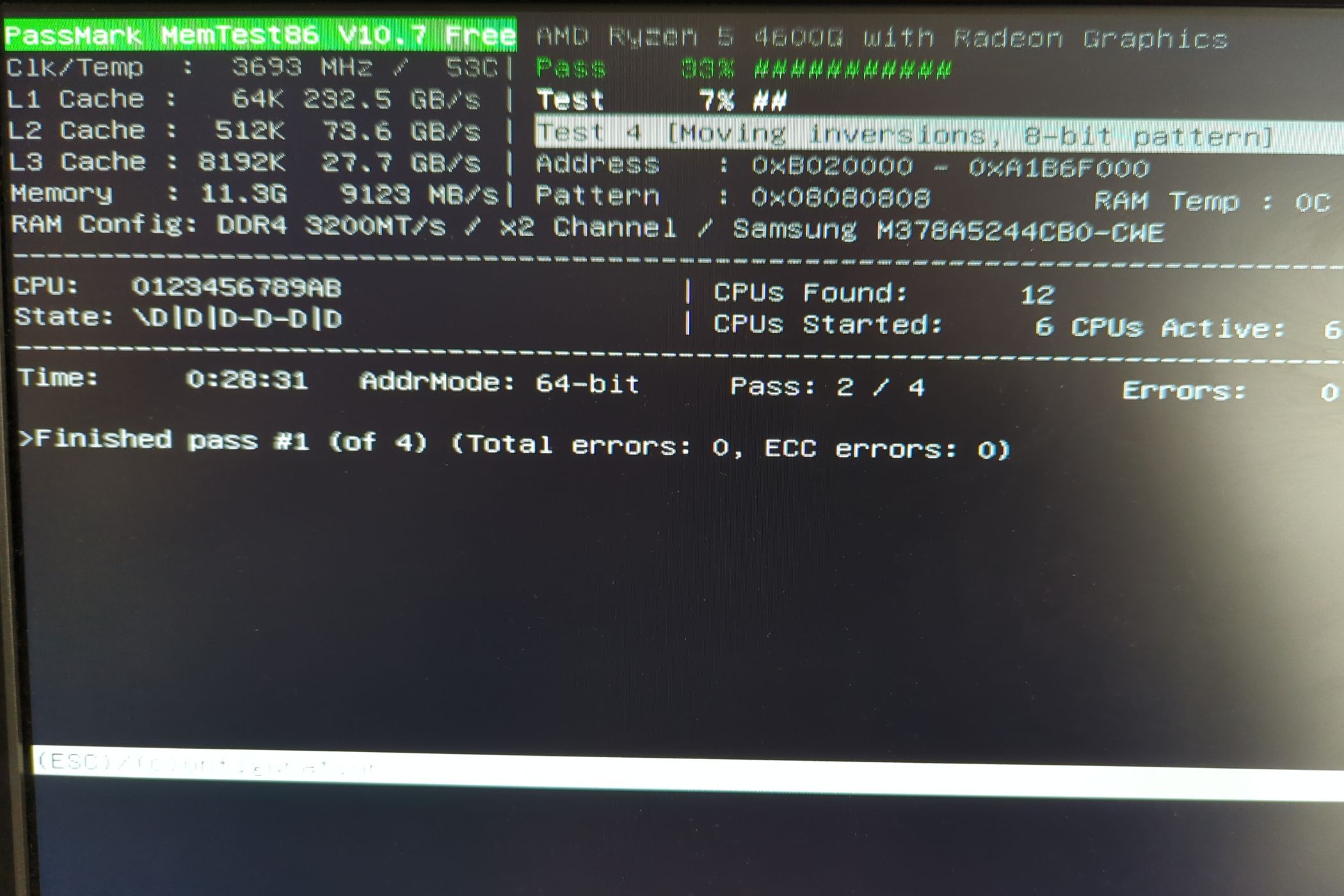
MemTest86 is a popular tool for testing RAM. It is free and works on almost all PCs. It runs outside Windows, testing your memory deeply.
The software checks for errors by writing and reading data to RAM. It looks for bits that do not work correctly. It supports all types of RAM, including DDR4 and DDR5.
MemTest86 comes with a simple interface. It shows detailed reports on any issues. The tool also supports multiple CPU cores and fast testing modes.
Running And Interpreting Tests
First, download MemTest86 and create a bootable USB drive. Restart your PC and boot from the USB. The test starts automatically.
Let the test run for several passes. One pass tests all your RAM once. More passes increase accuracy.
Watch for red error messages. They mean memory problems. Zero errors mean your RAM is likely fine.
Any errors suggest faulty RAM or hardware issues. Consider replacing or reseating your memory sticks. Save test logs for further help if needed.
Manual Ram Testing Techniques
Manual RAM testing techniques help find memory problems without extra tools. They are simple steps anyone can do at home. These methods check if RAM modules are properly connected and working well. This saves time and helps avoid costly repairs.
Reseating Ram Modules
Turn off your computer and unplug it from power. Open the case to access the RAM slots. Gently push the clips on each side of the RAM module to release it. Take the module out carefully. Check for dust or dirt on the contacts. Clean them softly with a dry cloth. Place the module back into the slot firmly. Make sure it clicks into place. Close the case, plug in the power, and start the computer. This can fix many connection issues causing memory errors.
Testing One Module At A Time
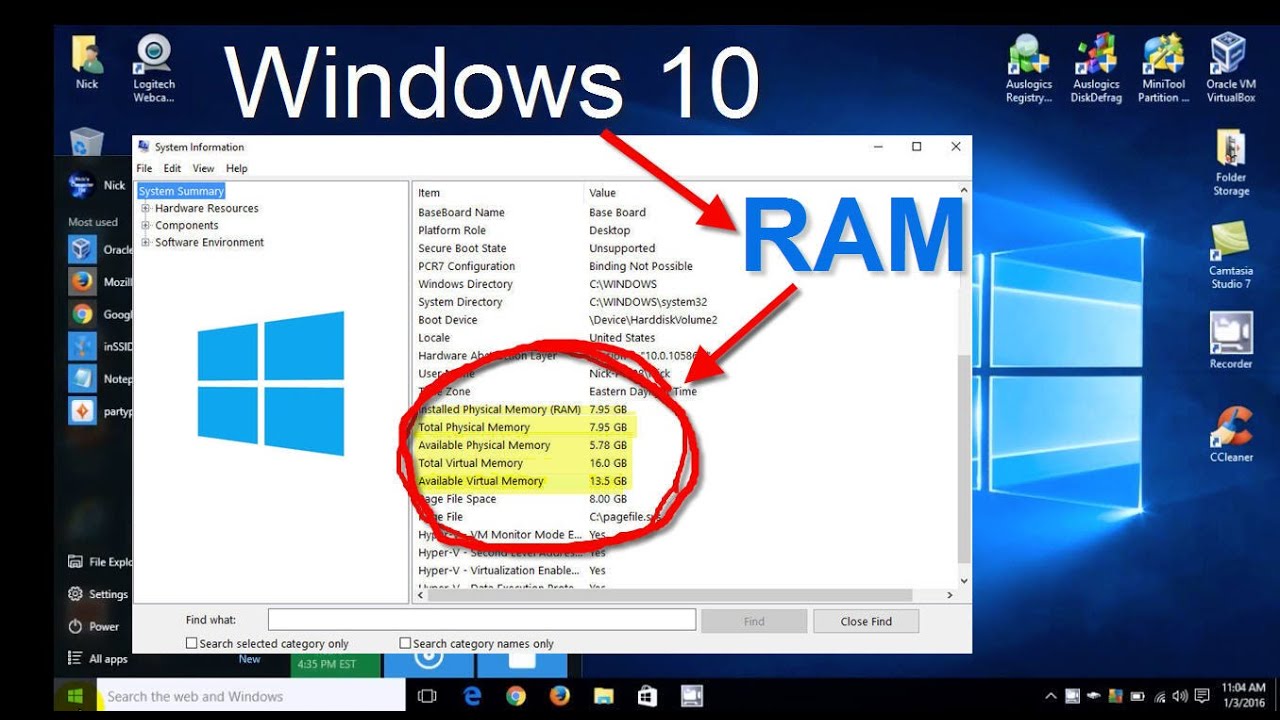
Turn off and unplug your computer again. Remove all RAM modules except one. Turn on the computer and watch for errors or crashes. If the system runs fine, turn off and replace the tested module with the next one. Repeat this for each RAM module installed. This process helps identify faulty memory sticks. It isolates bad RAM without guessing. Testing one module at a time is an easy way to find which memory needs replacement.
Credit: breezeresidency.com
Analyzing Test Results
After running a RAM memory test, understanding the results is crucial. The test will show if your RAM is working properly or if there are issues. Clear analysis helps decide the next steps. This section explains how to read the test results and what to do if errors appear.
Identifying Errors
Test results usually show errors as numbers or messages. Zero errors mean your RAM is fine. Any number above zero indicates problems. Errors might appear as “memory failures” or “address errors.” Watch for repeated errors in the same memory area. This often points to a bad RAM module. Note down the exact error messages for future reference.
Next Steps After Detection
If errors appear, do not ignore them. Start by reseating the RAM sticks. Remove and reinsert them firmly in their slots. Run the test again to check if errors persist. If errors remain, try testing each RAM stick separately. This helps find the faulty module. Replace the bad RAM if needed. Keep your computer’s warranty and support options in mind before replacing parts.
Preventive Tips For Ram Health
Keeping your RAM healthy helps your computer run smoothly. RAM problems cause crashes and slow performance. Follow simple tips to protect your RAM and avoid issues. Small care steps extend RAM life and keep your PC stable.
Regular System Maintenance
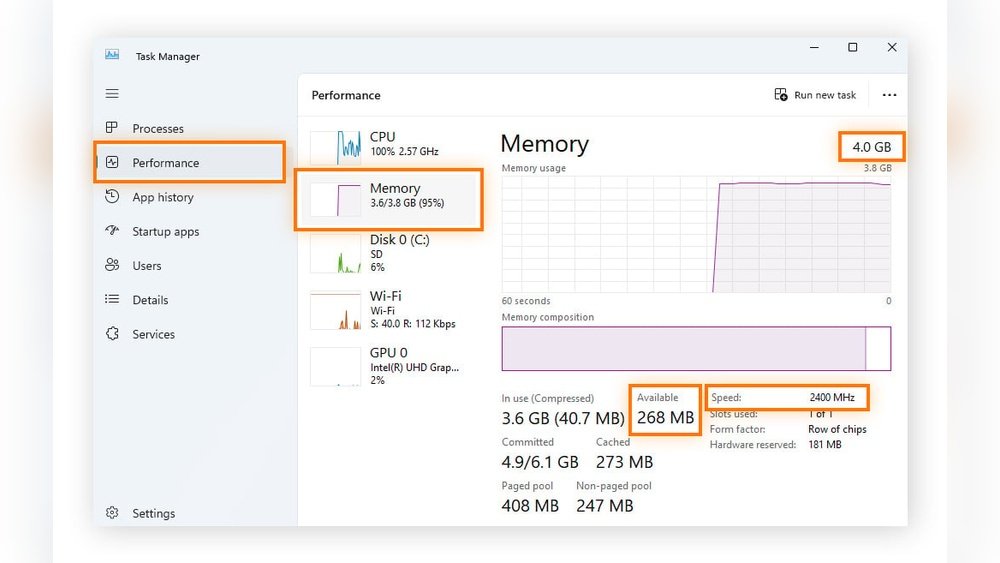
Run system updates to fix bugs and improve memory use. Restart your computer often to clear temporary data. Use trusted antivirus software to stop malware from harming RAM. Clean your PC physically to prevent dust buildup on memory slots. Check your system’s memory status with built-in tools regularly. These habits help maintain RAM efficiency and avoid damage.
Avoiding Overclocking Risks
Overclocking pushes RAM beyond its designed speed. This causes extra heat and stress on memory chips. Avoid overclocking unless you know how to manage temperature. Use cooling solutions like fans or heat sinks if you overclock. Stick to manufacturer settings for safe and stable RAM use. Preventing overclocking damage keeps your memory reliable and long-lasting.
Credit: www.avast.com
Frequently Asked Questions
How Do I Check If My Ram Is Faulty?
To check if your RAM is faulty, use built-in tools like Windows Memory Diagnostic or MemTest86. These tools scan for errors and report issues, helping you identify defective RAM modules.
What Are Common Signs Of Bad Ram Memory?
Common signs of bad RAM include frequent crashes, blue screen errors, slow performance, and random restarts. These issues often indicate memory problems that need testing.
Can I Test Ram Without Removing It From The Pc?
Yes, you can test RAM without removing it using software tools like Windows Memory Diagnostic or MemTest86, which run tests while the RAM stays installed.
How Long Does A Typical Ram Memory Test Take?
A typical RAM test takes 15 to 30 minutes, depending on the tool and RAM size. Extended tests can take longer but provide more accurate results.
Conclusion
Testing your RAM helps keep your computer running smoothly. It finds problems before they cause crashes or data loss. Use simple tools to check your memory quickly. Regular tests save time and frustration later. Keep your system healthy and fast by testing RAM often.
Stay ahead of issues with easy memory checks. Simple steps can protect your important files and programs. Testing RAM is a small task with big benefits.