How to Know If Your GPU is Dying: Warning Signs to Watch For
Is your computer acting up when you play games or run graphic-heavy programs? You might be wondering if your GPU is dying.
Knowing the signs early can save you from losing important work or facing costly repairs. You’ll discover simple ways to tell if your graphics card is failing. By paying attention to these clues, you can take action before it’s too late.
Keep reading to protect your PC and keep it running smoothly.

Credit: www.wikihow.com
Common Gpu Problems
Common GPU problems can signal that your graphics card is failing. These issues affect your computer’s display and performance. Recognizing these signs early helps you avoid bigger troubles later. Below are some typical problems you might see with a dying GPU.
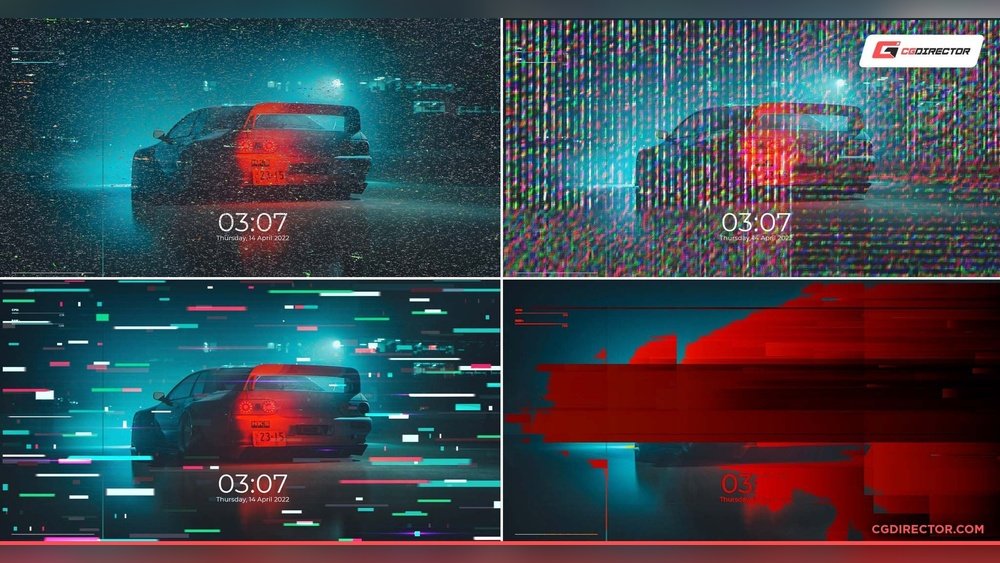
Visual Artifacts And Screen Glitches
Visual artifacts appear as strange shapes or colors on your screen. You may notice flickering lines or blocks that don’t belong. These glitches happen during games or heavy graphics work. They show that the GPU struggles to process images correctly. Persistent artifacts often mean the GPU is damaged or overheating.
Frequent Crashes And Freezes
Your computer may crash or freeze often if the GPU is faulty. Crashes happen during video playback or gaming sessions. The screen may suddenly go black or restart without warning. Freezing means your system stops responding for several seconds or minutes. These crashes point to GPU driver errors or hardware failure.
Overheating Issues
GPUs generate heat while working hard. Overheating occurs if cooling is poor or the GPU is old. Signs include loud fan noise and hot computer cases. Overheating can cause shutdowns or reduced performance. Dust buildup inside the case or broken fans usually cause this problem.
Slow Performance And Lag
Lag and slow performance show when your GPU is weak or damaged. Games may drop frames or run at low settings. Video editing and 3D tasks take longer than usual. This slowdown means the GPU cannot keep up with demands. Driver issues or hardware aging often cause this problem.
Hardware Symptoms
Hardware symptoms often reveal early signs of a dying GPU. These signs come from the physical parts of the graphics card. Noticing them helps you act before major damage occurs.
Pay close attention to noises, fan behavior, and visible damage. Each symptom tells a story about your GPU’s health.
Unusual Noises From The Gpu
Strange sounds can mean trouble. Clicking, grinding, or buzzing noises are not normal. These sounds often come from the GPU’s fans or internal parts. They may signal wear or a failing component. Quiet GPUs usually indicate good health.
Fan Malfunctions
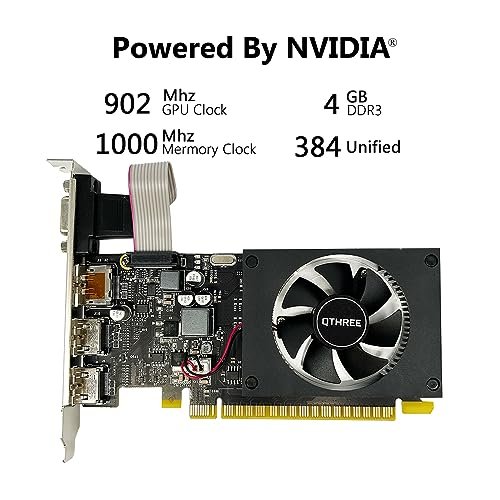
The GPU fan cools the card during use. If the fan stops spinning or spins irregularly, heat builds up. Overheating damages the GPU quickly. Fans making loud, uneven noises also show problems. Check the fan regularly for smooth, steady operation.
Physical Damage And Wear
Look at your GPU closely. Cracks, broken parts, or burnt marks are red flags. Dust and dirt buildup can cause overheating. Loose connections or bent pins affect performance. Physical wear weakens the GPU’s ability to work well.
Software Indicators
Software indicators help detect problems in your GPU before hardware fails. They show signs through system messages, driver issues, and test results. Watching these signs can save time and money.
Driver Errors And Failures
Driver errors often signal GPU problems. Frequent crashes or failure to install drivers can mean trouble. Your system may show black screens or freeze during tasks. These issues suggest the GPU may not function well.
Error Messages And Warnings
Error messages pop up during gaming or video work. Warnings like “Display driver stopped responding” are common. These alerts point to GPU instability or damage. Ignoring them can lead to permanent hardware failure.
Benchmarking And Stress Test Results
Benchmark tests measure GPU performance under load. Low scores compared to past results indicate decline. Stress tests can cause crashes or artifacts if the GPU is weak. These results help confirm if the GPU is dying.
Troubleshooting Steps
Troubleshooting your GPU can help find signs of a failing graphics card. Follow these simple steps to check your GPU’s health and performance. Each step targets common problems that might cause your GPU to act strangely or fail.
Checking Gpu Temperature
High temperature can damage your GPU. Use software like MSI Afterburner or HWMonitor to check the GPU temperature. The normal range is usually between 30°C and 80°C during use. If the temperature is above 90°C, the GPU might be overheating. Overheating can cause crashes and slow performance.
Updating Or Reinstalling Drivers
Old or corrupted drivers can create problems. Visit the official GPU manufacturer’s website. Download and install the latest drivers for your model. You can also uninstall current drivers first, then reinstall fresh ones. This often fixes glitches and improves GPU function.
Testing With Different Games Or Applications
Run several games or apps that use the GPU heavily. Notice if problems appear in all or just some. Errors in many programs suggest GPU hardware issues. If only one app has trouble, the problem might be software-related. This test helps isolate the problem.
Reseating And Cleaning The Gpu
Turn off your computer and unplug it. Open the case and carefully remove the GPU from its slot. Clean dust from the card and the slot using compressed air. Reinsert the GPU firmly back into the slot. Dust and loose connections can cause GPU errors and crashes.
When To Replace Your Gpu
Knowing when to replace your GPU can save you from frustration and extra costs. A GPU that is dying can cause poor graphics, crashes, or no display at all. Deciding to replace it depends on several key factors. These include repair costs, signs of permanent damage, and your performance needs.
Evaluating Repair Costs Vs Replacement
Sometimes repairing a GPU costs almost as much as buying a new one. Repairs might fix some problems but not all. If the repair price is close to a new GPU’s cost, replacement makes more sense. New GPUs come with warranties and better reliability. Check repair quotes from trusted technicians before deciding.
Signs Of Permanent Damage
Permanent damage shows when the GPU has physical or electrical faults. Symptoms include constant crashes, strange noises, or the computer not recognizing the GPU. Visual checks might reveal burnt parts or broken fans. These signs mean the GPU cannot work properly anymore. Repair may not fix permanent damage, so replacement is the best option.
Upgrading For Better Performance
Sometimes, replacing a GPU is about improving your computer’s speed. Newer GPUs offer better graphics and support new games or software. If your current GPU struggles with tasks you need, an upgrade helps. Choose a GPU that matches your needs and budget. Upgrading can give your system a fresh boost without repairing old parts.
Credit: www.reddit.com

Credit: www.reddit.com
Frequently Asked Questions
How Can I Tell If My Gpu Is Failing?
Look for frequent crashes, screen glitches, or artifacts during use. Overheating and poor gaming performance also indicate GPU issues.
What Are Common Signs Of A Dying Gpu?
Common signs include driver crashes, low frame rates, system freezes, and unusual noise from the GPU fan.
Can Overheating Cause Gpu Damage?
Yes, overheating can permanently damage your GPU. Ensure proper cooling and clean dust regularly to prevent overheating.
How To Test If My Gpu Is Faulty?
Use stress-testing tools like FurMark or MSI Kombustor to check stability and monitor temperatures for faults.
Conclusion
A dying GPU shows clear signs you should not ignore. Watch for screen glitches, crashes, or slow performance. Clean your computer and check temperatures often. Early action can save you time and money. Don’t wait until your GPU completely fails.
Stay alert and keep your system running smoothly. Regular checks help avoid sudden problems later. Your computer will thank you with better performance. Small steps make a big difference in the long run.