How to Fix Gpu Crash Dump Marvel Rivals: Quick & Easy Solutions
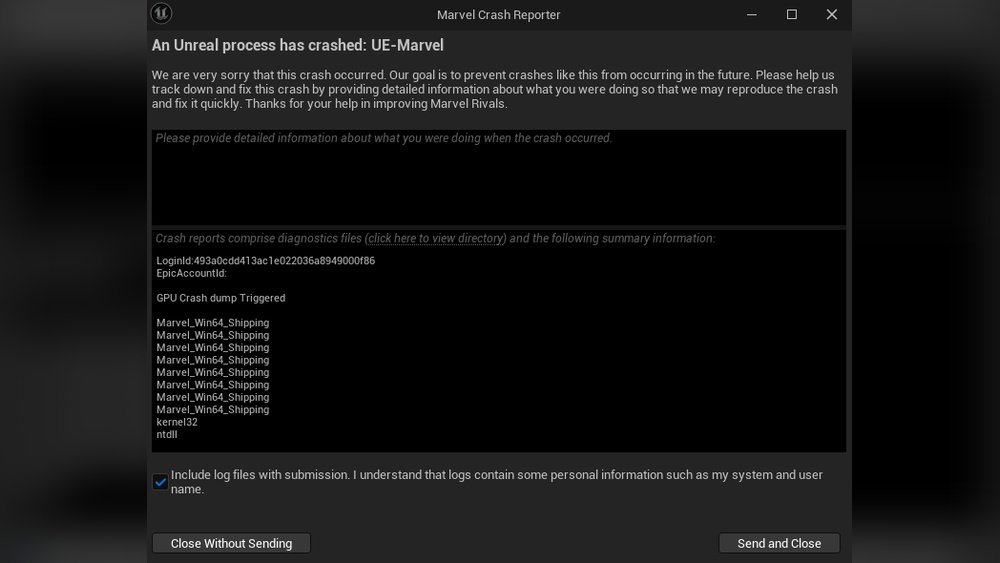
Are you frustrated by the sudden GPU crash dumps while playing Marvel Rivals? You’re not alone.
These crashes can spoil your gaming experience and leave you wondering what went wrong. But don’t worry—fixing this issue might be simpler than you think. You’ll discover easy, practical steps to stop those GPU crash dumps and get back to enjoying your game without interruptions.
Keep reading, because your smooth gaming session is just a few fixes away.

Credit: www.youtube.com
Common Causes Of Gpu Crash Dumps
GPU crash dumps in Marvel Rivals can disrupt your gameplay and cause frustration. Understanding the common causes helps fix these crashes quickly. This section explains the main reasons behind GPU crash dumps and how they affect your system.
Driver Conflicts
Outdated or incompatible drivers often cause GPU crash dumps. Graphics drivers control how your GPU works with the game. Conflicts arise when the driver version does not match the game’s requirements. Installing the latest drivers from your GPU manufacturer can resolve these issues. Avoid using beta drivers unless necessary, as they may cause instability.
Overheating Issues
GPUs generate heat during gaming sessions. Too much heat can cause the GPU to crash to protect itself. Dust buildup, poor ventilation, or a failing cooling system often lead to overheating. Monitor your GPU temperature using software tools. Keep your PC clean and ensure fans work properly to maintain safe temperatures.
Hardware Failures
Physical defects in your GPU or other hardware parts can trigger crash dumps. Problems like faulty VRAM, damaged circuits, or loose connections affect GPU stability. Testing your GPU in another system helps identify hardware faults. Consider professional repairs or replacement if hardware failure is confirmed.
Software Bugs
Sometimes, the game or system software contains bugs that cause GPU crashes. These bugs can interfere with graphics processing and cause errors. Keep your game and operating system updated to fix known bugs. Reporting issues to developers helps improve future game versions.
Update And Reinstall Gpu Drivers
Updating and reinstalling GPU drivers can solve many issues with Marvel Rivals, including GPU crash dumps. Drivers help your graphics card communicate well with your game and system. Old or corrupted drivers often cause crashes or poor performance.
Updating ensures your GPU uses the latest fixes and improvements. Reinstalling clears out any damaged files and gives your system a fresh start. Both steps are simple but very effective for stability.
Check For Latest Drivers
First, find your GPU model. You can check this in your device manager under display adapters. Visit the official website of your GPU maker, like NVIDIA, AMD, or Intel. Search for the latest driver for your specific card and operating system. Download the newest version available. Avoid third-party sites to prevent unsafe files.
Clean Installation Steps
Before installing new drivers, remove old ones completely. Use a tool like Display Driver Uninstaller (DDU) to uninstall current drivers safely. Restart your computer after removal. Run the new driver setup and choose the clean installation option. This deletes old settings and prevents conflicts. Follow the on-screen instructions to finish. Restart your PC again to apply changes fully.
Optimize Game Settings
Optimizing game settings can reduce GPU crash dumps in Marvel Rivals. Adjusting these settings helps your system run the game smoothly. It lowers the load on your graphics card. This step is important for a stable gaming experience.
Lower Graphics Quality
Set the graphics quality to low or medium. High settings use more GPU power and can cause crashes. Reducing effects like shadows and textures helps. This change makes your GPU work less hard.
Adjust Resolution
Lower the game resolution from high to medium or low. Higher resolution needs more GPU resources. A smaller resolution means fewer pixels to process. This adjustment can reduce GPU crashes significantly.
Disable Background Apps
Close unnecessary apps running in the background. These apps use CPU and GPU resources. Stopping them frees up power for Marvel Rivals. This simple action can prevent GPU crash dumps during gameplay.
Monitor And Manage Gpu Temperature
Monitoring and managing your GPU temperature is key to fixing GPU crash dump errors in Marvel Rivals. Overheating causes your GPU to fail and crash the game. Keeping the temperature low protects your hardware and helps the game run smoothly. Let’s explore easy ways to check and control GPU heat.
Use Temperature Monitoring Tools
Temperature monitoring tools show your GPU’s current heat level. Many free apps like MSI Afterburner and HWMonitor work well. These tools display temperature in real-time and alert you if it gets too high. Check your GPU temperature before and during gameplay. This helps spot overheating early and avoid crashes. Set alarms for safe temperature limits to keep your GPU safe.
Improve Cooling Solutions
Good cooling lowers your GPU’s temperature and stops crashes. Clean dust from fans and vents often. Dust blocks airflow and raises heat. Use extra case fans to boost air movement inside your computer. Consider upgrading your GPU cooler if it runs very hot. Liquid cooling or better air coolers reduce temperature effectively. Keep your PC in a cool, open space to help air flow better.
Check System Hardware
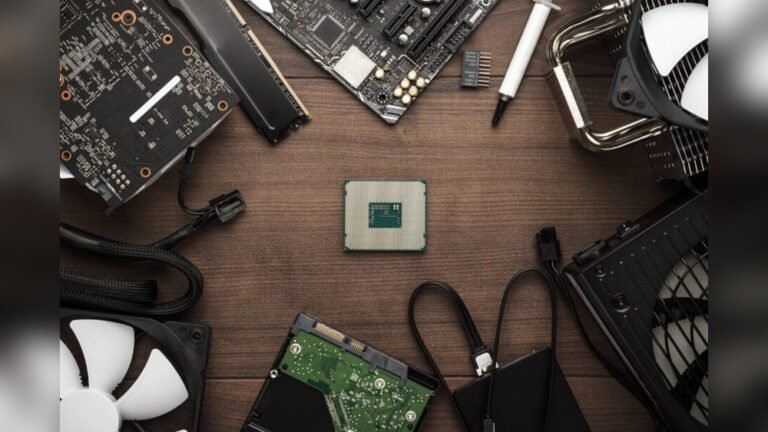
Checking your system hardware is a key step to fix the GPU crash dump in Marvel Rivals. Hardware issues often cause crashes during gameplay. Verifying hardware health helps find and solve these problems fast.
Start by testing your GPU and other components. This process shows if any hardware part fails or acts up. It saves time and effort before trying complex software fixes.
Run Diagnostics
Run hardware diagnostics tools built into your PC or from the GPU maker. These tests check the graphics card for errors. They also check temperature and power supply issues.
Use tools like Windows Memory Diagnostic or GPU-Z for a quick check. Let the diagnostics finish fully for accurate results. Note any warnings or errors the tool shows.
Test Gpu On Another System
Try using your GPU on a different computer. This step confirms if the GPU itself causes the crash. If the card works fine elsewhere, the problem might be your PC setup.
Testing on another system helps isolate hardware issues. It points to either the GPU or other parts like motherboard or drivers. Replace or repair the faulty hardware based on this test.

Credit: www.youtube.com
Apply Game And System Updates
Applying game and system updates can solve many problems with GPU crash dumps in Marvel Rivals. Updates fix bugs, improve performance, and add stability. Keeping both the game and your operating system up to date reduces crashes and glitches.
Update Marvel Rivals
Start by checking for the latest Marvel Rivals update. Open your game launcher or platform store. Look for available patches or updates. Download and install them immediately. These updates often include fixes for crash issues. Running the newest version helps the game work smoothly with your GPU.
Install Os Patches
Your computer’s operating system needs regular updates too. Check for system updates in your settings menu. Download important security and performance patches. These patches improve hardware compatibility and fix software bugs. Updating the OS supports better GPU function. It can stop crash dumps caused by outdated system files.
Use Compatibility And Repair Tools
Using compatibility and repair tools helps fix GPU crash dump errors in Marvel Rivals. These tools adjust settings to match your system better. They also fix corrupted or missing game files. This method often solves crashes quickly and easily.
Run Game In Compatibility Mode
Right-click the Marvel Rivals shortcut on your desktop. Select Properties from the menu. Go to the Compatibility tab. Check the box for “Run this program in compatibility mode.” Choose an older Windows version, like Windows 8 or 7. Click Apply and then OK. Run the game again to see if it stops crashing.
Repair Game Files
Open the game launcher or platform you use, like Steam or Epic Games. Find Marvel Rivals in your game library. Right-click the game and select Properties or Manage. Look for an option called “Verify integrity of game files” or “Repair.” Click it and wait for the process to finish. This will fix broken or missing files causing crashes.
Advanced Troubleshooting
Advanced troubleshooting steps can help fix the GPU crash dump issue in Marvel Rivals. These methods go beyond basic fixes and target deeper system settings. Follow these actions carefully to improve game stability and performance.
Adjust Power Settings
Power settings affect how your GPU works during gaming. Set your computer to high performance mode. This keeps the GPU running at full power. Open Control Panel, then go to Power Options. Choose the High Performance plan. Disable any power-saving features that limit GPU usage. This helps prevent crashes caused by power drops.
Check Event Logs
Event logs can reveal errors that cause GPU crashes. Open the Event Viewer on your PC. Look under Windows Logs, then System and Application sections. Search for error messages related to the GPU or Marvel Rivals. Note down error codes or warnings. These clues help identify the root problem. You can use this info to find specific solutions online.
Reinstall The Game
Corrupted game files often cause crashes. Reinstalling Marvel Rivals can fix these issues. First, uninstall the game completely. Delete any leftover files in the installation folder. Download the latest version from the official source. Install the game fresh on your computer. This ensures all files are intact and up to date. A clean install can solve many technical problems.

Credit: www.reddit.com
Frequently Asked Questions
What Causes Gpu Crash Dump In Marvel Rivals?
GPU crash dumps in Marvel Rivals often occur due to outdated drivers, overheating, or software conflicts. It can also result from corrupted game files or hardware issues.
How To Update Gpu Drivers For Marvel Rivals?
Visit your GPU manufacturer’s website to download the latest drivers. Installing updated drivers can fix compatibility and performance problems in Marvel Rivals.
Can Overheating Cause Gpu Crashes In Marvel Rivals?
Yes, overheating can cause GPU crashes. Ensure your system has proper cooling and clean fans to prevent heat-related shutdowns during gameplay.
How To Verify Game Files To Fix Gpu Crash?
Use the game launcher’s “verify integrity” feature to check and repair corrupted or missing files. This often resolves GPU crash issues.
Conclusion
Fixing the GPU crash dump in Marvel Rivals can improve your gaming experience. Start by updating your graphics drivers and checking your system’s hardware. Close unnecessary programs to free up resources. Adjust game settings to lower graphics demands. Keep your software and game updated to avoid errors.
These steps help keep your game running smoothly. Enjoy your battles without interruptions. Stay patient and try each solution carefully. Your game deserves to work well.