How to Keep Cpu Cool: Ultimate Tips for Optimal Performance
Is your computer getting hotter than it should? When your CPU overheats, it can slow down your system, cause crashes, or even damage important parts.
But don’t worry—you can keep your CPU cool and running smoothly with a few simple steps. You’ll discover easy and effective ways to protect your computer from heat. By the end, you’ll know exactly how to keep your CPU cool and extend the life of your device.
Ready to stop overheating problems for good? Let’s dive in.
Importance Of Cpu Cooling
Keeping your CPU cool is very important for your computer. The CPU works hard to run programs and process information. It creates heat while working. Without proper cooling, this heat can cause serious problems. Cooling helps the CPU stay at a safe temperature. This keeps your computer running smoothly and lasts longer.
Effects Of Overheating
Overheating can slow down your CPU. The system may freeze or crash often. It can also cause data loss or corruption. Extreme heat can damage the CPU permanently. Other parts inside the computer can be harmed too. Overheating reduces the overall stability of your device.
Performance And Longevity
A cool CPU performs better under pressure. It can run faster and handle more tasks. Proper cooling prevents thermal throttling, which slows the CPU down. It also extends the life of the CPU and other parts. Good cooling means fewer repairs and less downtime. Your computer stays reliable for a longer time.
Credit: www.pcgamer.com
Choosing The Right Cooling System
Choosing the right cooling system for your CPU is essential. It helps keep the processor safe and improves its performance. The cooling system you pick depends on your needs, budget, and computer setup. Understanding different cooling options will help you decide the best fit for your PC.
Air Cooling Solutions
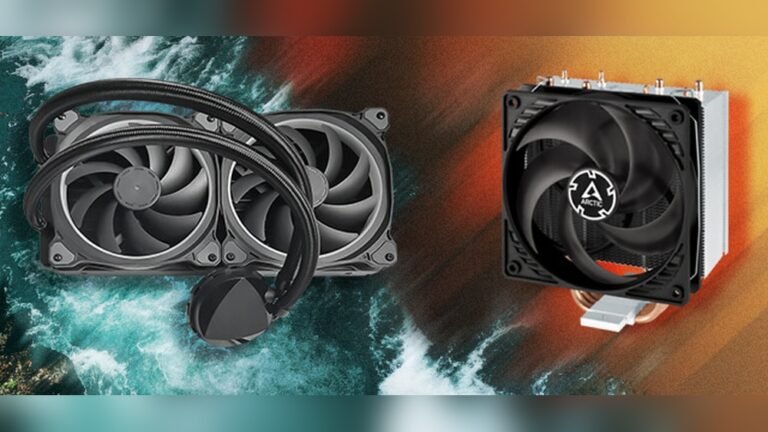
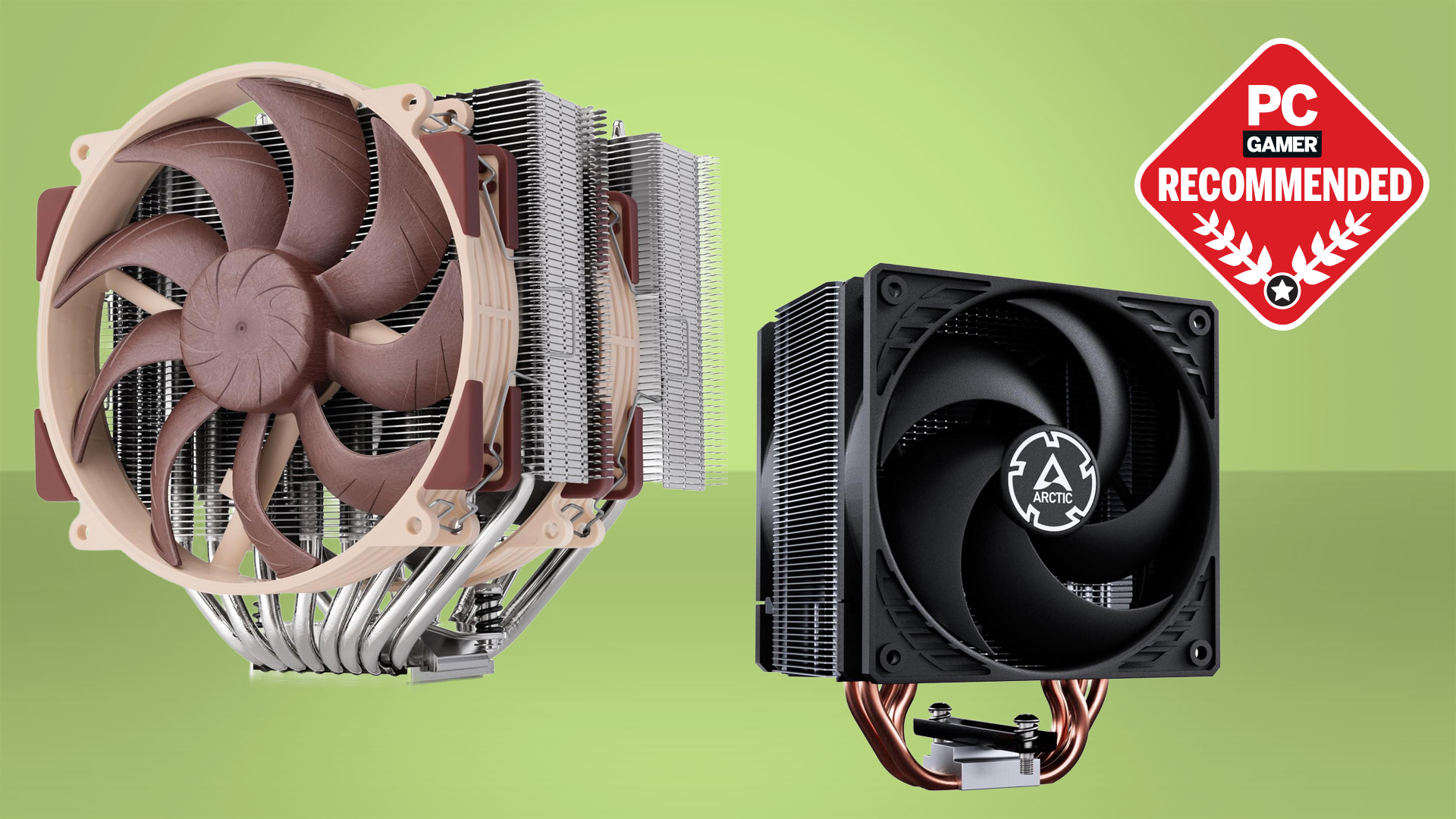
Air cooling is the most common and affordable option. It uses fans to blow air over heat sinks attached to the CPU. This method is simple and works well for most users. Air coolers come in various sizes and speeds. They are easy to install and maintain. Good airflow inside the case improves air cooling efficiency.
Liquid Cooling Options
Liquid cooling uses water or special coolant to transfer heat away from the CPU. It is more efficient than air cooling for heavy workloads. Liquid coolers have a pump, radiator, and tubes to circulate the coolant. They run quieter and keep temperatures lower. Installation is a bit more complex and costs more than air cooling.
Hybrid Cooling Systems
Hybrid cooling combines air and liquid methods for better heat control. These systems use liquid cooling for the CPU and fans for other parts. They offer strong cooling performance and quiet operation. Hybrid coolers suit high-performance computers and gaming PCs. They balance cost, noise, and cooling power well.
Optimizing Airflow Inside The Case
Keeping the CPU cool depends a lot on good airflow inside the computer case. Airflow means how air moves through the case, carrying heat away from hot parts. Optimizing airflow helps lower temperatures and keeps the system stable. Proper airflow stops heat from building up inside the case. It also makes sure cool air reaches the CPU cooler and other components. Small changes in airflow can make a big difference in cooling performance.
Fan Placement And Configuration
Place fans to create a clear path for air to flow. Front and bottom fans should pull cool air inside. Top and rear fans push hot air out. Use more intake fans than exhaust fans for positive air pressure. This helps keep dust out and improves cooling. Make sure fans are not blocked by cables or parts. Adjust fan speed based on temperature for better control.
Cable Management Tips
Keep cables tidy and away from airflow paths. Use zip ties or Velcro straps to bundle cables together. Route cables behind the motherboard tray if possible. Avoid running cables across fans or vents. Clean cable management helps air move freely inside the case. Less clutter means less heat buildup near the CPU and GPU.
Case Selection For Better Ventilation
Choose a case with good ventilation and enough fan mounts. Look for cases with mesh panels or vents on the front and top. Bigger cases often allow better airflow and easier cable management. Check for dust filters to keep the inside clean. A well-ventilated case helps keep all components cool and quiet.
Maintaining Thermal Paste
Thermal paste plays a key role in keeping your CPU cool. It helps fill tiny gaps between the CPU and the heat sink. This improves heat transfer from the processor to the cooler. Without good thermal paste, your CPU can overheat quickly. Maintaining thermal paste ensures your computer runs smoothly and lasts longer.
When To Replace Thermal Paste
Thermal paste dries out over time. This reduces its ability to transfer heat. Replace the paste every 2 to 3 years. Also, change it if you remove the heat sink. Overheating or high CPU temperatures signal it might be time to replace. Check your CPU temperature regularly to avoid damage.
How To Apply Thermal Paste Correctly
Start by cleaning the old paste from the CPU and heat sink. Use isopropyl alcohol and a soft cloth. Apply a small pea-sized amount of thermal paste in the center of the CPU. Spread it evenly if needed, but many coolers do this when mounted. Avoid using too much paste; it can reduce cooling efficiency. Secure the heat sink back firmly for best contact.
Monitoring Cpu Temperature
Monitoring CPU temperature helps protect your computer from overheating. It shows how hot your CPU gets during use. Watching these numbers lets you act before damage occurs. Keeping track is simple with the right tools. You can see real-time temperatures and get alerts if things get too hot.
Recommended Software Tools
Several free and easy programs show CPU temperatures. HWMonitor, Core Temp, and SpeedFan are popular choices. These apps display temperature readings clearly on your screen. They also show other important stats like fan speed and voltage. Use these tools to keep an eye on your CPU’s health every day.
Setting Temperature Thresholds
Set limits to get warned before your CPU overheats. Many software tools let you choose a safe temperature level. For most CPUs, 70-80°C is a good maximum limit. When the CPU hits this, the program sends an alert. This warning helps you cool down your system quickly and avoid damage.

Credit: www.microcenter.com
Additional Cooling Tips
Keeping your CPU cool improves performance and extends its life. Simple extra steps can help your computer run smoothly without overheating. These tips focus on easy, practical ways to keep your CPU temperature low.
Regular Cleaning And Dust Removal
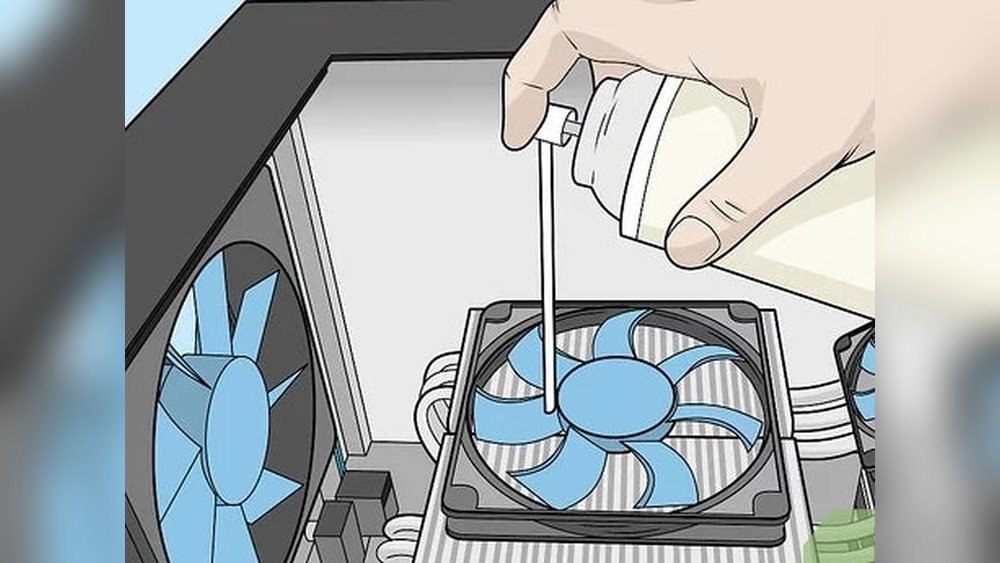
Dust blocks airflow and traps heat inside your computer. Clean your PC often to remove dust on fans and vents. Use compressed air to blow dust out of hard-to-reach spots. Clean your workspace too, so less dust enters the system.
Controlling Room Temperature
Cool air helps your CPU stay at safe temperatures. Keep the room where your PC is cool and well-ventilated. Avoid placing your computer near heaters or direct sunlight. Use a fan or air conditioner to lower room temperature on hot days.
Adjusting Cpu Power Settings
Lowering your CPU power reduces heat output. Use your computer’s power settings to balance performance and temperature. Choose power-saving modes during light tasks like browsing or writing. This simple change cuts heat and saves energy.

Credit: softwareg.com.au
Frequently Asked Questions
How Can I Improve Cpu Cooling Efficiency?
To improve CPU cooling, clean dust from fans and heatsinks regularly. Apply high-quality thermal paste and ensure good airflow inside the case.
What Are The Best Cpu Cooling Methods?
Air cooling with quality fans and heatsinks is effective. Liquid cooling offers better performance but is costlier and requires maintenance.
How Does Thermal Paste Affect Cpu Temperature?
Thermal paste fills gaps between the CPU and cooler. It improves heat transfer, reducing CPU temperature and preventing overheating issues.
Can Case Fans Help Keep My Cpu Cool?
Yes, case fans promote airflow and remove hot air. Proper fan placement ensures cool air reaches the CPU cooler efficiently.
Conclusion
Keeping your CPU cool helps your computer run smoothly. Clean fans and good airflow stop heat build-up. Use quality thermal paste to improve heat transfer. Avoid blocking vents and place your PC in a cool spot. Monitor temperatures regularly to catch problems early.
Small steps can prevent big issues later. Stay mindful of your CPU’s needs. Your computer will thank you with better speed and longer life. Simple care makes a big difference.