How to Find Cpu: Ultimate Guide to Identify Your Processor Quickly
Are you trying to find the CPU inside your computer but don’t know where to start? Knowing how to find your CPU is easier than you think.
Whether you want to check your computer’s speed, upgrade parts, or troubleshoot issues, finding your CPU details is the first step. In this guide, you’ll learn simple, clear methods to identify your CPU quickly. By the end, you’ll feel confident and ready to take control of your computer’s performance.
Let’s dive in and make this process straightforward for you.
Credit: www.intel.com
Types Of Cpus
CPUs come in various types that fit different needs and devices. Understanding these types helps you choose the right processor for your tasks. Each CPU type offers unique features and performance levels.
Intel Vs Amd
Intel and AMD are the two main CPU makers. Intel CPUs often excel in single-core speed. AMD CPUs usually offer more cores for multitasking. Both brands provide good options for desktop and laptop users. Your choice depends on budget and task needs.
Desktop Vs Mobile Processors
Desktop CPUs are powerful and use more energy. They are built for heavy tasks like gaming or video editing. Mobile processors focus on saving battery and staying cool. They work well in laptops and tablets. Each type suits different device uses.
Multi-core And Hyper-threading
Multi-core CPUs have several cores to handle many tasks at once. More cores mean better multitasking and faster performance. Hyper-threading lets one core work on two tasks at a time. It improves efficiency without adding more cores. These features boost overall CPU power.
Check System Settings
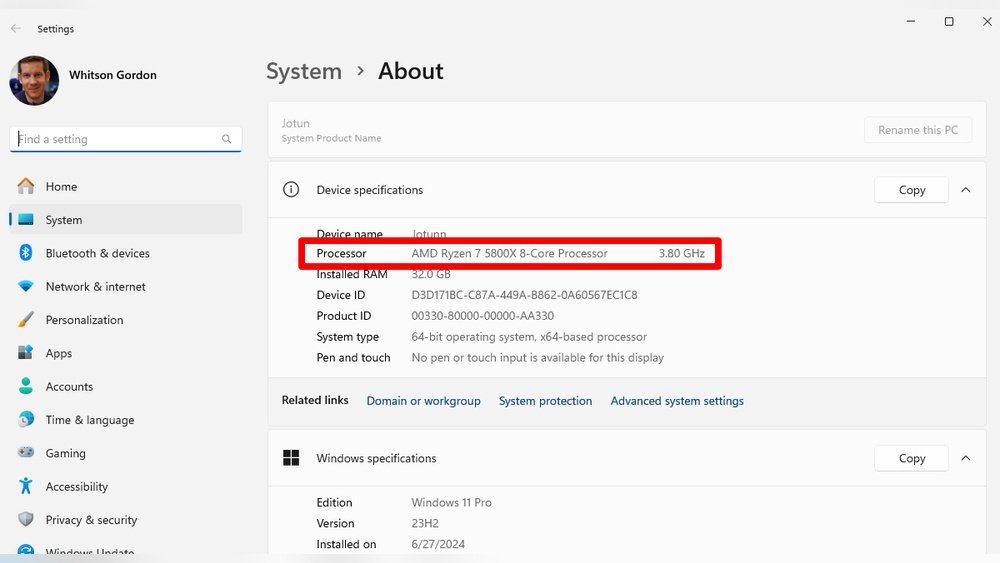
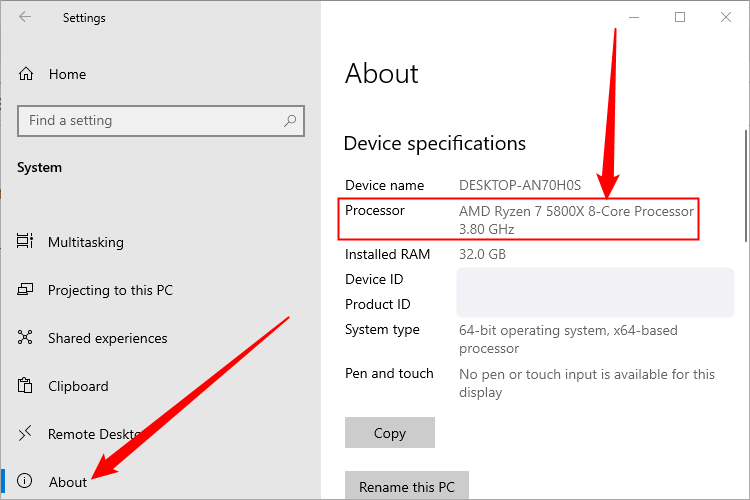
Checking your system settings is the easiest way to find information about your CPU. Your computer stores details about its hardware inside system tools. These tools show the CPU model, speed, and other key facts. No extra software is needed. Just follow a few simple steps based on your operating system.
Windows System Information
Press the Windows key and type “System Information.” Open the app from the results. Look for “Processor” under the “System Summary” section. It shows your CPU name and speed. This tool gives a clear view of your CPU details in one place.
Macos About This Mac
Click the Apple icon at the top left corner. Select “About This Mac” from the menu. The window that appears lists your Mac’s processor type and speed. This quick check reveals your CPU without extra steps or apps.
Linux Command Line
Open the Terminal app. Type lscpu and press Enter. This command displays detailed CPU information. It includes model name, cores, and speed. The command line method works across most Linux distributions.
Use Third-party Software
Third-party software helps find detailed CPU information quickly. These tools show specs like processor model, speed, and cores.
They offer more details than basic system settings. Most are free and easy to use. Below are popular options to try.
Cpu-z For Windows
CPU-Z works well on Windows PCs. It displays CPU name, code name, and package type. You see real-time clock speeds and cache levels too.
The interface is simple. It updates data as the CPU runs. This tool helps verify if your CPU matches product descriptions.
Geekbench And Cinebench
Geekbench tests CPU performance with real tasks. It shows scores that compare your CPU to others. This helps understand your processor’s power.
Cinebench focuses on rendering tasks. It checks how well your CPU handles graphics workloads. Both apps give useful benchmarks to track CPU strength.
Cross-platform Apps
Some apps work on Windows, Mac, and Linux. Examples include HWiNFO and Speccy. They offer detailed hardware reports beyond just the CPU.
Cross-platform tools help when using different systems. They keep your CPU info accessible anywhere. Easy downloads and updates make them handy.
Credit: www.howtogeek.com
Identify Cpu Physically
Identifying your CPU physically helps you learn more about your computer’s heart. It shows the processor model and speed. This knowledge helps with upgrades, repairs, or troubleshooting. Finding the CPU inside the computer needs careful steps.
Opening Your Computer Case
Turn off your computer and unplug all cables. Place it on a flat, clean surface. Use a screwdriver to remove screws from the side panel. Slide the panel off gently. Now you can see the inside parts clearly.
Reading Cpu Markings
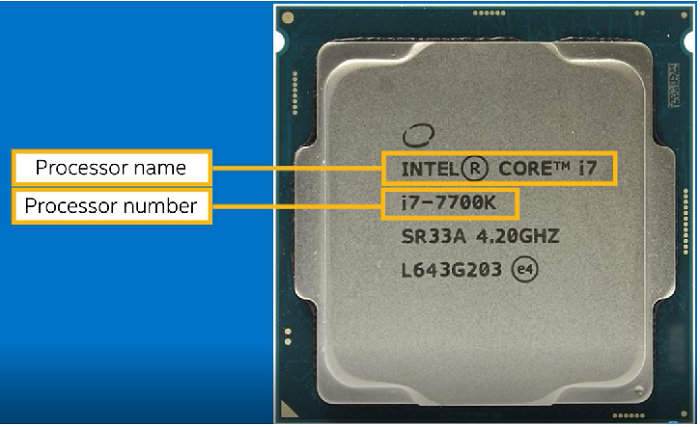
The CPU sits in the center of the motherboard under a cooling fan. Carefully remove the fan if needed. Look for letters and numbers on the CPU surface. These markings tell the brand, model, and speed. Write them down for easy reference.
Safety Tips
Avoid touching metal parts inside the computer. Static electricity can damage the CPU and other parts. Use an anti-static wristband if possible. Hold the CPU by the edges only. Work slowly and carefully to avoid mistakes.
Online Tools And Resources
Finding the right CPU can feel confusing. Online tools and resources help simplify this task. They provide clear information and comparisons. These tools make it easier to understand CPU features and performance. Exploring reliable websites and forums saves time and effort.
Manufacturer Websites
Manufacturer websites offer the most accurate CPU details. Brands like Intel and AMD list full specifications. You can see clock speed, core count, and cache size. These sites often include product guides and support pages. This helps you learn about the latest models quickly.
Cpu Benchmark Databases
Benchmark databases show real-world CPU performance. They test speed in games, apps, and tasks. Websites like PassMark and Cinebench provide score comparisons. These scores help you compare CPUs side by side. It’s a smart way to find the best CPU for your needs.
Community Forums
Community forums connect you with other CPU users. People share their experiences and advice. You can ask questions and get answers from experts. Popular forums include Reddit’s r/buildapc and Tom’s Hardware. These discussions give honest views on CPU strengths and weaknesses.
Troubleshooting Cpu Identification
Troubleshooting CPU identification can be tricky. Sometimes, your computer or software may not show the exact CPU model. This causes confusion, especially when upgrading or fixing issues. Knowing how to solve these problems saves time and avoids mistakes.
Common Issues
One common problem is the system showing “Unknown CPU.” This happens if the CPU is very new or very old. Another issue is incorrect CPU speed or number of cores displayed. This can confuse users about their system’s performance. Software bugs or outdated tools also cause wrong CPU details.
Dealing With Unknown Cpus
Start by updating your operating system and CPU identification tools. New updates often add support for new CPUs. Use trusted programs like CPU-Z or Speccy for better results. If software still shows unknown CPU, check the motherboard manual. It usually lists supported CPUs and can help identify your processor. Another option is to open the computer case and look at the CPU label.
When To Seek Expert Help
If you cannot identify the CPU after trying basic steps, ask for help. Computer technicians have tools and knowledge to find CPU details. They can also spot hardware issues causing identification problems. Avoid guessing CPU specs to prevent buying wrong parts. Expert advice ensures you get the right information and support.
Credit: www.howtogeek.com
Frequently Asked Questions
What Is The Best Way To Identify My Cpu Model?
The easiest way is to check system information on your device. On Windows, use “System Information” or “Task Manager. ” On Mac, click “About This Mac. ” These tools provide accurate CPU model details quickly and clearly.
How Can I Find Cpu Details On Windows?
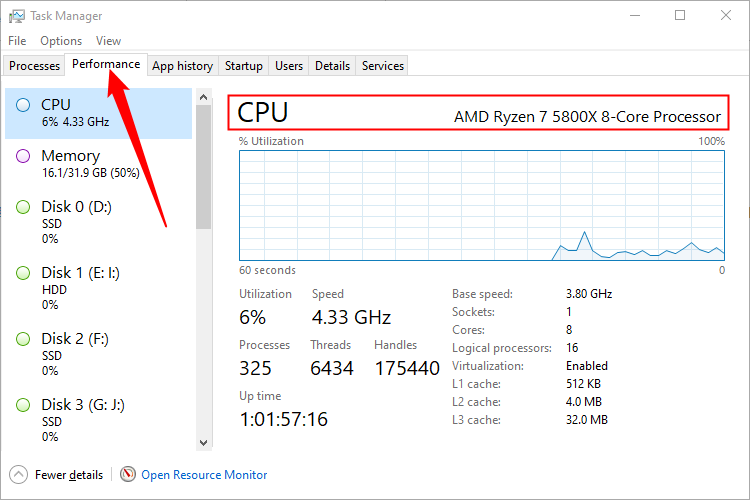
Open Task Manager by pressing Ctrl+Shift+Esc. Go to the “Performance” tab and select “CPU. ” Here, you will see the CPU name, speed, and core count instantly.
How Do I Check My Cpu On A Mac?
Click the Apple menu and select “About This Mac. ” The overview tab displays your CPU type and speed, making it simple to identify your processor.
Can I Find Cpu Info Using Command Prompt?
Yes, on Windows, open Command Prompt and type “wmic cpu get name. ” This command shows the exact CPU model name quickly and accurately.
Conclusion
Finding the right CPU can seem tricky at first. Start by knowing what you need from your computer. Check the CPU’s speed, cores, and compatibility with your system. Don’t rush; take time to compare options. Read reviews and watch videos for clear ideas.
Remember, a good CPU helps your computer run smoothly. With these tips, you can choose a CPU that fits your tasks well. Keep it simple and focus on what matters most for you. Your computer will thank you for the smart choice.