How to Check If My Gpu is Working Properly: Easy Steps to Verify
Is your computer acting slower than usual or struggling to run games and apps smoothly? Your GPU, or graphics card, might be the reason.
But how can you be sure if your GPU is working properly or if it needs attention? You’ll discover simple and effective ways to check your GPU’s performance. By the end, you’ll know exactly what to look for and how to fix common issues before they become bigger problems.
Keep reading to make sure your GPU is running at its best!
Signs Of A Malfunctioning Gpu
Knowing the signs of a malfunctioning GPU helps keep your computer running smoothly. A faulty graphics card can cause many issues. These problems affect your display, system stability, and overall performance. Spotting early signs can save time and money.
Visual Artifacts And Distortions
Visual artifacts are strange lines, dots, or shapes on the screen. Colors might appear wrong or flicker. Images may look blurry or broken. These distortions often mean the GPU is struggling to render graphics. This issue grows worse over time.
System Crashes And Freezes
Your computer may crash or freeze suddenly. This happens during gaming or heavy graphic use. The screen might go black or show error messages. These crashes indicate the GPU or its drivers have problems. Frequent crashes need immediate attention.
Performance Drops In Games And Apps
Games and apps run slower than usual. Frame rates drop or stutter during gameplay. Loading times increase for graphic-heavy programs. This slowdown shows the GPU cannot keep up. It may be overheating or failing.
Credit: www.lfg-sc.com.br
Basic Gpu Health Checks
Checking your GPU’s health is important to keep your computer running smoothly. Basic checks help you find problems early. These checks are easy and need no special tools. You can do them yourself in just a few minutes.
Checking Device Manager Status
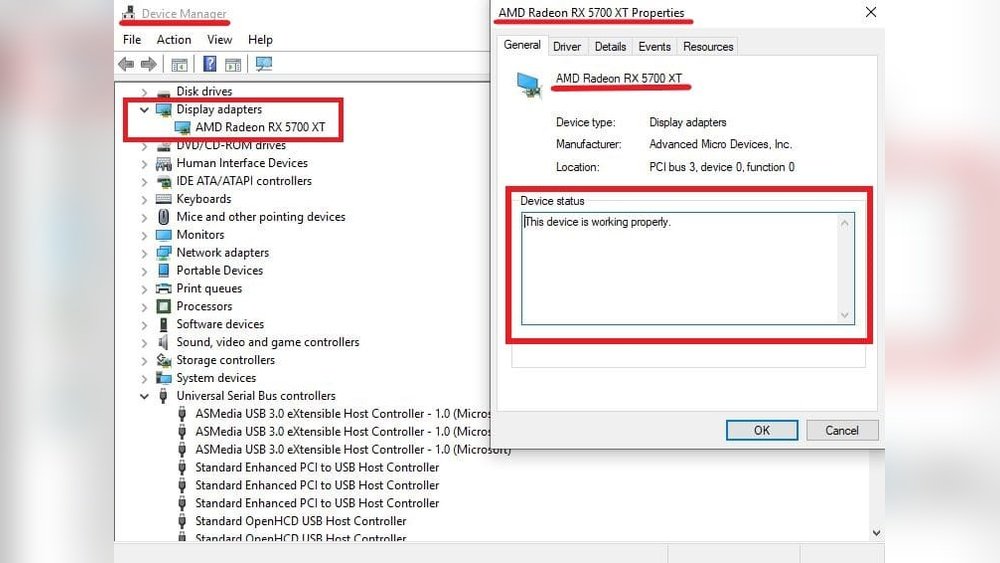
Open Device Manager on your Windows PC. Look under the “Display adapters” section. Your GPU should appear without any warning signs. A yellow triangle means a problem exists. Right-click the GPU and select “Properties” to see error details. No errors mean your GPU is recognized and working.
Monitoring Gpu Temperature
High temperature can harm your GPU. Use simple software like HWMonitor or MSI Afterburner. These tools show GPU temperature in real time. Ideal temperatures are usually below 85°C during heavy use. If temperatures stay high, clean your computer fans or improve airflow.
Verifying Driver Installation
Drivers let your GPU communicate with your computer. Open Device Manager and check driver status under “Display adapters.” You can also visit your GPU maker’s website. Download and install the latest drivers for your GPU model. Updated drivers improve performance and fix bugs.
Using Built-in Diagnostic Tools
Checking your GPU’s health is easier with built-in diagnostic tools. These tools help you see how your graphics card works. They show important details like driver status, temperature, and performance. Using them saves time and avoids extra software.
These tools come with Windows or simple apps you can download. They give clear information about your GPU’s condition. Follow the steps to use these tools and ensure your GPU runs well.
Windows Directx Diagnostic Tool
Press Win + R and type dxdiag. This opens the DirectX Diagnostic Tool. Go to the Display tab. Here, you see your GPU name and manufacturer. It also shows driver version and features. Check for any errors or warnings. This tool helps verify your GPU works with DirectX.
Gpu-z For Hardware Details
GPU-Z is a free app that gives detailed GPU info. Download and install it from a trusted site. Open GPU-Z to see specs like clock speed, memory size, and temperature. It updates data in real-time. This helps spot overheating or hardware issues fast. The simple layout suits beginners.
Task Manager Gpu Performance Tab
Open Task Manager with Ctrl + Shift + Esc. Click the Performance tab. Select GPU from the side menu. This tab shows GPU usage, memory use, and engine activity. Watch the graph while running apps or games. It helps check if your GPU handles tasks smoothly.
Running Gpu Stress Tests
Running GPU stress tests helps check your graphics card’s health. These tests push your GPU to its limits. This shows how well it performs under heavy load. Stress testing can reveal issues like overheating or crashes. It helps ensure your GPU runs smoothly during gaming or work.
Popular Stress Testing Software
Many tools test GPU performance and stability. FurMark is a popular choice. It uses intense graphics to stress the GPU. Heaven Benchmark offers detailed visual tests and scores. 3DMark tests your card with various gaming scenes. MSI Kombustor also runs heavy GPU workloads. These programs are free and easy to use.
Interpreting Stress Test Results
Check for crashes or freezes during the test. These can mean driver or hardware problems. Watch the temperature closely. High temps over 85°C can damage the GPU. Look at the frame rates or benchmark scores. Low or dropping scores suggest poor performance. Stable scores and normal temps show a healthy GPU.
Safe Stress Testing Practices
Run tests in a well-ventilated area. Avoid long tests over 30 minutes. Keep an eye on your GPU temperature. Stop the test if the GPU gets too hot. Use the latest drivers for accurate results. Save your work before starting the test. This prevents data loss from unexpected crashes.
Benchmarking Your Gpu
Benchmarking your GPU helps check its true performance. It shows how well your graphics card runs under stress. This method compares your GPU’s power against others. It also finds any issues slowing down your system.
Running a benchmark test gives clear numbers. These numbers tell if your GPU works as expected. It helps spot problems before they cause bigger issues. Let’s explore how to benchmark your GPU correctly.
Choosing The Right Benchmark Tool
Select a tool that fits your needs. Some tools focus on gaming, others on general use. Popular options include 3DMark, Unigine Heaven, and FurMark. These programs stress your GPU and measure performance. Pick one that matches your GPU type and system.
Comparing Scores To Similar Gpus
After testing, check your score against others. Find online benchmarks for your GPU model. Compare your results to see if your card performs well. Low scores may indicate a problem or outdated drivers. High scores show your GPU is working properly.
Identifying Performance Bottlenecks
Benchmark tests reveal where your system slows down. Watch for low frame rates or overheating during tests. These signs point to bottlenecks like CPU limits or poor cooling. Fixing bottlenecks improves overall GPU performance. Keep your drivers updated and clean your PC regularly.
Troubleshooting Common Gpu Issues
Troubleshooting common GPU issues can solve many problems quickly. Simple checks often restore your graphics card’s performance. Start by identifying the exact problem. Is the screen flickering? Are there driver errors? Knowing this helps target the right fix.
Some GPU issues come from outdated software or loose connections. Others result from wrong settings. Taking a step-by-step approach saves time and effort. The following methods help ensure your GPU works properly.
Updating Or Reinstalling Drivers
Drivers control how your GPU communicates with your computer. Old or corrupted drivers cause crashes and poor performance. Check the manufacturer’s website for the latest driver updates. Download and install them carefully.
Reinstalling drivers often fixes hidden errors. Use the device manager to uninstall your current GPU driver. Restart your computer, then install the latest version. This process refreshes the software and clears bugs.
Checking Power Supply And Connections
The GPU needs enough power to run smoothly. A weak or faulty power supply causes random shutdowns or freezes. Make sure your power supply meets the GPU’s requirements. Inspect all power cables connected to the graphics card. Loose or damaged cables affect performance.
Secure all connections firmly. Clean dust from the GPU and motherboard slots. Dust can block power flow and cause overheating. Proper power and stable connections keep your GPU stable.
Resetting Gpu Settings
Custom settings can sometimes create conflicts. Resetting GPU settings returns them to default. Use the GPU control panel software to reset all options. This step removes changes that cause instability or errors.
Resetting settings often solves display issues and crashes. It also improves compatibility with software and games. Keep settings simple to avoid future problems.
When To Seek Professional Help
Knowing when to seek professional help for your GPU saves time and stress. Some problems require expert attention to avoid further damage. This section explains key signs and steps for getting repair support.
Persistent Hardware Failures
Repeated crashes or screen glitches suggest hardware issues. If your GPU fails tests or causes system freezes often, professional diagnosis is needed. DIY fixes may not solve deep hardware faults.
Warranty And Repair Options
Check your GPU’s warranty status before repairs. Authorized service centers offer safe fixes under warranty terms. Using official repair services protects your device and may save costs.
Data Backup Before Repairs
Backup important files before sending your GPU for repair. Repairs can involve system resets or hardware swaps that risk data loss. Always save your data to avoid surprises.

Credit: softwareg.com.au

Credit: www.youtube.com
Frequently Asked Questions
How Can I Test If My Gpu Is Functioning Correctly?
You can test your GPU by running benchmark software and stress tests. Check for visual artifacts or crashes during use. Monitoring temperatures and performance in games or graphic apps also helps ensure it works properly.
What Are Signs Of A Failing Gpu?
Common signs include screen flickering, driver crashes, unusual noises, and poor graphics performance. Overheating and frequent system shutdowns during GPU-intensive tasks also indicate possible GPU failure.
How Do I Check My Gpu Temperature Safely?
Use GPU monitoring tools like MSI Afterburner or HWMonitor. These apps show real-time temperature readings. Keep GPU temperature below 85°C to avoid damage and ensure optimal performance.
Can Driver Issues Affect Gpu Performance?
Yes, outdated or corrupt drivers can cause poor GPU performance or errors. Regularly update your GPU drivers from the manufacturer’s website for stability and improved functionality.
Conclusion
Checking your GPU’s health helps keep your computer running smooth. Simple tests and tools reveal if your GPU works right. Watching for unusual sounds or screen issues saves time and money. Regular checks catch problems early before they get worse.
Stay patient and follow steps carefully. This way, you protect your device and enjoy better performance. Now, you can feel confident about your GPU’s condition.