How to Reseat a Cpu: Easy Steps to Boost Your PC Performance
If your computer is acting slow, freezing, or won’t start at all, the problem might be with your CPU’s connection. Knowing how to reseat a CPU can save you time and money by fixing these issues quickly.
In this guide, you’ll learn simple, step-by-step instructions to safely remove and reinstall your CPU. By the end, you’ll feel confident handling this task yourself and get your computer running smoothly again. Keep reading to discover the easy way to breathe new life into your system!
Signs Your Cpu Needs Reseating
Your CPU connects the brain of your computer to its motherboard. Over time, this connection can loosen or gather dust. This causes problems with how your computer works. Knowing the signs helps you fix issues fast. Reseating the CPU often solves many common problems without extra cost.
Watch for changes in your computer’s behavior. Strange errors or sudden shutdowns may mean the CPU is not firmly in place. Checking these signs early can save your computer from bigger damage.
Common Performance Issues
Your computer may run slower than usual. Programs might take longer to open or freeze often. Tasks you did easily before can become difficult. This lag happens because the CPU is not making good contact. Reseating can restore smooth and fast performance.
Overheating And Shutdowns
The CPU needs good contact to cool properly. Poor contact can cause it to heat up quickly. Overheating may make your computer shut down without warning. These sudden shutdowns protect your CPU from damage. If your computer feels hot or turns off often, the CPU might need reseating.
Boot Failures And Errors
Your computer may fail to start or show error messages. It could freeze on the startup screen or restart repeatedly. These problems often happen because the CPU is loose or not connected well. Reseating the CPU can fix these boot issues and help your computer start normally.
Tools And Preparation
Preparing to reseat a CPU needs careful planning and the right tools. This step ensures the process is smooth and safe for your computer parts. Gathering the essentials beforehand saves time and prevents damage.
Understanding the tools and setting up a proper workspace helps avoid mistakes. Safety measures protect both you and your hardware. Below, find what you need and how to prepare.
Essential Tools Required
A small Phillips screwdriver is key to open your computer case. Use a plastic or nylon spudger to gently lift the CPU if needed. A can of compressed air helps clean dust from inside the case.
Have a lint-free cloth or anti-static brush ready for cleaning the CPU and socket. Thermal paste is necessary to reapply for proper heat transfer. Keep all these tools within easy reach.
Safety Precautions
Static electricity can damage sensitive computer parts. Always ground yourself before touching the CPU or motherboard. Use an anti-static wrist strap or touch a metal part of the case often.
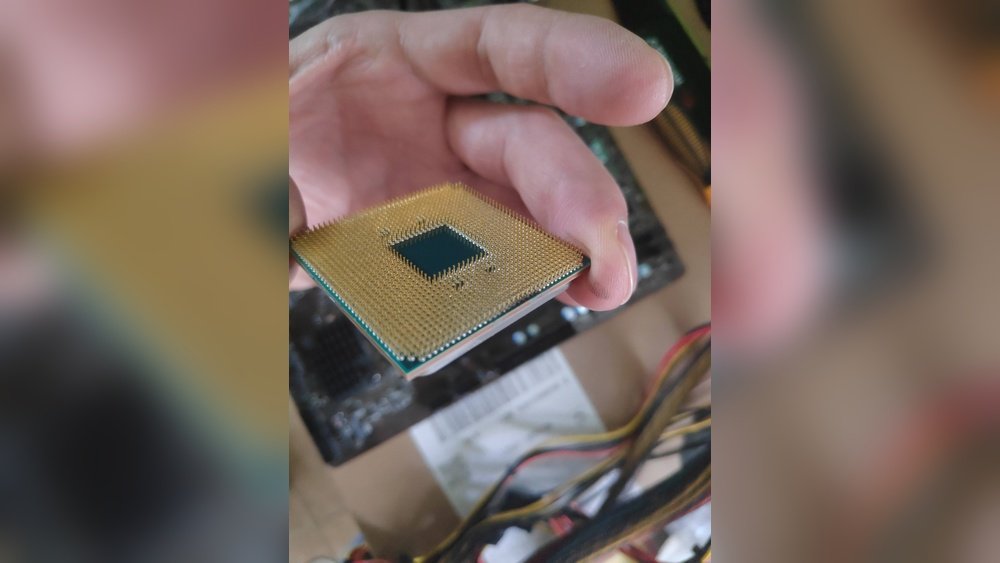
Work on a flat, non-conductive surface away from carpets. Avoid wearing clothes that create static. Handle the CPU by its edges, never touch the pins or contacts.
Workspace Setup
Choose a clean, well-lit area to work on your computer. Clear the space of unnecessary items to avoid losing screws or tools. Use a soft mat or towel to protect the motherboard from scratches.
Arrange your tools neatly for quick access. Keep the computer unplugged to prevent electric shock. Ensure you have enough room to open and move parts without force.
Removing The Cpu
Removing the CPU is the first important step before reseating it. This process helps fix connection issues or clean the processor and socket. Handle the CPU carefully to avoid any damage.
Follow these simple steps to remove the CPU safely and prepare it for reseating.
Power Down And Unplug
Turn off your computer completely. Do not leave it in sleep or hibernate mode. Unplug the power cable from the outlet and the computer. This stops any electricity flow that could harm you or the hardware.
Press the power button a few seconds after unplugging. This removes leftover electricity from the system.
Accessing The Motherboard
Open the computer case carefully. Use a screwdriver if needed. Check your computer manual for instructions. Find the motherboard inside. It is the large circuit board where all parts connect.
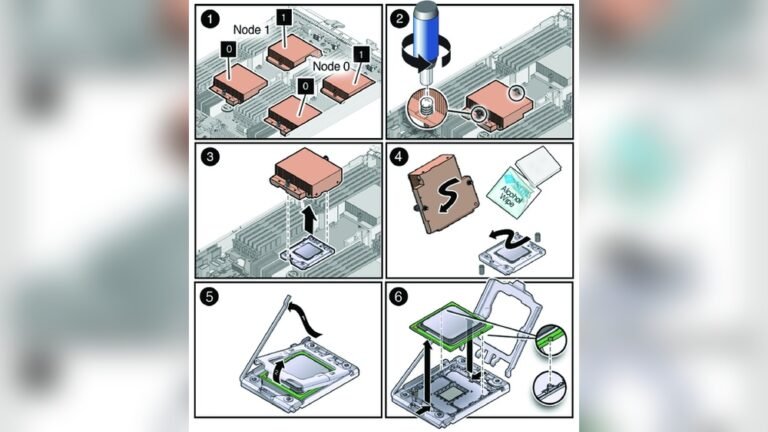
Locate the CPU cooler on top of the processor. It may have screws or clips. Remove the cooler gently to avoid bending pins or damaging parts.
Unlocking The Cpu Socket
Look for the lever or latch next to the CPU socket. This keeps the CPU locked in place. Lift or push the lever slowly. Do not force it. The socket will open, releasing the CPU.
Once unlocked, carefully lift the CPU straight up. Avoid tilting it to keep the pins safe. Place the CPU on a clean, static-free surface.

Credit: www.youtube.com
Cleaning The Cpu And Socket
Cleaning the CPU and socket is an important step before reseating the CPU. Dirt, old paste, or damage can stop the computer from working well. Proper cleaning helps the CPU stay cool and fit perfectly in the socket.
Removing Old Thermal Paste
First, remove the old thermal paste from the CPU and cooler. Use a soft cloth or paper towel. Apply a little isopropyl alcohol to help dissolve the paste. Wipe gently until the surface is clean. Avoid scratching the CPU surface.
Cleaning The Cpu Surface
After removing the paste, check the CPU surface for any remaining residue. Use a lint-free cloth with a bit of alcohol to clean it fully. Make sure the surface is dry before continuing. A clean surface helps the new paste spread evenly.
Inspecting The Socket For Damage
Look closely at the socket for bent or missing pins. Use a flashlight for better visibility. Bent pins can cause connection problems. Do not touch the pins with your fingers. If you find damage, repair or replace the socket before reseating the CPU.
Reseating The Cpu
Reseating the CPU is a key step to fix many computer problems. Dust, poor contact, or slight misalignment can cause issues. Taking out the CPU and placing it back correctly often solves these problems. The process requires careful handling and attention to detail. This section guides you through the steps to reseat your CPU safely and properly.
Aligning The Cpu Correctly
Start by checking the CPU socket and the chip. Look for a small triangle or marker on one corner of the CPU. Match this with the same mark on the socket. Never force the CPU into the socket. It should fit easily and sit flat. Aligning correctly ensures the pins connect properly without damage.
Securing The Cpu In Place
Once aligned, gently place the CPU into the socket. Use the locking lever or latch to secure it. Press down slowly until it clicks or locks firmly. This keeps the CPU stable and prevents movement. Avoid pressing too hard or bending the pins. A secure CPU improves contact and system stability.
Applying New Thermal Paste
Remove old thermal paste from the CPU surface using a lint-free cloth. Apply a small pea-sized drop of new thermal paste in the center. Spread it evenly if needed, but a single drop works well. This paste helps transfer heat from the CPU to the cooler. Proper thermal paste application prevents overheating and keeps the CPU running smoothly.
Reassembling And Testing
After reseating the CPU, carefully reassemble your computer. This step ensures everything works well together. Take your time to avoid mistakes. Proper reassembly protects your hardware and helps your system run smoothly.
Reattaching The Cooler
Start by placing the cooler back on the CPU. Align it correctly with the mounting points. Gently press down to spread thermal paste evenly. Secure the cooler using screws or clips. Avoid overtightening to prevent damage. Make sure the fan cable is connected to the motherboard.
Reconnecting Components
Reconnect all cables and components unplugged earlier. Check each connection to ensure it is firm. Plug in RAM, power cables, and storage devices. Confirm no wires block the fans or vents. Proper connections help avoid boot issues and hardware errors.
Booting And Monitoring Performance
Power on your computer and watch for normal startup. Listen for unusual noises or warning beeps. Enter BIOS to check CPU temperature and settings. Use monitoring software to track CPU performance. Monitor closely during the first few hours of use. This confirms the CPU is seated correctly and runs safely.
Tips For Maintaining Cpu Performance
Maintaining your CPU’s performance is important after reseating it. Good care keeps your computer running smooth and fast. Small habits can stop problems before they start. Here are some simple tips to help your CPU work well for a long time.
Regular Cleaning
Dust can build up inside your computer. It blocks airflow and causes heat. Heat makes your CPU slow down or shut off. Clean your computer case every few months. Use a soft brush or compressed air. Be gentle around the CPU and fan. This helps keep the CPU cool and safe.
Monitoring Temperatures
Watch your CPU temperature often. Many free tools show real-time temperatures. High temperatures mean your CPU is too hot. Too much heat lowers speed and can damage parts. Keep the temperature under safe limits. If it is too hot, check the fan and cooling system.
Updating Bios And Drivers
BIOS and drivers control how your CPU works with other parts. Updates fix bugs and improve performance. Visit your motherboard maker’s website for updates. Follow instructions carefully to avoid errors. Updating helps your CPU work better and last longer.

Credit: www.youtube.com

Credit: aftershockpc.com.au
Frequently Asked Questions
How Do I Safely Remove A Cpu From The Motherboard?
To safely remove a CPU, first power off and unplug your PC. Unlock the CPU socket lever gently. Lift the CPU straight up without bending any pins. Handle the CPU by its edges to avoid damage or contamination.
What Tools Are Needed To Reseat A Cpu Properly?
You generally need no special tools to reseat a CPU. A screwdriver may be required to remove the case or heatsink. Use an anti-static wrist strap to prevent static damage. Clean thermal paste and a lint-free cloth might be useful.
How Often Should I Reseat My Cpu For Maintenance?
Reseating a CPU is typically done only when troubleshooting or upgrading. It’s not necessary as regular maintenance. If your system overheats or crashes, reseating may help. Otherwise, avoid unnecessary handling to prevent damage.
Can Reseating A Cpu Improve Computer Performance?
Reseating a CPU can fix poor connections causing overheating or crashes. This may indirectly improve performance stability. However, it won’t boost CPU speed or overall power. Proper cooling and updates are more effective for performance.
Conclusion
Reseating a CPU can fix many computer problems. Follow each step with care and patience. Always handle parts gently to avoid damage. Double-check connections before powering your system back on. Regular maintenance helps keep your computer running smooth. Small actions often lead to big improvements.
Stay calm and take your time during the process. You can do this with a little practice. Keep your tools and workspace clean for best results. Trust yourself and your work.