How to Test a Cpu Power Supply: Easy Steps for Accurate Results
Is your computer acting up, or won’t it turn on at all? The culprit might be your CPU power supply.
Knowing how to test it yourself can save you time, money, and frustration. Imagine quickly finding out if your power supply is the problem without waiting for a technician. In this guide, you’ll learn simple, clear steps to check your CPU power supply’s health.
Ready to take control and keep your PC running smoothly? Let’s dive in.

Credit: www.corsair.com
Tools Needed
Testing a CPU power supply needs the right tools. These tools help check if the power supply works well. Having the correct equipment makes testing simple and safe. Below are the main tools you need.
Multimeter Basics
A multimeter measures voltage, current, and resistance. It checks if the power supply gives the right voltage. Many multimeters have a digital screen for easy reading. You place the probes on the power supply wires to see results. Learning to read a multimeter is important for accurate tests.
Power Supply Tester
A power supply tester is made just for this job. It plugs directly into the power supply connector. The tester shows if the power rails work correctly. It is easy to use and faster than a multimeter. This tool is perfect for beginners and saves time.
Safety Gear
Safety gear protects you from electric shocks. Wear insulated gloves when handling power supplies. Use safety glasses to protect your eyes from sparks. Make sure your work area is dry and clean. Safety gear keeps testing safe and worry-free.
Preparing For Testing
Preparing for testing a CPU power supply is an important first step. It ensures safety and accuracy during the process. Taking time to prepare can save you trouble later. Follow these simple steps carefully to get ready for testing.
Power Supply Removal
Begin by turning off your computer and unplugging it from the wall. Open the case carefully using the right tools. Locate the power supply unit (PSU) inside the case. Unscrew the PSU from its mount and gently pull it out. Handle the power supply with care to avoid damage.
Visual Inspection
Look closely at the power supply for any signs of damage. Check for burnt marks, bulging capacitors, or loose wires. Notice any dust buildup or corrosion around connectors. A clean PSU is easier to test and less likely to cause problems. Clean the PSU if needed before continuing.
Disconnecting Components
Unplug all cables connected to the power supply. Remove the main 24-pin connector from the motherboard. Disconnect CPU power cables and any other peripheral connectors. Keep track of each cable to reconnect them later. This step prevents damage and allows accurate testing.
Testing With A Multimeter
Testing a CPU power supply with a multimeter helps check if it delivers the correct voltage. This test ensures the power supply works properly and keeps the CPU safe. Using a multimeter is simple and gives accurate results.
Setting Up The Multimeter
First, turn off the computer and unplug the power supply. Set the multimeter to measure DC voltage. Use the 20V or similar setting for safety. Connect the black probe to the multimeter’s COM port. Attach the red probe to the VΩmA port.
Measuring Voltage Rails
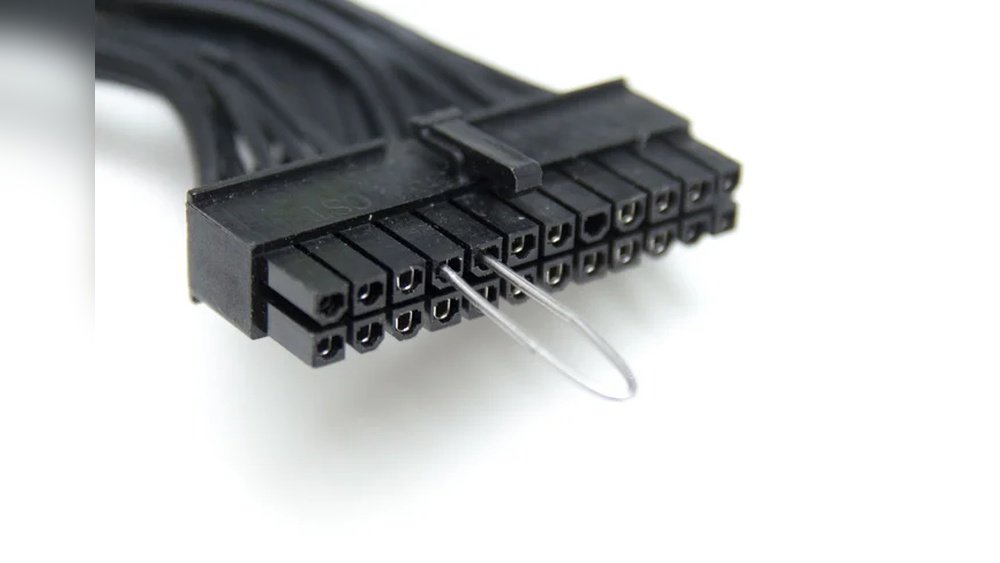
Turn on the power supply by shorting the green wire to a black wire on the 24-pin connector. Place the black probe on any black ground wire. Touch the red probe to the colored wires to measure their voltage. Check the yellow (12V), red (5V), and orange (3.3V) wires.
Interpreting Results
Compare the readings with the standard voltages: 12V, 5V, and 3.3V. A small difference of 0.2V is normal. Large deviations may mean a faulty power supply. Low voltage can cause CPU errors or crashes. High voltage risks hardware damage. Replace the power supply if results are outside safe limits.
Using A Power Supply Tester
Using a power supply tester is a simple way to check if your CPU power supply works well. This tool shows if the power supply delivers the right voltage and if it has any faults. It saves time and helps avoid damage to other parts of your computer.
Connecting The Tester
First, turn off and unplug your computer. Find the main power connector from the power supply. Plug this connector into the matching socket on the power supply tester. Make sure the connection is firm and secure. Some testers have multiple ports for different connectors. Use the right one for your CPU power supply.
Reading The Display
Turn on the power supply while connected to the tester. The tester’s screen will show voltage readings. Check each value carefully. The normal voltage levels should be close to the numbers on the power supply label. If the numbers are too high or too low, the power supply may be faulty. Some testers use lights or sounds to show results too.
Common Error Codes
Power supply testers often show error codes or signals. These codes mean specific problems. For example, “OV” means over voltage. “UV” means under voltage. “OC” means over current. Each tester has a guide to explain codes. Use this guide to understand what the code means. Fix or replace the power supply if you see errors.
Load Testing The Power Supply
Load testing the power supply is a key step in checking its health. It shows how well the power supply works under real conditions. This test helps find hidden problems that only appear under stress. Understanding load testing can save your CPU and other parts from damage.
Simulating Cpu Load
To simulate CPU load, use software that stresses the processor. This makes the CPU use more power, like during heavy tasks. The power supply must keep up with this demand. Watch the system closely during this test.
Monitoring Voltage Stability
Voltage stability means the power supply gives constant power. Use a multimeter or monitoring software to check voltage levels. Stable voltage stays within safe limits during the load test. Voltage drops or spikes can harm your CPU.
Identifying Power Fluctuations
Power fluctuations show as quick changes in voltage or current. These can cause system crashes or damage over time. Look for sudden dips or rises in the voltage readout. Detecting these early helps prevent bigger problems later.
Troubleshooting Issues
Troubleshooting issues with your CPU power supply can save time and money. It helps find the root cause of problems quickly. Simple tests can show if the power supply works well or fails.
Power supplies can cause random shutdowns, restarts, or unstable performance. Recognizing these signs early helps avoid damage to your computer parts. Follow clear steps to check and fix power supply issues.
Dealing With Inconsistent Readings
Sometimes, voltage readings may jump or not match expected values. This can confuse diagnosis. Check connections and retest after a few minutes. Use a reliable multimeter or power supply tester.
Inconsistent readings may mean a loose wire, dirty contacts, or a weak power supply. Test the power supply in a different system if possible. This helps confirm if the unit is faulty or the problem lies elsewhere.
When To Replace The Power Supply
Replace the power supply if voltage stays unstable or drops below safe levels. A failing power supply can cause crashes or damage to other parts. Signs include burning smells, strange noises, or visible damage.
Old power supplies often lose efficiency and reliability. If your unit is over five years old or cannot maintain proper voltage, it is time to get a new one. Choose a power supply that fits your system’s needs and has good reviews.
Consulting Professional Help
Some power supply issues are hard to diagnose at home. If testing is unclear or you feel unsure, seek expert advice. Professionals have tools and knowledge to find hidden problems.
Do not risk damaging your computer or hurting yourself. A technician can safely test and repair or replace the power supply. This ensures your system runs smoothly and lasts longer.
Safety Tips
Testing a CPU power supply involves working with electrical parts. Safety is the top priority. Small mistakes can cause big problems. Follow safety tips to protect yourself and your equipment.
Handling Electrical Components
Always turn off the power before touching any parts. Use tools with insulated handles. Keep your hands dry to avoid electric shocks. Never force parts into place. Handle components gently to avoid damage.
Avoiding Short Circuits
Check for loose wires or damaged cables before testing. Keep metal objects away from exposed circuits. Use a multimeter to check connections carefully. Do not touch wires together during testing. Keep the workspace clean to reduce risk.
Working In A Safe Environment
Choose a dry, well-lit area to work. Avoid clutter to prevent accidents. Use a non-conductive surface to place components. Wear safety glasses to protect your eyes. Keep children and pets away during testing.

Credit: www.youtube.com

Credit: softwareg.com.au
Frequently Asked Questions
How Do I Check If My Cpu Power Supply Works?
Use a multimeter to measure voltage output from the power supply. Ensure the voltage matches the PSU specifications for each connector.
What Tools Are Needed To Test A Cpu Power Supply?
A digital multimeter and power supply tester are essential. These tools help check voltage stability and connector functionality accurately.
Can A Faulty Cpu Power Supply Damage Components?
Yes, a failing power supply can cause instability and damage. Always test to prevent harm to the CPU and motherboard.
How Often Should I Test My Cpu Power Supply?
Test your power supply every 6 to 12 months. Regular checks ensure consistent performance and prevent unexpected failures.
Conclusion
Testing a CPU power supply ensures your computer runs smoothly. Use a multimeter or a power supply tester to check voltage levels. Look for stable readings to avoid hardware damage. Regular checks help catch problems early and save money. Always handle components carefully for safety.
With simple tools and steps, anyone can test their power supply. Keep your PC healthy by monitoring power regularly. Small efforts make a big difference in performance and reliability.