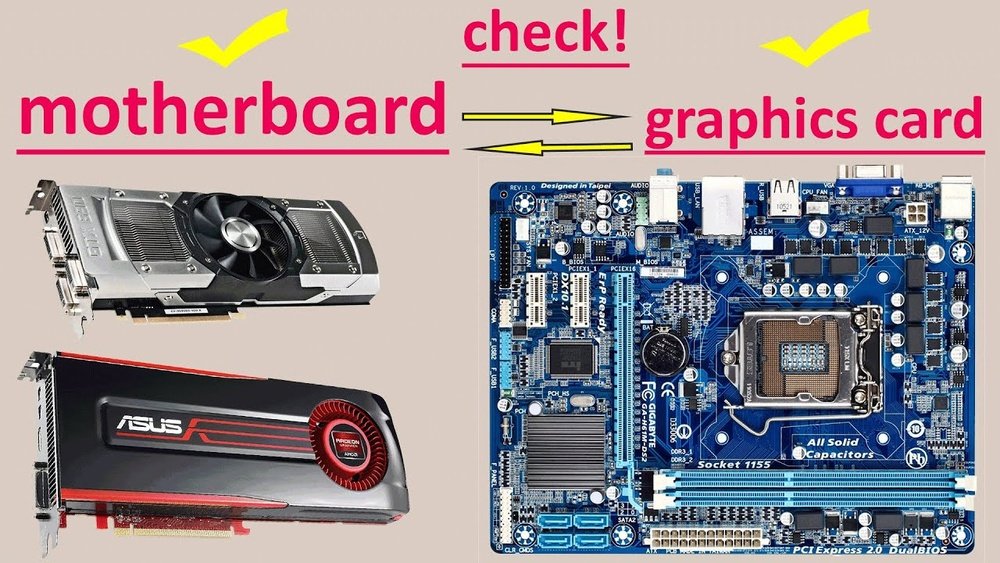
How to Check If Gpu is Compatible With Motherboard: Ultimate Guide
Are you planning to upgrade your PC with a new GPU but unsure if it will fit your motherboard? Choosing the right graphics card can be tricky, and a wrong match can waste your time and money.
But don’t worry—checking compatibility is easier than you think. You’ll discover simple steps to make sure your GPU and motherboard work perfectly together. Keep reading, and avoid costly mistakes that can slow down your gaming or work setup. Your ideal build starts here!

Credit: softwareg.com.au
Identify Your Motherboard Model
Identifying your motherboard model is the first step in checking GPU compatibility. This helps you understand what kind of graphics cards your system supports. Knowing the exact model ensures you avoid buying parts that won’t fit or work well.
Motherboards come in many types and sizes. Each model has specific slots and power limits for GPUs. Finding the model number is easier than you think. You can do it manually or use software tools to get the details quickly.
Locate Model Number
Turn off your computer and open the case carefully. Look for the model number printed on the motherboard. It is often near the CPU socket or between PCI slots. The model number may look like a mix of letters and numbers. Write it down for reference.
Check the edges and corners of the motherboard too. Sometimes the number is small and hard to spot. Use a flashlight if needed. Avoid touching any components inside to prevent damage.
Use System Information Tools
Use built-in software to find your motherboard model quickly. On Windows, press Windows + R, type msinfo32, and press Enter. The System Information window opens. Look for “BaseBoard Manufacturer” and “BaseBoard Product” lines. These show your motherboard brand and model.
Mac users can click the Apple icon, select “About This Mac,” then “System Report.” Find the hardware overview for motherboard details. Linux users can run the command sudo dmidecode -t baseboard in the terminal. This will display the motherboard information.
Check Motherboard Specifications
Checking your motherboard specifications is the first step to ensure your GPU fits and works correctly. Each motherboard has different features and limits. Understanding these helps avoid buying incompatible parts.
Focus on the slot type and size. Also, check space around the slot. These details determine if your GPU can be installed without issues.
Pcie Slot Type And Version
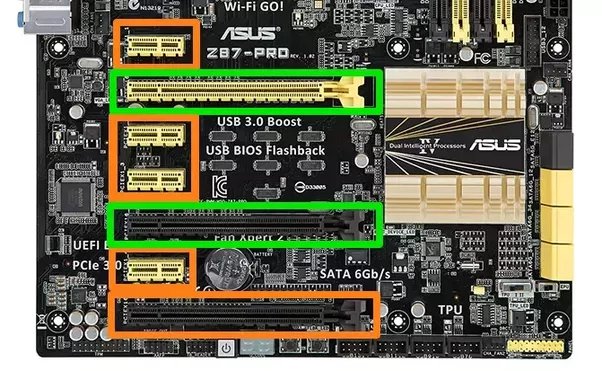
The PCIe slot is where the GPU connects to the motherboard. Most modern GPUs use PCIe x16 slots. Check your motherboard manual or website to find the slot type.
Slots come in versions like PCIe 3.0, 4.0, or 5.0. Higher numbers mean faster data transfer. Your GPU should support the slot version for best performance. Older motherboards might have slower versions, which can limit GPU speed but still work.
Physical Space And Slot Clearance
Measure the space around the PCIe slot. GPUs can be large and need room for installation. Check for nearby components that might block the card.
Some motherboards have tight spaces or multiple slots close together. Also, consider the GPU’s length and height. This ensures it fits without touching other parts or the case walls.
Determine Gpu Requirements
Determining the GPU requirements is the first step to check compatibility with your motherboard. You must understand the power and size needs of your GPU. These factors ensure your system runs smoothly and fits well.
Power Connectors And Consumption
Every GPU needs power to work. Check the type and number of power connectors your GPU requires. Common connectors include 6-pin or 8-pin PCIe cables. Your power supply unit (PSU) must have these connectors available.
Also, consider the power consumption of the GPU. This is measured in watts (W). Compare the GPU’s wattage with your PSU’s capacity. Avoid using a PSU that cannot provide enough power. Insufficient power causes crashes or damage.
Physical Dimensions Of Gpu
GPU size matters for fitting inside your computer case. Measure the length, width, and height of the GPU. Check your case’s maximum GPU size limit. Some GPUs have large cooling systems that take extra space.
Ensure the GPU does not block other components or slots on the motherboard. A tight fit may cause airflow problems and overheating. Measure carefully before buying a new GPU.
Match Pcie Compatibility
Matching PCIe compatibility is key to making sure your GPU works well with your motherboard. The PCIe slot on the motherboard must support the GPU’s PCIe version. This affects the speed and performance of your graphics card. Understanding the details of PCIe versions helps you avoid problems and choose the right components.
Understanding Pcie Versions
PCIe stands for Peripheral Component Interconnect Express. It is the slot type used to connect GPUs to motherboards. Different PCIe versions offer different speeds. For example, PCIe 3.0 is slower than PCIe 4.0 and 5.0. Newer versions allow faster data transfer. This improves graphics performance in games and apps. Check your motherboard’s manual or specs to know its PCIe version.
Backward And Forward Compatibility
PCIe slots and cards usually support backward and forward compatibility. This means a PCIe 4.0 GPU can work in a PCIe 3.0 slot and vice versa. The system will run at the speed of the lower PCIe version. So, a PCIe 4.0 card in a PCIe 3.0 slot runs at PCIe 3.0 speed. This ensures flexibility but may limit performance. Always try to match the GPU and motherboard PCIe versions closely for best results.
Assess Power Supply Capacity
Assessing your power supply capacity is a key step before installing a new GPU. The power supply must handle the energy needs of both your GPU and other components. An underpowered supply can cause crashes or damage. Knowing the power requirements helps you avoid problems and ensures smooth operation.
Check Wattage And Connectors
First, check the wattage of your power supply. Your GPU needs a specific wattage to run well. This information is usually in the GPU’s manual or on its product page. Compare this to your power supply’s wattage label. Make sure your supply provides enough power with some extra margin.
Next, look at the power connectors. Most GPUs need one or more 6-pin or 8-pin connectors. Verify your power supply has the right type and number of connectors. Missing connectors means you cannot power the GPU properly. Using adapters may work but is not always safe or stable.
Consider Future Upgrades
Think about future upgrades when checking your power supply. A slightly stronger power supply is better for adding new parts later. New GPUs or other components may need more power. Planning ahead saves you from upgrading the power supply again soon.
Choose a power supply with good efficiency and quality. This keeps your system stable and reduces power waste. A solid power supply protects your investment and keeps your PC running smoothly over time.

Credit: vixencomposites.com
Verify Bios And Firmware Support
Verifying BIOS and firmware support is a key step to check GPU and motherboard compatibility. BIOS controls hardware functions and allows the system to recognize new components. Firmware ensures smooth communication between your GPU and motherboard. Without proper BIOS and firmware support, your GPU might not work correctly or at all.
Understanding BIOS and firmware versions helps avoid compatibility problems. Sometimes, motherboards need updates to support newer GPUs. Checking these details before buying or installing a GPU saves time and frustration.
Update Bios If Needed
Check your motherboard’s current BIOS version in the system setup or using software tools. Visit the motherboard maker’s website to compare your BIOS version with the latest release. Updates often include improved support for new GPUs and fixes for bugs.
Follow the official update instructions carefully. A wrong update can cause system failure. Keep your system powered during the process. After updating, your motherboard can better recognize and work with your GPU.
Check For Compatibility Notes
Look for compatibility notes on the motherboard and GPU product pages. Manufacturers list supported GPU models and BIOS requirements there. These notes highlight any special steps needed for installation.
Forums and user reviews also share real-world compatibility experiences. They help confirm if a GPU works well with your motherboard. This research reduces the risk of buying incompatible hardware.
Review Physical Fit And Case Size
Checking the physical fit and case size is a key step before installing a GPU. A card that does not fit can cause damage or fail to install. Cases come in different sizes, and GPUs vary in length and width. This section guides you to measure space and consider airflow for your build.
Measure Available Space
Open your computer case and look inside. Measure the length from the back of the case to any obstacle in front. Check the height and width where the GPU will sit. Compare these numbers with the GPU’s size listed on the box or website. Leave extra space for cables and connectors. This step ensures the GPU fits without blocking other parts.
Consider Cooling And Airflow
Good airflow keeps your GPU cool and working well. Look for vents or fans near the GPU area. Make sure nothing blocks air intake or exhaust. Some large GPUs need more space for air to flow freely. Check if your case supports extra fans or liquid cooling. Proper cooling helps avoid overheating and boosts performance.
Credit: teks-tver.ru
Consult Manufacturer Documentation
Checking if a GPU fits your motherboard starts with reading the manufacturer documents. These guides offer clear details about what parts work well together. They help avoid buying the wrong components that don’t match.
Manufacturer documents include specs, compatibility lists, and installation tips. They show the exact models supported by your motherboard or GPU. This information saves time and money during your build process.
Motherboard Compatibility Lists
Motherboard makers provide compatibility lists on their websites. These lists name GPUs tested and approved for each motherboard model. Checking these lists ensures your GPU fits the slot and works properly.
Compatibility lists also show BIOS versions needed for certain GPUs. Updating your BIOS may be required for new GPU models. This step keeps your system stable and lets the GPU perform well.
Gpu Manufacturer Recommendations
GPU makers share advice about which motherboards suit their cards. They suggest chipsets and PCIe versions for best performance. Following their advice helps avoid issues like bottlenecks or slow speeds.
These recommendations often include power supply needs and physical dimensions. GPUs vary in size and power draw. Ensuring your motherboard and case can support the GPU is crucial.
Test And Troubleshoot Compatibility
Testing and troubleshooting GPU compatibility with your motherboard is crucial. It ensures your new graphics card works properly without issues. This process saves time and avoids hardware damage. Follow simple steps to check and fix problems fast. The goal is a smooth installation and stable performance.
Initial Installation Tips
Turn off your PC and unplug it before starting. Open the case carefully to access the motherboard. Find the correct PCIe slot for your GPU. Gently insert the graphics card until it clicks in place. Secure the card with screws to keep it stable. Connect the power cables from your PSU to the GPU. Double-check all connections before closing the case. Power on the PC and watch for any error beeps or messages. Install the latest drivers from the GPU manufacturer’s website. Restart your system to complete the setup.
Handling Post-installation Issues
Check for display problems like no signal or flickering. Verify the GPU is seated correctly and power cables are secure. Update your motherboard BIOS to improve compatibility. Run hardware diagnostics tools to find hidden errors. Remove and reinstall the GPU if issues persist. Test the GPU in another PC to rule out card faults. Use Device Manager to check for driver conflicts or errors. Adjust BIOS settings to enable the PCIe slot if needed. Replace faulty cables or try different power connectors. Seek support from hardware forums or the manufacturer if problems continue.
Frequently Asked Questions
How Do I Know If My Gpu Fits My Motherboard?
Check your motherboard’s PCIe slot type and size. Most GPUs require a PCIe x16 slot. Ensure the physical space and power connectors match your GPU’s requirements.
Can An Older Motherboard Support A New Gpu?
It depends on the motherboard’s PCIe version and BIOS updates. New GPUs often work with PCIe 3. 0 slots but may have limited performance compared to PCIe 4. 0.
What Motherboard Specs Affect Gpu Compatibility?
Key specs include PCIe slot type, power connectors, BIOS support, and physical clearance inside the case. Confirm these match your GPU’s needs before buying.
Does Motherboard Size Impact Gpu Compatibility?
Yes, motherboard size (ATX, micro-ATX) affects GPU clearance. Larger GPUs may not fit well on smaller boards or cases. Always measure available space before installation.
Conclusion
Checking GPU and motherboard compatibility is simple with the right steps. Match the GPU slot type with your motherboard’s slot. Check the power supply to ensure it can support the GPU. Confirm physical space inside the case for the new card.
Review BIOS updates that might improve compatibility. Taking these steps helps avoid installation problems and saves time. A well-matched GPU and motherboard improve your computer’s performance. Stay patient and double-check each detail before buying. Your system will run smoothly with compatible parts.