How Much Thermal Paste to Apply on Cpu: Expert Guide for Perfect Cooling
You might think applying thermal paste on your CPU is a simple task, but using too much or too little can cause serious problems. If you want your computer to run cooler and perform better, knowing the right amount to apply is key.
Too much paste can trap heat, while too little won’t transfer heat properly. You’ll discover exactly how much thermal paste to use and the best way to apply it. Keep reading, because getting this step right can save your CPU from overheating and extend your computer’s life.
Role Of Thermal Paste
Thermal paste plays an important role in keeping your CPU cool. It helps fill tiny gaps between the CPU and its cooler. These gaps can trap air, which blocks heat transfer. Without thermal paste, your CPU might get too hot and slow down or stop working.
Applying the right amount of thermal paste ensures the heat moves efficiently. This keeps your computer running smoothly and extends the CPU’s life.
Thermal Paste Function
Thermal paste acts as a bridge for heat. It fills microscopic spaces between the CPU and the cooler base. These spaces trap air, which is a poor heat conductor. The paste allows heat to move from the CPU to the cooler faster. This helps the cooler remove heat quickly.
Good thermal paste improves contact and reduces heat resistance. It stops the CPU from overheating during heavy use.
Impact On Cpu Temperature
The amount of thermal paste affects CPU temperature. Too little paste leaves gaps with trapped air. This causes higher CPU temperatures. Too much paste can block heat flow and cause overheating. Applying just the right amount creates a thin, even layer. This helps keep the CPU cool and stable.
Proper paste application lowers temperature by several degrees. This improves computer performance and prevents damage from heat.

Credit: www.youtube.com
Types Of Thermal Paste
Choosing the right thermal paste matters for your CPU’s cooling. Different types of thermal pastes have unique features. These affect heat transfer and ease of use. Understanding the main types helps pick the best one for your needs.
Metal-based Pastes
Metal-based pastes contain tiny metal particles. They often use silver or aluminum. These pastes conduct heat very well. They offer excellent cooling performance. But, they can be slightly conductive electrically. Care is needed during application to avoid short circuits.
Ceramic-based Pastes
Ceramic-based pastes have ceramic particles like zinc oxide. These pastes are non-conductive. They provide good heat transfer but less than metal pastes. They are safer for beginners. Ceramic pastes are stable and last longer without drying out.
Silicone-based Pastes
Silicone-based pastes mix silicone with other fillers. They are easy to apply and inexpensive. Their heat transfer is lower than metal or ceramic types. Silicone pastes work well for normal everyday use. They are less durable and may need replacement sooner.
Choosing The Right Amount
Applying the right amount of thermal paste on a CPU matters a lot. Too much paste can cause spills, and too little can lead to poor heat transfer. The goal is to create a thin, even layer that fills the tiny gaps between the CPU and cooler.
Choosing the right amount requires understanding common methods and knowing how much paste to use. These tips help avoid common mistakes and ensure good CPU cooling.
Common Application Methods
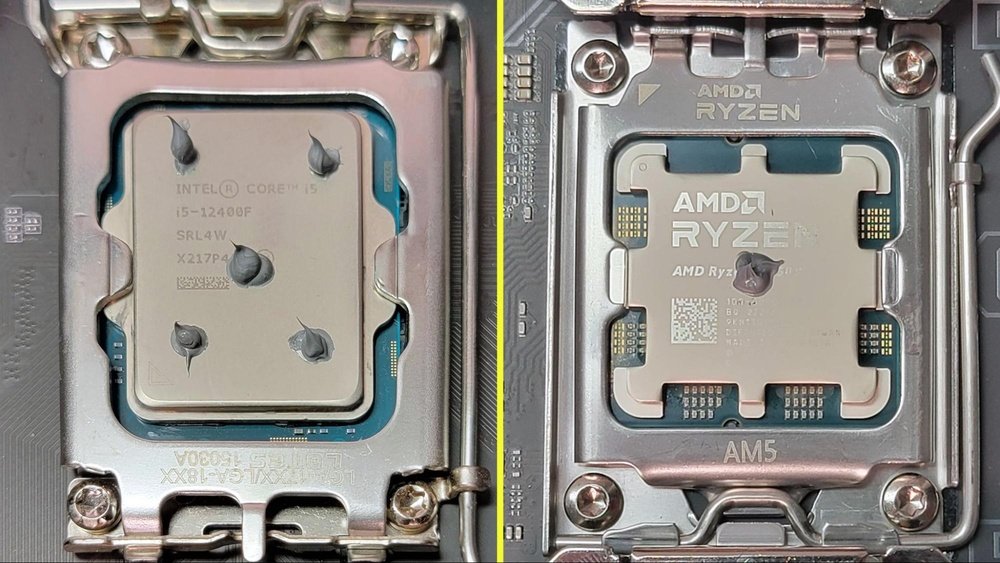
One popular method is the pea-sized dot in the center of the CPU. When the cooler is installed, it spreads the paste evenly.
Another method uses a thin line across the CPU surface. This works well for rectangular CPUs.
Some people spread the paste with a plastic card or finger covered with plastic. This ensures full coverage but requires care to avoid air bubbles.
Recommended Paste Quantity
Use a small amount about the size of a grain of rice or a pea. This amount is usually enough to cover the CPU surface once spread.
Too much paste can reduce cooling efficiency by creating thick layers. Too little paste leaves gaps that trap air and heat.
Start with a small amount. Add more only if needed, but rarely more is necessary.
Step-by-step Application
Applying thermal paste correctly is key to keeping your CPU cool. This step-by-step guide helps you do it right. Follow each step carefully to get the best results.
Cleaning The Cpu Surface
Start by turning off your computer and unplugging it. Remove the CPU cooler gently. Use a soft cloth or paper towel with isopropyl alcohol. Wipe the CPU surface until it is clean and shiny. This removes old paste and dirt. Let it dry completely before moving on.
Applying Thermal Paste Evenly
Use a small pea-sized amount of thermal paste. Place it in the center of the CPU. Avoid using too much paste; a thin layer is enough. The pressure from the cooler will spread the paste evenly. This fills tiny gaps and improves heat transfer.
Installing The Cooler Properly
Carefully place the cooler on top of the CPU. Make sure it aligns with the mounting holes. Press down gently but firmly to spread the paste. Tighten the screws in a diagonal pattern. This ensures even pressure and prevents damage.
Avoiding Common Mistakes
Applying thermal paste correctly is key to keeping your CPU cool. Mistakes during application can reduce performance and cause overheating. Understanding common errors helps you avoid damage and improve heat transfer.
Using Too Much Paste
Too much thermal paste creates a thick layer between the CPU and cooler. This layer blocks heat from moving efficiently. Excess paste can spill over the sides, causing short circuits. Use a small pea-sized amount for best results. Less is often more with thermal paste.
Using Too Little Paste
Too little paste leaves gaps between the CPU and cooler. Air pockets form and reduce heat transfer. The CPU will run hotter and may throttle speed. A thin, even layer covers the surface better than a tiny dot. Be sure to apply enough to fill the space.
Incorrect Spreading Techniques
Spreading paste with fingers or uneven tools can trap air bubbles. These bubbles act as heat insulators. Some spreading methods cause uneven layers, harming cooling. Let the pressure from the cooler spread the paste naturally. This ensures a thin, uniform layer for better heat flow.

Credit: www.corsair.com
Signs Of Poor Thermal Paste Application
Poor thermal paste application can cause several problems with your CPU. It stops the heat from moving properly from the CPU to the cooler. This leads to various signs that show something is wrong. Knowing these signs helps you fix the issue early.
Watch for unusual behavior in your computer. These signs often mean the thermal paste is not applied right or there is too little or too much paste.
High Cpu Temperatures
One clear sign is high CPU temperatures. The CPU gets hotter than normal during use. This happens because heat cannot pass well through the thermal paste. The CPU cooler struggles to lower the temperature. You may notice the fan running louder and faster than usual.
System Instability
System instability can show poor thermal paste application. Your computer may freeze or crash without warning. Random restarts or blue screens are common. These happen because the CPU overheats and cannot run smoothly. Stable systems need good heat transfer from the CPU.
Thermal Throttling
Thermal throttling is a safety feature that lowers CPU speed. It stops the CPU from getting damaged by heat. If your CPU slows down often, poor paste might be the cause. The paste layer may be too thick or too thin. This blocks the heat, forcing the CPU to reduce power.
Maintenance And Reapplication
Thermal paste plays a key role in keeping your CPU cool. Over time, the paste can dry out or lose its effectiveness. Regular maintenance and reapplication ensure your CPU runs smoothly. This section explains when to replace thermal paste and how to clean off old paste safely.
When To Replace Thermal Paste
Replace thermal paste every two to three years for best results. High CPU temperatures or system crashes may signal paste degradation. If you remove the CPU cooler for any reason, reapply paste. Fresh paste improves heat transfer and protects your processor. Always check paste condition during regular PC cleaning.
Cleaning Old Paste Safely
Remove old thermal paste carefully to avoid damaging the CPU. Use isopropyl alcohol with a soft cloth or cotton swab. Gently wipe the surface until all residue is gone. Avoid using water or harsh chemicals. Let the CPU dry completely before applying new thermal paste. Proper cleaning ensures better contact and cooling efficiency.

Credit: www.youtube.com
Expert Tips For Best Cooling
Applying thermal paste correctly is key to keeping your CPU cool. Too little or too much paste can cause heat problems. Follow expert tips to get the best cooling results for your computer.
These tips help improve heat transfer between the CPU and the cooler. This keeps your system running smoothly and avoids overheating issues.
Choosing Quality Thermal Paste
Choose thermal paste with good heat conductivity. Look for pastes made with ceramic, metal, or carbon compounds. Avoid cheap pastes that dry out fast or have poor coverage. A high-quality paste spreads easily and lasts longer, improving cooling performance.
Ensuring Proper Cooler Contact
Apply a small pea-sized amount of thermal paste in the CPU center. This amount spreads well when the cooler is pressed down. Avoid using too much paste as it can cause air pockets and reduce cooling. Make sure the cooler is firmly attached for even pressure and contact.
Monitoring Cpu Temperatures
Check your CPU temperature regularly after applying thermal paste. Use software tools to monitor temperature during normal use and heavy tasks. High temperatures may mean the paste needs reapplying or the cooler is loose. Keep an eye on temps to maintain good cooling performance.
Frequently Asked Questions
How Much Thermal Paste Should I Apply On A Cpu?
Apply a pea-sized amount of thermal paste in the center of the CPU. This size ensures optimal coverage and heat transfer without excess spillage.
What Happens If I Apply Too Much Thermal Paste?
Excess thermal paste can cause poor heat dissipation and may spill onto the motherboard. It can reduce cooling efficiency and potentially damage components.
Can I Reuse Thermal Paste On My Cpu?
No, it is not recommended to reuse thermal paste. Always clean off the old paste and apply a fresh layer for the best performance.
How Often Should Thermal Paste Be Reapplied On A Cpu?
Thermal paste should be reapplied every 2-3 years or when you remove the CPU cooler. This keeps the thermal conductivity effective and prevents overheating.
Conclusion
Applying the right amount of thermal paste helps your CPU run cool. Too little paste can cause poor heat transfer. Too much paste may create a mess and reduce performance. A small pea-sized drop is usually enough. Spread it evenly when you place the cooler.
Remember, quality thermal paste matters too. Clean the surface well before applying. This simple step keeps your computer safe and efficient. Take your time and be careful. Your CPU will thank you with better performance.