How to Update Your Gpu: Easy Steps for Maximum Performance
If you want your computer to run games smoothly and handle graphic-heavy tasks without a hitch, updating your GPU is a must. But how do you make sure your graphics card is up to date and working at its best?
This guide will walk you through simple steps to update your GPU quickly and safely. By the end, you’ll have a faster, smoother experience that makes your screen come alive. Ready to unlock your PC’s full potential? Let’s get started.
Check Your Current Gpu Model
Knowing your current GPU model is the first step to update it properly. This helps you find the right drivers and check compatibility with your system. Without this, you might download incorrect software or waste time on unnecessary updates.
Checking your GPU model is simple and quick. This guide shows easy ways to find out your GPU information on different systems.
Check Gpu Model On Windows
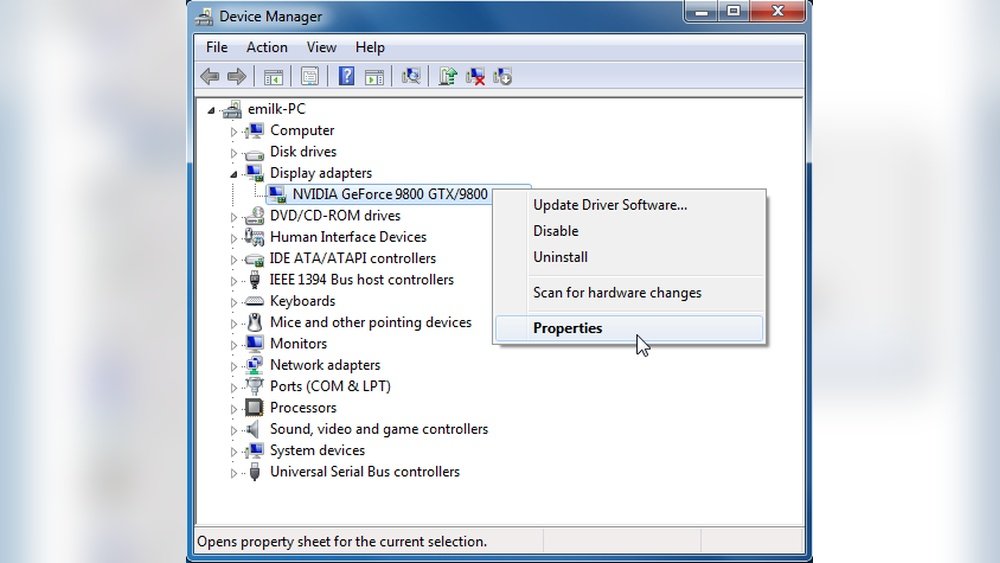
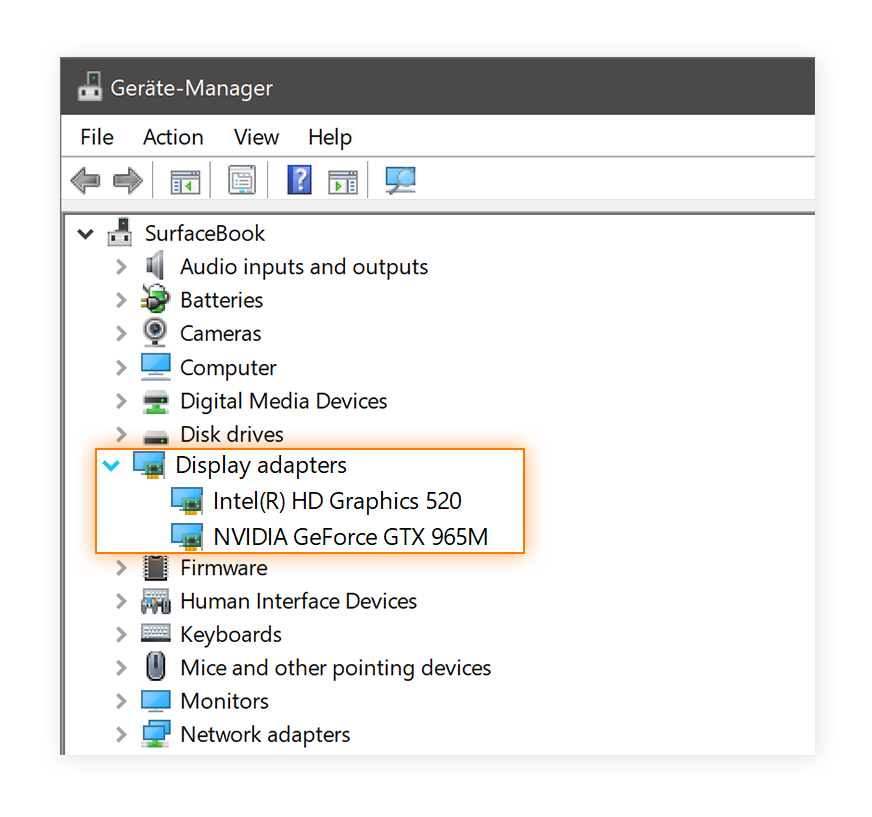
Open the Start menu and type “Device Manager”. Click on it to open. Expand the “Display adapters” section. Your GPU model will appear here. This shows the exact name and brand of your graphics card.
Find Gpu Model Using Directx Diagnostic Tool
Press Windows key + R to open the Run box. Type “dxdiag” and press Enter. Go to the “Display” tab. Look under “Device” for your GPU name and details.
Check Gpu On Macos
Click the Apple icon on the top-left corner. Select “About This Mac”. The overview window shows your GPU next to “Graphics”. This tells you the model and VRAM size.
Use Third-party Software
Programs like GPU-Z or Speccy provide detailed GPU info. Download and install one of these tools. Open it to see your GPU model, temperature, and other specs.
Download The Latest Drivers
Downloading the latest drivers is a key step to keep your GPU running smoothly. Drivers help your computer communicate with your graphics card. Updated drivers fix bugs and improve performance. They ensure your GPU supports new games and software.
Visit Official Manufacturer Website
Start by going to the official website of your GPU maker. Popular brands include NVIDIA, AMD, and Intel. Avoid third-party sites to stay safe from malware. Official sites offer the most reliable and updated drivers. Look for the “Drivers” or “Support” section on the website.
Choose Correct Driver Version
Select the driver that matches your GPU model. Check your GPU’s name and series before downloading. Also, pick the right operating system like Windows or Mac. Downloading the wrong version can cause errors or poor performance. Always choose the newest stable release for best results.
Uninstall Old Gpu Drivers
Uninstalling old GPU drivers is a key step before updating your graphics card. Old drivers can cause conflicts and reduce performance. Removing them helps the new drivers install cleanly. This section explains two easy ways to uninstall old GPU drivers safely.
Use Device Manager
Device Manager is a built-in Windows tool. Open it by typing “Device Manager” in the search bar. Find “Display adapters” and click the arrow to expand.
Right-click your GPU device and select “Uninstall device.” Check the box to delete driver software if available. Click “Uninstall” to confirm. Restart your computer to complete the process.
Employ Driver Removal Tools
Driver removal tools clean old drivers more thoroughly. They remove leftover files and registry entries. Download a trusted tool like Display Driver Uninstaller (DDU).
Run the tool in Windows Safe Mode for best results. Follow the instructions to remove all traces of your old GPU drivers. Restart your PC and prepare to install the latest drivers.
Credit: www.nvidia.com
Install New Gpu Drivers
Installing new GPU drivers is a key step in updating your graphics card. Drivers help your computer talk to the GPU. Updated drivers improve performance and fix bugs. They also add support for new games and software. This part of updating your GPU is simple and fast.
Run The Installer
After downloading the driver file, find it in your downloads folder. Double-click the file to start the installer. The installer opens a new window. This program will guide you through the setup. Make sure to close all other apps before starting.
Follow On-screen Instructions
Read each instruction carefully. Choose the installation type if asked. Most users should select “Express” or “Recommended.” This option installs all needed files automatically. Wait patiently while the installer copies files. Your screen may flicker or go black briefly. This is normal. After installation, restart your computer to finish the process.
Verify The Update
After updating your GPU, it is important to verify the update. This step ensures the new drivers are installed correctly. It also helps confirm your GPU performs as expected. Verifying the update prevents future issues and improves stability.
Check Driver Version
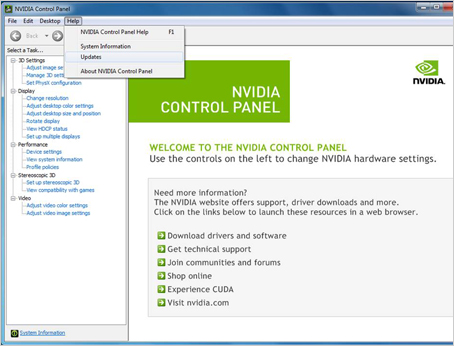
Start by checking the driver version installed on your system. Open your GPU control panel or device manager. Locate the driver details section. Compare the version number with the latest available on the manufacturer’s website. This quick check confirms the update applied properly.
Test With Benchmark Tools
Next, run benchmark tools to test your GPU’s performance. These tools measure speed and graphics quality. Use popular software like 3DMark or Unigine Heaven. Compare the results with previous tests or online scores. Benchmarking shows if the update improved your GPU’s power or fixed issues.
:max_bytes(150000):strip_icc()/001-how-to-update-your-graphics-driver-in-windows-4aba09bd4c374392b9d1ad2cc0e8a96e.jpg)
Credit: www.truba-poli.ru
Optimize Gpu Settings
Optimizing your GPU settings can improve your computer’s speed and graphics. Simple changes help your GPU run smoother and last longer. Adjusting settings gives you better control over performance and power use.
Adjust Control Panel Options
Open your GPU control panel on your computer. Find options for 3D settings or graphics. Set the power management mode to maximum performance. Turn off vertical sync for faster frames. Lower the texture filtering quality to boost speed. These small changes improve how your GPU works in games and apps.
Enable Performance Features
Look for features like GPU Boost or overclocking. Turn them on to increase your GPU’s clock speed. Use software tools from your GPU maker to do this safely. Enable hardware acceleration in apps that support it. This helps your GPU handle tasks faster. Keep an eye on temperatures to avoid overheating.
Troubleshoot Common Issues
Updating your GPU can sometimes cause problems. These issues might stop your computer from working well or slow down your graphics. Knowing how to fix common problems saves time and stress. Below are simple steps to solve typical GPU update troubles.
Fix Installation Errors
Errors during GPU update often happen. They stop the new driver from installing right. First, check your internet connection. A weak connection can cause file download problems. Next, close all other programs before starting the update. Running apps may block the installation process.
Use the official GPU website to get the correct driver. Wrong drivers cause errors and system crashes. If you see an error message, write it down. Search for it online to find specific fixes. Running the update as an administrator often helps. Right-click the installer and choose “Run as administrator.”
Resolve Performance Problems
After updating, your GPU might run slow or freeze. Check if the new driver matches your GPU model. Wrong drivers reduce performance. Update your computer’s operating system too. Sometimes system files need updating for the GPU to work well.
Clear your GPU cache. Old files can cause lag or crashes. Restart your computer after the update. This refreshes system settings and clears temporary files. If problems continue, try reinstalling the driver. Use a tool to fully remove the old driver before installing again.
Credit: www.rtk-holding.ru
Frequently Asked Questions
How Do I Check My Current Gpu Driver Version?
You can check your GPU driver version via Device Manager on Windows. Expand Display adapters, right-click your GPU, select Properties, and go to the Driver tab. The driver version is listed there, helping you know if an update is needed.
Where Can I Download The Latest Gpu Drivers?
Visit the official website of your GPU manufacturer, like NVIDIA, AMD, or Intel. Download drivers directly from these sources to ensure safety and compatibility. Avoid third-party sites to prevent potential malware or outdated software.
How Often Should I Update My Gpu Drivers?
Update your GPU drivers every few months or when you face performance issues. Regular updates improve compatibility, fix bugs, and enhance gaming or software performance. Keeping drivers current ensures your GPU runs smoothly.
Can Updating Gpu Drivers Improve Gaming Performance?
Yes, updating GPU drivers can boost gaming performance by optimizing hardware use. New drivers often include enhancements for latest games and fix bugs. This results in smoother gameplay and better graphics quality.
Conclusion
Updating your GPU keeps your computer running smoothly. It helps improve performance and fix bugs. Always check for the latest driver on the official website. Follow simple steps to install updates safely. Regular updates protect your system from issues. Stay patient and read instructions carefully.
Your games and apps will work better with fresh drivers. Keep your GPU updated to enjoy a better computing experience. Simple actions make a big difference over time.