How to Keep Cpu Temp Down: Ultimate Tips for Cooler Performance
Is your computer running hotter than it should? High CPU temperatures can slow down your system, cause crashes, and even damage your hardware over time.
But don’t worry—keeping your CPU cool isn’t as hard as you might think. You’ll discover simple, effective ways to lower your CPU temperature and keep your computer running smoothly. By the end, you’ll know exactly what steps to take to protect your device and boost its performance.
Ready to cool things down? Let’s dive in.
Credit: appuals.com
Causes Of High Cpu Temperature
High CPU temperatures can harm your computer’s performance and lifespan. Knowing what causes these high temperatures helps you keep your CPU cool. Several factors can raise the heat inside your system.
Workload And Overclocking
A heavy workload pushes the CPU to work harder and hotter. Running many programs at once or using demanding software raises CPU temperature. Overclocking increases the CPU speed beyond its default. This makes the CPU hotter and may cause overheating if not managed properly.
Poor Airflow
Airflow moves hot air away from the CPU and brings cool air in. A case with poor airflow traps heat inside. Blocked vents or wrong fan setup reduce airflow. Without fresh air, heat builds up and raises CPU temperature quickly.
Thermal Paste Issues
Thermal paste helps transfer heat from the CPU to the cooler. Old or dried-out paste loses its effectiveness. Incorrect application of thermal paste also causes poor heat transfer. This results in higher CPU temperatures during operation.
Dust And Debris Accumulation
Dust blocks fans and heatsinks, limiting their cooling ability. Debris buildup inside the case traps heat and lowers airflow. Cleaning dust regularly helps keep the CPU cool. Ignoring dust leads to rising temperatures and potential hardware damage.

Credit: www.youtube.com
Effective Cooling Solutions
Keeping your CPU cool is key to a smooth computer experience. Effective cooling stops your CPU from getting too hot. This helps your computer run faster and last longer. Different cooling solutions fit different needs and budgets. Understanding these options helps you pick the best one for your setup.
Air Cooling Options
Air cooling is the most common way to lower CPU temperature. It uses fans to blow air over a heat sink. The heat sink pulls heat away from the CPU. This method is simple and cost-effective. Many air coolers come with multiple fans for better airflow. Good air cooling keeps your CPU stable during daily use.
Liquid Cooling Systems
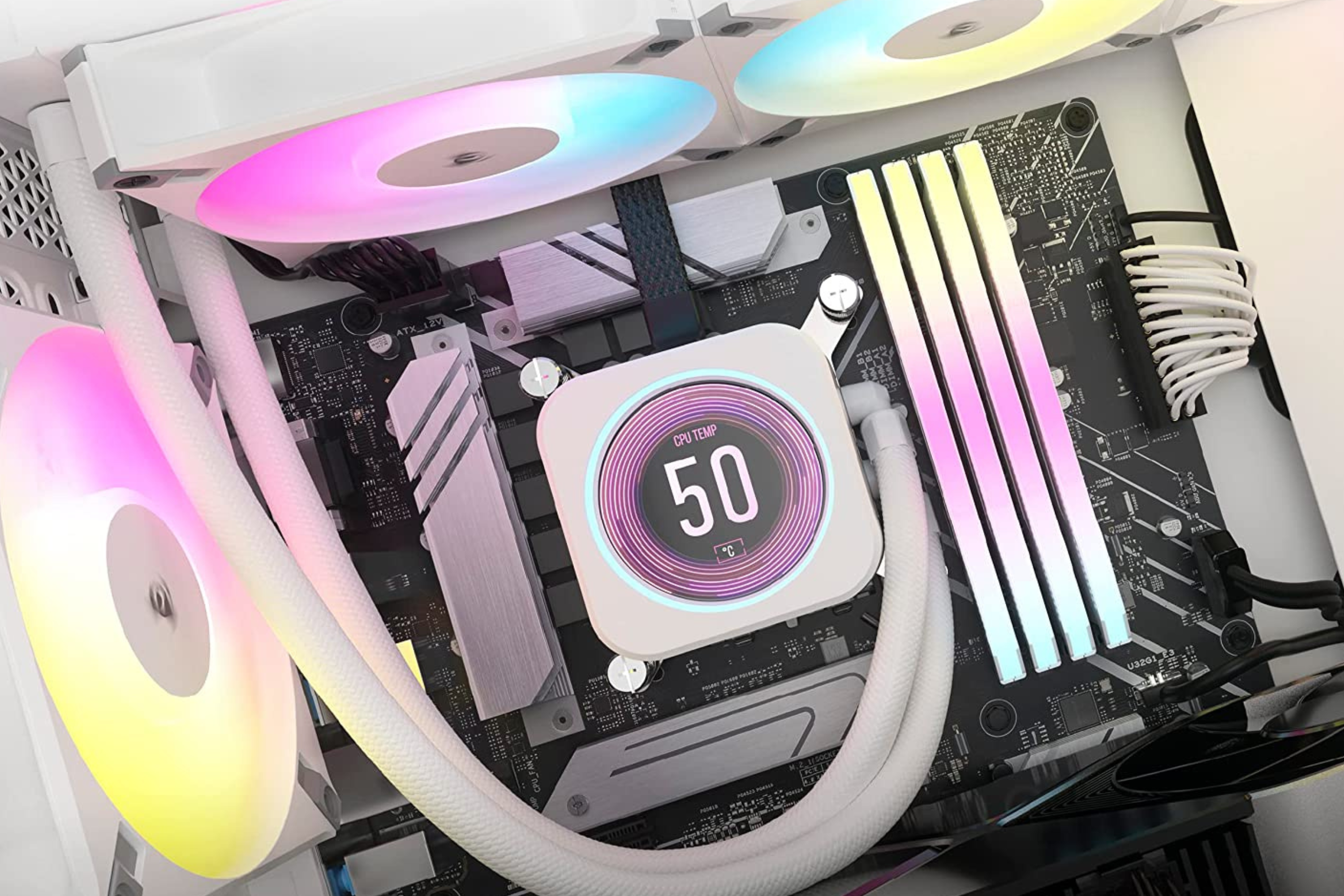
Liquid cooling uses water or coolant to move heat away from the CPU. It is more efficient than air cooling. Liquid coolers have tubes, a pump, and a radiator. The pump moves the liquid over the CPU block. The radiator cools the liquid before it cycles back. This system works well for powerful CPUs and heavy tasks.
Hybrid Cooling Techniques
Hybrid cooling combines air and liquid cooling benefits. It uses liquid to cool the CPU and fans to cool other parts. This approach balances performance and noise levels. Hybrid systems can handle high heat loads. They offer a good option for users needing strong cooling without loud fans.
Optimizing Airflow Inside The Case
Optimizing airflow inside the computer case is key to lowering CPU temperature. Good airflow moves hot air out and brings cool air in. This helps the CPU stay at a safe, lower temperature. Proper airflow also protects other parts from heat damage. Small changes inside the case can make a big difference.
Focus on how air moves through the case. Fans push air in and out. Cables can block air and cause heat spots. The case itself affects airflow, with different designs allowing better air movement. Let’s explore how to improve airflow effectively.
Fan Placement Strategies
Place intake fans at the front or bottom of the case. They pull cool air inside. Exhaust fans should be at the top or back. They push hot air out. Balance the number of intake and exhaust fans. This creates steady airflow. Avoid placing fans where cables block air. Keep fans clean to work well.
Cable Management Tips
Organize cables to keep airflow paths clear. Use cable ties or Velcro straps to bundle cables. Route cables behind the motherboard tray if possible. Avoid cables hanging in front of fans or vents. Good cable management reduces air resistance. It also makes the case look neat and helps cool parts better.
Choosing The Right Case
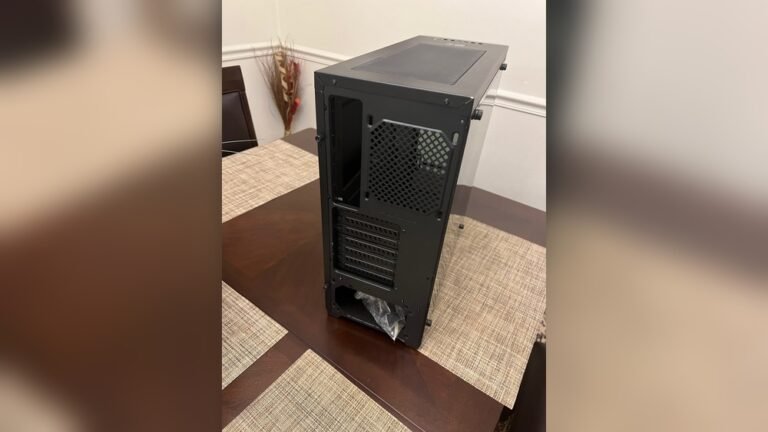
Pick a case with good ventilation and fan support. Look for cases with mesh panels or vents. Cases with more fan slots offer better airflow options. Bigger cases often cool better by giving air more space to move. Check if the case has dust filters to keep air clean. A well-designed case helps maintain low CPU temperatures.
Thermal Paste Application Tips
Thermal paste is key to keeping your CPU cool. It fills tiny gaps between the CPU and cooler. This helps heat move away from the processor. Applying thermal paste correctly can lower your CPU temperature a lot. Here are some tips to get the best results.
Selecting Quality Thermal Paste
Choose thermal paste with good heat conductivity. Look for brands with positive reviews and proven results. Avoid very cheap or unknown brands. They may dry out fast or not spread well. A good paste lasts longer and cools better.
Proper Application Methods
Clean the old paste from the CPU and cooler first. Use isopropyl alcohol and a soft cloth. Apply a small pea-sized amount in the center of the CPU. Let the cooler press it evenly when installed. Avoid spreading it by hand. Too much paste can trap heat.
When To Reapply Thermal Paste
Reapply paste every 1 to 2 years for best cooling. Also, reapply if you remove or replace your cooler. Signs of old paste include higher CPU temps and noise. Fresh paste restores good contact and heat transfer. Keep your CPU running cooler and longer this way.
Software Tools For Monitoring And Control
Software tools play a vital role in managing CPU temperature. They help track heat levels and control cooling mechanisms. Using the right software can prevent overheating and extend your CPU’s life.
These tools let you watch temperature changes in real time. They also allow you to adjust fan speeds and power settings. This keeps your CPU cool and running smoothly.
Temperature Monitoring Apps
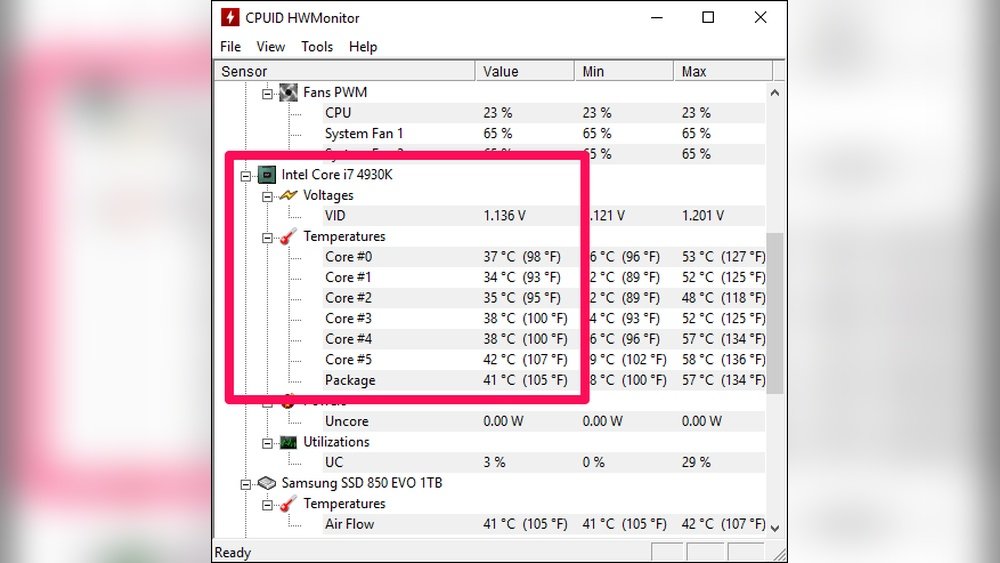
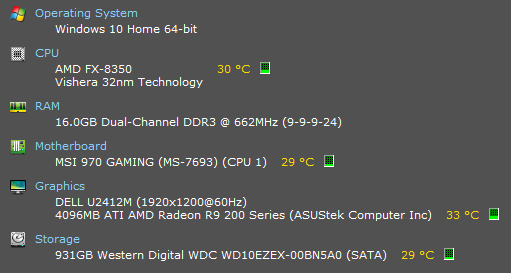
Temperature monitoring apps show your CPU’s current heat status. They provide clear readings and alerts for high temperatures. Popular apps include HWMonitor, Core Temp, and SpeedFan. These tools are easy to use and give precise data. Monitoring helps catch heat issues early and avoid damage.
Fan Speed Control Utilities
Fan speed control utilities let you change how fast your fans spin. Faster fans cool the CPU better but can be noisy. Slower fans are quieter but less effective. Software like SpeedFan or MSI Afterburner help balance cooling and noise. Adjusting fan speed can lower CPU temperature quickly.
Adjusting Cpu Power Settings
Reducing CPU power lowers heat production. You can change power settings in your operating system. Windows users find options under Power & Sleep settings or Advanced Power Options. Setting a lower maximum processor state reduces CPU load and heat. This simple step keeps temperatures down without big performance loss.
Routine Maintenance Practices
Keeping your CPU temperature low is crucial for your computer’s health. Routine maintenance helps prevent overheating and keeps your system running smoothly. Simple, regular tasks can make a big difference in CPU cooling.
These maintenance habits save you from costly repairs and improve performance. Let’s explore three key routine practices to manage CPU temperature effectively.
Regular Cleaning Schedule
Dust buildup blocks airflow and traps heat inside your computer. Clean your PC case and fans at least once a month. Use compressed air to blow out dust from vents, fans, and heat sinks. Avoid using a vacuum, which can damage components. Keeping the interior clean helps cool air flow freely.
Checking Fan Functionality
Fans remove hot air from the CPU area. Make sure all fans spin smoothly and quietly. Listen for unusual noises or irregular speeds. Replace any fan that is slow or noisy. Good airflow depends on properly working fans, so check them often.
Updating Firmware And Drivers
Firmware and driver updates improve hardware efficiency. They can enhance fan control and temperature monitoring. Visit your motherboard or CPU manufacturer’s website to download the latest updates. Installing updates regularly keeps your cooling system optimized.
Credit: www.xda-developers.com
Frequently Asked Questions
How Can I Reduce My Cpu Temperature Effectively?
To reduce CPU temperature, improve airflow in your case, clean dust regularly, and apply quality thermal paste. Use efficient cooling systems like aftermarket fans or liquid coolers for best results.
What Is The Ideal Cpu Temperature Range?
Ideal CPU temperature ranges between 30°C to 50°C during idle and 60°C to 80°C under load. Temperatures above 85°C may cause thermal throttling or damage over time.
Does Overclocking Affect Cpu Temperature?
Yes, overclocking increases CPU voltage and frequency, raising its temperature. Proper cooling solutions and monitoring are essential to keep temperatures safe when overclocking.
How Often Should I Clean My Cpu Cooler?
Clean your CPU cooler every 3 to 6 months to prevent dust buildup. Dust restricts airflow and causes higher CPU temperatures, reducing cooling efficiency.
Conclusion
Keeping your CPU temperature low helps your computer run better and last longer. Clean fans and good airflow make a big difference. Use quality cooling tools and avoid blocking vents. Check temperatures often to catch problems early. Small steps can stop overheating and reduce slowdowns.
Stay mindful of your CPU’s heat to protect your device. Simple care keeps your computer safe and working well.