How to Change a Cpu in a Laptop: Easy Steps for Beginners
Looking to boost your laptop’s performance without buying a new one? Changing your laptop’s CPU might be the answer.
It sounds tricky, but with the right guidance, you can do it yourself and save money. You’ll discover simple, clear steps to replace your CPU safely and effectively. Stick with me, and by the end, you’ll have the confidence to upgrade your laptop like a pro.
Ready to unlock your laptop’s full potential? Let’s dive in!
Preparing For The Cpu Replacement
Preparing for a CPU replacement in a laptop takes careful planning. This step ensures the process goes smoothly and safely. It helps avoid damage to your laptop and loss of data. Follow these key preparations before starting the replacement.
Gathering Necessary Tools
Collect all tools needed for the CPU swap. Common tools include a small screwdriver set, thermal paste, and an anti-static wrist strap. A plastic pry tool can help open the laptop case without damage. Having the right tools ready saves time and frustration.
Checking Laptop Compatibility
Verify that the new CPU works with your laptop model. Check the motherboard socket type and CPU power limits. Consult your laptop manual or manufacturer website for compatibility details. Using an incompatible CPU can cause hardware failure or poor performance.
Backing Up Important Data
Save all important files before starting the replacement. Use an external hard drive or cloud storage for backup. This step protects your data in case something goes wrong during the process. Always double-check your backup before proceeding.

Credit: www.reddit.com
Removing The Old Cpu
Removing the old CPU is a careful process that needs focus and patience. Each step helps protect your laptop from damage. Follow the instructions closely to ensure a smooth removal. This guide breaks down the process into simple, clear parts.
Powering Down And Disconnecting
Turn off your laptop completely. Do not just put it to sleep. Unplug the power cord from the laptop. Remove the battery if it is removable. This stops any power flow to the device. It prevents short circuits and electric shocks.
Opening The Laptop Case
Place the laptop upside down on a soft surface. Locate all screws on the back cover. Use a small screwdriver to remove them carefully. Keep the screws safe for later. Gently lift the cover off. Avoid using force to prevent damage.
Locating The Cpu
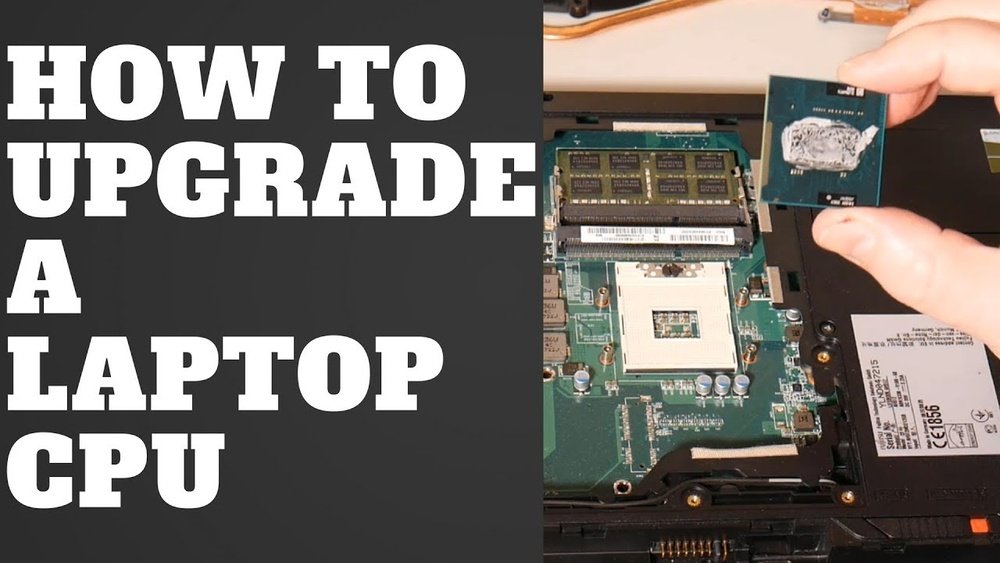
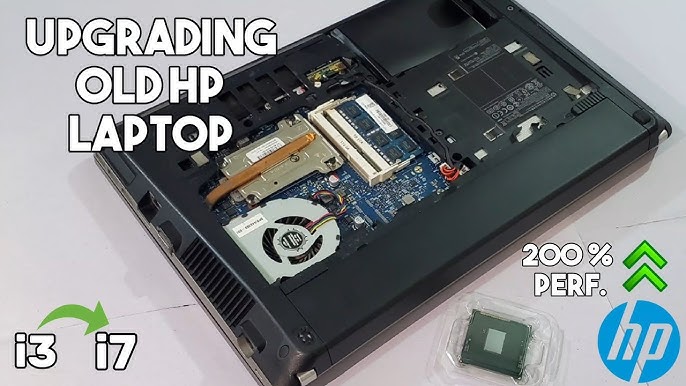
Look for a square or rectangular chip under a metal plate. The CPU is usually under a heat sink or fan. It sits on the motherboard. It may have a sticker or label with the model number. Identify it clearly before moving forward.
Detaching The Cooling System
Remove screws holding the heat sink or fan in place. Carefully lift the cooling system from the CPU. It may stick due to thermal paste. Wiggle it gently to loosen. Do not pull hard to avoid breaking parts. Store the cooling system safely for reinstallation.
Unlocking And Removing The Cpu
Locate the small lever or screw that locks the CPU. Move the lever or unscrew it to unlock the CPU socket. Lift the CPU straight up with care. Avoid touching the pins or contacts. Place the old CPU on an anti-static surface.
Installing The New Cpu
Installing the new CPU in your laptop requires care and precision. This step is crucial for your laptop’s performance. Follow each part carefully to avoid damage. Proper installation ensures the CPU works well and stays cool.
Aligning The New Cpu
Start by gently placing the CPU into the socket. Look for the small triangle on one corner of the CPU. Match it with the triangle on the socket. Do not force the CPU. It should fit easily and sit flat.
Securing The Cpu In Place
Once aligned, lower the locking arm or lever. This arm holds the CPU firmly. Press it down until it clicks or feels secure. This step keeps the CPU from moving during use.
Applying Thermal Paste
Thermal paste helps transfer heat from the CPU to the cooler. Apply a small pea-sized amount in the center of the CPU. Spread it evenly if needed, but one small spot usually works. Too much paste can cause overheating.
Reattaching The Cooling System
Carefully place the cooling system back onto the CPU. Align it with the screws or clips. Tighten the screws evenly to avoid pressure points. Connect any fan cables you removed earlier. This step keeps your CPU cool and safe.
Credit: www.youtube.com
Reassembling And Testing
After installing the new CPU, reassembling and testing the laptop is important. This step ensures everything works well and no parts are loose or missing. Careful reassembly protects your laptop from damage and helps it run smoothly.
Closing The Laptop Case
Begin by placing the back cover carefully on the laptop. Align all edges and screw holes. Use the correct screws to avoid damage. Tighten screws evenly to keep the case secure. Avoid overtightening, which can crack the cover.
Powering On The Laptop
Press the power button to turn on the laptop. Listen for startup sounds and watch for the screen to light up. If the laptop does not start, check the battery and power connections. A successful power-on means the CPU installation might be correct.
Verifying Cpu Installation
Open the system information tool in your operating system. Check the CPU model and speed. Confirm the new CPU is recognized correctly. Run a simple program or tool to test performance. Watch for any unusual noises or overheating.
Troubleshooting Common Issues
If the laptop does not start, double-check the CPU seating. Ensure thermal paste is applied properly and the heatsink is secure. Reset the RAM and reconnect cables if needed. Clear the CMOS by removing the battery briefly. These steps often fix startup problems.
Tips For Maintaining Your Laptop Cpu
Maintaining your laptop CPU is key to keeping your computer fast and reliable. Simple care habits can prevent overheating and slowdowns. This section shows easy tips to protect your CPU and extend its life.
Regular Cleaning
Dust and dirt block airflow inside your laptop. This causes the CPU to heat up. Use a soft brush or compressed air to clean vents and fans. Clean your laptop every few months to keep it cool.
Monitoring Cpu Temperature
High temperatures damage your CPU. Use free software to check CPU temperature often. If it gets too hot, close heavy programs and improve ventilation. Staying aware helps avoid costly repairs.
Updating Bios And Drivers
BIOS and driver updates improve CPU performance and stability. Check your laptop maker’s website for updates. Install them carefully to keep your CPU running smoothly. Updates fix bugs and support new features.

Credit: softwareg.com.au
Frequently Asked Questions
How Do I Know If My Laptop Cpu Is Replaceable?
Most laptops have CPUs soldered to the motherboard. Check your laptop’s manual or manufacturer website to confirm if the CPU is replaceable before attempting replacement.
What Tools Are Needed To Change A Laptop Cpu?
You need a screwdriver set, thermal paste, anti-static wrist strap, and cleaning materials. These tools ensure safe and proper CPU replacement.
How To Safely Remove The Old Cpu From A Laptop?
Power off and unplug the laptop. Ground yourself, remove the cooling system, unlock the CPU socket, and gently lift the CPU out.
Can Changing A Laptop Cpu Improve Performance Significantly?
Yes, upgrading to a faster CPU can boost performance. However, compatibility and thermal limits must be considered for effective improvement.
Conclusion
Changing a laptop CPU can improve your computer’s speed and performance. Follow each step carefully to avoid mistakes. Take your time and stay organized during the process. Remember to check compatibility before buying a new CPU. A clean workspace helps prevent damage to parts.
After installation, test your laptop to ensure everything works well. Upgrading hardware can be simple with the right tools and knowledge. Keep this guide handy for reference during your CPU change. You can enjoy a faster laptop once the upgrade is complete.