

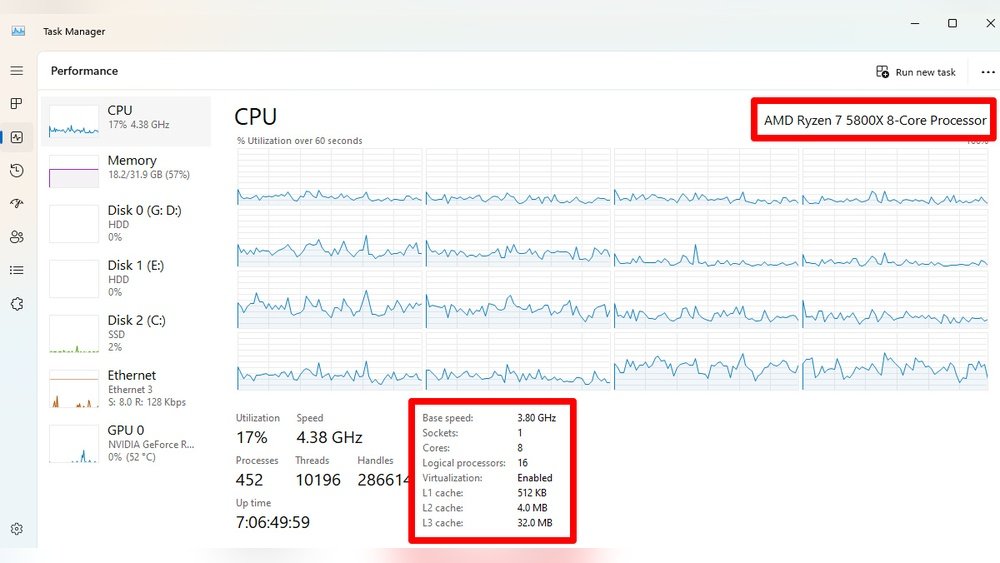
Are you curious about what CPU powers your computer? Knowing your CPU is key to understanding your device’s speed and performance.
Whether you want to upgrade, troubleshoot, or simply learn more about your system, finding out your CPU details is the first step. You’ll discover easy ways to identify your CPU quickly—no tech jargon or complicated steps. Keep reading, and you’ll be able to check your CPU like a pro in just minutes.
Credit: www.howtogeek.com
Check System Settings
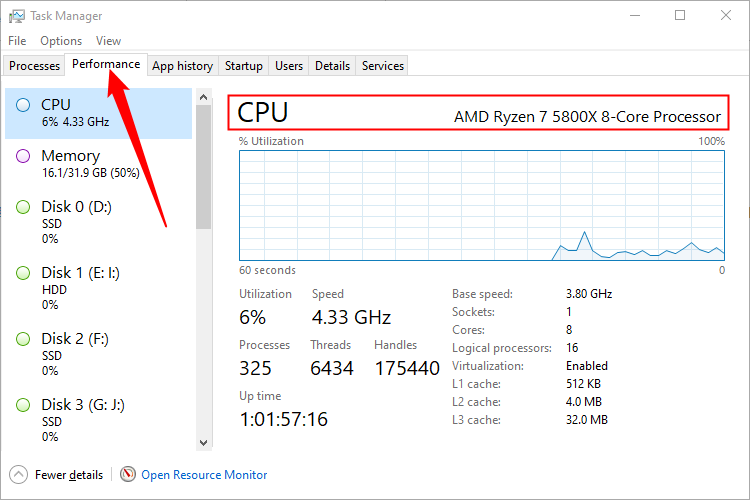
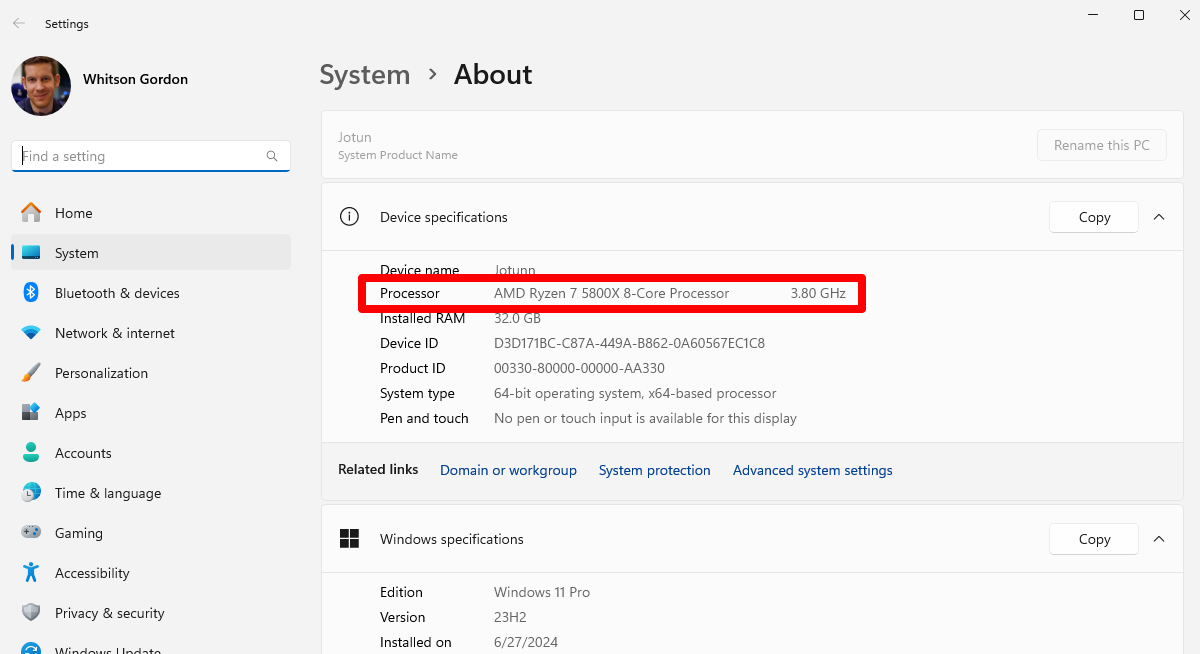
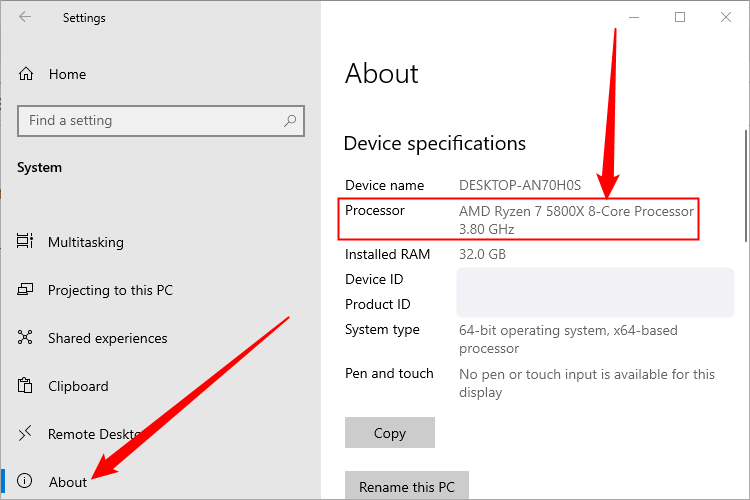
Checking your system settings is the easiest way to find out which CPU your computer has. Each operating system has built-in tools that show detailed information about your hardware. These tools are simple to use and give you clear information about your processor.
Below are three ways to check your CPU details based on your operating system.
Windows System Information
Press the Windows key and type System Information. Open the app from the list. In the window, find the section called Processor. Here, you will see the name and details of your CPU. This method works on Windows 10 and 11.
Mac About This Mac
Click the Apple logo in the top left corner of your screen. Select About This Mac from the dropdown menu. A window will appear showing your Mac’s overview. The CPU details are listed next to Processor. This method works on all recent Mac versions.
Linux Terminal Commands
Open the Terminal application on your Linux system. Type the command lscpu and press Enter. This command shows detailed CPU information. Alternatively, use cat /proc/cpuinfo for a more detailed view. These commands work on most Linux distributions.
Use Third-party Tools
Third-party tools provide a simple way to find detailed CPU information. These tools show data clearly and quickly. They work well for all skill levels. Using them helps avoid confusion with system settings.
Cpu-z For Windows
CPU-Z is a popular, free tool for Windows users. It shows CPU name, speed, cores, and cache size. The interface is clean and easy to read. Just download, install, and run the program. It updates info in real time, making it reliable.
Speccy Overview
Speccy gives a full overview of your PC’s hardware. It lists CPU, RAM, motherboard, and storage details. The tool highlights CPU temperature and usage. Speccy is user-friendly, with clear categories. It helps understand your computer’s specs fast.
Mac System Profilers
Mac users can use built-in System Profilers. Open “About This Mac” from the Apple menu. Click “System Report” to see CPU details like model and speed. It also shows hardware and software info. No extra download needed, and it’s very accurate.
Physical Inspection
Physical inspection helps you find your CPU without software. It shows the real processor on your computer. This method is simple and direct. You just need to open your computer case and check the chip.
This approach works well for desktops. Laptop CPUs are often hard to see or remove. For desktops, you can see the CPU model printed on the chip itself. This makes identifying the processor quick and clear.
Opening The Computer Case
First, turn off your computer. Unplug all cables for safety. Find the screws or clips holding the case cover. Remove them carefully.
Slide or lift the cover off. Inside, you will see parts like the motherboard and fans. The CPU sits under the large fan or heat sink. Be gentle to avoid damaging parts.
Identifying Cpu Model On The Chip
Look for a square chip under the fan or heat sink. It has small letters and numbers printed on top. These numbers tell the CPU model and brand.
Use a flashlight if the text is hard to see. Write down the model number. You can search this number online for full details. This step gives you the exact CPU information.
Credit: rog.asus.com
Bios And Uefi Screens
BIOS and UEFI screens show key details about your computer’s hardware. These screens appear right after you turn on your PC. They provide important system information, including the CPU model. Accessing these screens helps identify the processor without opening the case or using software.
Both BIOS and UEFI serve the same basic purpose but look different. BIOS is the older system, with simple text menus. UEFI is modern, with a graphical interface and mouse support. Both display the CPU name and speed clearly.
Accessing Bios Or Uefi Screens
Turn on your computer and press the setup key quickly. Common keys include Delete, F2, or Esc. The exact key depends on your PC brand. Hold the key until the BIOS or UEFI screen appears. If you miss the timing, restart and try again.
Locating Cpu Information In Bios/uefi
Look for a menu called “System Information” or “Main.” The CPU details usually show here. You will see the processor name, speed, and sometimes cache size. This section confirms your CPU model without extra tools.
Checking Cpu Details In Uefi’s Graphical Interface
UEFI often uses a mouse-friendly interface. Navigate tabs at the top or side to find CPU info. The “System” or “Information” tab is common. The CPU name and specs appear clearly for easy reading.
Check Manufacturer Documentation
Manufacturer documentation often lists your CPU model clearly. Check the manual or the product box for details. This is a quick way to identify your processor without technical tools.
One of the easiest ways to find your CPU details is through manufacturer documents. These papers often come with your computer or processor. They contain precise information about your CPU model and specs.
Look for the user manual or quick start guide. These usually list the CPU type clearly. If you keep your computer box, check the labels there too. They often show the CPU brand and model.
Manufacturer websites also help. Enter your device’s model number online. You will find detailed CPU information on the product page. This method works well for laptops and pre-built desktops.
Keep these documents safe. They are helpful for troubleshooting and upgrades. They provide trusted information straight from the source.
Credit: www.howtogeek.com
Frequently Asked Questions
How Do I Check My Cpu Model On Windows?
Open the Start menu, type “System Information,” and press Enter. Look for “Processor” in the system summary. It shows your CPU’s name and model clearly.
Can I Identify Cpu Details On A Mac?
Yes, click the Apple icon, select “About This Mac,” and view the “Processor” info. It lists your CPU model and speed.
What Tools Help Identify Cpu In Linux?
Use the command lscpu in the terminal. It provides detailed information about your CPU’s architecture and model.
Does The Bios Display Cpu Information?
Yes, accessing BIOS during startup shows CPU type and speed. Look for “Processor” or “CPU Information” in BIOS menus.
Conclusion
Knowing your CPU helps you understand your computer better. It shows what tasks your device can handle well. Checking your CPU is simple and quick. Use the steps shared here to find out easily. This knowledge helps when upgrading or troubleshooting your PC.
Stay curious and keep learning about your tech. It makes your computer experience smoother and smarter.
