How to Cool down Gpu: Ultimate Tips for Optimal Performance
Is your GPU running hotter than it should? When your graphics card gets too warm, it can slow down your games, cause crashes, or even damage your hardware over time.
You don’t have to accept overheating as a normal part of using your computer. You’ll discover simple and effective ways to cool down your GPU quickly and keep it running smoothly. Whether you’re a gamer, designer, or just want your PC to last longer, these tips will help you take control of your GPU’s temperature and boost its performance.
Keep reading to protect your investment and enjoy a cooler, faster system.
Causes Of Gpu Overheating
GPU overheating happens when the graphics card gets too hot to work well. This issue can slow down your computer or cause it to shut off unexpectedly. Knowing the causes helps you prevent damage and keep your GPU cool.
High Workload And Gaming
Running heavy games or software puts a big load on the GPU. The card works hard to show graphics quickly. This effort creates a lot of heat inside the GPU.
Poor Airflow In Pc Case
Good airflow moves hot air out and brings cool air in. A PC case with bad airflow traps heat inside. This makes the GPU temperature rise fast.
Dust And Dirt Accumulation
Dust blocks fans and vents on the GPU. It stops the cooling system from working right. Dirt buildup causes the GPU to get hotter than normal.
Overclocking Effects
Overclocking makes the GPU run faster than usual. This increases power use and heat output. Without better cooling, overclocking can cause overheating problems.
Signs Of Gpu Overheating
GPU overheating can cause many problems. It can harm your computer and lower your gaming or work experience. Knowing the signs of overheating helps you act fast. This way, you can keep your GPU safe and working well.
Frequent Crashes And Freezes
Your computer may crash or freeze often. This happens because the GPU gets too hot. It stops working correctly and can force the system to shut down. Games or apps might close without warning. These crashes are a clear sign of overheating.
Reduced Performance And Fps Drops
Overheating slows down your GPU’s speed. You will notice lower frame rates in games. The graphics might become choppy or laggy. This drop in performance shows the GPU is struggling to cool down. It lowers power to avoid damage, causing slowdowns.
Loud Fan Noise
The GPU fan makes more noise than usual. It spins faster to cool down the hot parts. This loud noise can be annoying but shows the GPU is working hard. If the noise stays long, your GPU might be too hot.
Visual Artifacts On Screen
Strange lines, dots, or colors appear on the screen. These are called artifacts and mean the GPU is overheating. The graphics card cannot process images correctly. Seeing these artifacts is a warning sign to check your GPU’s temperature.
Improving Airflow Inside Your Pc
Improving airflow inside your PC is key to keeping your GPU cool. Good airflow moves hot air out and brings cool air in. This helps your GPU work better and last longer. Small changes inside your PC can make a big difference in temperature.
Optimizing Fan Placement
Place fans to create a clear path for air. Front fans should pull cool air inside. Rear and top fans push hot air outside. This setup keeps air moving through your PC case. Avoid blocking fans with cables or parts.
Using High-quality Fans
Choose fans that move air quietly and efficiently. High-quality fans have better blades and motors. They create steady airflow with less noise. Look for fans with good airflow ratings and low noise levels.
Cable Management Tips
Keep cables tidy and out of airflow paths. Use zip ties or Velcro straps to bundle cables. This prevents cables from blocking air movement. Clean cable management helps air flow smoothly inside the case.
Choosing The Right Pc Case
Pick a case designed for good airflow. Cases with mesh panels or vents allow more air in. Bigger cases give more space for air to move. Check for enough fan mounts to improve cooling options.
Credit: www.reddit.com
Cleaning And Maintenance
Keeping your GPU clean is key to its performance and lifespan. Dust and dirt block airflow and raise temperatures. Regular cleaning and maintenance help your GPU run cooler and smoother. It prevents overheating and reduces noise from fans. Simple steps can make a big difference in cooling your GPU effectively.
Removing Dust From Fans And Heatsinks
Fans and heatsinks collect dust over time. Use a soft brush to loosen dust gently. Avoid pushing dust further inside the GPU. Clean fan blades carefully to keep them balanced. Dust on heatsinks blocks heat from escaping. Clear dust from all fins for better airflow.
Regular Cleaning Schedule
Set a cleaning routine every 1 to 3 months. More often if your environment is dusty. Regular cleaning stops dust buildup early. This keeps your GPU cooler and quieter. Check temperature levels to know if cleaning is needed. Consistency in cleaning extends your GPU’s life.
Using Compressed Air Safely
Compressed air removes dust without touching parts. Hold the can upright to avoid moisture spray. Use short bursts to prevent fan damage. Stop fans from spinning by holding them steady. Blow air from different angles to reach all areas. Avoid using a vacuum as it can cause static.
Upgrading Cooling Solutions
Upgrading cooling solutions can help lower your GPU temperature effectively. Stock coolers often struggle with high heat during heavy use. Better cooling parts improve performance and extend your GPU’s life. You can choose from several upgrade options to fit your needs and budget.
Aftermarket Gpu Coolers
Aftermarket GPU coolers replace the original fan and heatsink. They offer stronger fans and larger heatsinks for better airflow. These coolers reduce noise and keep temperatures lower. Installation is usually simple and fits many GPU models. A quiet and cool GPU improves your overall computer experience.
Liquid Cooling Systems
Liquid cooling uses water or coolant to remove heat. It is more efficient than air cooling for high-performance GPUs. These systems include a pump, radiator, and water block. They lower GPU temperatures significantly and reduce fan noise. Liquid cooling requires more space and careful setup but offers great results.
Thermal Paste Replacement
Thermal paste helps transfer heat from the GPU chip to the cooler. Over time, the paste can dry out and lose effectiveness. Replacing old thermal paste with a fresh layer improves heat transfer. This simple step can lower GPU temperatures by several degrees. It is a cost-effective way to boost cooling performance.

Credit: www.youtube.com
Software Adjustments For Cooling
Software adjustments help reduce GPU heat without extra hardware. These changes make your GPU run cooler and last longer. You can control fan speed, lower voltage, and watch temperatures. These steps keep your system safe and stable during heavy use.
Fan Speed Control Tools
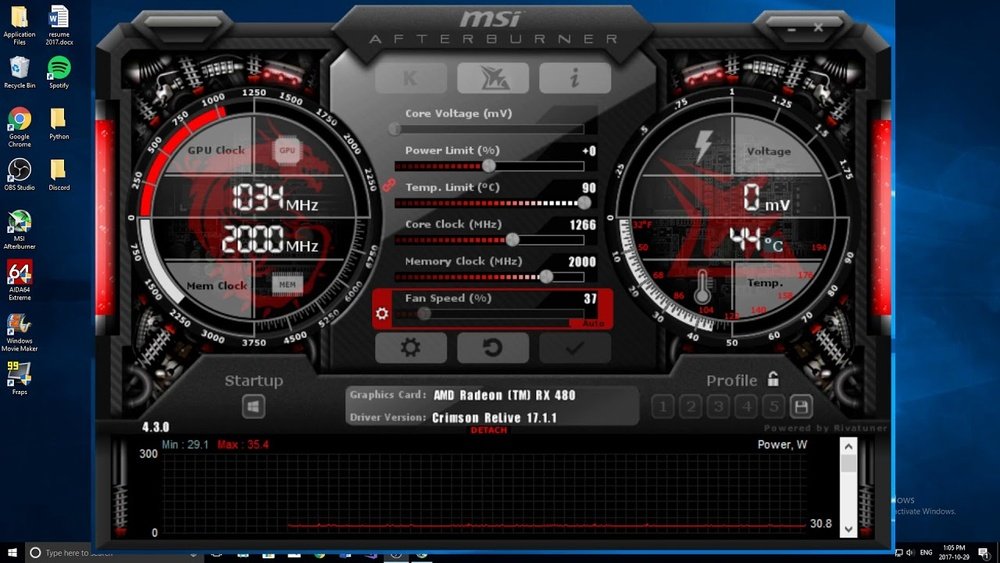
Many programs let you adjust your GPU fan speed. Increasing fan speed cools the GPU faster. You can set custom fan curves based on temperature. This helps prevent overheating during intense tasks. Popular tools include MSI Afterburner and SpeedFan. They are easy to use and free.
Undervolting The Gpu
Undervolting means lowering the power your GPU uses. It reduces heat without hurting performance much. This saves energy and cuts down the temperature. Use software like MSI Afterburner or Intel XTU to undervolt. Test stability after changes to avoid crashes.
Monitoring Temperatures
Tracking your GPU temperature is important for cooling. Use tools like HWMonitor or GPU-Z to check temps in real time. Watch for temperatures above 85°C as they can cause damage. Monitoring helps you adjust settings before problems start. Stay aware to keep your GPU safe.
Environmental Factors
Environmental factors play a key role in keeping your GPU cool. The air around your computer affects how well it can get rid of heat. Simple changes in your room and PC setup can lower the temperature of your GPU. Understanding these factors helps you protect your computer from overheating.
Room Temperature Impact
Cool air helps your GPU run better. A hot room makes your GPU work harder to stay cool. Keep your room temperature low, ideally below 75°F (24°C). Use air conditioning or a fan to improve air flow. Cooler air means better cooling for your GPU.
Proper Pc Placement
Place your PC in an open space to improve air flow. Avoid tight corners or closed cabinets where air can get trapped. Elevate your computer slightly to allow air to move underneath. Good placement helps fans work more efficiently. It keeps the GPU temperature down.
Avoiding Direct Sunlight
Sunlight heats up your PC quickly. Avoid placing your computer near windows or under strong light. Direct sunlight raises the temperature inside the case. This makes the GPU hotter and can cause damage over time. Keep your PC in a shaded area for best results.

Credit: www.reddit.com
Frequently Asked Questions
How Can I Reduce Gpu Temperature Quickly?
To reduce GPU temperature quickly, improve airflow and clean dust from fans. Lower graphics settings and close unnecessary apps. Consider adding extra case fans or using a cooling pad for laptops.
What Is The Ideal Gpu Temperature Range?
The ideal GPU temperature ranges between 65°C and 85°C during heavy use. Staying below 85°C prevents overheating and ensures optimal performance.
Does Undervolting Help Cool Down A Gpu?
Yes, undervolting reduces power consumption and heat generation. It lowers the GPU temperature without sacrificing performance if done correctly.
Can Thermal Paste Improve Gpu Cooling?
Applying fresh thermal paste improves heat transfer between the GPU chip and cooler. It can significantly lower temperatures if the old paste is dry or degraded.
Conclusion
Keeping your GPU cool helps it run better and last longer. Clean dust from fans and vents often. Use good airflow inside your computer case. Lower settings in games can reduce heat. Adding extra fans or better cooling can help too.
Watch your GPU temperature while using it. Cool hardware means fewer crashes and better performance. Simple steps make a big difference for your GPU. Stay cool, stay safe.