

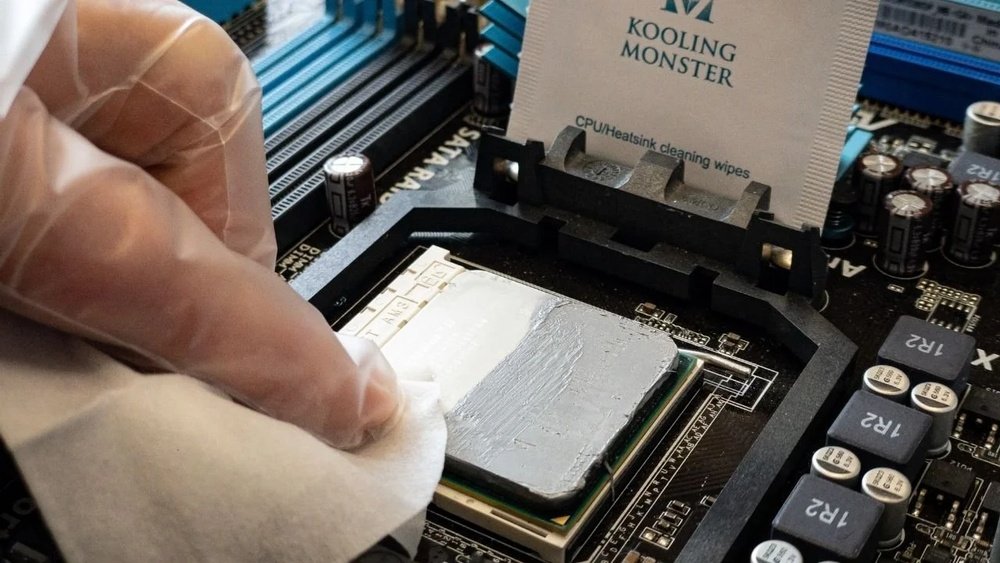
If you’ve ever opened up your computer or upgraded your CPU, you know that thermal paste plays a crucial role in keeping your processor cool. But what happens when you need to remove old thermal paste?
Cleaning it off your CPU might seem tricky, messy, or even risky. Don’t worry—this guide will show you exactly how to do it safely and effectively. By the end, you’ll feel confident handling your CPU like a pro, ensuring your system stays cool and runs smoothly.
Ready to get started? Let’s dive in!

Credit: www.youtube.com
Tools Needed
Cleaning thermal paste off a CPU needs the right tools. Using proper supplies makes the job easier and safer. Avoid damage to your CPU by preparing well. Gather all materials before starting the cleaning process.
Choosing The Right Cleaner
Pick a cleaner that removes paste without harming the CPU. Isopropyl alcohol with 90% or higher purity works best. It dries fast and leaves no residue. Avoid water or household cleaners that can cause damage. Cotton swabs or soft cloths help apply the cleaner gently.
Essential Cleaning Supplies
Have these items ready: lint-free cloths, cotton swabs, and isopropyl alcohol. Use a plastic or wooden tool to scrape off thick paste. Avoid metal tools that can scratch the CPU surface. A small container to hold the cleaner helps with easy access. Gloves protect your hands and keep oils away from the CPU.
Preparing Your Workspace
Preparing your workspace is the first step in cleaning thermal paste off your CPU. A clean, organized area helps you work safely and efficiently. It also protects your computer parts from damage. Taking time to prepare reduces mistakes and speeds up the process.
Ensuring Static Safety
Static electricity can harm your CPU and other parts. Ground yourself before touching any components. Use an anti-static wrist strap or touch a metal surface. Avoid working on carpet or in dry rooms. Static safety keeps your hardware safe during cleaning.
Organizing Your Materials
Gather all tools and supplies before you start. You will need isopropyl alcohol, lint-free cloths, and cotton swabs. Have a clean container for old thermal paste. Keep everything within reach to avoid distractions. Organized materials make the cleaning process smooth and quick.
Removing The Cpu Cooler
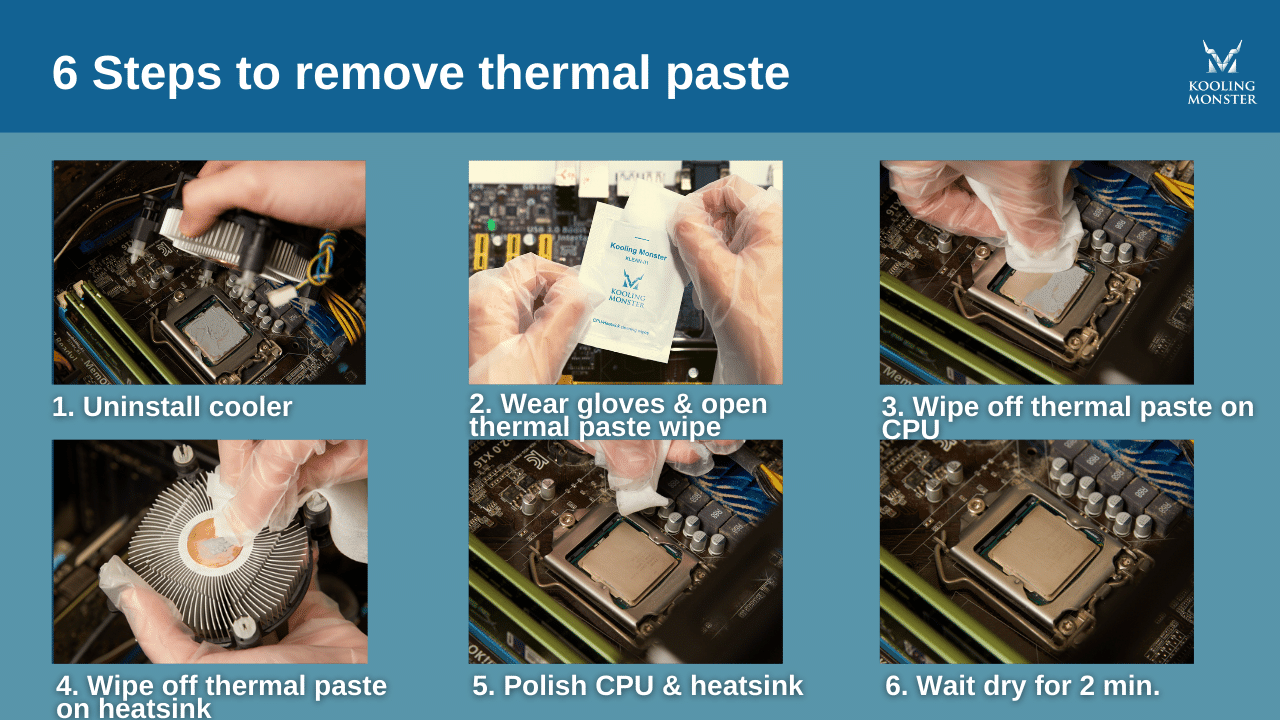
Removing the CPU cooler is the first step to clean old thermal paste. It helps you access the CPU surface easily. Taking off the cooler needs care to avoid damage. Follow simple steps to loosen and remove it safely.
Loosening The Cooler
Start by unplugging the cooler’s power cable from the motherboard. Then, find the screws or clips holding the cooler in place. Turn screws slowly and evenly. Avoid forcing them to prevent damage. For clips, gently press or pull as needed. The cooler may feel stuck. This is normal due to dried thermal paste. Twist the cooler slightly to break the seal. Do not pull straight up quickly.
Handling The Cpu Carefully
Once the cooler is loose, lift it gently. Avoid touching the CPU pins or contacts. Hold the CPU by its edges only. Place the cooler on a clean surface. Keep the CPU safe to avoid static or dust. Use an anti-static wrist strap if you have one. Keep your workspace clean and dry. Proper handling protects your CPU from damage.
Cleaning The Thermal Paste
Cleaning the thermal paste from your CPU is a simple but important step. Old thermal paste can block heat transfer and cause the CPU to overheat. Proper cleaning ensures the best performance and helps your computer run cooler.
Applying Isopropyl Alcohol
Use isopropyl alcohol with at least 70% purity. Higher purity works better and dries faster. Dampen a soft cloth or cotton swab with the alcohol. Avoid soaking the CPU to prevent damage. Gently apply the alcohol to the paste area to loosen it.
Wiping Techniques
Use a soft, lint-free cloth or coffee filter. Wipe in small, circular motions. Avoid pressing hard on the CPU surface. Change the cloth area often to avoid spreading paste. Repeat until most paste is removed. Be patient and gentle to protect the CPU.
Dealing With Stubborn Residue
For tough spots, apply a little more isopropyl alcohol. Let it sit for a minute to soften the paste. Use a plastic or wooden tool to scrape gently if needed. Avoid metal tools that may scratch the CPU. Keep cleaning until the surface is clean and dry.
Inspecting The Cpu Surface
After removing thermal paste from your CPU, inspecting the surface is very important. A clean and smooth surface helps keep your CPU cool and safe. Careful inspection prevents problems like overheating and poor contact with the heat sink.
Checking For Residual Paste
Look closely at the CPU surface for any leftover paste. Small bits of thermal paste can remain after cleaning. Use a bright light or magnifier to spot these traces. Even thin layers can affect heat transfer. Remove any residue gently with isopropyl alcohol and a soft cloth. Avoid scratching the CPU surface.
Ensuring A Smooth Surface
The CPU surface must be flat and smooth. Any bumps or scratches reduce cooling efficiency. Run your finger lightly over the surface to feel for rough spots. Do not press hard to avoid damage. If the surface is uneven, consider consulting a professional for help. A smooth CPU surface ensures good contact with the heat sink and better cooling.
Credit: koolingmonster.com
Reapplying Thermal Paste
Reapplying thermal paste is a key step after cleaning your CPU. It helps keep your processor cool and running well. Proper reapplication ensures good heat transfer between the CPU and the cooler. Too much or too little paste can cause problems. Let’s explore how to apply it correctly.
Choosing The Right Amount
Use a small pea-sized amount of thermal paste. This is enough to cover the CPU surface. Too much paste can spill over and reduce cooling. Too little paste leaves gaps that trap heat. The goal is a thin, even layer. This helps the heat move efficiently from the CPU to the cooler.
Proper Application Methods
Place the paste in the center of the CPU. When you attach the cooler, it spreads the paste evenly. Avoid spreading the paste with your fingers or tools. Pressing the cooler gently and evenly helps spread the paste well. Tighten the cooler screws in a cross pattern. This ensures even pressure across the CPU surface.
Reinstalling The Cpu Cooler
Reinstalling the CPU cooler is an important step after cleaning off the old thermal paste. This ensures your CPU stays cool and works well. Proper installation helps avoid overheating and keeps your computer safe.
Securing The Cooler Firmly
Place the cooler gently on the CPU surface. Make sure it fits in the right position. Tighten the screws or clips slowly and evenly. Avoid over-tightening to prevent damage. A firm fit helps good heat transfer between CPU and cooler.
Testing For Proper Contact
Turn on your computer and check the temperature. Use software tools to monitor CPU heat levels. The temperature should stay within normal range during use. If the CPU is too hot, the cooler may not be seated properly. Adjust the cooler and test again for best results.

Credit: www.wikihow.com
Maintenance Tips
Keeping the thermal paste clean on your CPU helps it run cooler and last longer. Proper maintenance stops overheating and keeps your computer stable. Small habits make a big difference in CPU health. Here are some useful tips to help you maintain your thermal paste.
When To Clean Thermal Paste Again
Clean the thermal paste every 1 to 2 years. If your PC heats up quickly, check sooner. Changing the paste helps keep the CPU cool. Dust and heat break down the paste over time. Regular cleaning avoids damage and improves performance.
Signs Of Poor Thermal Paste Application
Watch for high CPU temperatures that stay high. Strange crashes or slowdowns may also show poor paste use. If the paste spreads unevenly or too thick, it causes trouble. You might see dried or cracked paste when opened. Fixing this keeps your CPU safe and efficient.
Frequently Asked Questions
How Do I Safely Remove Thermal Paste From A Cpu?
Use isopropyl alcohol (90% or higher) and a lint-free cloth. Gently wipe the CPU surface without applying pressure. Avoid using water or abrasive materials. Let it dry completely before reapplying new thermal paste.
What Materials Work Best For Cleaning Thermal Paste?
Isopropyl alcohol and microfiber cloths or coffee filters work best. They dissolve paste effectively and prevent scratches. Avoid paper towels or tissues as they leave fibers. Use cotton swabs for hard-to-reach areas carefully.
Can I Reuse Old Thermal Paste After Cleaning?
No, reusing old thermal paste reduces cooling efficiency. Always remove old paste completely before applying fresh thermal compound. This ensures optimal heat transfer and CPU performance.
How Often Should I Clean Thermal Paste Off My Cpu?
Clean thermal paste when replacing or upgrading your CPU or cooler. Typically, this is every few years or if temperatures rise abnormally. Regular checks help maintain proper cooling and prevent damage.
Conclusion
Cleaning thermal paste off a CPU is simple with the right steps. Use a soft cloth and gentle cleaner. Avoid harsh chemicals or rough materials. Take your time to remove all residue carefully. A clean CPU helps keep your computer cool and running well.
Regular maintenance prevents overheating and improves performance. Now, you can confidently clean your CPU without worry. Just follow these easy tips for best results. Keep your computer healthy and working smoothly.
