How to Test If Cpu is Bad: Easy Steps to Diagnose Fast
Is your computer acting strange, freezing, or crashing without warning? You might be wondering if your CPU is to blame.
Knowing how to test if your CPU is bad can save you time, money, and frustration. You’ll discover simple, clear steps to check your processor’s health. By the end, you’ll have the confidence to spot CPU problems early and decide what to do next.
Keep reading—you deserve a computer that works smoothly and reliably.
Signs Of A Failing Cpu
A CPU is the brain of your computer. It handles all the instructions and tasks. When a CPU starts to fail, your computer shows clear signs. Recognizing these signs early helps avoid data loss and costly repairs.
Here are some common signs that point to a failing CPU. Watch out for these issues to know if your CPU needs testing or replacement.
Frequent System Crashes
Your computer suddenly shuts down or restarts without warning. This can happen during normal use or while running programs. Frequent crashes often indicate CPU problems. The CPU may overheat or fail to process tasks correctly.
Unexpected Freezing
The system stops responding for several seconds or minutes. The mouse and keyboard become unresponsive. Freezing can happen randomly or during heavy use. A failing CPU may cause this issue by not handling instructions properly.
Overheating Issues
High CPU temperatures can cause damage over time. You might notice your computer fan running loudly or constantly. Overheating leads to slowdowns and crashes. Dust buildup or poor cooling can worsen this problem.
Slow Performance
Programs take longer to open and run. Multitasking becomes difficult and frustrating. A bad CPU struggles to keep up with tasks. It may cause delays even in simple operations like browsing or typing.
Credit: www.shoshitamam.com
Preparing For Cpu Testing
Preparing for CPU testing is an important step before running any diagnostics. It helps ensure accurate results and protects your computer. Proper preparation reduces errors and avoids damage during the test.
Follow simple steps to get your system ready. These steps include gathering the right tools, checking BIOS settings, and ensuring proper cooling. Each part plays a key role in a smooth testing process.
Gathering Necessary Tools
Collect all tools before starting. You will need a screwdriver, thermal paste, and monitoring software. A bootable USB drive with testing programs is helpful too. Having everything ready saves time and hassle.
Checking Bios Settings
Enter the BIOS menu at startup. Look for CPU settings like speed and voltage. Make sure they match your CPU’s specifications. Disable any overclocking to get stable test results. Save changes before exiting BIOS.
Ensuring Proper Cooling
Check that your CPU cooler is firmly attached. Clean any dust from fans and vents. Apply fresh thermal paste if needed. Good cooling prevents overheating, which can cause false errors during tests.
Basic Hardware Checks
Basic hardware checks help find simple problems with your CPU. These checks do not need special tools. They help you avoid costly repairs or part replacements. Start with visual and physical checks. Then move to connections and power supply. This method saves time and effort.
Inspecting Physical Damage
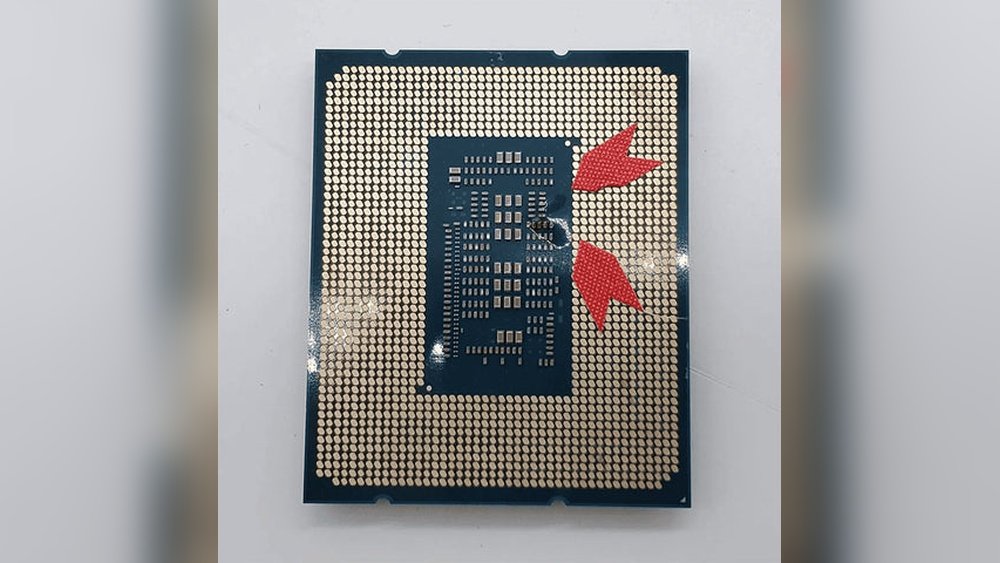
Look closely at the CPU for cracks or scratches. Check the pins for bending or missing parts. Dust and dirt can cause issues too. Clean the CPU gently with a soft brush. Do not use water or liquids. Physical damage can stop the CPU from working properly.
Reseating The Cpu
Turn off the computer and unplug it. Remove the CPU carefully from its socket. Check the socket for any dirt or damage. Place the CPU back firmly and evenly. Make sure it fits perfectly in the socket. Reseating can fix connection problems between the CPU and motherboard.
Verifying Power Supply
Check if the power supply provides stable power to the CPU. Use a multimeter or power supply tester. Look for loose cables or damaged connectors. A weak or unstable power supply can cause CPU failure. Ensure the PSU matches the power needs of your system.

Credit: www.shoshitamam.com
Using Software For Diagnosis
Using software to check your CPU health helps find problems fast. These tools run tests and watch your CPU’s behavior. They show if your processor works well or has issues. This method saves time and avoids opening your computer case.
Running Stress Tests
Stress tests push your CPU to its limits. They check how your processor handles heavy work. Programs like Prime95 or AIDA64 can run these tests. Watch for crashes or errors during the test. If your CPU fails, it may be faulty.
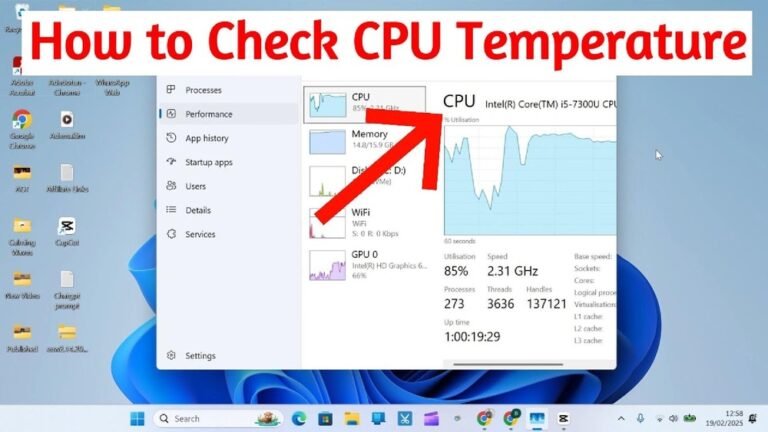
Monitoring Temperatures
High temperatures can damage your CPU. Use software like HWMonitor or Core Temp to check heat levels. Keep an eye on temperature spikes or overheating. If your CPU runs too hot, it might be bad or need better cooling.
Checking System Logs
System logs store error messages related to hardware. Use Windows Event Viewer or similar tools to read logs. Look for warnings or errors mentioning your CPU. These clues help identify CPU problems early.
Advanced Testing Methods
Advanced testing methods help identify CPU problems beyond basic checks. These methods dig deeper into CPU health and performance. They provide detailed insights for accurate diagnosis.
Using advanced tools and techniques ensures a thorough CPU evaluation. It helps avoid unnecessary hardware replacements. These methods suit users with some technical knowledge.
Using Cpu Diagnostic Tools
CPU diagnostic tools scan the processor for errors and faults. They run specific tests to check CPU cores and cache. Popular tools include Intel Processor Diagnostic Tool and AMD Ryzen Master.
These programs report detailed CPU status and error codes. They detect overheating, faulty cores, and stability issues. Running diagnostics takes a few minutes and gives quick feedback.
Testing With Alternative Hardware
Testing the CPU on another compatible motherboard confirms if the CPU is faulty. This method removes other hardware as the cause. It helps identify motherboard or power supply problems.
Swapping RAM or using another power supply also checks for related faults. This process requires extra components but narrows down the CPU issue. It is useful for users with spare parts or tech support.
Benchmarking Cpu Performance
Benchmarking measures CPU speed and efficiency against expected values. Tools like Cinebench, Geekbench, and PassMark provide performance scores. Low scores indicate potential CPU problems.
Benchmark results reveal if the CPU runs slower than its specs. Comparing scores with similar CPUs helps find anomalies. Regular benchmarking tracks CPU health over time.
When To Replace The Cpu
Knowing when to replace your CPU is important for your computer’s health. A bad CPU can cause slowdowns, crashes, or failure to boot. Replacing it at the right time saves money and improves performance.
Some CPU problems cannot be fixed. This section helps you decide if replacement is necessary.
Identifying Irreparable Damage
Physical damage to the CPU often means it cannot be repaired. Bent pins or burn marks are signs. Overheating may cause permanent harm to the chip. If your CPU fails stress tests repeatedly, it may be broken beyond repair.
Considering Cost Vs. Performance
Older CPUs may not support new software or games well. Repairing or fixing them might cost more than a new one. Think about how much better your computer will run with a new CPU. Sometimes, a new CPU is a smarter investment than repairs.
Seeking Professional Help
Experts can test your CPU with special tools. They identify hidden problems you might miss. Getting advice from a technician helps make the right choice. Professionals can also guide you on compatible CPUs for your system.
Credit: apexgamingpcs.com
Frequently Asked Questions
How Can I Check If My Cpu Is Failing?
You can test your CPU using stress tests and diagnostic tools. Look for overheating, crashes, or blue screens. Monitor CPU performance and temperatures to identify issues. Consistent errors during heavy tasks may indicate a bad CPU.
What Are Common Symptoms Of A Bad Cpu?
Common symptoms include frequent crashes, slow performance, overheating, and failure to boot. You might also experience random shutdowns or error messages. These signs often point to CPU hardware problems or overheating issues.
Can Software Diagnose A Faulty Cpu Accurately?
Software tools can identify CPU errors and overheating but can’t guarantee hardware failure. They help detect performance drops and thermal issues. For accurate diagnosis, combine software tests with physical inspection and professional advice.
Does Overheating Mean My Cpu Is Bad?
Not necessarily. Overheating usually indicates cooling problems, such as dust or faulty fans. However, persistent overheating can damage your CPU over time. Regular cleaning and proper cooling are essential to maintain CPU health.
Conclusion
Testing a CPU helps find problems fast. Use simple steps to check its health. Watch for crashes, errors, or slow speed. Run stress tests and monitor temperatures closely. Swap parts if you have spares to compare. Fix issues early to save time and money.
Knowing how to test keeps your PC running well. Stay patient and follow each step carefully. This way, you avoid bigger troubles later on.