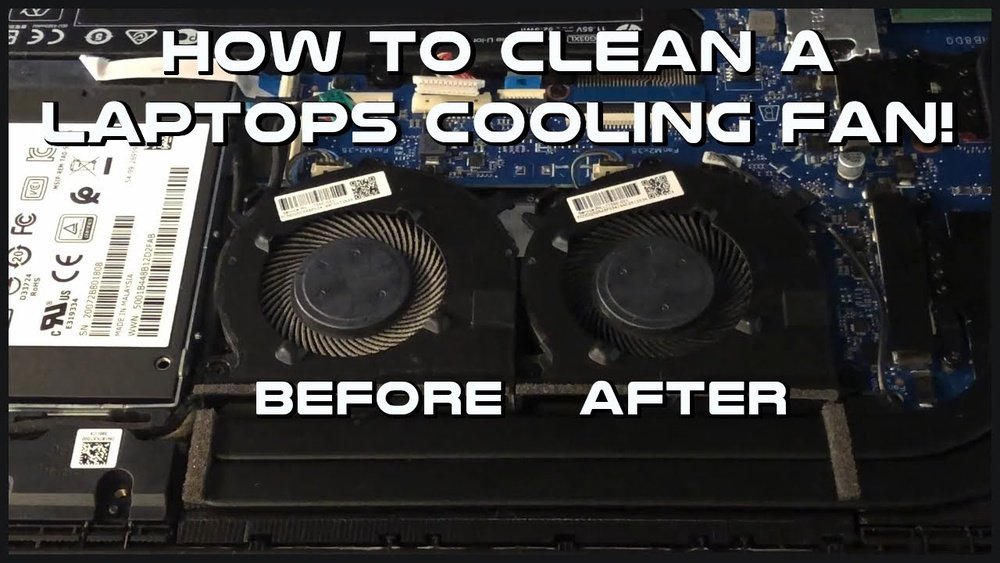
How to Clean Laptop Cpu Fan: Easy Steps to Boost Performance
Is your laptop making loud noises or overheating? The culprit might be your CPU fan clogged with dust and dirt.
Cleaning your laptop CPU fan is easier than you think, and doing it can make your device run cooler and faster. In this guide, you’ll learn simple steps to safely clean your fan and improve your laptop’s performance. Keep reading to discover how a little maintenance can save you from costly repairs and boost your laptop’s lifespan.
Credit: www.reddit.com
Signs Of A Dirty Cpu Fan
A dirty CPU fan can cause several problems for your laptop. It may not work well if dust and dirt block it. Recognizing the signs of a dirty CPU fan helps you keep your laptop safe. Check for these signs regularly to avoid bigger issues.
Overheating Issues
A clogged CPU fan stops cooling your laptop properly. Heat builds up inside the device. You may notice the laptop feels hot on your lap. Overheating can cause sudden shutdowns or restarts. It can also shorten your laptop’s lifespan.
Loud Fan Noise
The fan makes more noise if dust slows it down. It may spin faster to cool the laptop. The noise can be constant or get louder over time. Loud fan sounds often mean the fan needs cleaning.
Reduced Performance
A dirty fan can make your laptop work slower. The CPU may lower its speed to avoid heat. Programs may freeze or run sluggishly. This drop in speed affects all your daily tasks.
Tools Needed For Cleaning
Cleaning your laptop CPU fan needs the right tools. These tools help you work safely and effectively. Using proper tools prevents damage and makes cleaning easier. Prepare all items before starting the process. This section lists the essential tools you will need.
Screwdrivers
Screwdrivers are necessary to open your laptop case. Most laptops use small screws, often Phillips-head type. A precision screwdriver set works best. Use the right size to avoid stripping screws. Keep screws safe once removed to avoid loss.
Compressed Air
Compressed air removes dust from the fan and vents. It blows dust without touching delicate parts. Use short bursts to avoid damage. Hold the can upright to prevent liquid from spraying. This tool reaches tight spaces easily.
Soft Brushes
Soft brushes clean dust that compressed air misses. Choose brushes with fine, gentle bristles. Avoid hard brushes that can scratch parts. Use the brush to loosen stubborn dust on fan blades. Clean vents and other small areas carefully.
Thermal Paste (optional)
Thermal paste improves heat transfer between CPU and cooler. Replace paste if you remove the CPU cooler. Use a small amount for best results. Applying thermal paste is optional but recommended for better cooling. Choose quality paste designed for laptops.
Preparing Your Laptop
Preparing your laptop is a key step before cleaning its CPU fan. This ensures safety and prevents damage. Taking a few simple actions helps protect your laptop and yourself. Follow these steps carefully to get ready for cleaning.
Power Off And Unplug
Turn off your laptop completely. Do not leave it in sleep or hibernate mode. Unplug the power cable from the laptop and the wall socket. This stops any electricity from flowing and lowers the risk of electric shock.
Remove Battery
Take out the laptop battery if possible. Most laptops have a removable battery on the bottom side. Press the release latch and slide the battery out gently. Removing the battery cuts all power supply to the device.
Ground Yourself
Static electricity can harm laptop parts. Touch a metal object or use an anti-static wristband to ground yourself. This prevents static buildup and protects delicate components inside your laptop. It is a simple but important safety step.
Accessing The Cpu Fan
Accessing the CPU fan is the first step to clean it properly. This process requires care and attention. You need to open your laptop carefully to reach the fan. Follow these steps to find and access the CPU fan safely.
Locate The Fan Panel
Turn your laptop upside down on a flat surface. Look for a panel with ventilation holes or fan symbols. This panel usually covers the CPU fan. Check your laptop manual if you cannot find it.
Unscrew The Cover
Use a small screwdriver to remove the screws on the panel. Keep the screws in a safe place. Gently lift the cover off. Do not force it open to avoid damage.
Handle Components Carefully
The inside of a laptop is delicate. Touch only the edges of parts to avoid harm. Avoid using too much force on any piece. Ground yourself to prevent static electricity damage.
Cleaning The Cpu Fan
Cleaning the CPU fan is important for your laptop’s health. Dust and dirt can block airflow. This causes the laptop to heat up and slow down. A clean fan helps your laptop run cooler and longer.
Here are simple steps to clean the CPU fan safely and effectively.
Remove Dust With Compressed Air
Use a can of compressed air to blow away dust. Hold the fan blades still to stop them from spinning. Spray short bursts of air into the fan vents. This removes loose dust without opening the laptop.
Brush Away Stubborn Dirt
For dirt that stays stuck, use a soft brush. A small paintbrush or toothbrush works well. Gently brush the fan blades and surrounding areas. Do not press too hard to avoid damage.
Avoid Damaging Fan Blades
Fan blades are delicate and easy to break. Avoid touching them with sharp or hard tools. Keep the blades steady while cleaning. Do not use water or liquids near the fan.
Additional Maintenance Tips
Keeping your laptop’s CPU fan clean is just one part of maintenance. Other steps help keep your laptop cool and running well. These extra tips can extend your laptop’s life and stop overheating issues.
Reapplying Thermal Paste
Thermal paste helps transfer heat from the CPU to the fan. Over time, it can dry out and lose effectiveness. Remove the old paste carefully with a soft cloth and alcohol. Apply a small, pea-sized amount of new thermal paste on the CPU. This improves heat transfer and keeps the fan working less hard.
Checking Fan Functionality
Make sure the fan spins smoothly without noise. Listen for unusual sounds like grinding or rattling. Test the fan speed using software tools if available. A malfunctioning fan needs repair or replacement. A working fan is key to good cooling performance.
Regular Cleaning Schedule
Dust builds up inside your laptop quickly. Clean the fan and vents every three to six months. Use compressed air or a soft brush to remove dust. Regular cleaning prevents overheating and keeps airflow steady. Set a reminder to keep your laptop cool and fast.
Reassembling Your Laptop
After cleaning the laptop CPU fan, reassembling the laptop is the next step. This process is important to make sure everything works well. Take your time and follow each step carefully. Proper reassembly helps keep your laptop safe and running smoothly.
Secure The Fan Cover
Place the fan cover back in its original position. Align the screw holes carefully. Use a small screwdriver to tighten the screws. Make sure the cover fits snugly and does not move. This step protects the fan and prevents dust from entering again.
Reinsert Battery
Slide the battery back into its slot. Push it gently until it clicks into place. Check if it is secure and does not wiggle. The battery powers your laptop and must be reinstalled correctly for safety and function.
Test The Laptop
Turn on the laptop to check if it works properly. Listen for unusual noises from the fan. Watch the screen for normal startup. If the laptop runs quietly and smoothly, you did it right. Testing confirms your cleaning and reassembly were successful.

Credit: www.wikihow.com

Credit: www.instructables.com
Frequently Asked Questions
How Often Should I Clean My Laptop Cpu Fan?
Cleaning your laptop CPU fan every 3 to 6 months is ideal. This frequency prevents dust buildup, ensuring optimal cooling and performance. Regular cleaning helps avoid overheating and extends your laptop’s lifespan effectively.
What Tools Do I Need To Clean A Cpu Fan?
You need a small screwdriver, compressed air can, soft brush, and microfiber cloth. These tools safely remove dust without damaging delicate fan components. Using proper tools ensures thorough and safe cleaning of your laptop’s CPU fan.
Can I Clean The Laptop Cpu Fan Without Opening It?
Yes, you can use compressed air to blow dust out through vents. However, opening the laptop allows for deeper cleaning. For heavy dust, opening the laptop is recommended to maintain effective cooling.
Is It Safe To Clean The Cpu Fan Myself?
Yes, cleaning the CPU fan yourself is safe if done carefully. Use anti-static precautions and avoid touching internal circuits. Follow proper steps to prevent damage and keep your laptop running cool.
Conclusion
Cleaning your laptop CPU fan keeps your device cool and running well. Dust and dirt can block airflow and cause overheating. Regular cleaning prevents damage and improves performance. Use gentle tools and take care during the process. Keep your laptop in a clean, dust-free place to reduce buildup.
Small steps make a big difference in laptop health. Stay consistent, and your fan will work quietly and efficiently. A clean fan means a longer-lasting laptop. Easy to do, worth the effort.