How to Check Gpu And Cpu Temp: Easy Steps for Accurate Monitoring
Are you worried that your computer might be running too hot? Knowing how to check your GPU and CPU temperature is key to keeping your system safe and running smoothly.
Overheating can slow down your device or even cause damage. But don’t worry—this guide will show you simple and effective ways to monitor your hardware’s temperature. By the end, you’ll have the confidence to protect your computer and boost its performance.
Keep reading to learn exactly how to check your GPU and CPU temp with easy steps you can follow right now.

Credit: openhardwaremonitor.org
Why Monitor Cpu And Gpu Temps
Monitoring CPU and GPU temperatures is important for every computer user. These components generate heat during use. Too much heat can cause problems. Watching their temperatures helps keep your system safe and running well.
Impact On Performance
High temperatures can slow down your CPU and GPU. When they get too hot, they reduce speed to cool off. This is called throttling. It causes lag and poor performance. Keeping temperatures low helps your computer run fast and smooth.
Preventing Overheating Damage
Overheating can harm your hardware parts. It may cause crashes or sudden shutdowns. Extreme heat can damage the CPU or GPU permanently. Checking temperatures helps you spot overheating early. This prevents costly repairs or replacements.
Extending Hardware Lifespan
Running your CPU and GPU at safe temperatures increases their life. Heat wears out electronic parts faster. Cooler parts last longer and stay reliable. Monitoring temps helps you maintain your computer better. It saves money by avoiding early hardware failure.
Tools For Temperature Monitoring
Monitoring your GPU and CPU temperatures helps keep your computer safe. High temperatures can cause damage or slow down your system. Many tools exist to check these temperatures easily. They range from simple built-in software to advanced hardware devices. Choose the right tool based on your needs and skills.
Built-in Software Options
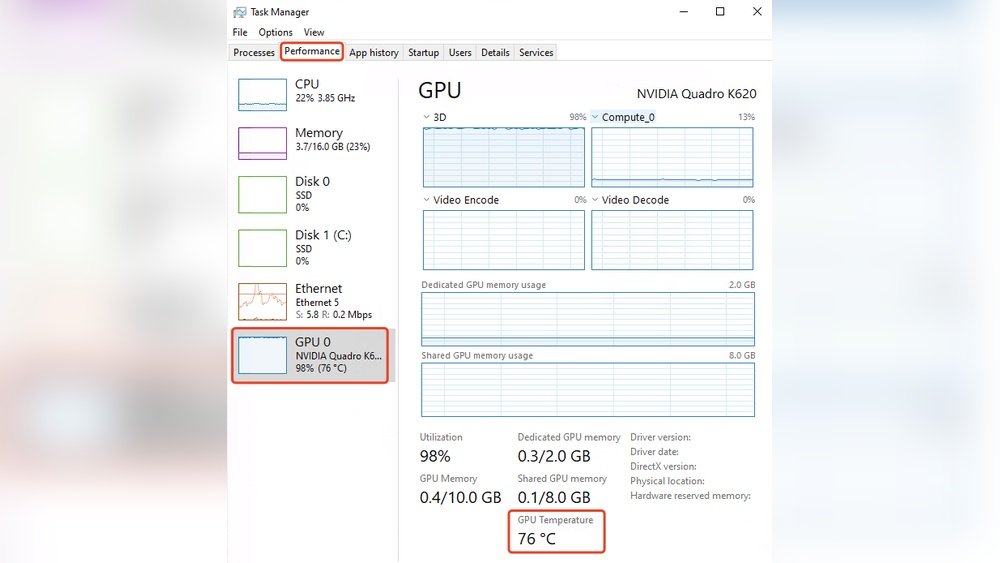
Most computers have built-in tools to check temperatures. For Windows, Task Manager and BIOS provide basic temperature info. Macs use Activity Monitor for system monitoring. These tools offer simple data without extra downloads. They are good for quick checks but lack detailed reports.
Third-party Applications
Third-party apps offer more features and detailed temperature tracking. Popular programs like HWMonitor and Core Temp show real-time data. They display temperature trends and alert you if temps get too high. These apps are easy to install and use. Many are free or have free versions.
Hardware Monitoring Devices
External hardware devices monitor temperatures directly from your PC parts. They connect via USB or internal headers. These devices show accurate readings and sometimes control fans. They help users who want precise, continuous monitoring. Hardware monitors suit gamers and PC builders.
Checking Cpu Temperature
Checking the CPU temperature helps keep your computer safe. It shows if the processor is too hot. High temperatures can cause slowdowns or damage. Regular checks help find cooling problems early. This guide explains how to check CPU temperature easily.
Using Bios Or Uefi
BIOS or UEFI shows CPU temperature before the system loads. Restart the computer and press a key like Del or F2. This opens BIOS/UEFI settings. Look for a section called Hardware Monitor or PC Health. There you find the current CPU temperature. This method needs no extra software.
Popular Software Choices
Software tools show CPU temperature directly in Windows. Programs like HWMonitor, Core Temp, and Speccy are common. Download and install one of these free apps. Open the app to see the temperature of each CPU core. These tools also show other vital stats.
Interpreting Temperature Readings
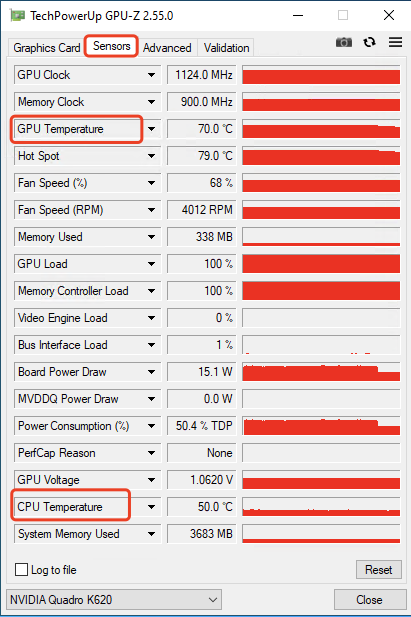
CPU temperature varies by model and use. Normal idle temperature is around 30-40°C (86-104°F). Heavy tasks can raise it to 70-85°C (158-185°F). Temperatures above 90°C (194°F) may cause damage. Keep the CPU cool to avoid crashes or slowdowns.
Credit: www.readwritesolutions.com
Checking Gpu Temperature
Checking your GPU temperature helps protect your computer from damage. High temperatures can slow down performance or cause crashes. Monitoring the GPU temperature keeps your system running smoothly. Several tools make it easy to check the temperature in real time.
Manufacturer Software Tools
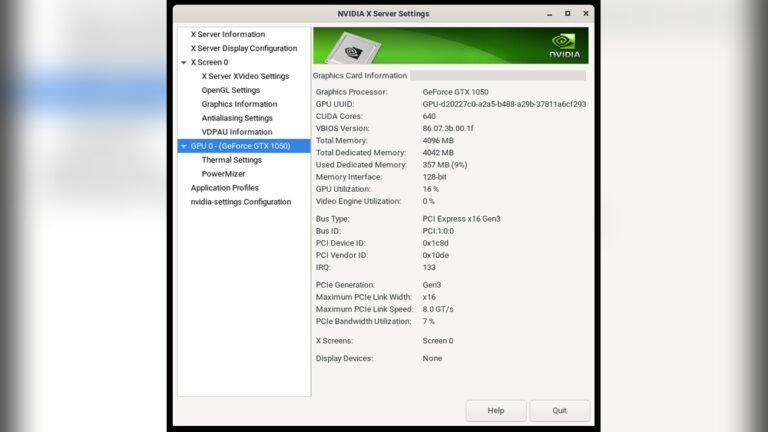
Most GPU makers offer free software to check temperature. NVIDIA users can try NVIDIA GeForce Experience. AMD provides Radeon Software for temperature monitoring. Intel’s Graphics Command Center also shows GPU heat levels. These apps show detailed info and alerts for high temps.
Cross-platform Monitoring Apps
Third-party apps work on many devices and brands. MSI Afterburner is popular for real-time GPU temp tracking. HWMonitor shows temperatures, voltages, and fan speeds. SpeedFan helps monitor and control fan speeds too. These tools work on Windows, and some on Mac and Linux.
Safe Temperature Ranges
Most GPUs work well between 30°C and 70°C. Temperatures above 85°C may cause problems. Some high-end GPUs can handle up to 90°C safely. Keep your GPU cooler for longer life and better speed. Clean fans and good airflow help keep temps low.
Optimizing Temperature Monitoring
Keeping your GPU and CPU temperatures in check is key for your computer’s health. Proper temperature monitoring helps avoid damage and keeps your system running smoothly. You can protect your hardware by setting up alerts, checking temperatures often, and keeping software updated.
Setting Alerts And Thresholds
Set temperature limits to get warnings before things get hot. Use software that lets you choose safe temperature levels. Alerts notify you early, so you can cool down your system in time. This prevents overheating and possible hardware failure.
Regular Monitoring Habits
Check your GPU and CPU temperatures regularly. Make it part of your routine, like weekly or daily checks. Use simple tools to see current temperature readings quickly. Regular checks help spot problems early and keep your PC safe.
Updating Drivers And Firmware
Keep your device drivers and firmware updated. Updates often fix bugs and improve temperature control. New drivers help your system manage heat better. Check for updates from your hardware maker and install them on time.
Troubleshooting High Temperatures
High temperatures can harm your GPU and CPU. They reduce performance and shorten lifespan. Troubleshooting high temperatures is key to keeping your computer safe. Below are simple steps to lower heat and improve cooling.
Cleaning And Dust Removal
Dust blocks fans and vents. It traps heat inside your computer. Use a can of compressed air to blow dust away. Clean fans, vents, and heat sinks carefully. Do this regularly to keep airflow steady.
Improving Airflow And Cooling
Good airflow helps cool your components. Arrange cables to avoid blocking air paths. Add extra fans if your case supports them. Keep your computer in a cool, open space. Avoid placing it on soft surfaces like beds or carpets.
Replacing Thermal Paste
Thermal paste helps transfer heat from CPU or GPU to the cooler. Old or dried paste loses its effect. Remove the old paste gently with isopropyl alcohol. Apply a small, fresh layer of thermal paste. This improves heat transfer and lowers temperatures.

Credit: privin.net
Frequently Asked Questions
How Do I Check My Cpu Temperature Easily?
You can check CPU temperature using software like HWMonitor, Core Temp, or CPU-Z. These tools provide real-time temperature data. Most are free and simple to use, helping you monitor CPU health and prevent overheating.
What Is A Safe Gpu Temperature Range?
A safe GPU temperature typically ranges between 30°C and 85°C. Temperatures above 85°C may cause performance issues or damage. Always monitor your GPU during gaming or heavy tasks to ensure it stays within safe limits.
Can Overheating Affect Cpu And Gpu Performance?
Yes, overheating can cause CPUs and GPUs to throttle, reducing speed to prevent damage. Prolonged heat exposure may lead to hardware failure. Monitoring temperatures helps maintain performance and extend component lifespan.
Which Software Is Best For Monitoring Cpu And Gpu Temps?
Popular software includes HWMonitor, MSI Afterburner, and Speccy. These apps provide detailed, real-time temperature readings for both CPU and GPU. They are user-friendly and widely trusted by PC enthusiasts and gamers.
Conclusion
Monitoring your GPU and CPU temperature keeps your computer safe and fast. Use simple tools to check temps regularly. Watch for high numbers that can harm your device. Cool your system by cleaning fans or improving airflow. Staying aware helps prevent crashes and slowdowns.
Keep your hardware healthy with easy temperature checks. Small efforts make a big difference in performance. Stay calm, stay cool, and enjoy a smooth computer experience.