

Have you ever noticed your computer slowing down and wondered what’s eating up your memory? Knowing how to view your RAM usage can give you a clear picture of what’s happening behind the scenes.
When you understand your RAM consumption, you can fix problems faster and keep your device running smoothly. You’ll learn simple steps to check your RAM usage easily. By the end, you’ll have the power to spot issues and improve your computer’s performance right away.
Keep reading to take control of your system’s memory!
Check Ram In Task Manager
Checking your RAM usage in Task Manager is simple and fast. It shows how much memory your computer uses at any time. This helps you understand if your system runs smoothly or if it needs more memory.
Task Manager gives a clear view of RAM details. You can see the total RAM, used memory, and available memory. This information helps you manage your computer better and avoid slowdowns.
Open Task Manager Quickly
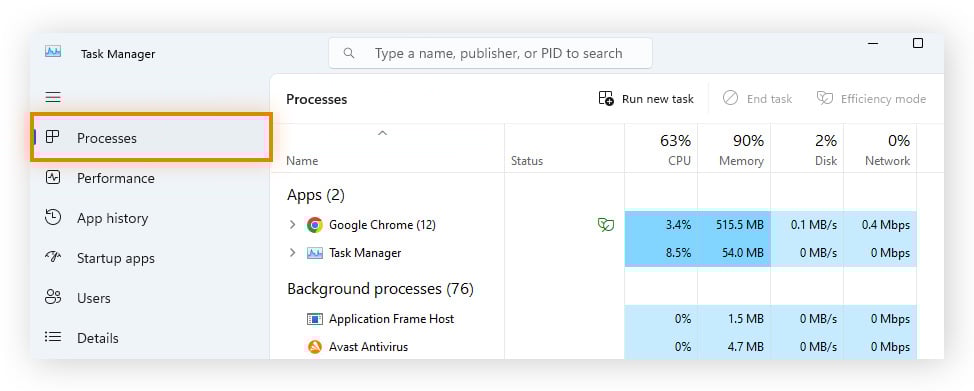
Press Ctrl + Shift + Esc on your keyboard. This opens Task Manager right away. Another way is to right-click the taskbar and select “Task Manager.”
Task Manager opens in a small window. If it shows few details, click “More details” at the bottom.
Navigate To Performance Tab
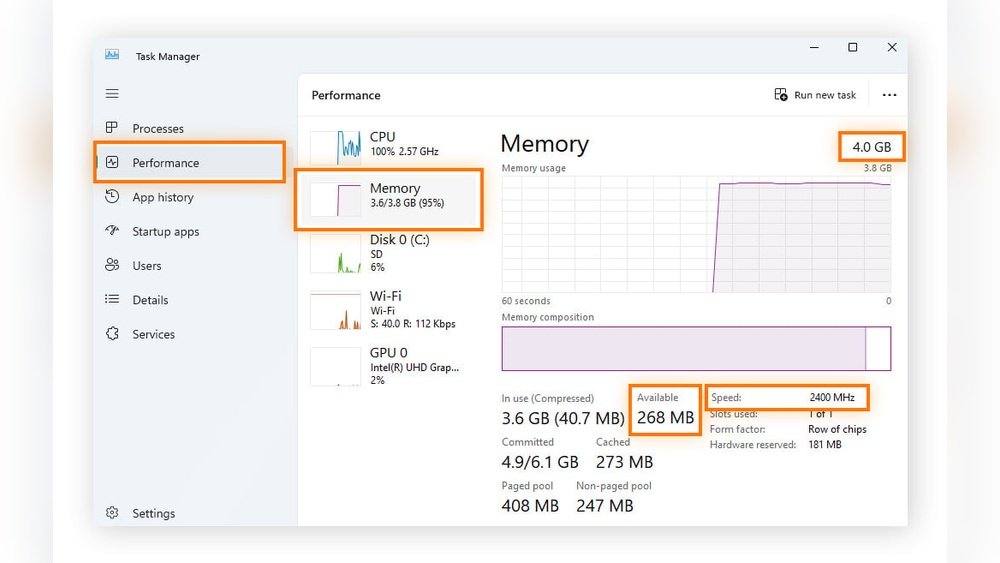
At the top of Task Manager, find and click the “Performance” tab. This tab shows real-time data about CPU, Memory, Disk, and more.
Click on “Memory” in the left sidebar under Performance. This opens a detailed view of your RAM usage.
Interpret Ram Usage Data
Look at the graph and numbers on the right side. The “In use” number shows how much RAM your apps use now.
“Available” tells how much RAM is free for new tasks. “Committed” is the total memory your system promises to programs.
Check the speed and slots used for more info. High “In use” values may slow down your PC.
Use Resource Monitor
Resource Monitor is a built-in tool in Windows that shows detailed memory usage. It helps track how your RAM is used by different programs and processes. This tool gives clear information to manage your computer’s performance better.
Launch Resource Monitor
To open Resource Monitor, press the Windows key and type “Resource Monitor.”
Click on the app from the search results to launch it. You can also open it through Task Manager by going to the Performance tab and clicking “Open Resource Monitor.”
Analyze Memory Section
Inside Resource Monitor, go to the “Memory” tab. It shows a real-time view of your RAM usage.
You see graphs, used and available memory, and detailed data on how memory is allocated. This helps understand your computer’s memory health clearly.
Identify Memory-heavy Processes
Look under the “Processes” section in the Memory tab. It lists all running programs and their memory use.
Sort the list by the “Commit (KB)” or “Working Set (KB)” column to find which processes use the most RAM.
This helps spot apps that slow down your system due to high memory use.
View Ram With Command Prompt
Checking your RAM usage through Command Prompt is a quick and simple way to see how much memory your computer uses. This method does not need extra software. It gives clear information about your system’s memory status. You can monitor RAM performance and spot issues fast. Let’s see how to do it step by step.
Open Command Prompt
First, open Command Prompt on your PC. Press the Windows key on your keyboard. Type “cmd” in the search box. Click on the Command Prompt app to open it. You can also press Enter if it is highlighted. This opens a black window where you can type commands.
Run Memory Query Commands
Type “wmic OS get FreePhysicalMemory,TotalVisibleMemorySize /Value” into the Command Prompt. Press Enter. This command shows your total and free RAM in kilobytes. Another useful command is “systeminfo | findstr /C:”Total Physical Memory” /C:”Available Physical Memory””. It gives memory details in a readable format. Run these commands to get real-time data.
Read Command Output
After running the command, you will see numbers on the screen. TotalVisibleMemorySize shows your total RAM size. FreePhysicalMemory tells how much RAM is free. Use these numbers to check if your system is low on memory. Compare these values to understand your RAM usage. This helps you decide if you need to close apps or upgrade RAM.

Credit: www.wikihow.com
Check Ram Via System Information
Checking your RAM usage through the System Information tool gives a clear picture of your computer’s memory. It shows how much RAM you have and how much is free or used. This method works on most Windows computers and is easy to follow. Knowing these details helps you decide if you need more memory or if your system runs fine.
Access System Information Tool
Press the Windows key and the R key at the same time. A small box will appear. Type msinfo32 in the box and press Enter. The System Information window will open. This tool shows many details about your computer.
Find Installed And Available Ram
Look for the section named “Installed Physical Memory (RAM).” This shows the total amount of RAM installed on your computer. Below it, you might see “Available Physical Memory.” This tells you how much RAM is free for use now.
Understand Memory Details
The System Information tool also lists other memory details. You can see the type of RAM, speed, and how many slots are used. These details help you understand your system’s capacity. They also guide you when upgrading your RAM.
Monitor Ram On Mac
Monitoring RAM on a Mac helps keep your system fast. You can see how much memory your apps use. This lets you find programs that slow down your Mac. Checking RAM is simple and quick. Follow these steps to check your Mac’s memory use.
Open Activity Monitor
First, open Activity Monitor. It is a built-in app on every Mac. Use Spotlight by pressing Command + Space. Type “Activity Monitor” and press Enter. You can also find it in the Utilities folder inside Applications.
Check Memory Tab
Once Activity Monitor is open, click the Memory tab at the top. This shows all running apps and their memory use. Look at the “Memory” column to see how much RAM each app uses. The list updates in real time, so you see current usage.
Interpret Memory Pressure Graph
At the bottom, find the Memory Pressure graph. This graph shows how hard your Mac’s RAM is working. Green means memory is available and your Mac runs smoothly. Yellow or red means your Mac is low on RAM and may slow down.
Use this graph to decide if you need to close apps or add more memory. Watching this graph helps keep your Mac fast and responsive.
Credit: www.avast.com
Use Third-party Ram Tools
Using third-party RAM tools is a smart way to check your computer’s memory usage. These tools offer detailed information that built-in system monitors may miss. They show real-time data and help identify apps using too much RAM. Many are free and easy to install. They work on Windows, Mac, and even mobile devices.
Popular Ram Monitoring Apps
Several apps stand out for tracking RAM usage. Task Manager Deluxe offers simple graphs and alerts. RAMMap provides detailed memory breakdowns. MemTest86 checks for faulty RAM modules. On Mac, iStat Menus gives quick access to memory stats. For Android, Simple System Monitor shows live RAM use.
Benefits Of Third-party Tools
These tools give clearer memory insights. They help spot apps that slow your device. Many show historical data to see trends. Some offer optimization tips to free RAM. They often include notifications for high usage. These features improve your computer’s speed and stability.
Safety Tips For Downloads
Download tools only from official websites or trusted sources. Avoid unknown sites or links shared in emails. Check user reviews before installing any app. Use antivirus software to scan downloads. Keep your system updated for security patches. Always read permissions requested by the app.
Tips To Optimize Ram Usage
Optimizing RAM usage helps your computer run smoothly. It reduces slowdowns and improves performance. Simple steps can free up memory and speed up tasks.
Following practical tips can make a big difference. Managing programs and settings keeps RAM usage low. This saves resources for important work.
Close Unnecessary Programs
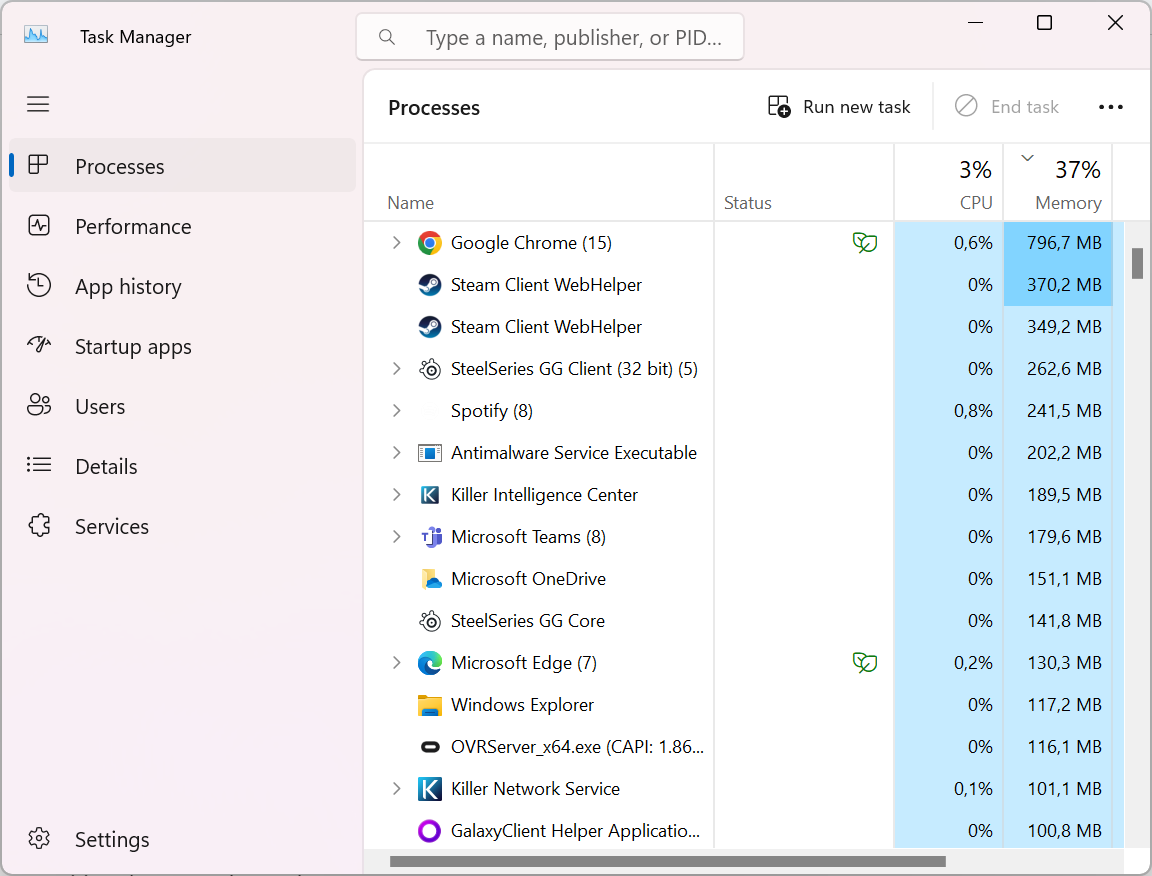
Many programs run in the background without you noticing. These use RAM and slow down your system. Close apps you don’t need to free memory. Check the task manager to see running processes. Shut down anything not essential to your current work.
Manage Startup Applications
Some apps start automatically when your computer boots. This can waste RAM right away. Disable programs that you rarely use at startup. Use the system settings or task manager to manage these apps. This speeds up boot time and lowers RAM use.
Upgrade Physical Ram
If your computer still feels slow, adding more RAM helps. More memory means your system handles more tasks at once. Check your device specifications before buying RAM sticks. Installing extra RAM is usually simple and affordable. This upgrade boosts performance for all your activities.
Credit: www.tomshardware.com
Frequently Asked Questions
How Do I Check Ram Usage On Windows?
You can check RAM usage on Windows via Task Manager. Press Ctrl + Shift + Esc, then click the Performance tab. Select Memory to view real-time RAM usage and details like speed and slots used.
What Is The Best Tool To Monitor Ram Usage?
Task Manager on Windows and Activity Monitor on Mac are best tools. Both provide real-time RAM usage and process details, helping identify apps consuming excessive memory.
How Often Should I Check My Ram Usage?
Check RAM usage when your system feels slow or lags. Regular monitoring helps identify memory-hogging applications and optimize performance, ensuring smooth computer operation.
Can High Ram Usage Affect Computer Performance?
Yes, high RAM usage can slow down your computer. It limits available memory for new tasks, causing lag, crashes, or freezing until memory is freed or more RAM is added.
Conclusion
Monitoring RAM usage helps keep your computer running smoothly. You can easily check it using built-in tools on Windows or Mac. Knowing your RAM status helps you avoid slowdowns and crashes. Regular checks let you spot problems early and fix them fast.
Keep your system healthy by watching memory use often. Simple steps make a big difference in performance. Stay aware, and your device will work better every day.
