How to Check Gpu And Cpu Temps: Easy Steps to Prevent Overheating
Are you worried your computer might be overheating? Knowing how to check your GPU and CPU temps is the first step to keeping your system running smoothly.
When your hardware gets too hot, it can slow down or even get damaged. But don’t worry—it’s easier than you think to monitor these temperatures. You’ll discover simple and effective ways to check your GPU and CPU temps, helping you protect your computer and boost its performance.
Keep reading to learn how to take control of your device’s health right now.
Why Monitor Cpu And Gpu Temps
Monitoring CPU and GPU temperatures is essential for every computer user. These components generate heat during use. Too much heat can cause serious problems. Knowing their temperatures helps keep your system safe and efficient.
Checking temperatures often prevents damage and keeps your PC running smoothly. Let’s explore why monitoring these temps matters.
Risks Of Overheating
Overheating can cause sudden shutdowns. It may damage hardware parts permanently. High heat can also lead to data loss. Your computer might freeze or crash more often. Keeping temperatures low avoids these risks.
Performance Impact
High temperatures slow down your CPU and GPU. They reduce your computer’s speed and response. Cooling helps maintain steady performance. Monitoring temps ensures your system works at its best. No overheating means no lag or stutter.
Hardware Longevity
Heat wears down components over time. Lower temperatures extend the life of your CPU and GPU. Proper cooling reduces repair or replacement costs. Watching your temps helps protect your investment. Your computer stays reliable for many years.
Credit: www.esseg.eu
Tools To Check Temperatures
Checking your GPU and CPU temperatures is key to keeping your computer safe. High temperatures can cause slowdowns or damage. Various tools help you track these temperatures easily. Some tools come built into your system. Others need to be downloaded. Many apps even let you check temps from your phone. Below, explore some common options for monitoring your hardware temperatures.
Built-in System Utilities
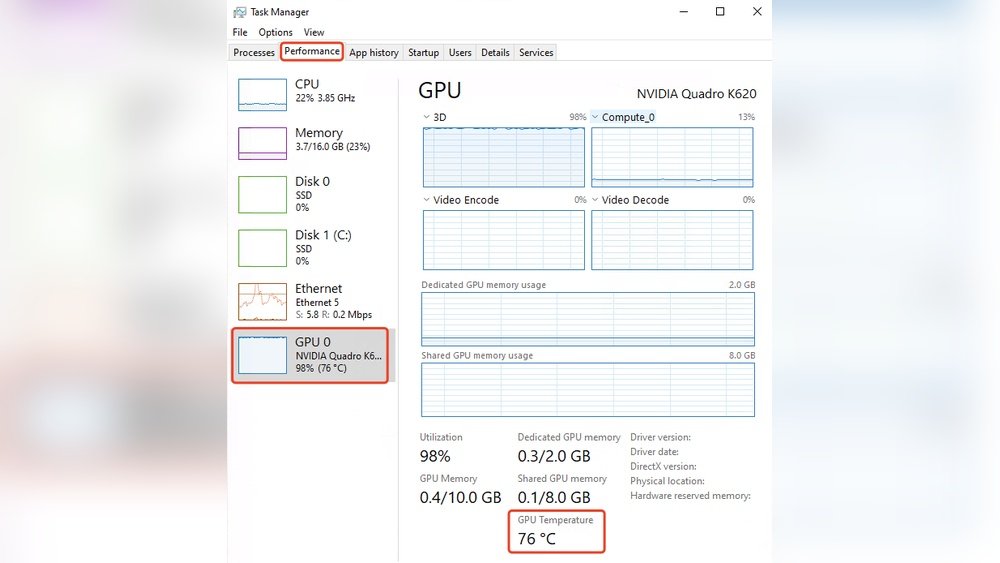
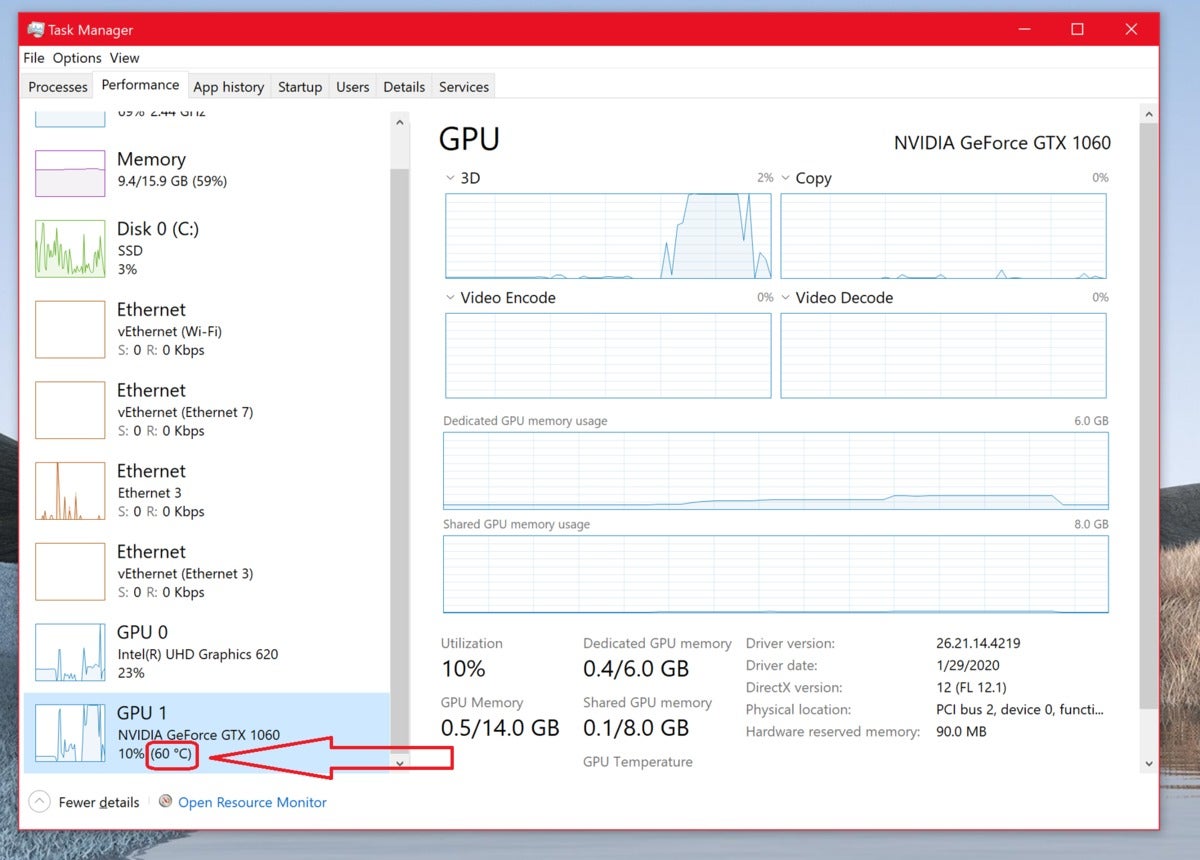
Most computers have basic utilities that show temperature data. Windows users can access the Task Manager and some BIOS menus for rough estimates. Mac users find temperature info in the Activity Monitor or system reports. These tools are simple and already on your device. They provide quick checks but may lack detailed info.
Third-party Software Options
Several free and paid programs offer detailed temperature readings. Popular choices include HWMonitor, Core Temp, and MSI Afterburner. These tools display real-time temperatures, fan speeds, and voltages. They also let you set alerts for high temps. These apps work well for gamers and heavy users. Installation is easy, and they provide more data than built-in utilities.
Mobile Apps For Remote Monitoring
Mobile apps let you watch your PC temps from anywhere. Apps like HWMonitor or AIDA64 have companion phone versions. They connect via Wi-Fi or Bluetooth to your computer. This setup helps if you run long tasks and want to check temps remotely. These apps are user-friendly and provide live updates. Perfect for users who want constant temperature tracking without staying at their PC.
How To Check Cpu Temperature
Checking your CPU temperature helps keep your computer safe from overheating. It shows if your CPU runs too hot. High temperatures can slow your PC or cause damage. You can check CPU temps in different ways. Some methods are built into your system. Others use easy software tools. This guide covers the main ways to check CPU temperature.
Using Bios/uefi
BIOS or UEFI is the basic system setup on your PC. You can access it before Windows loads. Restart your computer and press a key like F2 or Delete. This opens BIOS or UEFI settings. Look for a section named “Hardware Monitor” or “PC Health.” You will find CPU temperature shown there. This method does not need any software. It gives a quick way to check temps when your PC is off.
Windows Software Methods
Windows users can check CPU temps using free programs. Popular tools include HWMonitor, Core Temp, and Speccy. Download and install one of these. Open the program to see real-time CPU temperature. These apps show temperatures for each CPU core. They also display other details like fan speed and voltage. Use these tools while running programs to watch CPU heat under load.
Macos Temperature Checks
Mac users can check CPU temperature with special apps. Apps like iStat Menus and Macs Fan Control work well. Download and install one from the internet. These apps display CPU temps in the menu bar. You can see how hot your CPU runs at any time. They also help control the cooling system on your Mac. These tools are simple and give clear temperature readings.
How To Check Gpu Temperature
Checking your GPU temperature helps keep your computer safe. It tells you if the graphics card is too hot. Overheating can cause slowdowns or damage. Monitoring temperature is simple with the right tools. Here are some easy ways to check your GPU temperature.
Nvidia Control Panel
NVIDIA Control Panel shows GPU temperature for NVIDIA graphics cards. Open the software from your desktop or system tray. Go to the “Performance” or “System Information” section. Look for the temperature reading, usually in Celsius. This tool is free and built-in for NVIDIA users. It updates the temperature in real-time during gaming or work.
Amd Radeon Settings
AMD Radeon Settings allows AMD users to monitor GPU temperature. Right-click your desktop and select “AMD Radeon Settings.” Navigate to the “Performance” tab. Click on “Temperature” to see the current GPU heat level. This feature helps AMD users watch the temperature while using their PC. It is easy to access and shows live data.
Third-party Gpu Monitoring Tools
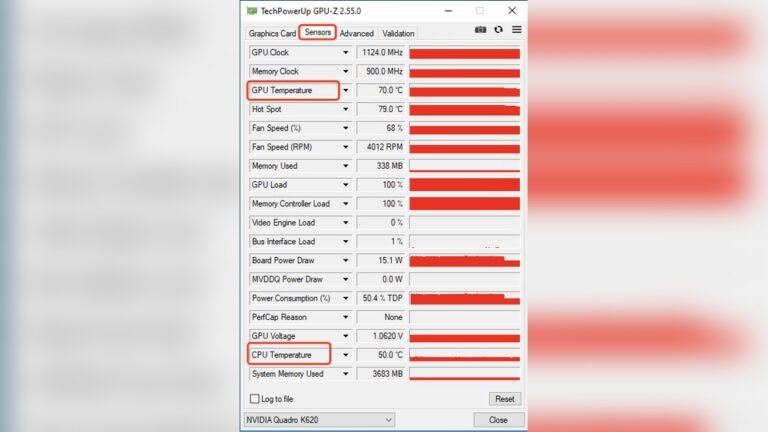
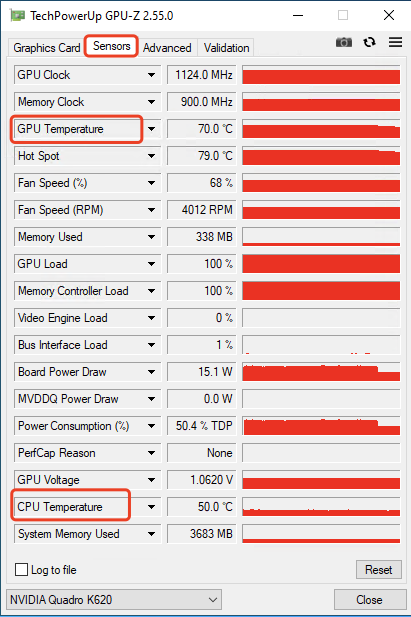
Third-party tools work for all GPU brands. Programs like MSI Afterburner, HWMonitor, and GPU-Z are popular choices. Download and install one of these programs. Open it and find the GPU temperature section. These tools offer detailed information and customizable alerts. They also show other stats like fan speed and usage. Great for users who want more control and data.
Interpreting Temperature Readings
Understanding temperature readings for your GPU and CPU helps protect your computer. These numbers tell you if your hardware runs smoothly or faces heat issues. Reading temperatures correctly prevents damage and keeps performance steady.
Safe Temperature Ranges
CPUs usually run safe between 30°C and 70°C. Some models tolerate up to 85°C but staying lower is best. GPUs often work well between 30°C and 80°C. Check your device’s manual for exact limits. Staying within these ranges keeps parts healthy and efficient.
Signs Of Overheating
High temperatures cause slow computer speed or crashes. Fans running loudly and constantly is a warning sign. Sudden shutdowns or freezes show overheating risks. If your device feels very hot to touch, it might be too warm inside. Watch for these signs to protect your hardware.
When To Take Action
Act when temperatures rise above safe limits for long times. Clean dust from fans and vents to improve airflow. Replace thermal paste if your CPU or GPU heats up quickly. Consider better cooling systems for constant high temps. Taking steps early saves your computer from serious damage.
Tips To Prevent Overheating
Preventing overheating is key to keeping your CPU and GPU running well. High temperatures can cause slowdowns and damage parts over time. Simple steps can help maintain safe temperatures and improve your computer’s life.
Improving Airflow
Good airflow helps cool your computer parts. Make sure your PC case has enough space around it. Avoid blocking the vents and fans. Position your computer in a cool, open area. Use cases with mesh panels to allow fresh air inside.
Regular Cleaning And Maintenance
Dust buildup blocks airflow and traps heat. Clean your computer every few months. Use a soft brush or compressed air to remove dust from fans and vents. Check the thermal paste on your CPU and GPU if overheating continues. Replace it if it looks dry or cracked.
Using Cooling Accessories
Cooling accessories can lower temperatures quickly. Add extra case fans to increase airflow. Use a good quality CPU cooler or upgrade to a liquid cooler. Place your laptop on a cooling pad with fans. These tools help keep your hardware cool during heavy use.
Adjusting System Settings
Adjusting system settings helps control your GPU and CPU temperatures. It improves performance and protects hardware from damage. Small changes can lower heat and keep your system stable. Let’s explore key settings you can adjust easily.
Fan Speed Controls
Fans cool down your CPU and GPU by pushing hot air out. Many systems let you change fan speed manually or automatically. Increasing fan speed helps lower temperatures fast. Use software tools like SpeedFan or your PC’s BIOS to change fan settings. Set higher speeds when running heavy programs. Remember, louder fans mean better cooling.
Power Management Settings
Power settings control how your CPU and GPU use electricity. Lower power use means less heat. In Windows, use the Power Options menu to adjust these settings. Choose balanced or power saver modes for less heat. Gaming mode uses more power but makes your system hot. Adjust settings based on your needs to keep your PC cooler.
Undervolting And Throttling
Undervolting reduces voltage to your CPU or GPU. This lowers heat without losing much speed. Use tools like Intel XTU or MSI Afterburner for undervolting. Throttling reduces speed to stop overheating. It happens automatically if temperatures get too high. Undervolting helps prevent throttling and keeps your system cooler during tasks.
Credit: www.garinfobahn.com

Credit: openhardwaremonitor.org
Frequently Asked Questions
How Can I Check My Cpu Temperature Easily?
You can check CPU temperature using software like HWMonitor, Core Temp, or SpeedFan. These tools display real-time temps quickly and accurately.
What Is A Safe Gpu Temperature Range?
A safe GPU temperature typically ranges between 30°C to 85°C. Temperatures above 90°C may cause overheating and damage.
Why Is Monitoring Cpu And Gpu Temps Important?
Monitoring temps helps prevent overheating, improves performance, and extends hardware lifespan. It alerts you to cooling issues early.
Can Windows 10 Check Cpu And Gpu Temperatures?
Windows 10 doesn’t have built-in temp monitoring, but third-party apps like MSI Afterburner work well for this purpose.
Conclusion
Checking your GPU and CPU temperatures helps keep your computer safe. It prevents overheating and improves performance. Use simple tools to monitor temps regularly. Watch for high numbers and cool down your system if needed. Keeping an eye on temps can extend your device’s life.
Stay alert and protect your hardware from damage. This habit is easy and saves you trouble later. Start checking today for a smoother, safer computer experience.