

Are you looking to boost your laptop’s speed but unsure which RAM will work best with your device? Picking the right RAM isn’t just about buying more memory—it’s about choosing the perfect match for your laptop’s needs.
If you install incompatible RAM, your laptop might not even recognize it, wasting your time and money. You’ll discover simple, clear steps to identify the RAM that fits your laptop perfectly. By the end, you’ll feel confident making the right upgrade that truly improves your laptop’s performance.
Keep reading to unlock the secrets to choosing the perfect RAM for your laptop!
Check Laptop Specifications
Checking your laptop specifications is the first step to find compatible RAM. It helps to avoid buying the wrong type or size. Knowing your laptop’s limits saves time and money. You can get this information from your laptop’s manual or system settings.
Focus on key details like RAM type, speed, and maximum capacity. These guide your purchase. Let’s break down what to look for.
Locate Ram Details
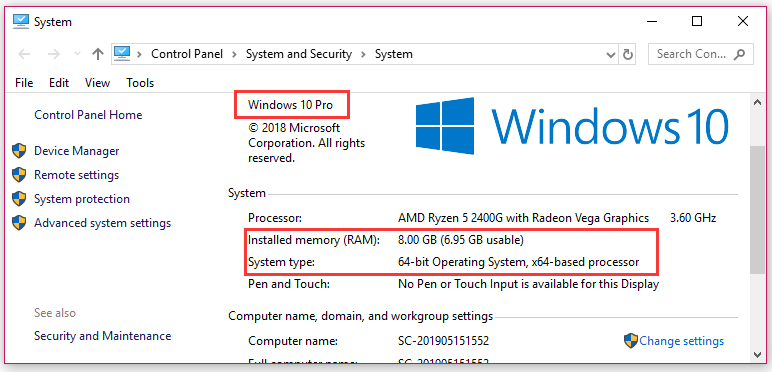
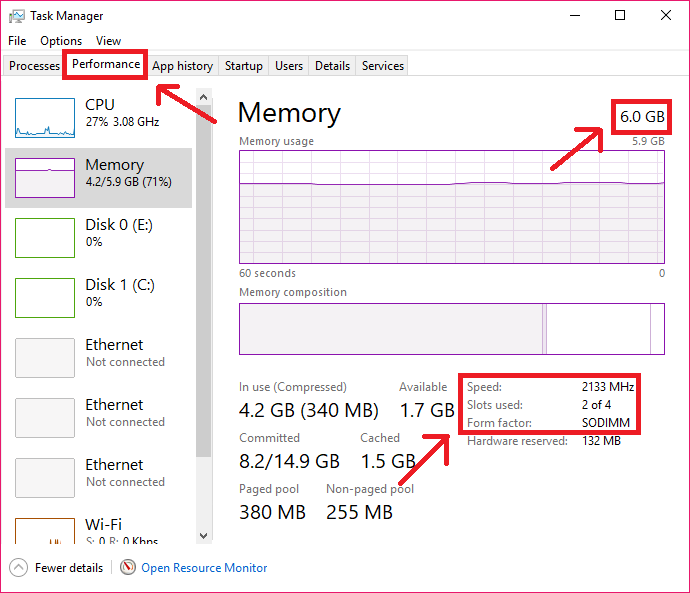
Start by finding your laptop’s current RAM information. Go to system settings or use a tool like Task Manager. Look for the amount of RAM installed and how many slots are free. This shows how much RAM you have now and if you can add more.
Identify Maximum Ram Capacity
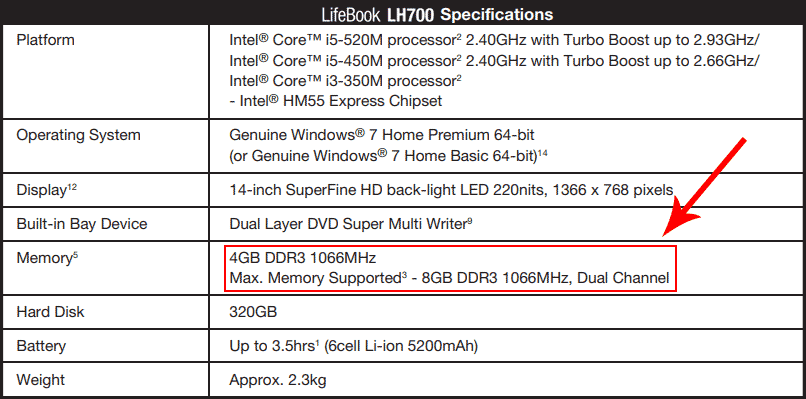
Check the maximum RAM your laptop can support. This limit depends on the motherboard and processor. Find this info in your laptop’s manual or on the manufacturer’s website. Do not exceed this limit to avoid problems.
Note Ram Type And Speed
Note the type of RAM, such as DDR3 or DDR4. Also, check the RAM speed, measured in MHz. Using the wrong type or speed can cause errors or slow performance. Match new RAM with your laptop’s specifications for best results.
Credit: www.i-monon.com.sa
Understand Ram Types
Understanding RAM types is key to choosing the right memory for your laptop. RAM comes in many forms, and using the wrong type can cause problems. Each laptop supports specific RAM types based on design and technology. Knowing the details helps avoid compatibility issues and ensures smooth performance.
This section breaks down the main factors of RAM types. It covers DDR generations, form factors, and voltage requirements. These points guide you to pick the right RAM for your laptop model.
Ddr Generations
RAM is made in different DDR generations like DDR3, DDR4, and DDR5. Each generation is faster and more efficient than the last. Most modern laptops use DDR4 or DDR5. Older laptops might need DDR3. Mixing DDR types is not possible because of different pin layouts and speeds.
Check your laptop’s manual or system info to see which DDR generation it supports. Using the correct DDR type avoids startup failures and crashes.
Form Factors
RAM modules come in different sizes called form factors. The most common for laptops is SO-DIMM, which is smaller than desktop RAM. Desktop RAM uses DIMM form factor and won’t fit in laptops. Some laptops might use unique or low-profile RAM, so size matters.
Before buying RAM, verify the form factor your laptop uses. Choosing the right size ensures proper fit and connection.
Voltage Requirements
RAM needs a specific voltage to work properly. Most DDR3 RAM uses 1.5V, DDR4 uses 1.2V, and DDR5 uses about 1.1V. Voltage differences affect power consumption and heat. Using RAM with the wrong voltage can cause instability or damage.
Check your laptop’s specifications for voltage details. Match the RAM voltage to keep your laptop safe and stable.
Use Manufacturer Resources
Using manufacturer resources is the best way to find out which RAM fits your laptop. These resources provide accurate and clear information. They help avoid mistakes and save time.
Official Laptop Manual
The official manual is a detailed guide from the laptop maker. It lists the type and size of RAM your laptop needs. It also shows how to install the RAM safely. Manuals are easy to find on the laptop or online.
Support Websites
Laptop support websites have helpful information about your model. They include FAQs, specifications, and sometimes videos. These sites update regularly with new data. You get the latest advice straight from the maker.
Compatibility Tools
Compatibility tools help check if a RAM module works with your laptop. They ask for your laptop model or serial number. Then they suggest the right RAM options. These tools reduce guesswork and avoid buying wrong RAM.
Credit: www.liftingitalia.com
Inspect Current Ram Modules
Inspecting the current RAM modules is a key step to find compatible memory for your laptop. It helps to know the type and size of RAM already installed. This information guides you in buying the right upgrade. Checking your current modules also avoids mistakes like buying wrong size or speed.
Physical Inspection
Start by turning off your laptop and unplugging it. Open the back panel to see the RAM slots. Look for labels on the RAM sticks. These labels show the size, speed, and type, like DDR3 or DDR4. Note down this information carefully. Also, check how many RAM sticks are installed. This helps to know if you have free slots for more RAM.
Using Software Tools
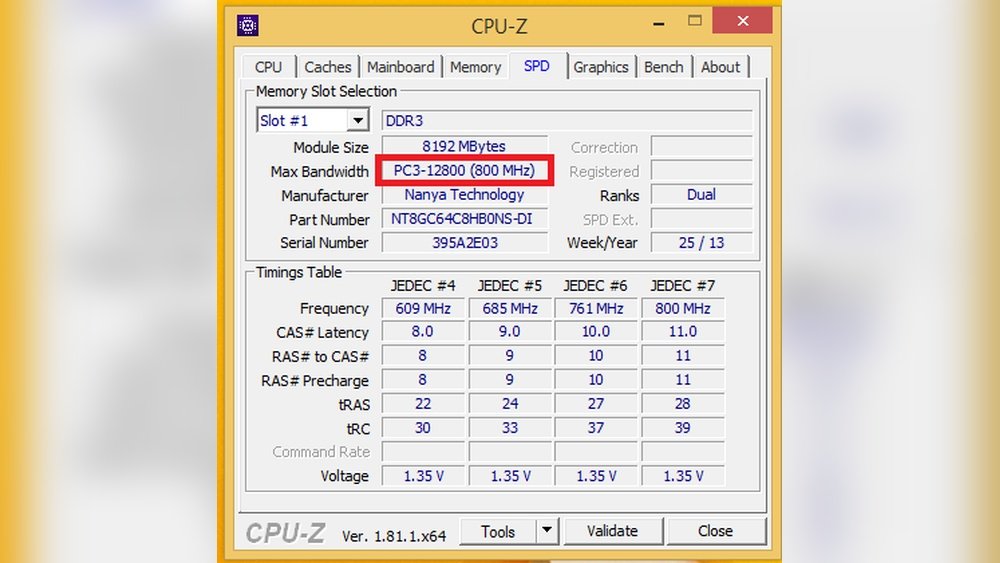
You can use simple software tools to check RAM details without opening the laptop. Tools like CPU-Z or Speccy give clear information. They show RAM type, size, speed, and slot usage. These tools are free and easy to use. They save time and avoid physical risks to your laptop.
Check For Slots And Configuration
Count the number of RAM slots on your laptop’s motherboard. Some laptops have two slots, others only one. Check if all slots are filled or some are empty. This affects how much RAM you can add. Also, check your laptop’s manual or website for maximum RAM support. Proper slot and configuration knowledge ensures a smooth RAM upgrade.
Consider Laptop Usage Needs
Consider your laptop usage needs before choosing RAM. Different tasks require different memory sizes and speeds. Understanding your daily activities helps pick the right RAM that matches your laptop’s role. This avoids overspending or buying insufficient memory.
Gaming Requirements
Gaming needs more RAM than basic tasks. Modern games demand at least 8GB of RAM for smooth play. Fast RAM with higher frequency improves game performance. Choose RAM compatible with your laptop’s motherboard and CPU. This ensures your games run without lag or stutter.
Professional Workloads
Work tasks like video editing and 3D design need large RAM capacity. Programs run faster with 16GB or more memory. Multi-tasking also benefits from more RAM. Check your laptop’s maximum supported RAM before upgrading. Quality and speed matter for heavy workloads.
Everyday Tasks
Simple tasks like browsing and word processing require less RAM. Usually, 4GB to 8GB is enough for smooth use. Choose RAM that fits your laptop’s slot and type. Avoid buying excessive RAM that your laptop cannot use. Balance cost and performance based on your needs.
Purchase And Installation Tips
Buying and installing RAM for your laptop needs care and attention. The right RAM boosts performance without causing issues. Follow simple tips to pick quality RAM and install it safely. Test the RAM after installation to ensure it works well.
Choosing Reliable Brands
Choose RAM from well-known brands. They offer better quality and support. Brands like Kingston, Corsair, and Crucial are trusted by many users. Reliable brands reduce the risk of faulty RAM. This helps your laptop run smoothly and last longer.
Installation Precautions
Turn off your laptop and unplug it before installing RAM. Ground yourself to avoid static electricity damage. Handle the RAM stick by its edges only. Avoid touching the gold pins or chips. Insert the RAM gently but firmly into the slot. Make sure it clicks into place properly.
Testing After Installation
Power on your laptop and check if it recognizes the new RAM. Run basic programs to see if the system feels faster. Use memory test software for deeper checks. This helps find any problems early. If the laptop shows errors or crashes, check the installation again.
Credit: yalinha.com.br
Frequently Asked Questions
How Do I Check My Laptop’s Ram Type?
You can check your laptop’s RAM type using system information tools. On Windows, use Task Manager or CPU-Z. On Mac, click About This Mac > Memory. This helps ensure compatibility when upgrading or replacing RAM modules.
What Ram Speed Is Compatible With My Laptop?
Check your laptop’s manual or manufacturer website for supported RAM speeds. Installing RAM with a higher speed than supported won’t improve performance and may cause issues. Always match the recommended speed for optimal operation.
Can I Install Higher Capacity Ram In My Laptop?
Yes, if your laptop supports it. Check the maximum RAM capacity specified by the manufacturer. Installing RAM beyond this limit may cause instability or failure to boot. Use compatible modules within the supported capacity for best results.
How Many Ram Slots Does My Laptop Have?
Laptop RAM slots vary by model. To find out, refer to your laptop’s manual or use system diagnostic tools. Knowing the number of slots helps you plan upgrades or replacements effectively without compatibility problems.
Conclusion
Choosing the right RAM keeps your laptop running smoothly. Check your laptop’s specifications first. Match the RAM type, speed, and size carefully. Use trusted tools or manuals to guide you. Installing compatible RAM saves time and money. It also boosts your laptop’s performance well.
Small steps make a big difference. Take your time and double-check before buying. This way, your laptop stays fast and reliable. Simple and smart choices lead to better results.
