How to Check Cpu Temp in Windows 10: Easy & Quick Methods
Are you worried that your computer might be overheating? Knowing how to check your CPU temperature in Windows 10 is crucial to keep your PC running smoothly and avoid unexpected crashes.
If your system feels sluggish or your fan is constantly running loud, your CPU could be getting too hot. You’ll learn simple and effective ways to monitor your CPU temperature easily. By the time you finish reading, you’ll have the tools to protect your computer and boost its performance.
Let’s dive in and make sure your PC stays cool and healthy!
Why Monitor Cpu Temperature
Monitoring your CPU temperature is important for your computer’s health. The CPU works hard to run programs and processes. If it gets too hot, it can slow down or stop working. Keeping an eye on the temperature helps you avoid these problems.
High CPU temperatures can cause crashes and data loss. Overheating can damage the processor over time. Checking the temperature lets you catch issues early. It helps keep your PC running smoothly and safely.
Prevent Overheating Damage
Too much heat can harm the CPU permanently. Overheating may cause hardware failure. Monitoring temperature prevents expensive repairs. It helps you act before serious damage occurs.
Improve System Performance
Hot CPUs often slow down to cool off. This reduces your computer’s speed and efficiency. Watching temperature helps maintain steady performance. It keeps your system fast and responsive.
Extend Computer Lifespan
Lower temperatures help your CPU last longer. Heat speeds up wear and tear on parts. Regular checks protect your investment. Your computer stays reliable for more years.
Detect Cooling Problems Early
Temperature monitoring shows if cooling fails. Dust or broken fans can cause heat spikes. Early detection helps you fix these issues fast. It prevents bigger problems down the line.

Credit: softwareg.com.au
Signs Of High Cpu Temperature
High CPU temperature can harm your computer’s performance and lifespan. It is important to spot signs that show your CPU is overheating. Watching for these signs helps you act early and protect your PC.
Unexpected Shutdowns And Restarts
Your computer may shut down or restart suddenly. This happens to stop damage from heat. It is a clear warning that the CPU is too hot.
Slow Performance And Lag
The system may run slower than normal. Programs take longer to open. This lag appears because the CPU slows down to cool off.
Loud Fan Noise
The cooling fan might become very noisy. It works harder to lower the CPU temperature. Constant loud noise often means the CPU is too hot.
System Freezes And Crashes
Your computer may freeze or crash often. Overheating causes the CPU to fail temporarily. Frequent crashes are a serious sign of high temperature.
High Temperature Warnings
Some computers show warnings about heat. These alerts appear on the screen or in BIOS. They tell you the CPU temperature is unsafe.
Using Bios To Check Cpu Temp
Checking your CPU temperature using BIOS is a simple and reliable method. BIOS gives you direct access to your computer’s hardware information. This includes the CPU temperature without needing extra software.
BIOS runs before Windows starts, so you can see your CPU’s temperature early. This helps to make sure the CPU is not overheating. It is useful if your computer shuts down suddenly or runs very slowly.
Accessing Bios On Windows 10
Turn off your computer completely. Press the power button and quickly press the BIOS key repeatedly. Common keys are Delete, F2, F10, or Esc. The correct key depends on your computer brand.
Keep pressing the key until the BIOS screen appears. Be patient, as this might take a few seconds. Do not press any other keys during this process.
Finding The Cpu Temperature In Bios
Look for a menu called “Hardware Monitor,” “PC Health,” or “System Status.” Different BIOS versions use different names. Use arrow keys to navigate through the BIOS menus.
Inside the menu, find the CPU temperature section. It shows the current temperature in Celsius or Fahrenheit. Note the value carefully before you exit BIOS.
Exiting Bios Safely
Press the key for “Exit” or “Save and Exit.” Choose “Exit without saving” if you made no changes. Your computer will restart and load Windows normally.
Do not turn off your computer while in BIOS. This can cause system errors or data loss. Always use the proper exit option to avoid problems.

Credit: www.alcpu.com
Third-party Software Options
Checking your CPU temperature helps keep your computer safe and running well. Windows 10 does not show this info by default. Third-party software fills this gap. These tools show real-time CPU temperatures. They also offer extra details about your system’s health.
These programs are easy to use. They work on many PC models. Some are simple, while others give detailed reports. Choose one based on your needs and comfort level.
Core Temp
Core Temp is a light and straightforward tool. It shows each core’s temperature clearly. The interface is simple, making it good for beginners. It updates temperature readings in real time. Core Temp also alerts you if the CPU gets too hot.
Hwmonitor
HWMonitor tracks more than just CPU temps. It also reads voltages, fan speeds, and GPU temps. The interface looks technical but is easy to navigate. It gives a full overview of your PC’s hardware health. This tool works well for users who want detailed info.
Speedfan
SpeedFan helps monitor temperatures and control fan speeds. You can adjust your PC’s fans to cool down the system. It shows CPU temperature alongside other system readings. The program is flexible but needs some learning to use well. Great for users who want more control over cooling.
Open Hardware Monitor
Open Hardware Monitor is a free, open-source tool. It tracks temperatures, fan speeds, and voltages. The layout is clean and easy to read. It supports many hardware types and brands. This tool suits users who prefer open-source software with good features.
Using Task Manager And Resource Monitor
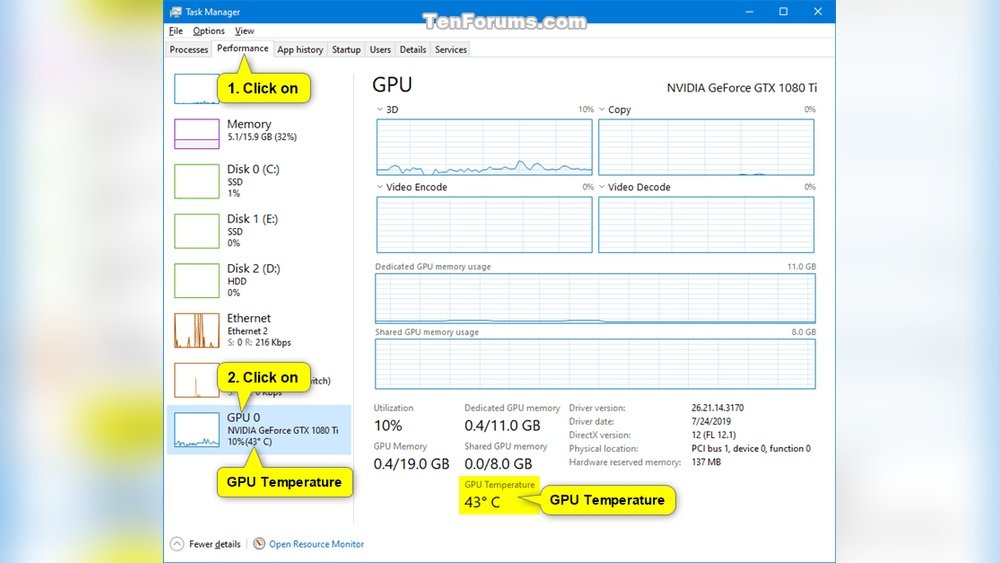
Checking your CPU temperature helps keep your computer safe. High temperatures can cause slowdowns or damage. Windows 10 has built-in tools like Task Manager and Resource Monitor. These tools show system activity and performance data. They do not show exact CPU temperature but help monitor CPU usage and health. Understanding these tools helps you keep an eye on your CPU’s workload and avoid overheating.
Using Task Manager To Monitor Cpu Usage
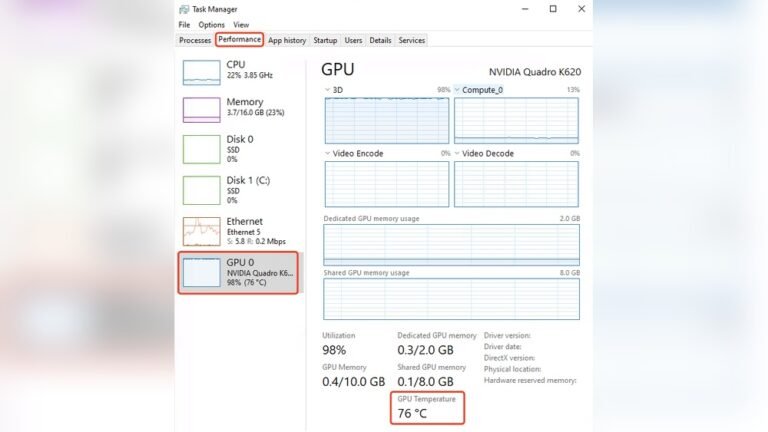
Open Task Manager by pressing Ctrl + Shift + Esc together. Click the “Performance” tab at the top. Select “CPU” on the left side. Here, you see the CPU’s current usage percentage. High usage means the CPU works hard. This may cause the temperature to rise. Task Manager does not show temperature directly, but high CPU use can hint at heating issues.
Checking Cpu Details In Resource Monitor
Resource Monitor gives more detailed CPU information. Open it by typing “Resource Monitor” in the Start menu search. Click the “CPU” tab to see processes using the CPU. It shows which programs use the most CPU power. Watching these details helps you find apps that strain your CPU. Reducing heavy CPU tasks can lower temperature risks. Resource Monitor does not display temperature but helps track CPU load clearly.
Tips To Lower Cpu Temperature
Keeping your CPU temperature low helps your computer run smoothly and last longer. High temperatures can cause slowdowns and damage parts. Use these simple tips to cool down your CPU effectively. These easy steps can make a big difference in performance and safety.
Improve Airflow
Good airflow moves heat away from the CPU. Keep your computer in a well-ventilated area. Avoid placing it in tight spaces or near heat sources. Use extra fans if needed. Make sure cables inside the case do not block air paths.
Clean Dust And Debris
Dust blocks airflow and traps heat inside your PC. Open your computer case carefully and clean dust with a soft brush or compressed air. Focus on fans, vents, and heat sinks. Regular cleaning keeps cooling efficient.
Update Bios And Drivers
Manufacturers improve cooling with updates. Check for BIOS and driver updates from your PC or motherboard maker’s website. Updated software can control fan speeds better and fix overheating issues.
Use Quality Thermal Paste
Thermal paste helps heat move from the CPU to the cooler. Old or poor-quality paste reduces cooling. Replace it with a good thermal paste every few years. Apply it evenly and carefully for the best results.
When To Seek Professional Help
Knowing when to seek professional help with your CPU temperature is crucial. Overheating can cause serious damage to your computer. Some signs mean you should stop and ask an expert for help. Ignoring these signs can lead to costly repairs or data loss.
Signs Of Persistent High Cpu Temperature
If your CPU temperature stays high despite cooling efforts, it is a red flag. Constant overheating may point to hardware issues. Fans might be broken or thermal paste could be dried out. Professionals can inspect and fix these problems safely.
Unusual Noises Or Smells
Hearing strange noises from your computer case is a warning. Burning smells are even more serious. These signs often indicate electrical or cooling system failure. Turn off your PC and seek professional service immediately.
Frequent System Crashes Or Shutdowns
Your computer shutting down or crashing often is not normal. These problems can happen when the CPU gets too hot. A technician can diagnose the exact cause and suggest the right fix. Avoid using your PC until it is checked.
Difficulty Checking Or Controlling Temperature
Sometimes, software tools fail to read CPU temperature correctly. If monitoring apps show erratic or no data, the sensors might be faulty. A professional can test hardware sensors and replace them if needed. This ensures accurate temperature readings.

Credit: www.youtube.com
Frequently Asked Questions
How Can I Check Cpu Temperature On Windows 10?
You can check CPU temperature using third-party software like HWMonitor or Core Temp. These tools display real-time CPU temperatures easily on Windows 10.
Does Windows 10 Have A Built-in Cpu Temperature Monitor?
No, Windows 10 does not include a built-in CPU temperature monitor. You need third-party apps to view CPU temperature.
What Is A Safe Cpu Temperature Range For Windows 10?
A safe CPU temperature is typically between 30°C and 70°C during normal use. Temperatures above 80°C may cause overheating.
Can High Cpu Temperature Damage My Windows 10 Pc?
Yes, sustained high CPU temperatures can damage hardware and reduce performance. Monitoring temperature helps prevent overheating issues.
Conclusion
Checking your CPU temperature in Windows 10 helps keep your computer safe. It shows if your PC is too hot or working fine. Use simple tools or built-in features to monitor the heat. Keep an eye on temperatures to avoid damage and slowdowns.
Regular checks can extend your computer’s life. Stay aware and act quickly if the CPU gets too warm. This small step improves your PC’s performance and reliability. Easy to do, important to know.